Table of Contents
You can create a Windows 11 installation USB with Microsoft’s Media Creation Tool or with Rufus and a verified ISO. Both methods erase the selected USB drive, so copy its files elsewhere and confirm the device name and capacity before starting.
Use Media Creation Tool for the simplest standard x64 installer. Use Rufus when you already have an ISO or need explicit control over the partition scheme. Windows 11 normally expects supported hardware, UEFI firmware, Secure Boot capability, and TPM 2.0.
Before you begin
- A blank USB drive with at least 8 GB; a 16 GB or larger drive is convenient.
- A stable internet connection and enough free space for the download.
- A valid Windows 11 license or a PC eligible for an upgrade.
- A backup of the target PC and any encryption recovery keys.
- Confirmation that the target PC meets Windows 11 requirements.
Check compatibility before creating media. TipsMake explains how to check and enable TPM 2.0, and the Windows 11 Compatibility Checker can help identify baseline issues.
Method 1: Create the USB with Rufus
Download the Windows 11 ISO from Microsoft’s official Windows 11 download page and Rufus from its official website. Microsoft publishes SHA-256 values for current ISO downloads; use its verification option before writing media.
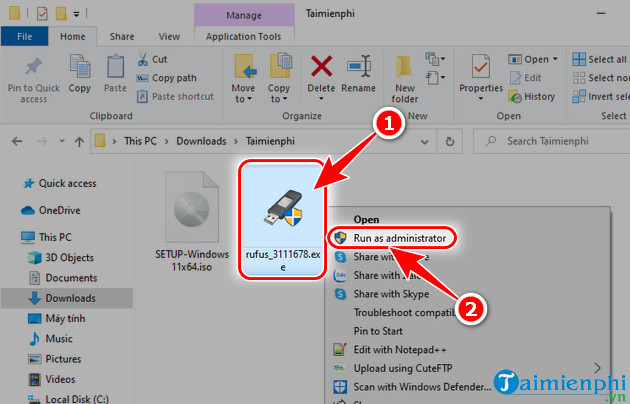
Step 1: Connect the USB, open Rufus, and approve administrator access.
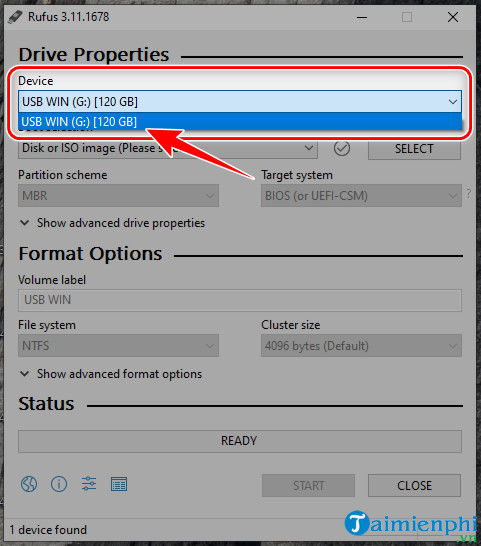
Step 2: Under Device, select the exact USB drive. Recheck the capacity so an external backup disk is not selected by mistake.
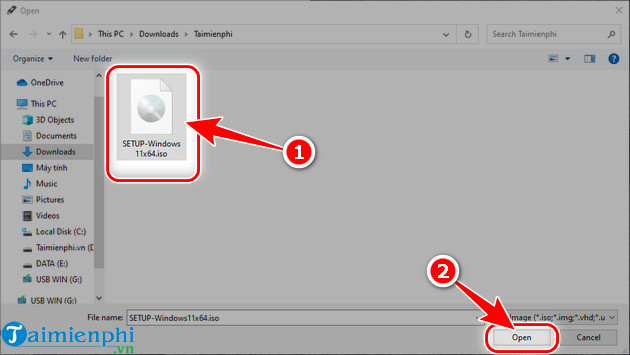
Step 3: Select SELECT beside Boot selection.
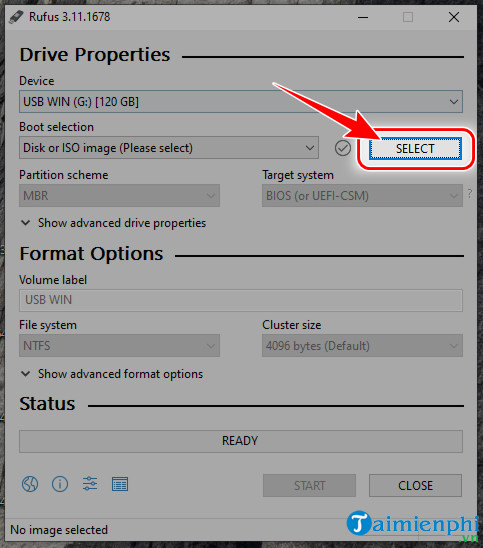
Choose the verified Windows 11 ISO and select Open.
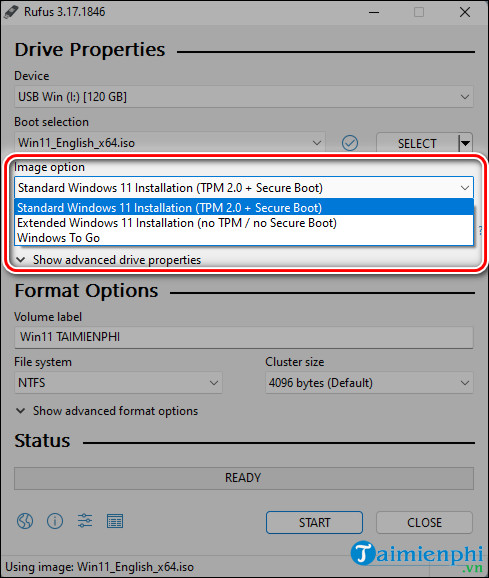
Step 4: Keep Standard Windows 11 Installation for a supported PC. If Rufus offers options to remove TPM, Secure Boot, RAM, or online-account requirements, leave them disabled unless you are maintaining a documented test environment and accept the unsupported state.
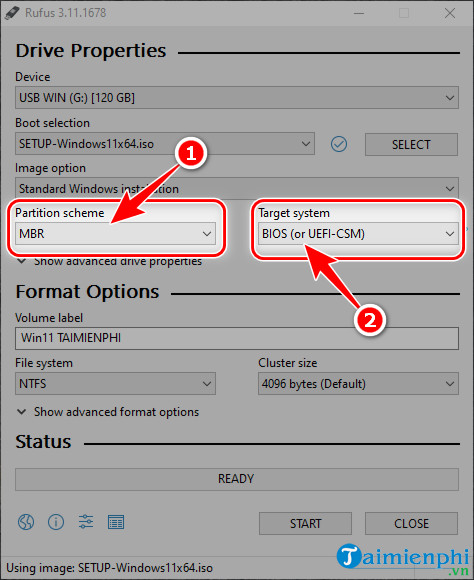
Step 5: For a normal Windows 11 PC, use GPT as the partition scheme and UEFI as the target system. Do not choose MBR/legacy mode merely to make one USB cover more old computers; that conflicts with the standard Windows 11 security baseline.
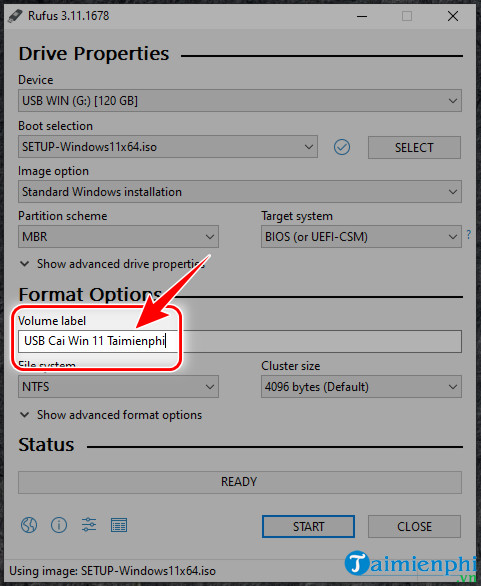
Step 6: Give the USB a recognizable volume label.
Step 7: Let Rufus choose the appropriate file system unless you have a specific technical reason to change it. Select START.
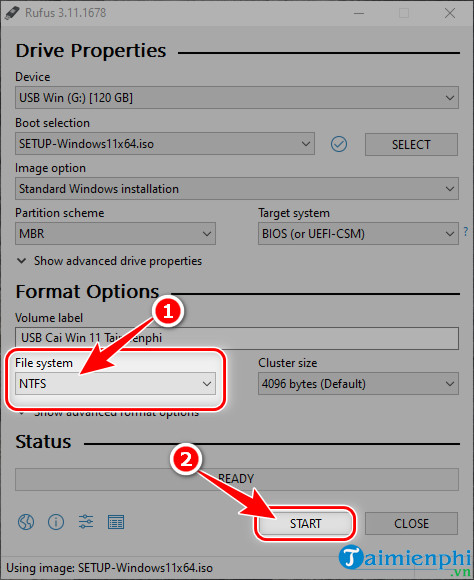
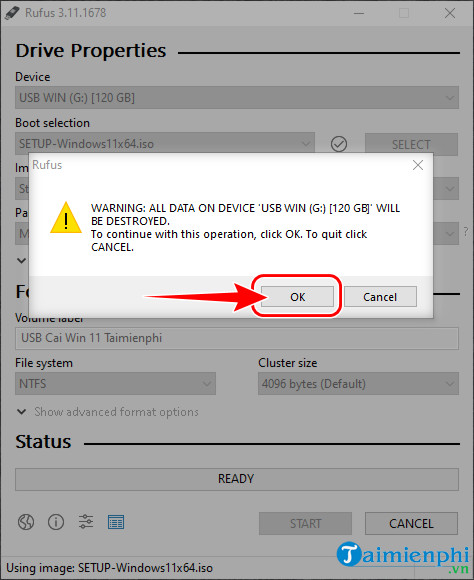
Step 8: Review the erase warning. Select OK only after confirming the correct USB and its backup.
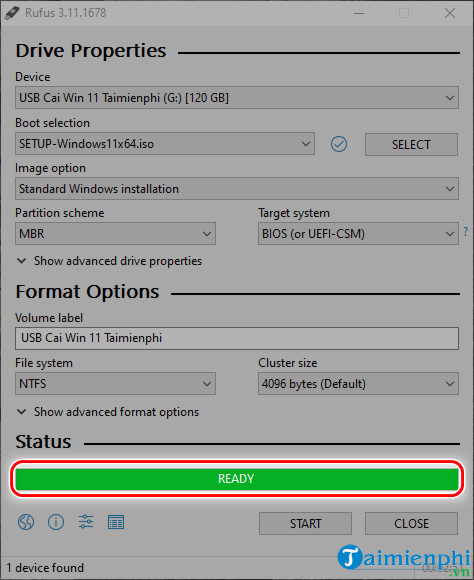
Wait until the status reads READY, then safely eject the drive.
Method 2: Use Microsoft Media Creation Tool
This is the straightforward option for a standard Windows 11 x64 installer. Microsoft’s current Media Creation Tool does not create Arm-based PC media.
- Open Microsoft’s Windows 11 download page and download the media creation tool.
- Run it as an administrator and read the license terms.
- Keep the recommended language or clear that option to choose the target PC’s language.
- Select USB flash drive.
- Select the correct USB by its name and capacity. Use Refresh drive list if it is missing.
- Allow the tool to download, verify, and write Windows 11, then select Finish.
Do not remove the USB or allow the computer to sleep while files are being written.
Verify the installation USB
Open the USB in File Explorer. A normal Windows installer contains folders such as boot, efi, and sources, plus setup.exe. File presence alone does not prove the USB will boot, so test it through the target PC’s one-time boot menu before relying on it for recovery.
Simply seeing less free space is not a sufficient verification; unrelated files could produce the same result.
Boot from the USB
- Back up the target PC and disconnect unrelated external disks.
- Connect the USB and shut down the PC fully.
- Start it and press the manufacturer’s boot-menu key, commonly F12, F9, Esc, or another documented key.
- Select the USB’s UEFI entry.
- At Windows Setup, verify the language and keyboard before proceeding.
A clean installation can erase applications and personal files on the selected disk. Read the disk and partition screen carefully and do not format a drive you have not positively identified.
Common problems
The USB does not appear in Rufus or Media Creation Tool
Reconnect it directly to another USB port, refresh the drive list, and check Disk Management. Do not initialize or format a disk if you are unsure whether it contains important data.
The PC does not boot from the USB
Use the one-time boot menu, select the UEFI entry, and confirm the media was created for GPT/UEFI. Check the PC manufacturer’s documentation before changing Secure Boot or firmware settings.
Rufus shows unsupported-hardware options
The presence of a bypass option is not evidence that the PC will be supported or receive every update. Prefer enabling available TPM 2.0 and Secure Boot features or using compatible hardware.
Related Articles
 Download Media Creation Tool - Support for Windows 10 Installation7 minutes read
 6 Ways to Fix Media Creation Tool Not Working Error8 minutes read
 How to Create Windows 10 Installation USB Using Rufus, Boot3 minutes read
 Instructions for Creating Windows Installation USB on Both6 minutes read
 Download Rufus 3.13: Utility to Create Bootable USB Open5 minutes read
 Rufus - the Easiest USB Boot Creation Application: Key Facts16 minutes read
Reader Comments 0
Sign in with email or Google to join the discussion.