Table of Contents
You can create a ZIP file on a Mac without installing an app. Finder is the quickest option for everyday use, while Terminal is useful when you need precise filenames, folder recursion, or password protection.
What a ZIP file does
A ZIP archive combines one or more files or folders into a single .zip file and compresses the data where possible. It is useful for attaching several related files to a message, packaging a project, or reducing the space used by compressible documents. Photos and videos may shrink very little because those formats are often already compressed.
For more background, see how ZIP files work.
Create a ZIP file with Finder
- Open Finder and locate the files or folders you want to include.
- Select one item, or hold Command while selecting several items.
- Control-click or right-click the selection, then choose Compress. The menu may say Compress “filename” or Compress [number] Items.
- Finder creates the ZIP archive in the same folder.
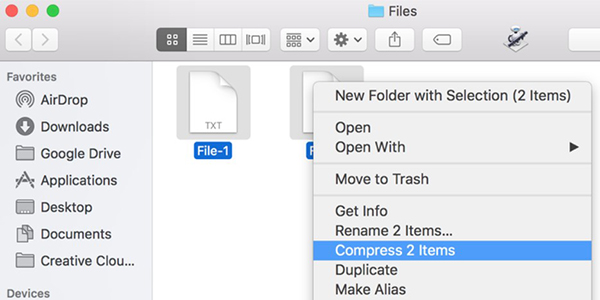
If you compress one file or folder, the archive normally uses that item's name. If you compress several items, Finder may name the result Archive.zip. Select the ZIP file and press Return to give it a more descriptive name.
Compress a whole folder or only its contents?
Compress the folder itself when you want recipients to see one containing folder after extraction. Select the files inside the folder when you want them to appear directly at the top level of the archive.
Open or extract a ZIP file
Double-click a ZIP file in Finder. Archive Utility extracts it into the same location, usually creating a folder with the archive's name. If an archive came from an unfamiliar source, scan it and inspect the filenames before opening executable content.
ZIP is only one archive format. If you receive RAR, 7Z, or another format that macOS does not open, compare file compression and extraction tools.
Create ZIP files in Terminal
Open Terminal from Applications > Utilities. Use cd to move to the folder containing the source files. Quotation marks are important when a filename contains spaces.
Compress one or more files
zip project.zip report.txt notes.txtThis creates project.zip in the current directory. To include filenames with spaces:
zip documents.zip "Project Notes.txt" "Final Report.pdf"Compress a folder and its contents
Add -r so the command processes all nested files and folders:
zip -r project.zip "Project Folder"The command prints each file as it is added. Check the output for missing files or permission errors before deleting the originals.
Create a password-protected ZIP in Terminal
The -e option prompts for a password instead of putting it in the command, which keeps the password out of shell history. Add -r when compressing a folder:
zip -er secure.zip "Private Folder"Enter the password twice when prompted. Terminal does not show characters while you type; this is normal.
A password-protected ZIP is convenient for compatibility, but it should not be treated as the strongest protection for highly sensitive data. Share the password through a different channel, and consider an encrypted disk image or another modern encrypted container when security matters.
Inspect and extract ZIP files in Terminal
List an archive's contents without extracting it:
unzip -l project.zipExtract it into the current directory:
unzip project.zipOr choose a destination folder:
unzip project.zip -d "Extracted Files"If files with the same names already exist, unzip may ask whether to replace them. Extract into an empty folder when you want to avoid accidental overwrites.
Common problems
- “Permission denied”: move the source files to a folder you can edit, or check their permissions in Finder with Get Info.
- The archive is still large: JPEG, HEIC, MP4, and other compressed formats often have little additional space to save.
- A recipient cannot open it: use a simple filename, avoid unusual characters, and test the archive before sending it.
- The ZIP will not extract: download or copy it again. An incomplete or corrupted archive cannot be repaired reliably by normal extraction.
Related Articles
 Create EXE File: How to Create an EXE Installation File17 minutes read
 Instructions for Creating and Using BAT File on Windows9 minutes read
 How to Quickly Create New Blank Text Files on Windows, Mac and Linux11 minutes read
 Create ISO File: How to Create an ISO File on Linux5 minutes read
 How to Create a Computer File: Step-by-Step Guide8 minutes read
 What Is ISO File?10 minutes read
Reader Comments 0
Sign in with email or Google to join the discussion.