Table of Contents
macOS does not have a single “Reset network settings” button like an iPhone. The safest equivalent is to forget and rejoin the affected Wi-Fi network. If that does not help, renew the Mac's network address or create a new network location before considering more invasive changes.
Before you reset anything
- Check whether other devices can use the same Wi-Fi network. If none can connect, restart the router or contact the internet provider.
- Restart the Mac. This clears many temporary connection problems and usually renews its network address.
- Record any custom DNS, proxy, VPN, or manual IP settings. A reset can remove settings you need later.
- For a work or school Mac, contact the administrator before removing a managed network or profile.
Method 1: Forget and rejoin the Wi-Fi network
This removes the saved password and settings for one network without affecting other connections.
- Open the Apple menu > System Settings, then select Wi-Fi.
- Next to the connected network, click Details.
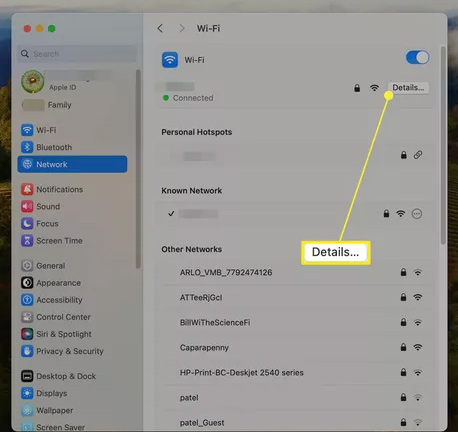
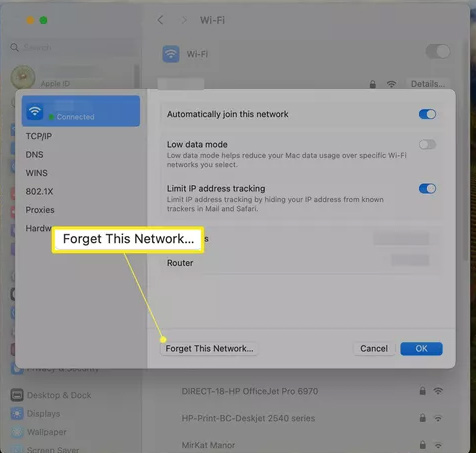
- Click Forget This Network, then confirm.
- Select the network again and enter its Wi-Fi password.
To remove a network that is not currently connected, go to System Settings > Wi-Fi > Advanced. Under Known Networks, open the menu beside the network and choose Remove From List. Apple's guide to forgetting Wi-Fi networks covers both current and older macOS versions.
Method 2: Renew the DHCP lease
If the Mac connects to Wi-Fi but cannot reach the internet, it may have an invalid or conflicting local IP address. Open System Settings > Network > Wi-Fi > Details > TCP/IP, then choose Renew DHCP Lease. This asks the router for fresh network information without deleting the Wi-Fi password.
If you use a manual IP address, do not switch to DHCP unless you know the network's requirements. See how IP address settings work on a Mac before changing them.
Method 3: Create a new network location
A new location gives macOS a fresh set of network settings while preserving the old configuration so you can switch back. On macOS Ventura or later:
- Open System Settings > Network.
- Open the More menu below the list of network services and choose Locations > Edit Locations.
- Click the add button, enter a name such as Test, and click Done.
- Reconnect to Wi-Fi and test the connection.
Apple recommends this approach when you need to reset network settings on a Mac. See its network locations instructions for steps covering other macOS versions.
Run Wireless Diagnostics
If the problem continues, hold Option while clicking the Wi-Fi icon in the menu bar, then choose Open Wireless Diagnostics. Follow the prompts without changing the network when asked. The tool can identify interference, configuration, and connection problems. You can also work through these Wi-Fi setup and troubleshooting guides.
Avoid deleting network preference files as a routine reset
Older instructions sometimes recommend opening /Library/Preferences/SystemConfiguration/ and deleting several .plist files. The screenshots below show that legacy method, but it is not the best first-line fix on current versions of macOS.
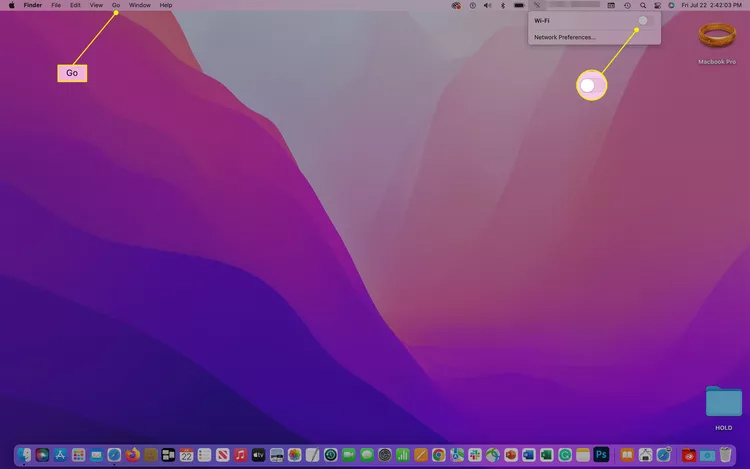
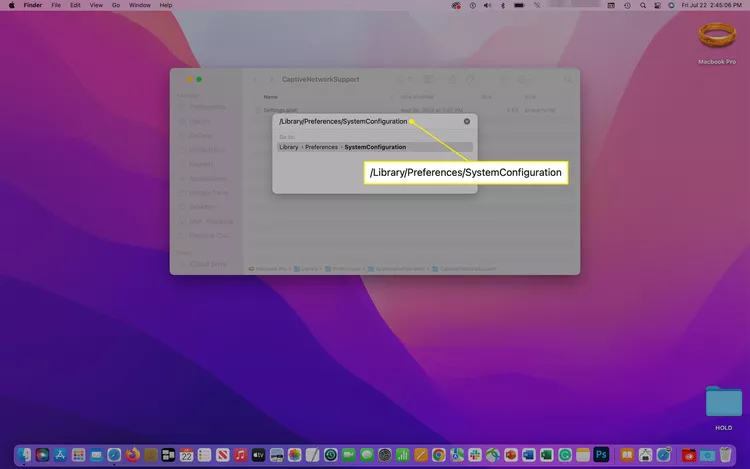
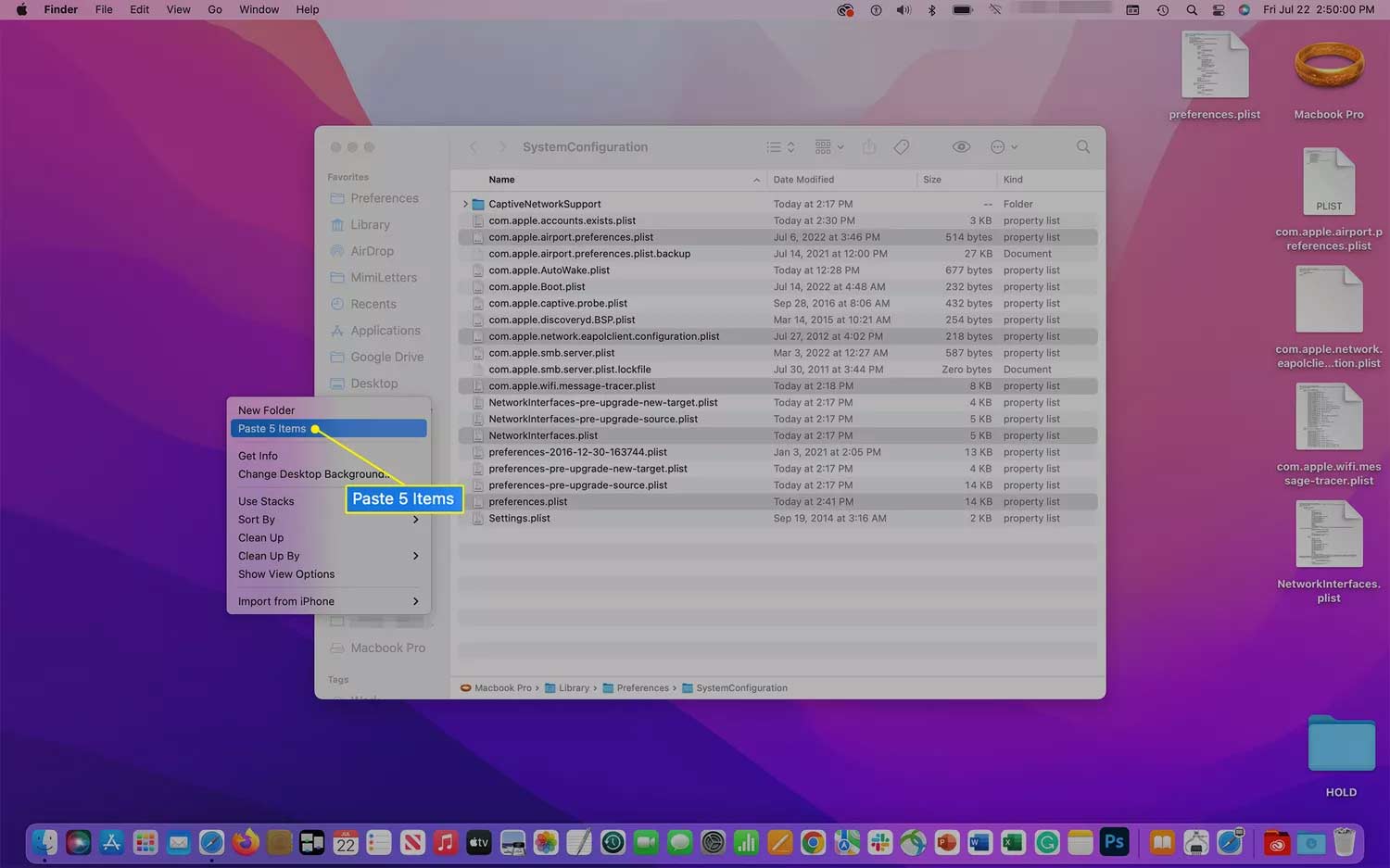
Deleting those files can erase custom interfaces, VPN-related settings, and managed configuration, and the exact files differ by macOS version. Use the Apple-supported methods above instead. Only remove system configuration files when following device-specific instructions from Apple or an administrator and after making a backup.
If the Mac still will not connect
- Temporarily disable a third-party VPN, firewall, or network filter and test again.
- Install available macOS updates, which can include network fixes.
- Try another Wi-Fi network. If the Mac works there, focus on the original router or internet service.
- If only this Mac fails on every network, review Apple's Mac internet connection checklist or contact Apple Support.
Related Articles
 How to Reset the Network, Reset the Network Connection on iPhone4 minutes read
 How to Reset Network Settings on Android: Step-by-Step Guide3 minutes read
 How to Reset Windows 10 Internet Settings: Practical Guide6 minutes read
 Instructions 2 Simple Ways Reset Windows 10 (the Last Part)9 minutes read
 How to Reset Network Settings on Android: Practical Guide5 minutes read
 How to Reset Windows 11 Sound Settings4 minutes read
Reader Comments 0
Sign in with email or Google to join the discussion.