Table of Contents
You can stop iCloud Drive from syncing a Mac's Desktop and Documents folders without deleting the files already in iCloud. After you turn the feature off, macOS creates new local Desktop and Documents folders, while the existing synced files remain in iCloud Drive until you copy or remove them.
Before changing the setting: confirm that the Mac has enough free storage for the files you want to keep locally, connect it to a reliable network, and keep a separate backup of important data. If storage is tight, use these Mac disk space tools before downloading a large iCloud folder.
Turn off Desktop and Documents syncing
On a current version of macOS:
- Open the Apple menu > System Settings.
- Click your name at the top of the sidebar, then click iCloud.
- Click Drive or iCloud Drive.
- Turn off Desktop & Documents Folders.
- Click Done.
Apple's Desktop and Documents instructions confirm that existing files remain in iCloud Drive and new local folders are created.
Steps for older macOS versions
The labels are different in macOS Monterey and earlier. The screenshots below show the older interface.
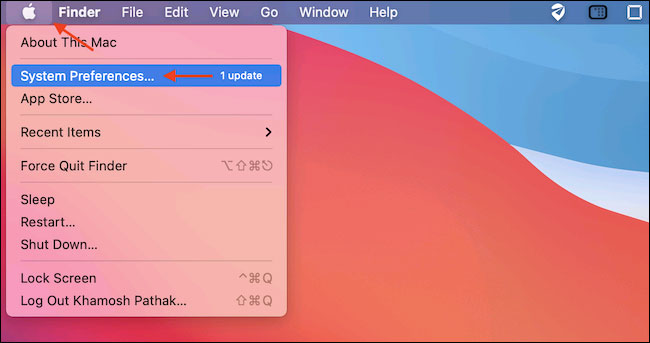
- Open the Apple menu > System Preferences.
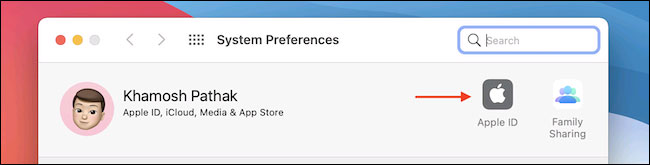
- Click Apple ID.
- Select iCloud, find iCloud Drive, and click Options.

- Clear Desktop & Documents Folders.

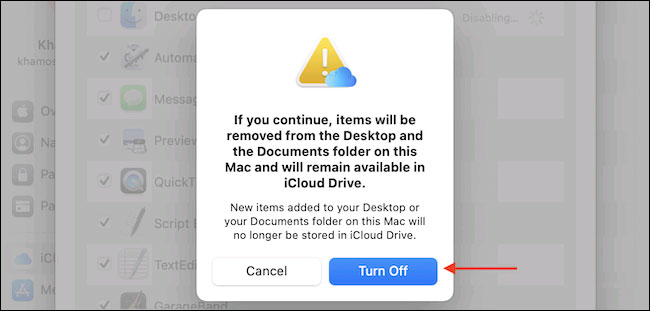
- Confirm by clicking Turn Off, then click Done.

What changes after you turn it off?
- The synced Desktop and Documents files stay in iCloud Drive and remain available on other devices using that Apple Account.
- macOS creates new, initially empty Desktop and Documents folders in the Mac's home folder.
- New files saved to those local folders no longer upload through this feature.
- Turning off Desktop and Documents does not turn off iCloud Drive for every app.
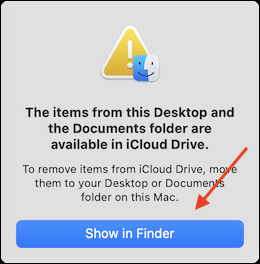
If macOS offers Show in Finder, use it to open the copies stored in iCloud Drive.
Copy the files back to the Mac safely
- Open Finder and select iCloud Drive in the sidebar.
- Open the Desktop or Documents folder stored there.
- Wait for any cloud-only items to download. For critical folders, Control-click and choose Keep Downloaded if that option is available.
- Select the items and use Command-C to copy them.
- Open the new local Desktop or Documents folder in your home folder and press Command-V.
- Compare the file count and open several important files before removing anything from iCloud.
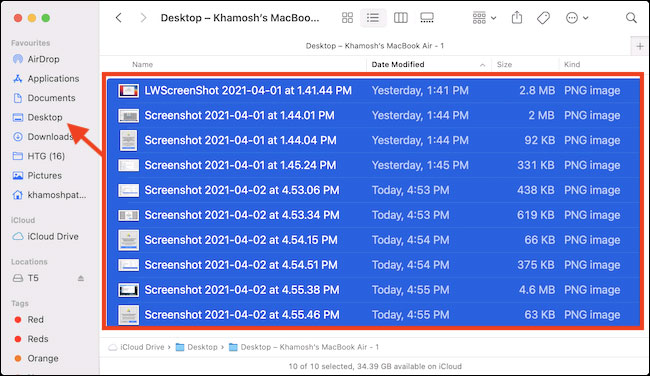
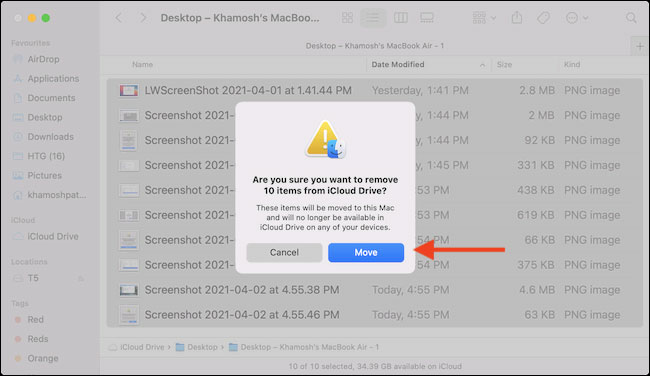
Copying is safer than dragging because an ordinary drag from iCloud Drive may move the files, removing them from iCloud and other synced devices as soon as the change propagates. If you intentionally move items, macOS warns that they will no longer be available in iCloud Drive.
Free iCloud space only after verifying the local copy
Turning off syncing does not automatically reduce iCloud storage use. Once you have confirmed that the local copies are complete and backed up, you can delete the old files from iCloud Drive. Deleting an iCloud Drive file removes it from other devices using the same account, so do this deliberately.
If you are stopping sync because storage is full, first check which service is using the space. This guide to common iCloud problems explains where to review iCloud storage, while Apple's iCloud storage management guide covers deletion and recovery behavior.
If files appear to be missing
- Check Finder > iCloud Drive rather than the new local folders.
- Sign in to iCloud.com and open iCloud Drive to confirm that the files are present.
- Allow cloud icons and progress indicators to finish before disconnecting the Mac.
- Check Recently Deleted before assuming an accidentally removed file is gone permanently.
Related Articles
 Synchronize Files and Folders on Desktop and Document on macOS Sierra4 minutes read
 How to Solve Icloud Sync Problem7 minutes read
 How to Turn Off Icloud Account Synchronization on iPhone5 minutes read
 How to Turn Off Icloud Photo Synchronization with Mobile Data4 minutes read
 Sync Desktop, Document,. on Windows 10 with Onedrive4 minutes read
 Save and Share Documents Via Icloud6 minutes read
Reader Comments 0
Sign in with email or Google to join the discussion.