Table of Contents
The safest quick way to format an SD card on a Mac is to use the SD Association's SD Memory Card Formatter. It selects an appropriate file system for supported SD, SDHC, SDXC, and SDUC cards and avoids the extra disk and partition choices shown in Disk Utility.
Formatting erases the card. Copy any files you need to another drive first. If you deleted something by mistake, stop using the card and try memory card recovery software before formatting or copying new data to it.
Before you begin
- Connect the Mac to power if you plan to use Overwrite format.
- Unlock the card by moving its physical write-protect switch to the unlocked position.
- Use an SD card slot or reader that supports the card's type and capacity.
- Disconnect other removable cards where practical. This makes it easier to identify the correct device.
- Keep the card connected until the app reports that formatting is complete.
Download and install SD Memory Card Formatter
- Open the SD Association's official formatter download page. Avoid third-party download sites.
- Choose the download for Mac.
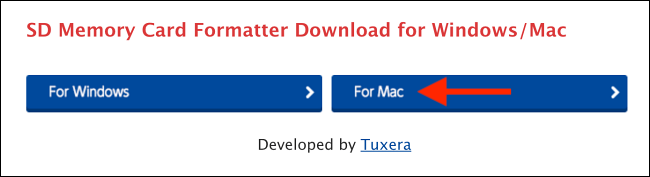
- Read the license terms, accept them if you agree, and download the installer.
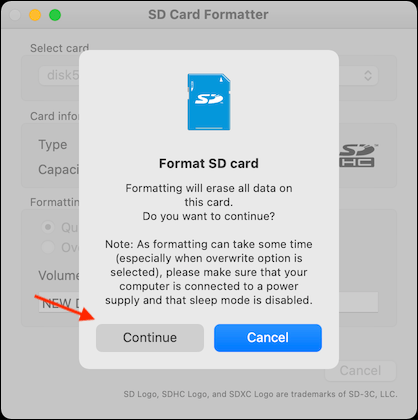
- Open the Downloads folder and double-click the downloaded ZIP file if Finder has not already expanded it.
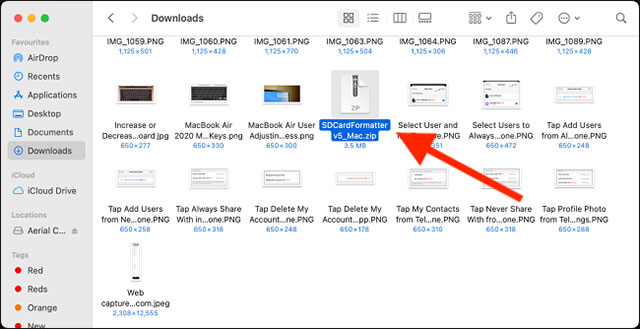
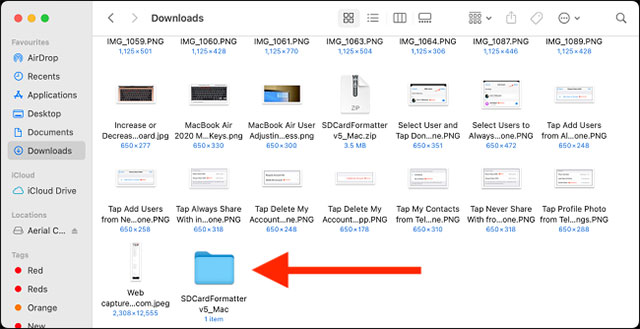
- Open the extracted folder, then launch the installer package.
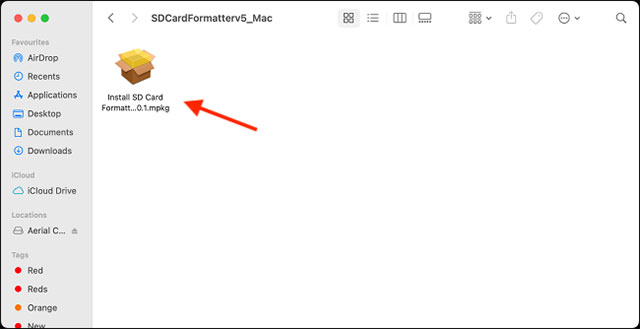
- Follow the installation prompts. Administrator authorization is required.
Format the SD card
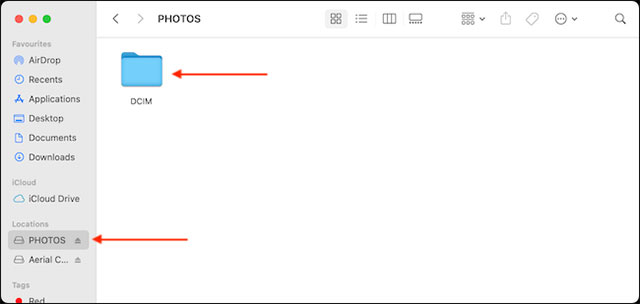
- Insert the SD or microSD card through a compatible reader. Open Finder and verify the card's name and contents so you know you selected the correct device.
- Open SD Card Formatter from Applications or Spotlight.
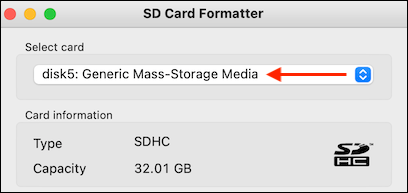
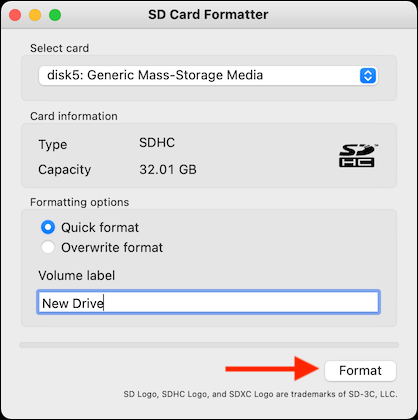
- In Select card, choose the card. Check its type and capacity carefully. If it does not appear, reconnect the reader and refresh the card list.
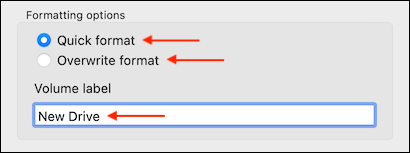
- Choose Quick format for normal reuse, or Overwrite format when you want the app to overwrite the user data area.
- Optionally enter a short volume label.
- Click Format.
- Read the warning, verify the card one more time, and click Continue.
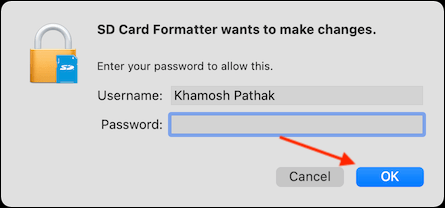
- Enter the Mac administrator password when prompted.
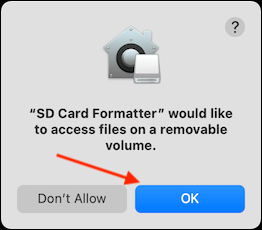
- If macOS asks whether the app can access removable volumes, click OK.
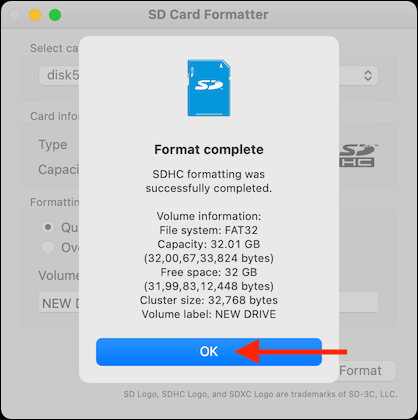
- Wait for Format Complete, review the result, and click OK. Eject the card in Finder before removing it.
Quick format or Overwrite format?
| Option | What it does | Best use |
|---|---|---|
| Quick format | Recreates file-system information but does not overwrite the existing file data area. | Routine formatting when you are keeping the card. |
| Overwrite format | Recreates the file system and overwrites the card's user data area. | Clearing old data more thoroughly or testing a card that has shown file-system problems. |
Overwrite format can take much longer, depending on the card's capacity and speed. Keep the Mac awake and connected to power. The SD Association's formatter FAQ covers write protection and other common errors.
If the card cannot be formatted
- Write-protected: eject the card, move the lock switch to the unlocked position, and reinsert it. A loose switch or adapter can also cause this message.
- Card not listed: reconnect the reader, try another port, and confirm the reader supports the card type.
- Unexpected capacity or repeated errors: test the storage with one of these SD card speed and capacity tools. Counterfeit or failing media may report misleading capacity or corrupt new files.
- Format interrupted: reconnect the card and run the formatter again. Do not rely on data written during an incomplete format.
Related Articles
 The Best Memory Card Format Software for Android Phones7 minutes read
 How to Format an SD Card on Windows5 minutes read
 How to Format the Memory Card Directly on Your Android Phone5 minutes read
 How to Fix Errors That Cannot Format Memory Card3 minutes read
 How to Format SD Card: Practical Guide8 minutes read
 How to Format a Micro SD Card: Clear Instructions14 minutes read
Reader Comments 0
Sign in with email or Google to join the discussion.