Table of Contents
This updated guide explains how to encrypt and collaborate on documents with cryptpad with clear steps, practical tips, and useful context. Collaborative office suites are often better known for their productivity tools than their privacy and encryption. With CryptPad, you get the best of both worlds, from real-time collaboration to end-to-end encryption. Plus, it is free to get started.
What Is CryptPad?
Like Google Workspace or Microsoft 365, CryptPad is a suite of productivity apps designed for individuals or teams to collaborate. Still, there is one key difference.
CryptPad offers full end-to-end encryption by default. Once data enters your browser, it is encrypted. Without logging into your account, your data is essentially unreadable. Company employees cannot read your data at any point. The downside is that they also cannot recover your data because they cannot access it.
You are even warned during account creation to store your username and password in a secure location.

CryptPad is free, although you can upgrade to premium plans for more storage and features.
Choose CryptPad Version or Self - hosted
There are two ways to use CryptPad – the cloud-hosted version or the self-hosted version. Otherwise, You need to choose the public version, unless you have been invited by your organization to the private version.
The only official instance is hosted in France. Still, you can choose from other instances in the CryptPad Instances list. Do not join any third-party instances that are not on this list unless you trust the owner. Otherwise, they may be unsafe. CryptPad regularly verifies that the instances on their list are safe and up to date.
Explore the Full Suite of Productivity Apps
One thing I like about CryptPad is that you do not need an account to check anything out. naturally, nothing is saved unless you have an account. If you like what you see, create an account and check the box to import any work in progress in your browser to your cloud drive.

You can choose between 9 apps:
- Sheet
- Document
- Presentation
- Rich Text
- Kanban
- Code
- Form
- Diagram
- Markdown slides
it is a more comprehensive and simpler offering than most competing productivity suites, especially when it comes to Markdown, Kanban, and Code.
Create Private, Self - deleting Documents
You're not limited to just encrypting documents. When you create a new file, you can set an expiration or destruction date. This is ideal if you're collaborating on a sensitive document that you do not want to keep on your drive after the project is finished. The downside is that you cannot change the date once you set it.
You also have the option to set a password for extra protection. This is just in case your shared link falls into the wrong hands. They may have the link, but without the password, they still will not be able to access it.
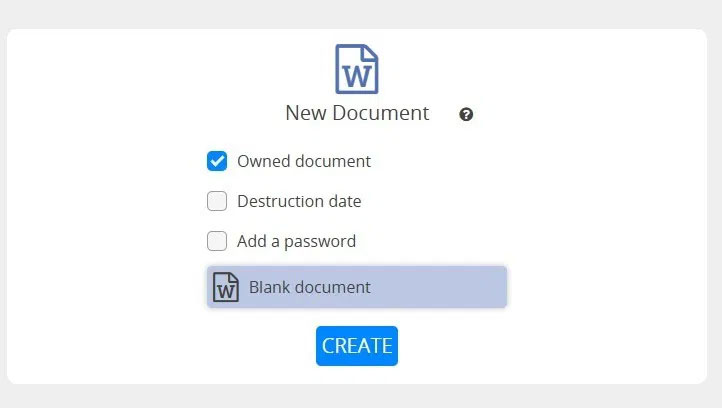
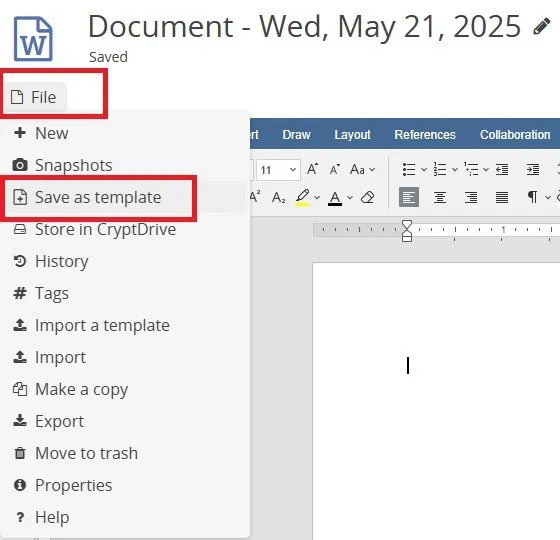
Also, if you've created templates for a specific file type, they'll appear next to the Blank Document option. To save a template, choose File on the document toolbar and select Save as template .
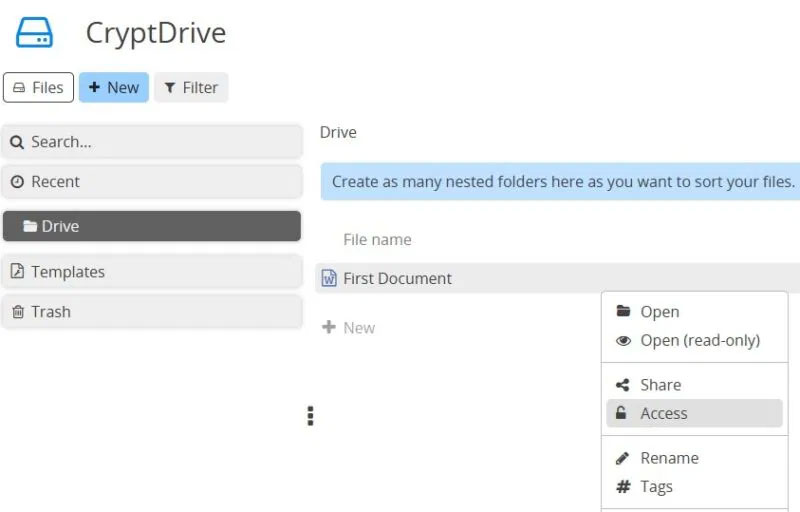
After creating a file, right-choose it at any time and select Access to manage access. Easily see who has access, add users, or revoke access. To share with just a few people, right-choose and select Share to create a shared link for access.
Teamwork
Creating files is useful, but not helpful for collaboration. There are some group features in CryptPad:
- Create separate group drives for better file organization
- Work with individuals (no groups required)
- Add members to a team to work together
- Chat – between individuals or as a group
- Limit access (view, edit, etc.) to individual or group members
If you only want to collaborate with a few people, add them to your contacts. choose your profile icon in the top left, select Profile , and choose Share . Share the link using a secure method, such as a secure email service or private SMS app. Once shared, the recipient accepts the request and you'll see a notification in your dashboard.
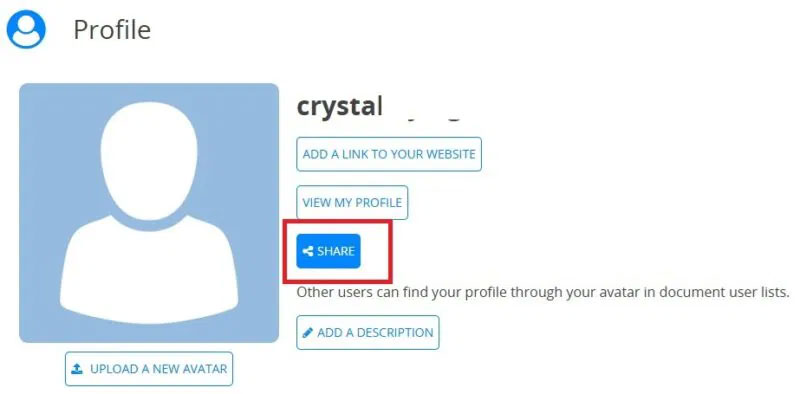
Also, the contact is added to your contact list. choose your profile icon at any time and select Contacts .
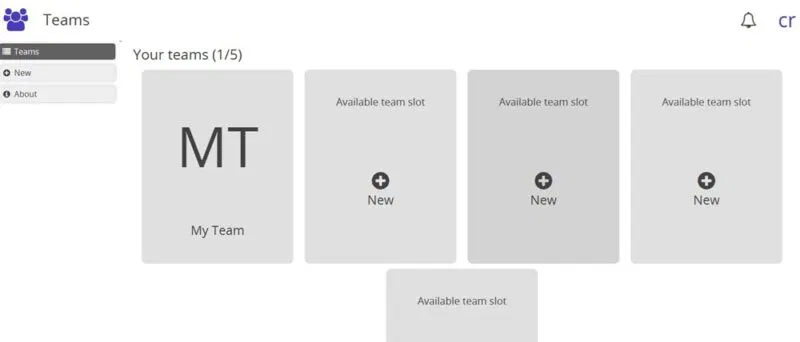
To create a team, choose your profile icon and select Teams . You can be a member of up to 5 teams at a time. choose an available location to create a new team. Choose any name you want.
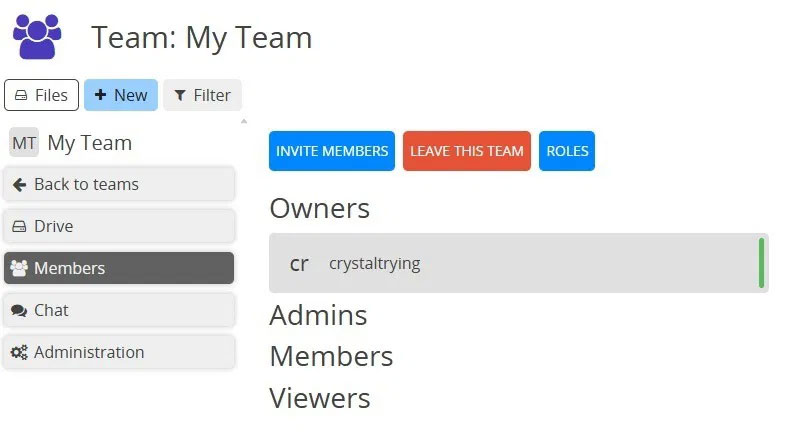
Select your newly created group and select Members from the left sidebar. The sidebar appears when you hover over the left side of the Search box. choose Invite members .
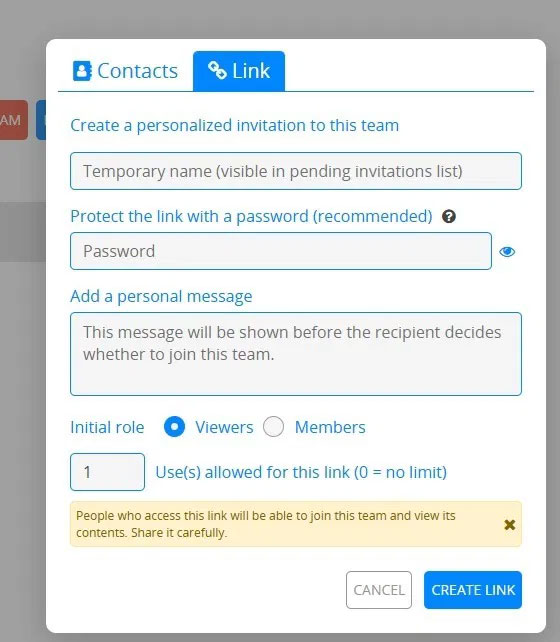
If you have already added your group members as contacts, choose the Contacts tab and add the members you want. Otherwise, fill out the form in the Link tab to create a shareable link to the group. Set the number of uses to allow for the link. This prevents accidental sharing. It is best to set the number to at least twice the number of invitees in case something goes wrong the first time they choose.
Then share your link when you're ready. Wait for your members to join.
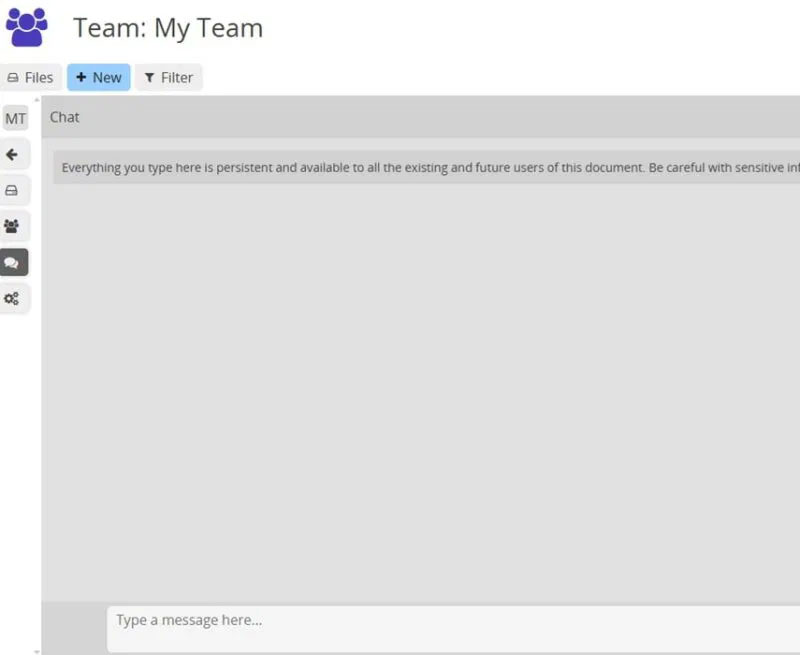
Along with working on files together, you can chat. choose your profile, select Teams , and open your team. Select Chat from the left sidebar (next to Search). This chat is visible to all team members.
open your profile icon, select Contacts and double-choose any contact to start a chat with an individual.
All chats are encrypted and private, just like your files.
Schedule with Built - in Calendar
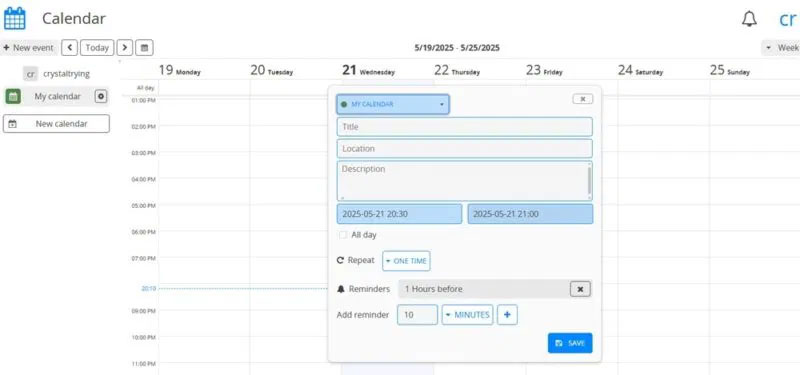
Like most productivity suites, CryptPad gives you a calendar. Use it for yourself, share it with others, or use it as a team. What's great is that you can create multiple calendars to separate different projects and teams.
open your profile icon and select Calendar to view your calendar. For events, set reminder dates and frequency to receive notifications in your dashboard. Email addresses and phone numbers are not associated with CryptPad, so you will not receive notifications in any other way.
Overall, CryptPad is a secure way to create documents and collaborate. Still, since there is no email or phone number attached to your account, there is no way to recover it if you lose your password. If that is not an option for you, try these other free Office alternatives. You can even try other free Windows software alternatives.
FAQ
What should I prepare before I encrypt and collaborate on documents with cryptpad?
Review the requirements and options in the guide first. Having the correct device, app version, account access, or materials ready helps prevent avoidable errors.
How long does it take to encrypt and collaborate on documents with cryptpad?
The time depends on the task and your setup. Most basic steps can be completed quickly, while downloads, updates, scans, or troubleshooting may take longer.
What should I do if the steps do not work?
Repeat the instructions in order, confirm that your software or device is supported, and check permissions, connectivity, and available updates before trying again.
Related Articles
 How to Encrypt Documents with Libreoffice with a Password4 minutes read
 How to Create Documents and Collaborate Directly in Google5 minutes read
 How to Easily Encrypt a File Without a Password Using Cloak5 minutes read
 Let's Encrypt Expires Root Certificate, Many Devices and3 minutes read
 Key: Introducing Openssh21 minutes read
 How to Encrypt Files Using Gocryptfs: Gocryptfs. Encrypt Files12 minutes read
Reader Comments 0
Sign in with email or Google to join the discussion.