Table of Contents
This updated guide explains how to set daily bing wallpaper as Windows desktop wallpaper with clear steps, practical tips, and useful context. Bing does one thing better than any other search engine – Daily Bing wallpapers. The beautiful scenes are a nice contrast to the nonsense of Google. And if you really like the images, set them as your Windows desktop wallpaper.
Set Daily Bing Wallpaper Using Bing App
The easiest and official way to set the Daily Bing wallpaper as your desktop wallpaper is to use the Bing Wallpaper app. Just ensure to uncheck the boxes that try to trick you into switching your various defaults to Bing. to switch to Bing, that is fine.
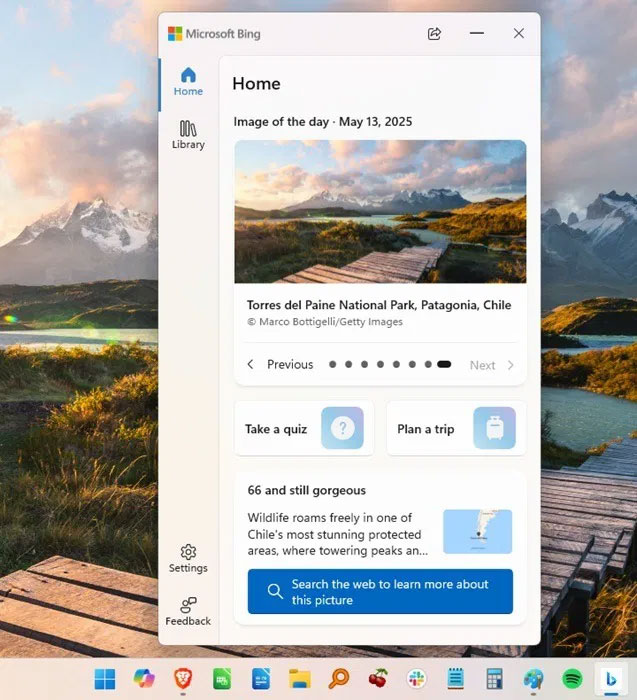
Once you've installed the Bing Wallpaper app, it will sit in your system tray and automatically apply the Bing wallpaper of the day.
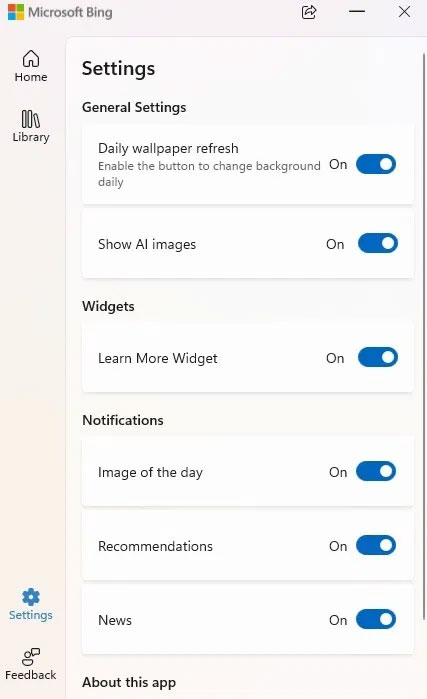
to know more about your wallpaper, just tap the Bing Wallpaper icon (the little blue b) in your notification tray to open the app. Tap Settings at the bottom of the app to change your preferences, like whether or not the wallpaper changes daily or whether you want to include AI images.
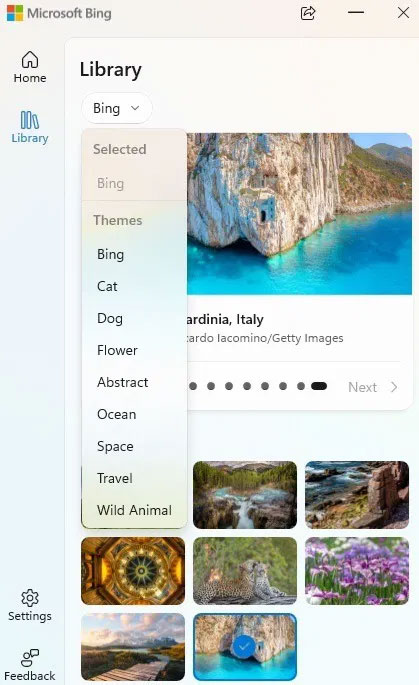
But, one little feature that most users overlook is the Library . Many people like Bing's daily wallpapers, but sometimes they want something different. select Library and use the drop-down box to see more categories besides Bing, such as Cats, Flowers, and Oceans. You can choose from many pre-existing wallpapers in each category.
Use Dynamic Theme to Set Daily Bing Wallpaper
The second option to get Bing's daily wallpaper is to open the Microsoft Store and download this little app called Dynamic Theme.
Open Dynamic Theme and you'll see an interface that looks almost identical to the Windows Personalize settings screen.
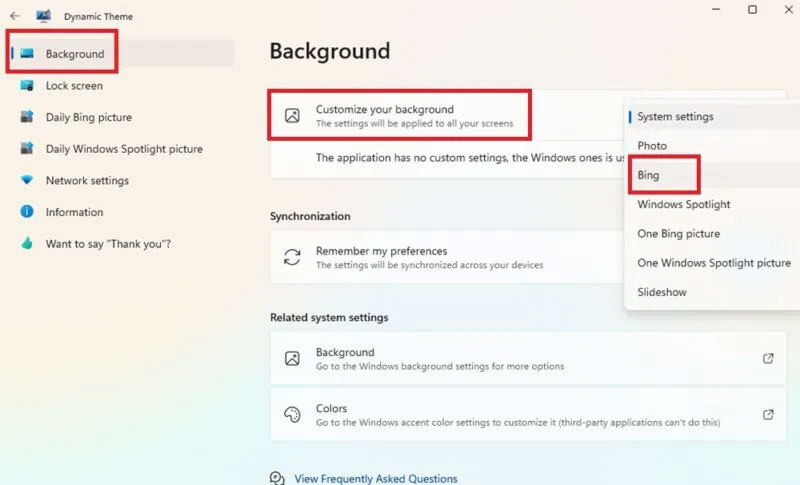
The left pane has a variety of ways to customize your lock screen and desktop wallpaper. But for Bing Wallpaper, choose Background and switch Customize your background to Bing .
You can change some other settings here. By default, the wallpaper changes daily. But if you do not want it to change so often, select Pause the daily update and set your frequency. You can change the time of day that the wallpaper changes.
If you do not see your wallpaper change immediately, tap Update in the Background tab to update.
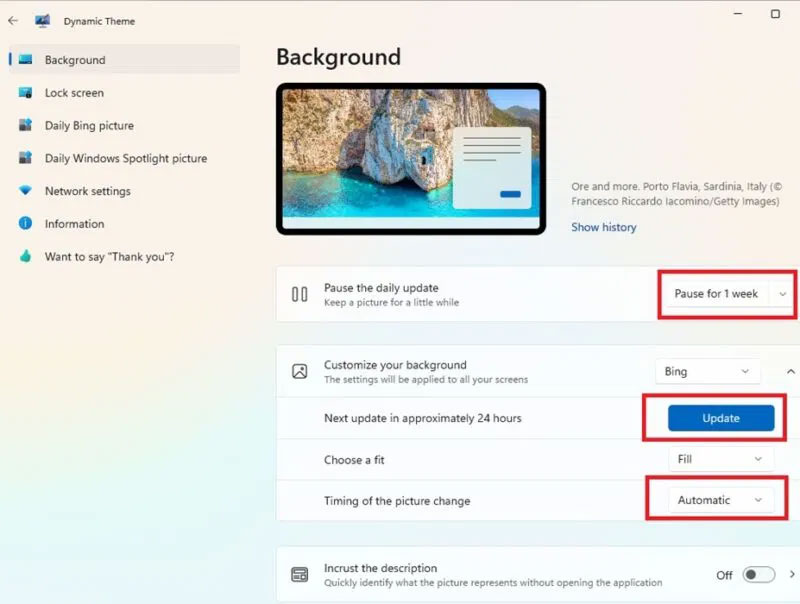
You're not limited to Bing, though. Use the drop-down box next to Customize your background to change things up. Choose from your own photo, a rotating gallery of images on your PC, a single Bing image (scroll through to select options), Windows Spotlight (the image that appears when you sign in to Windows), or a single Windows Spotlight image (scroll to select the image you want).
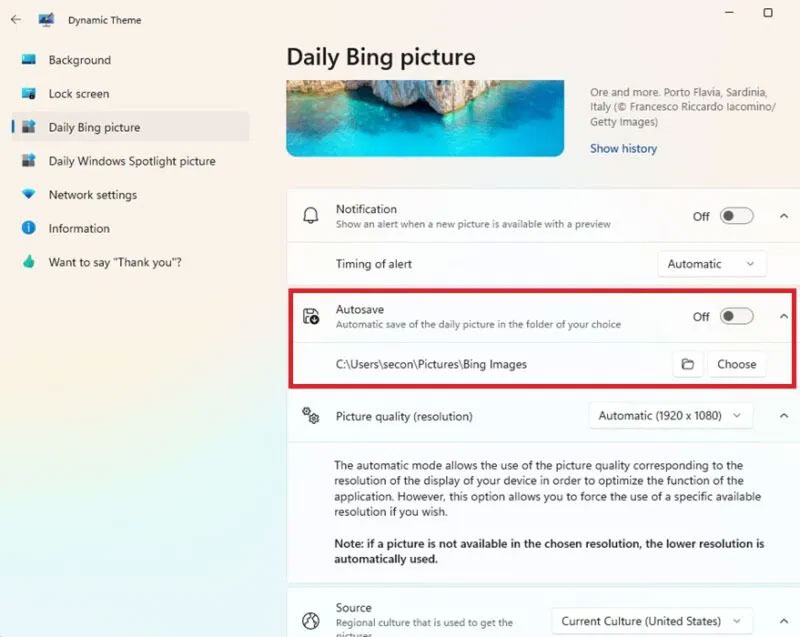
As an added bonus, Dynamic Theme lets you save Bing wallpapers and Windows Spotlight images to your desktop for later use, if you want. choose Daily Bing picture or Daily Windows Spotlight picture in the left pane. Turn on Autosave and choose a folder to save the image to.
Save Wallpapers Manually from Bing
Downloading yet another app may not be what you want. Or maybe you just like certain Bing wallpapers. Just check Daily Bing and manually download the wallpapers you want. Yes, it is legal and approved by Microsoft. Just pay close attention to the rules – only use the images you download on your desktop, not for commercial use.
Open Bing in your favorite browser (Microsoft clearly wants you to use Edge) and hover over the wallpaper name in the lower right of the search box. choose the Download button and choose where to save it. You may want to rename it, as the default name isn't very descriptive.
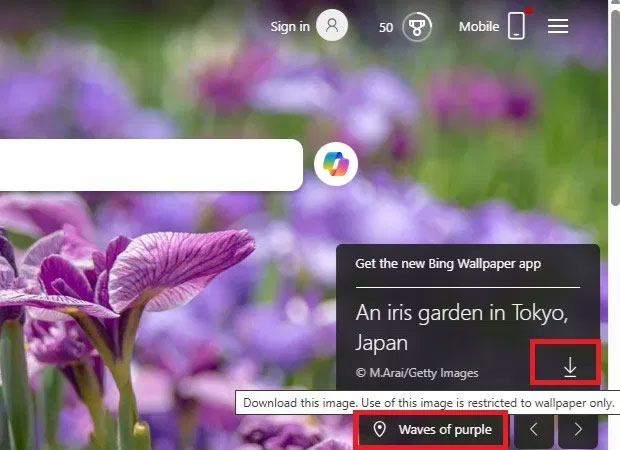
Use the arrows next to the wallpaper name to switch to other recent wallpapers. Download those wallpapers if you want.
Right select any image you have downloaded and select Set as desktop background .
If you like Windows Spotlight images, save them manually.
Change Windows Wallpaper Settings
Regardless of how you're getting your Daily Bing wallpaper, you may want to tweak a few Windows wallpaper settings to improve your experience.
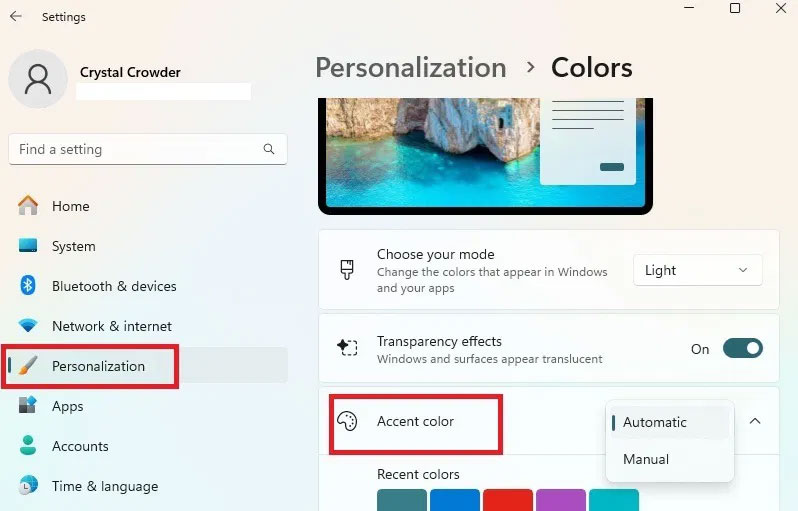
Start by automatically changing the Windows accent color (taskbar, Start menu, etc.) to match your wallpaper. Press Win + I and select Personalization -> Colors . Change Accent to Automatic .
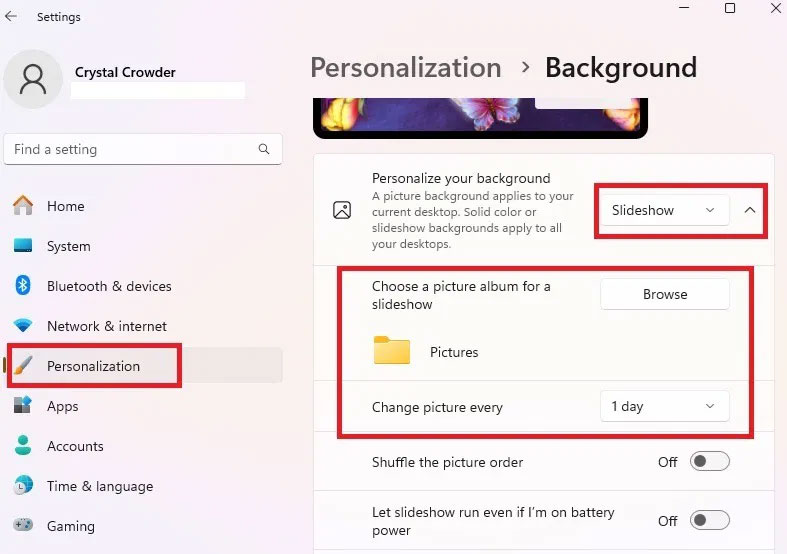
If you're downloading Bing wallpapers manually, press Win + I and select Personalization -> Background . Select Slideshow from Personalize your background . Select the folder where you saved the wallpapers and set how often you want them to change.
Add Bing Wallpapers to Android, Roku, Etc.
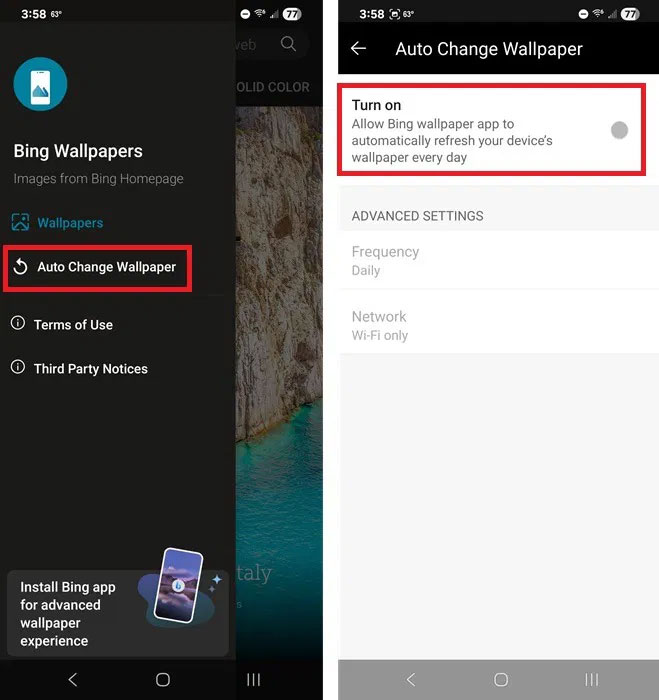
Really like Bing wallpapers and want to use them as your desktop wallpaper? For Android, download Bing Wallpapers. Tap the three-bar menu in the top left and tap Auto Change Wallpaper . Turn on the setting and choose your frequency. Alternatively, tap any wallpaper image in the app (including in the Gallery section) and tap Set in the top right.
For iOS, you can use Daily Bing Wallpaper, but it is buggy. it is best to just manually save each wallpaper you want to use.
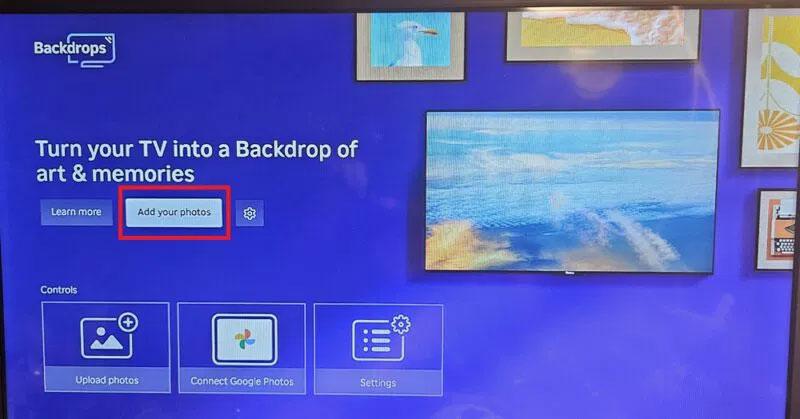
If you have a Roku device, search for and download the Backdrops app. Open the app and select Add Photos . Choose your source. The easiest method is to upload your downloaded wallpapers to a folder on Google Drive.
For Amazon Echo and Google Nest displays, save your Bing wallpaper to Amazon Photos or Google Drive and set your display as a photo frame.
Now that you've changed your desktop wallpaper, customize your login screen. You can even make your Windows screensaver more interesting.
FAQ
What should I prepare before I set daily bing wallpaper as windows desktop wallpaper?
Review the requirements and options in the guide first. Having the correct device, app version, account access, or materials ready helps prevent avoidable errors.
How long does it take to set daily bing wallpaper as windows desktop wallpaper?
The time depends on the task and your setup. Most basic steps can be completed quickly, while downloads, updates, scans, or troubleshooting may take longer.
What should I do if the steps do not work?
Repeat the instructions in order, confirm that your software or device is supported, and check permissions, connectivity, and available updates before trying again.
Related Articles
 How to Remove Bing Wallpaper: Step-by-Step Guide4 minutes read
 Experience Bing Wallpaper: the Application Automatically4 minutes read
 How to Set Bing Daily Images as Wallpaper, Lock Screen Windows 103 minutes read
 Download Microsoft's Official Bing Wallpaper to Help You Automatically3 minutes read
 How to Automatically Change Bing Wallpaper on Windows 107 minutes read
 How to Access and Use the Bing Desktop Extension in Windows 72 minutes read
Reader Comments 0
Sign in with email or Google to join the discussion.