Table of Contents
Google Forms can limit each signed-in user to one submission, stop accepting responses manually, or close automatically at a chosen time or response count. The automatic controls are now built in, so a third-party add-on is generally unnecessary.

Limit each account to one response
- Open the form in edit mode and open Settings.
- Expand the Responses settings.
- Turn on Limit to 1 response.
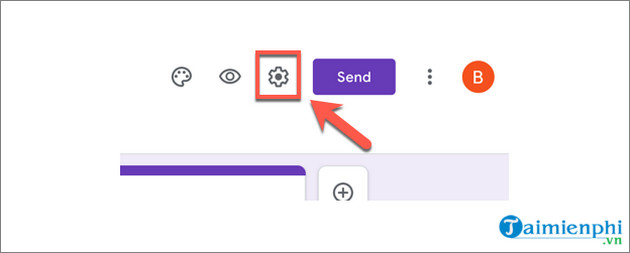
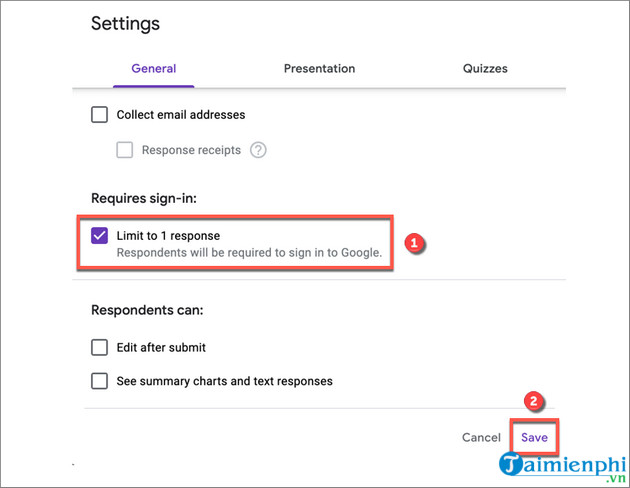
This option requires respondents to sign in to a Google account. It limits accounts, not necessarily people: a person with multiple accounts may still submit more than once. Decide whether the sign-in requirement is acceptable before enabling it.
Stop accepting responses manually
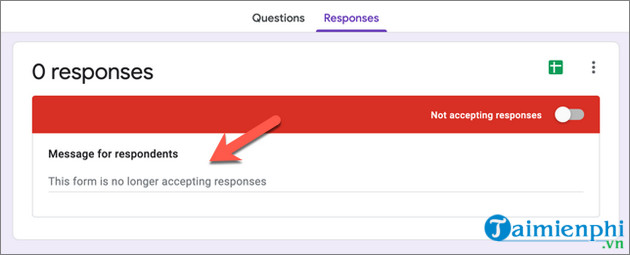
In the current Forms interface, open the published-form controls or Responses area and turn off Accepting responses. Older interfaces show the switch directly on the Responses tab.
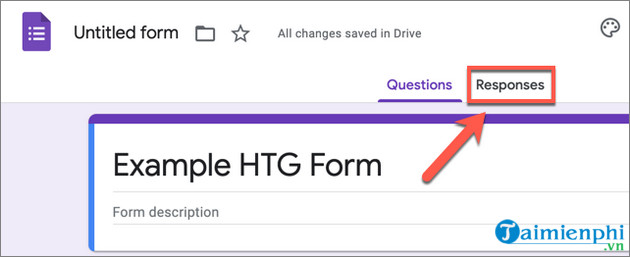
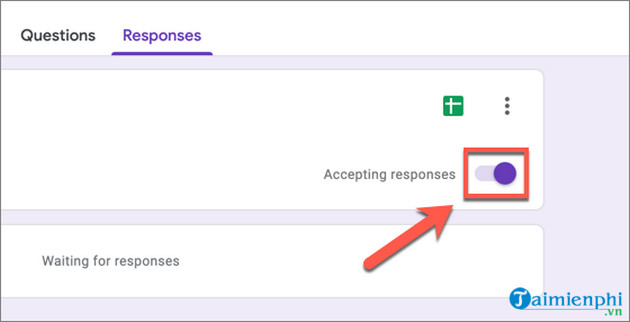
Add a concise closed-form message, such as a deadline notice or a link to the next step. Do not include sensitive information.
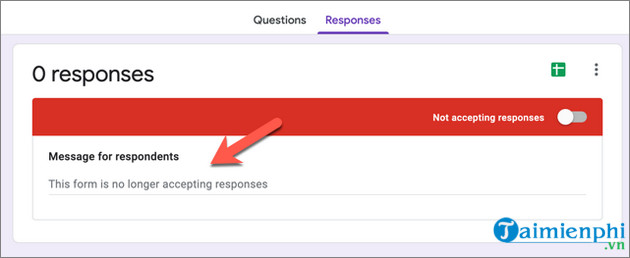
Respondents who open the link after closure will see the message and cannot submit.
Set a close date or response limit
- Open the form's Accepting responses controls.
- Select Set close date or response limit.
- Choose either On a date and set a date and time, or set the maximum number of responses.
- Review the closed-form message, then save the setting.
If the option is not visible, confirm that the form is published and that the feature is available for the account. Workspace administrators may affect feature availability.
Important checks before relying on a limit
- Submit a test response and confirm it reaches the intended spreadsheet.
- Check the account's time zone before scheduling a close time.
- Allow for simultaneous submissions near a capacity limit; do not treat a form as a guaranteed inventory or payment reservation system.
- Make a plan for duplicate, invalid, or test responses because they may count toward the limit.
- Keep owner and editor permissions restricted; editors can change response settings.
Do you still need formLimiter?
Older instructions recommend the formLimiter add-on for scheduled closing or response caps. Because Google Forms now provides those controls directly, use the built-in feature first. A third-party add-on adds account permissions and another dependency; install one only when it supplies a requirement the native controls cannot meet, and review its permissions and support status.
For the rest of the workflow, see how to create a Google Form in Drive. If Microsoft 365 is your platform, compare the controls in this guide to Microsoft Forms survey features.
Related Articles
 Gemini Can Now Summarize Responses in Google Forms3 minutes read
 7 Ways to Take Advantage of Google Forms4 minutes read
 How to Add Branches or Nested Questions in Google Forms4 minutes read
 How to Reuse and Combine Google Forms with Formrecycler5 minutes read
 How to Create a Quiz on Google Forms5 minutes read
 How to Use Canned Responses in Gmail3 minutes read
Reader Comments 0
Sign in with email or Google to join the discussion.