Table of Contents
Combine LEFT with VLOOKUP when a lookup code is stored at the beginning of a longer text value. LEFT extracts the code, and VLOOKUP uses it to return the related name or category from a reference table.
Functions used in the formula
=LEFT(text,[num_chars]) returns characters from the beginning of text.
=VLOOKUP(lookup_value,table_array,col_index_num,FALSE) searches the first column of a table and returns an exact-match value from another column.
Example: extract a department code
Suppose B6 contains the class value CNTT1, whose first two characters are a department code. G6:H10 is a table of department codes and names.
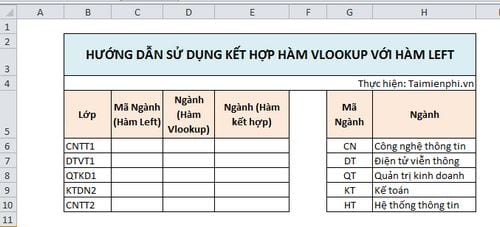
Method 1: use a helper column
In C6, extract the code:
=LEFT(B6,2)
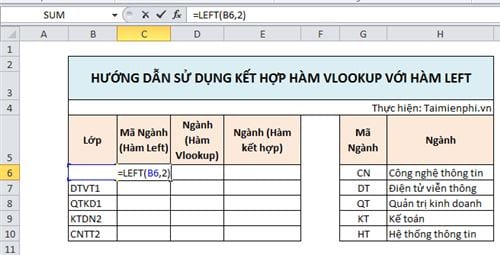
The formula returns CN from CNTT1.
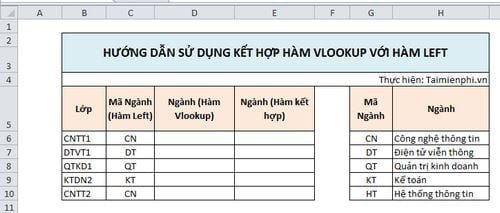
Fill the formula down:
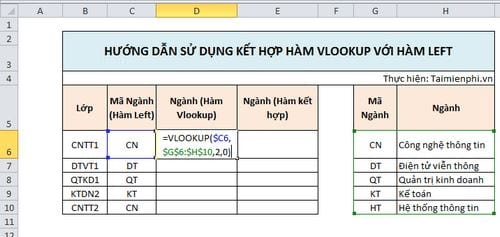
Then use the extracted code in D6:
=VLOOKUP($C6,$G$6:$H$10,2,FALSE)
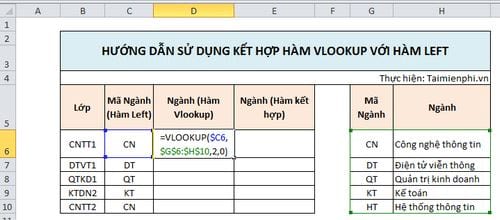
$G$6:$H$10 is locked so the table does not shift when the formula is copied. FALSE requests an exact match.
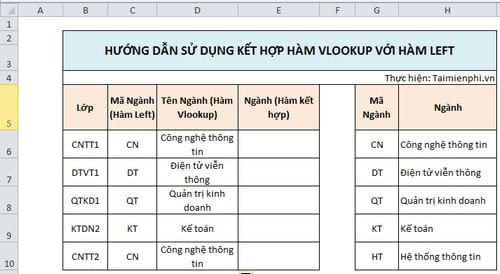
Method 2: use one combined formula
If the helper code does not need to be displayed, put LEFT directly inside VLOOKUP:
=VLOOKUP(LEFT(B6,2),$G$6:$H$10,2,FALSE)
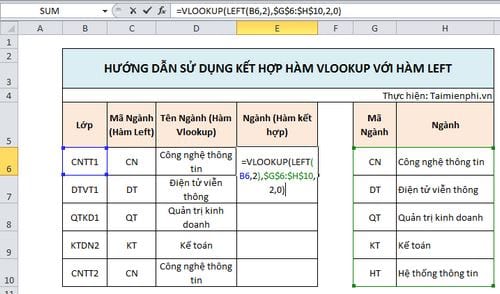
Fill the result down for the remaining classes:
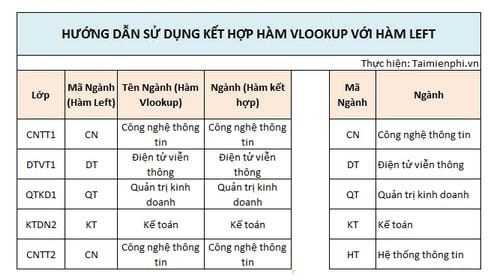
Which method should you choose?
A helper column is easier to audit because users can see the extracted lookup value. A single combined formula keeps the worksheet compact. Both require a consistent rule—for example, every department code must be exactly two characters at the beginning of the class value.
Troubleshooting
#N/Ameans the extracted code has no exact match; check spaces and code length.- Wrong results can occur if the reference table contains duplicate codes; VLOOKUP returns the first match.
#REF!means the requested return column is outside the lookup table.- If the code is separated by a delimiter rather than fixed at two characters, locate the delimiter instead of hard-coding 2.
Review the full VLOOKUP guide for lookup behavior, or compare LEFT, MID, and RIGHT text extraction when the code appears elsewhere in the string.
Related Articles
 VLOOKUP Function: How to Use It and Specific Examples20 minutes read
 Vlookup Function to Use and Specific Examples10 minutes read
 How to Combine Vlookup Function with Left Function6 minutes read
 How to Use the IF Function with VLOOKUP (Examples and How To)9 minutes read
 How to Combine Sumif and Vlookup Functions in Excel7 minutes read
 Vlookup Function in Excel: Syntax, Examples, and Tips5 minutes read
Reader Comments 0
Sign in with email or Google to join the discussion.