Table of Contents
Google Docs has a built-in equation editor for fractions, exponents, roots, Greek letters, relations, and other mathematical notation. The full equation toolbar is easiest to use in the desktop web version of Docs.

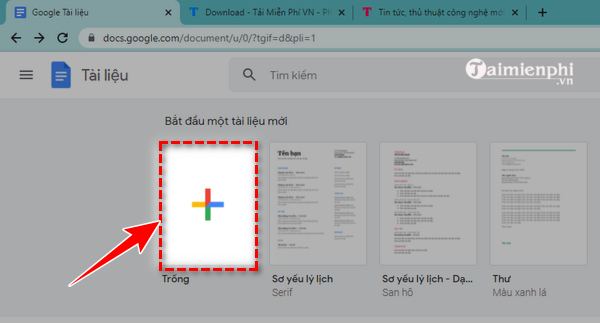
Create or open a document
Sign in to the intended Google account and open an existing document, or create one at https://docs.new.
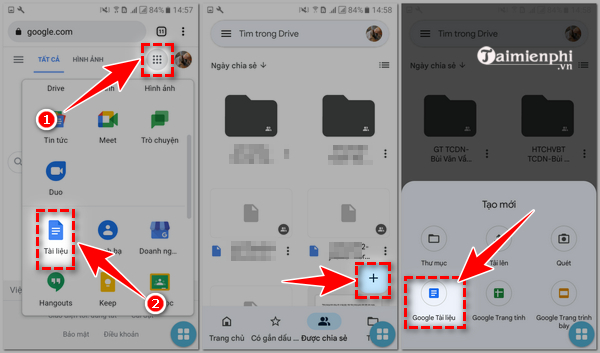
On a phone, you can create and edit documents through the Google Docs app or Drive, but equation-editing controls may be limited compared with the desktop browser.
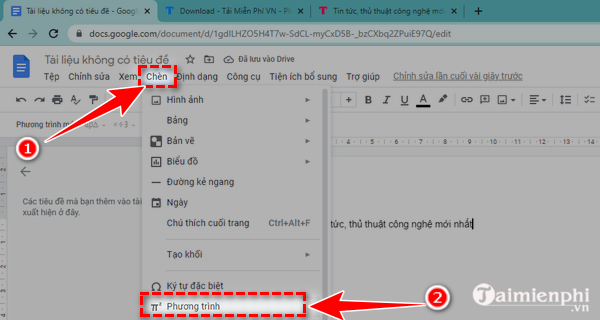
Insert an equation
- Place the cursor where the equation should appear.
- Choose Insert > Equation.
- Type into the equation box and choose structures or symbols from the toolbar.
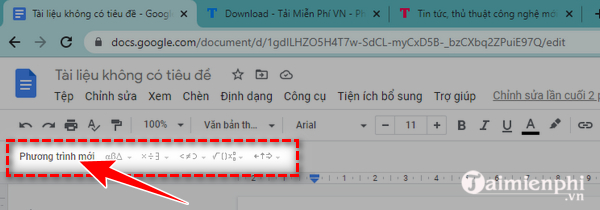
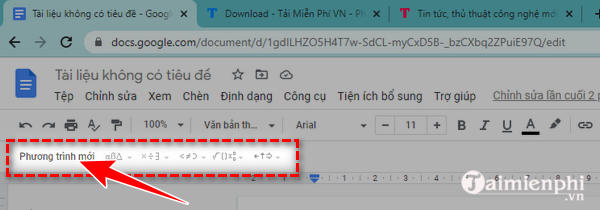
The equation toolbar appears below the main menus. If needed, click New equation to start another equation block.
Build the formula
The toolbar groups notation into categories such as Greek letters, mathematical operations, relations, arrows, and structures. Select a structure such as a fraction or square root, then fill its placeholders.
For faster entry, the equation editor recognizes several backslash commands. Type a command such as alpha and press Space to insert α. Command support is not identical to a full LaTeX system, so test complex notation before relying on it.
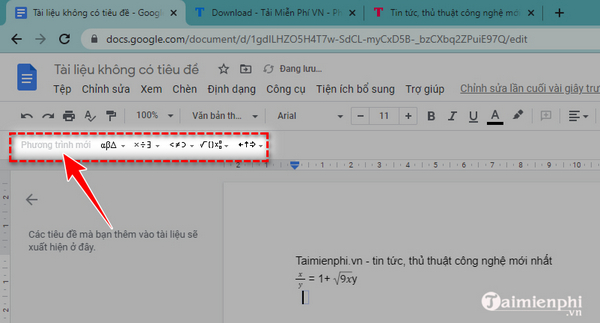
Show or hide the equation toolbar
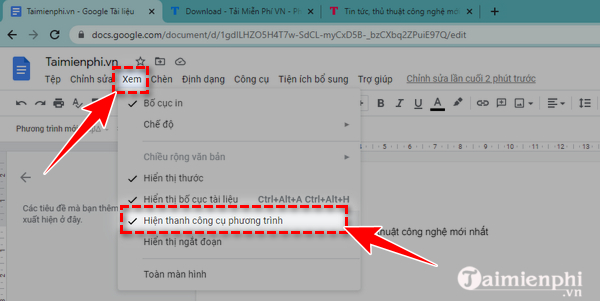
Choose View > Show equation toolbar to toggle the toolbar. Hiding it does not remove existing equations.
Tips for clean equations
- Use the built-in fraction, subscript, superscript, and root structures rather than approximating them with ordinary characters.
- Keep surrounding punctuation outside the equation when it belongs to the sentence.
- Check exported PDF or Word files because equation layout can shift during conversion.
- For extensive LaTeX documents or strict journal formatting, use a dedicated equation workflow and insert reviewed output only when necessary.
For related productivity features, see these Google Docs editing tips. A comparison of equations in Google Docs and Word may help when choosing an editor.
Related Articles
 How to Insert Mathematical Formulas, Equations in Google Docs2 minutes read
 Instructions for Typing Mathematical Formulas with MathType3 minutes read
 How to Insert Mathematical Formulas in Word3 minutes read
 How to Write Mathematical Formulas in Word Very Easily: Complete Guide15 minutes read
 Instructions for Creating Caret in Google Docs4 minutes read
 How to Create an Alternative Phrase in Google Docs4 minutes read
Reader Comments 0
Sign in with email or Google to join the discussion.