Table of Contents
Google Docs combines browser-based editing, automatic saving, and real-time collaboration. The following tips focus on reliable ways to create documents faster, correct mistakes, and avoid losing important revisions.
Use the right keyboard shortcuts
- Ctrl + Shift + C: show the word count.
- Ctrl + : clear formatting from selected text.
- Ctrl + Alt + C: copy text formatting.
- Ctrl + Alt + V: paste copied formatting.
- Ctrl + Alt + Shift + H: open version history on supported desktop browsers.

On macOS, many Ctrl shortcuts use Command instead. Browser and operating-system shortcuts can conflict, so open Help > Keyboard shortcuts in Docs for the current list.
Upload existing documents by dragging them into Drive
Open Google Drive in a browser and drag supported files from your computer into the Drive window. A Microsoft Office file can remain in its original format or be converted to a Google file when you choose to edit it. Complex layout, macros, and unsupported elements may not convert perfectly, so compare the result before deleting the source.
Create a new document with one URL
Bookmark https://docs.new or https://docs.google.com/document/create. When signed into the correct Google account, the address opens a new document immediately.
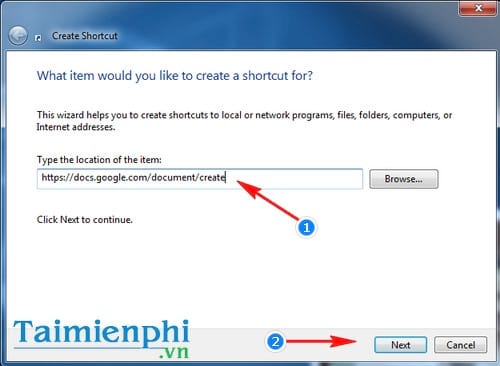
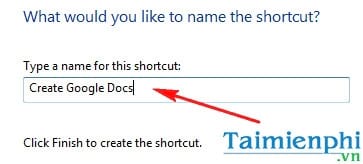
Windows users can also right-click the desktop, choose New > Shortcut, and enter the address.
Restore an earlier version
Open File > Version history > See version history. Select a timestamp to inspect edits and, when appropriate, restore that version. Naming important versions makes milestones easier to identify.
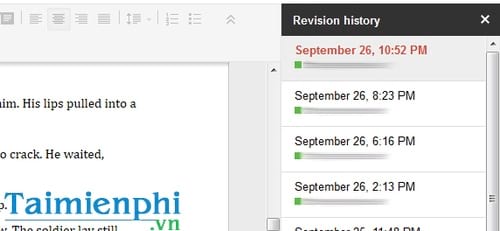
Version history is different from recovering a file deleted from Drive. Deleted files must be restored from Drive's Trash while they are still retained there.
Translate a copy of a document
In a desktop browser, choose Tools > Translate document, name the copy, and select a language. Docs creates a translated document, leaving the original intact.
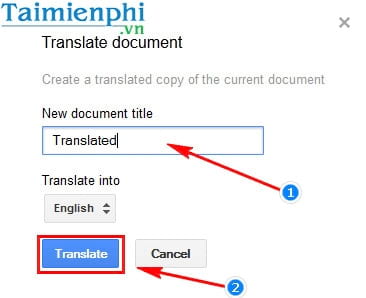
Machine translation can mishandle names, technical terms, or legal wording. Review the output before sharing or relying on it.
Edit from a phone without losing context
The Google Docs mobile app supports reading, comments, basic editing, and offline access for selected files. Before travel, mark required documents available offline and confirm that changes finish syncing when a connection returns.
Two collaboration habits worth adopting
- Use Suggesting mode for proposed edits instead of overwriting text.
- Share with the least permission needed—Viewer, Commenter, or Editor—and verify the Google account before granting access.
If you are choosing between browser-based editors, compare Google Docs and Word Online. For downloaded copies, these file-saving practices help keep versions organized.
Related Articles
 Useful Tools to Know in Google Docs6 minutes read
 Some Tips When Using Google Docs6 minutes read
 The Way Google Docs Helps You Become Professional7 minutes read
 10 Tips to Create Beautiful Google Docs9 minutes read
 40+ Tips in Google Docs (P1): Tips and Tricks on Google Docs12 minutes read
 Instructions for Dividing and Merging Columns on Google Docs4 minutes read
Reader Comments 0
Sign in with email or Google to join the discussion.