Table of Contents
Google Sheets has two different permission layers: sharing roles control access to the whole file, while protected sheets and ranges control which existing editors may change particular cells. Use both when a workbook contains formulas or reference data that should not be edited accidentally.
Protect a specific range
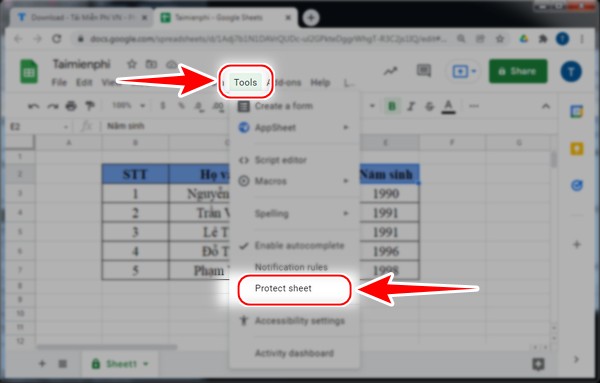
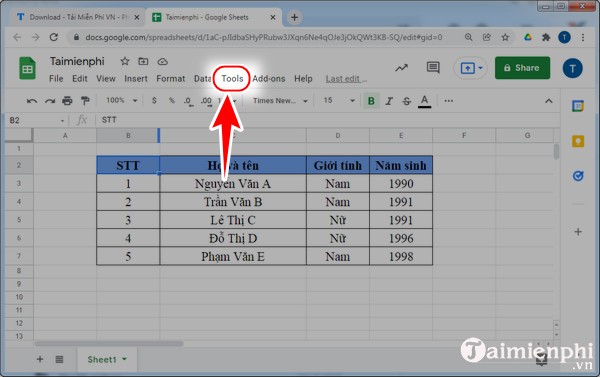
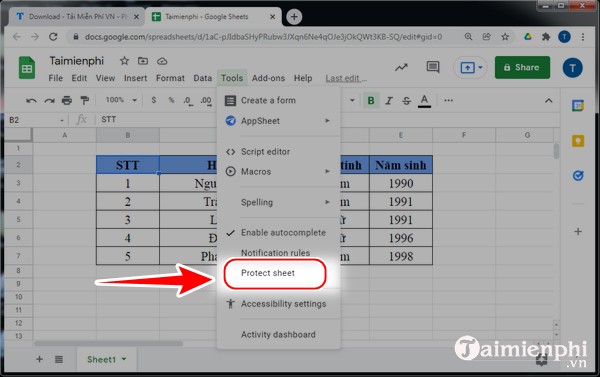
- Open the spreadsheet and select Data > Protect sheets and ranges. Older interfaces may place this under Tools.
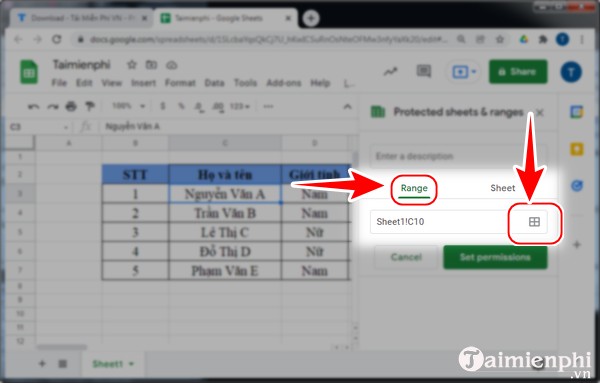
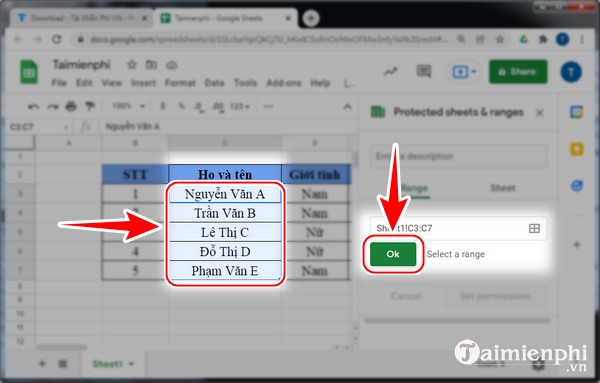
- Choose Add a sheet or range, select Range, and enter or select the cells.
- Add a useful description, then select Set permissions.
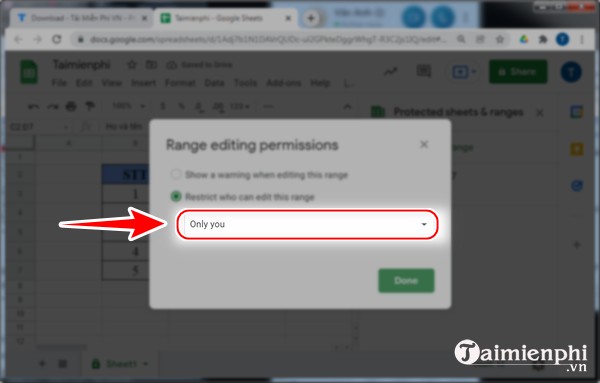
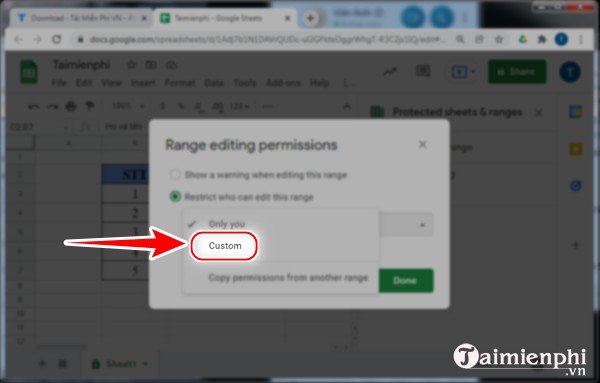
- Choose a warning only, restrict editing to yourself, or specify custom editors.
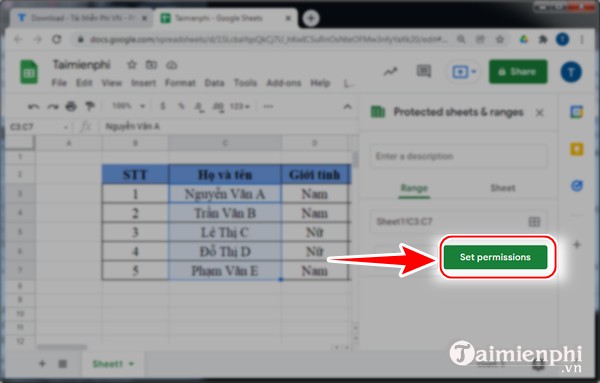
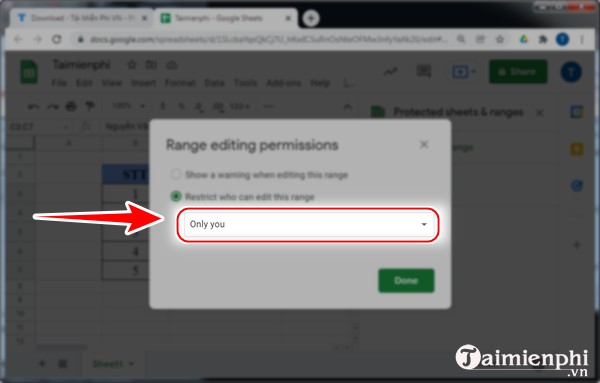
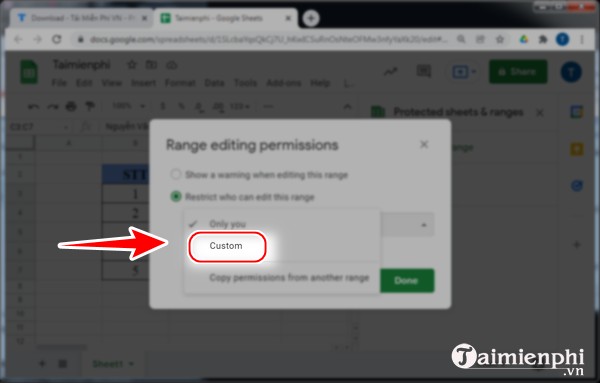
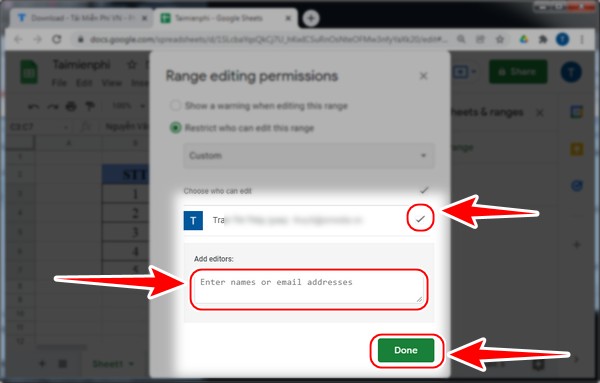
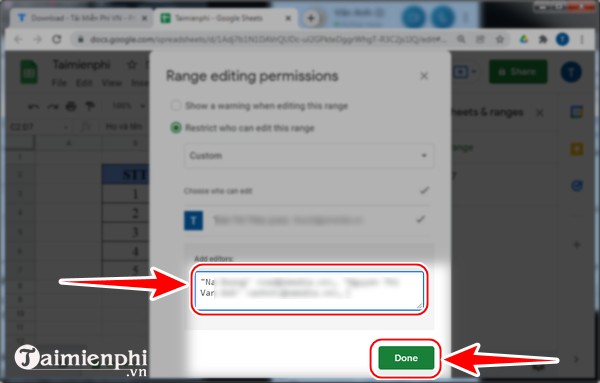
In a custom rule, include only people who should edit the protected cells, then save.
Protect an entire sheet except input cells
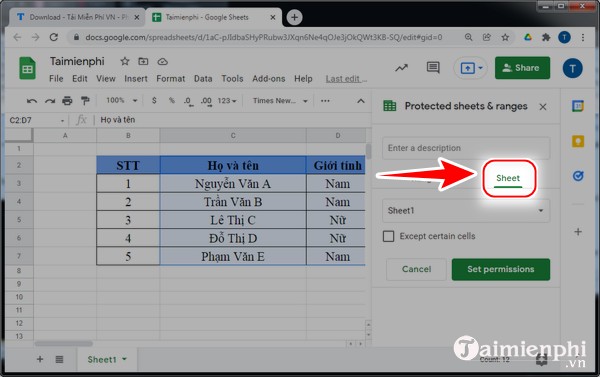
Create another protection and choose Sheet. Select the sheet, then optionally enable Except certain cells and list the input ranges users may edit.
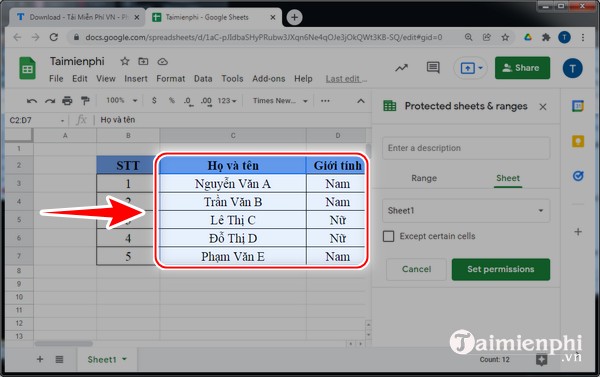
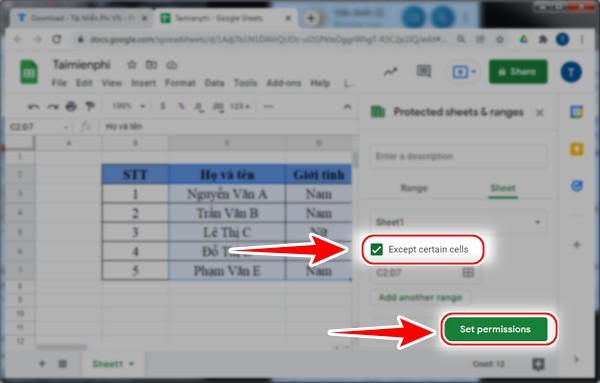
Set the permitted editors as you would for a range.
Manage or remove a protection
Return to Data > Protect sheets and ranges and select the existing rule. Update its description, range, or permitted editors. Use the trash icon to remove the protection rule; this does not delete spreadsheet data.
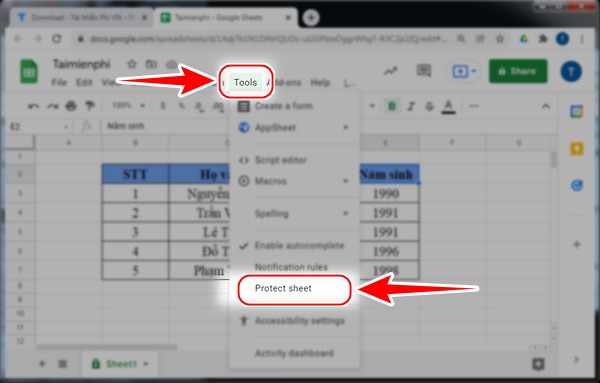
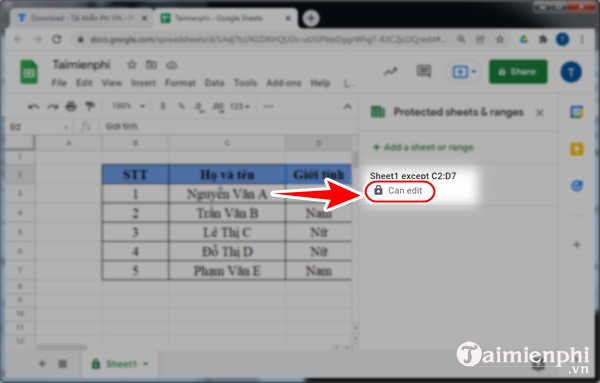
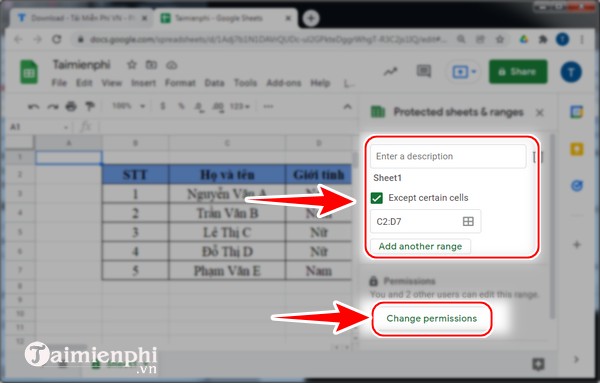
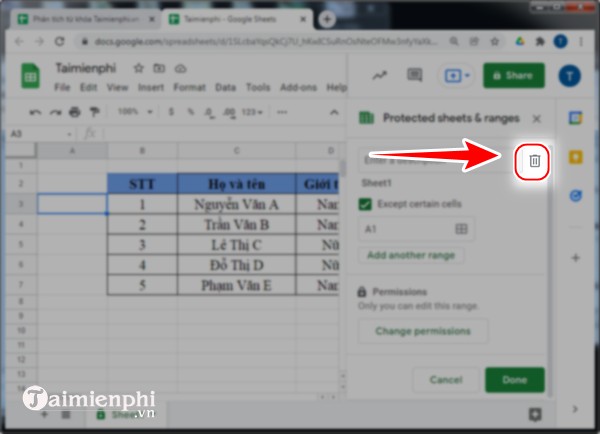
Control access to the whole file
Use the Share button to assign Viewer, Commenter, or Editor. Avoid “Anyone with the link” for sensitive data unless broad access is intentional. Removing someone from a protected range does not remove their file-level Editor role; it only blocks edits in that protected area.
What protection does not do
- It is not a security boundary against trusted editors copying data or making a copy of the file.
- A warning-only rule does not block changes.
- Owners and some administrators may retain broader control.
- Protection cannot replace a backup or version history.
Keep file sharing limited and review permissions periodically. These Google editor version-history tips can help recover accidental changes. For public data collection, a structured Google Form is often safer than sharing edit access to a sheet.
Related Articles
 How to Set up the Right to Edit Spreadsheets on Google Sheets5 minutes read
 Familiarize Yourself with Spreadsheets, Rows, Columns, and Cells11 minutes read
 5 Google Sheets Features You Should Know: Features Google Sheets7 minutes read
 How to Align Spreadsheets Before Printing on Google Sheets3 minutes read
 Working with Sheets: Explained5 minutes read
 How to Link Data Between Spreadsheets in Google Sheets4 minutes read
Reader Comments 0
Sign in with email or Google to join the discussion.