Table of Contents
Strikethrough draws a line through text without deleting it. In Google Docs it can mark wording for removal; in Google Sheets it can mark completed tasks or inactive entries while preserving the original value.

Strikethrough in Google Sheets
Use the keyboard shortcut
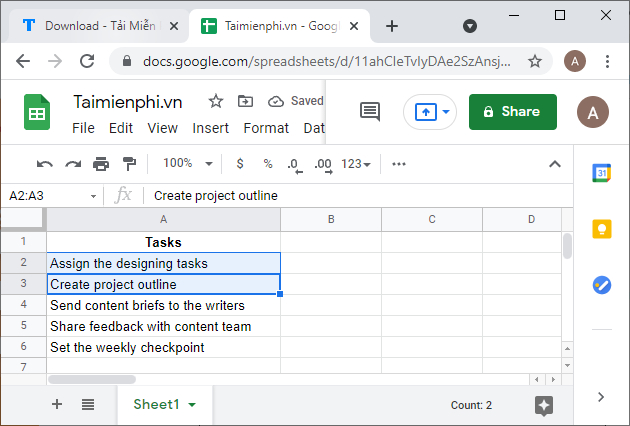
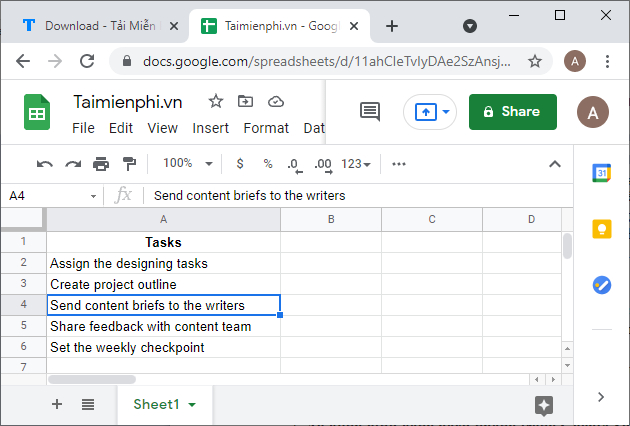
- Select one or more cells.
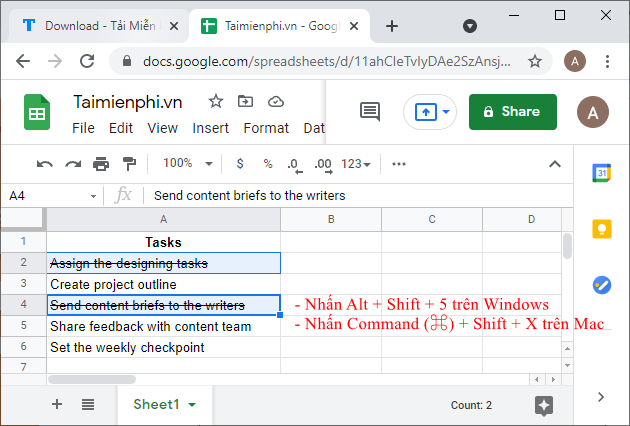
- Press Alt + Shift + 5 on Windows or Command + Shift + X on Mac.
Use the Format menu
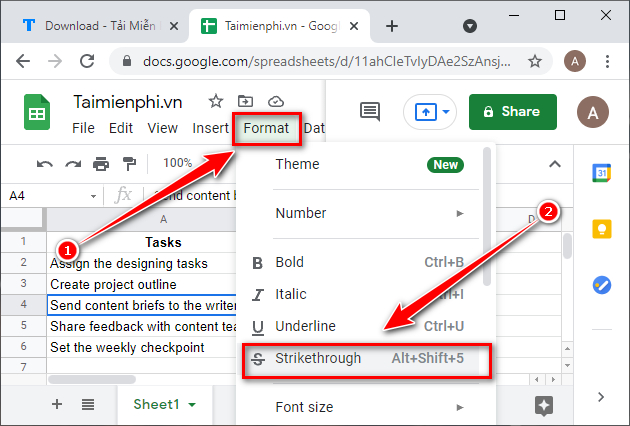
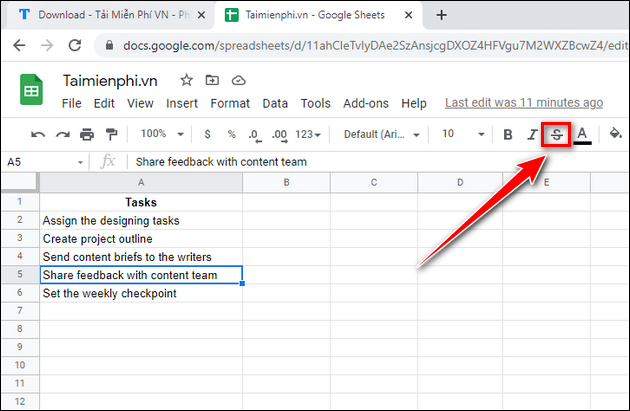
Select the cells, then choose Format > Text > Strikethrough. Depending on the toolbar width, a strikethrough button may also be visible.
Strikethrough in Google Docs
Use the keyboard shortcut
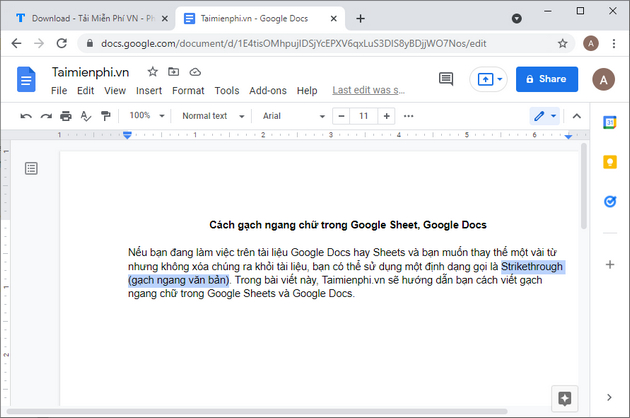
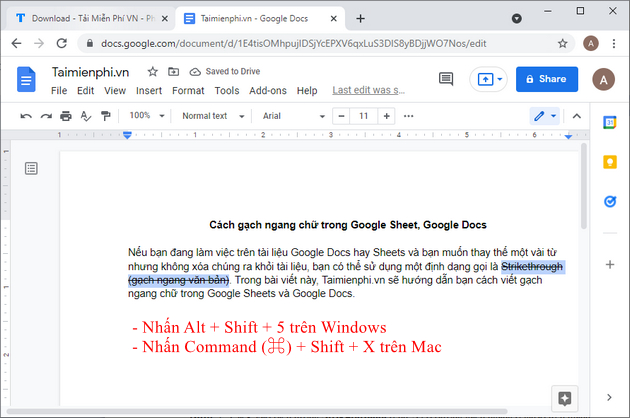
Select the text, then press Alt + Shift + 5 on Windows or Command + Shift + X on Mac.
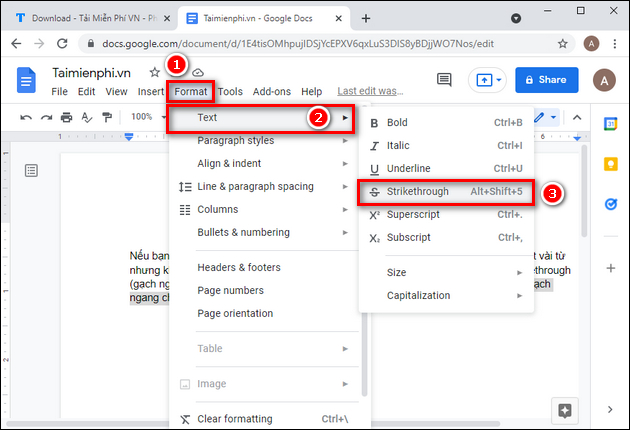
Use the Format menu
Select the text and choose Format > Text > Strikethrough.
Remove strikethrough
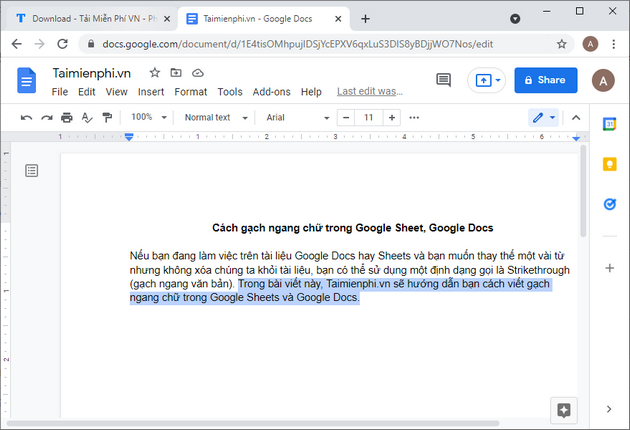
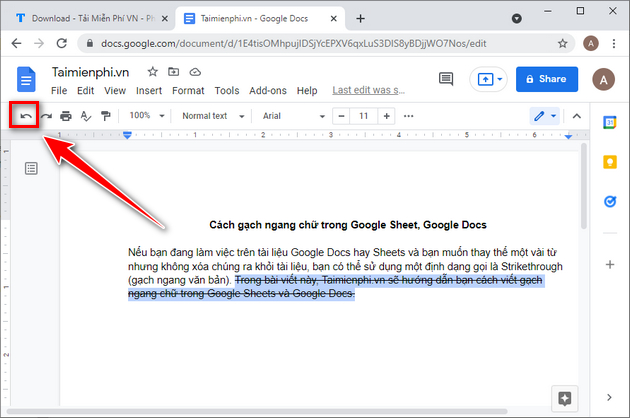
Strikethrough is a toggle. Select the affected text or cells and repeat the same shortcut or menu command. If applying it was your most recent action, Undo also works.
If the shortcut does not work
- Confirm the text or cells are selected before pressing the keys.
- A browser, operating system, or extension may intercept the shortcut; use the Format menu instead.
- On mobile, select the text or cell and use the app's formatting controls; the exact menu can vary by platform.
For more editing shortcuts and version-control practices, see these Google Docs tips. If you are comparing editors, review Google Docs versus Word Online.
Related Articles
 How to Quickly Insert a Google Sheets Spreadsheet into Google Docs4 minutes read
 How to Insert Google Sheets Charts into Google Docs5 minutes read
 How to Add Frames Around Text on Google Docs11 minutes read
 How to Stretch LINE Spacing in Google Docs4 minutes read
 How to Insert Google Sheets Spreadsheets into Google Docs4 minutes read
 Instructions for Translating Text on Google Docs3 minutes read
Reader Comments 0
Sign in with email or Google to join the discussion.