Table of Contents
This practical guide explains how to backup data without using external hard drive. Follow the steps in order, review the requirements first, and use the troubleshooting notes when a setting or option does not work as expected.
6. Email important files to yourself
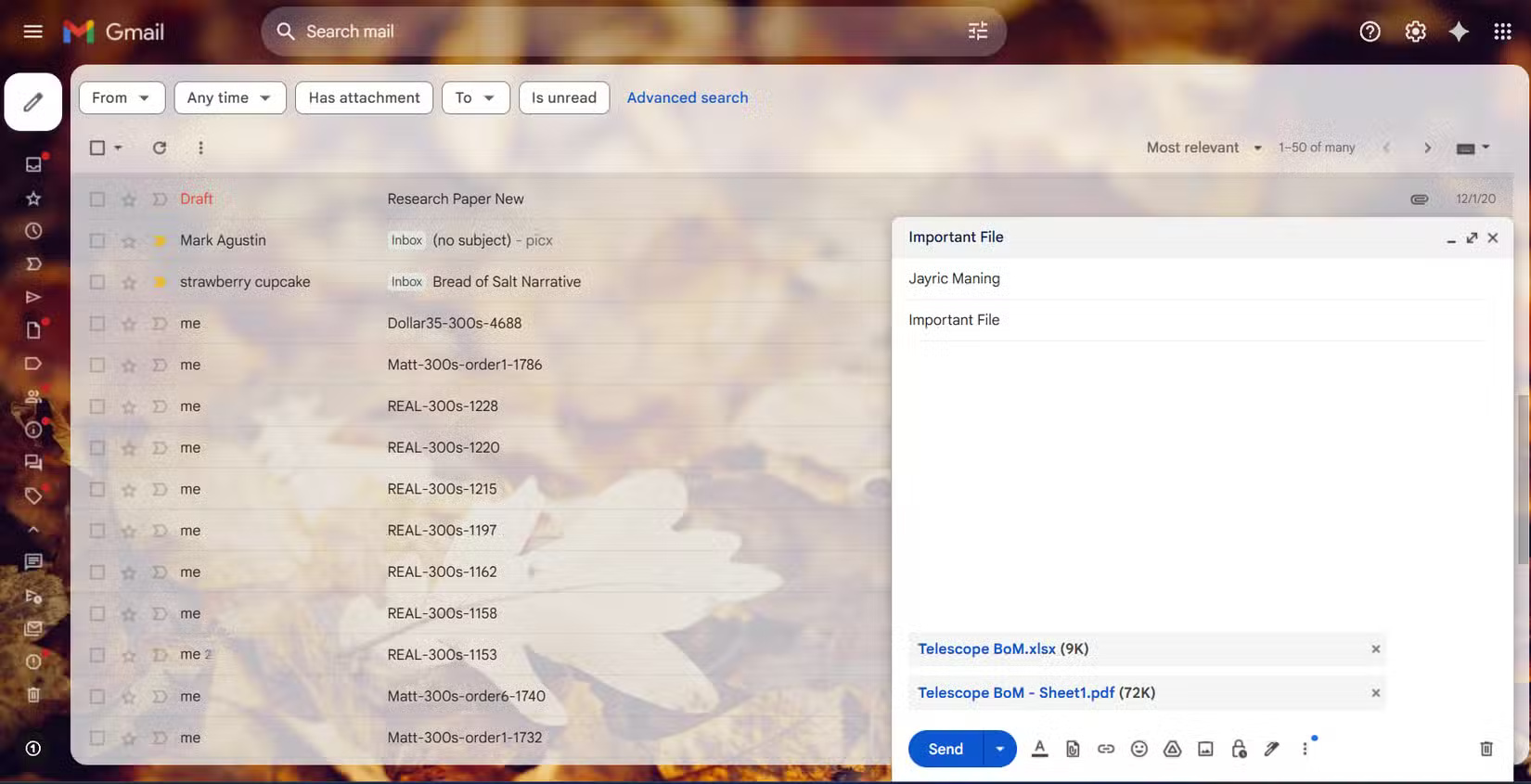
Whenever you need to back up a Word document, spreadsheet, or small PDF, you can simply send it directly to Gmail. This is quick and fits into many people's workflows, especially since Gmail is often open in another tab while they're working or researching. If you like to keep your emails archived for years, you can easily search for and restore old attachments if something goes wrong with the original. This has saved you from backup woes more than once.
5. Save files to cloud storage
Cloud storage has become the go-to backup solution for all the photos and videos you take on your phone. Google Drive gives you plenty of space for the essentials. The great thing about cloud storage is that you can access your files from anywhere. At home, at a coffee shop, or halfway around the world, as long as you have an internet connection. Just log in and it's there.
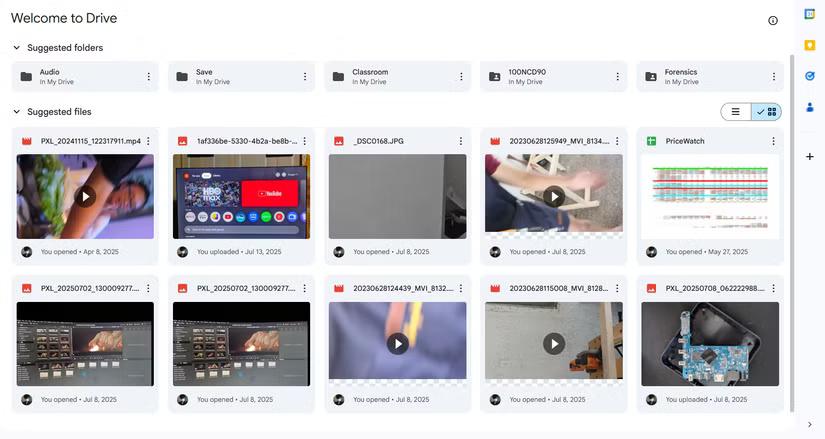
Even though I have access to my own homemade NAS, I still love the automatic backup feature that Google Drive offers. When you take a photo on your phone, it automatically copies the file to the cloud, allowing you to safely free up space on your phone when you need it. Plus, you don't have to remember to back it up every time.
4. Save files to NAS (Network-Attached Storage)
In addition to relying on cloud storage, always keep another copy of your files on your homemade NAS. Building your own NAS from an old laptop is one of the most rewarding tech projects you can ever undertake. With TrueNAS installed and the device connected to your home network, you create a backup system that works just like private cloud storage, but without the monthly fees. This setup allows you to easily back up large files and keep everything organized.
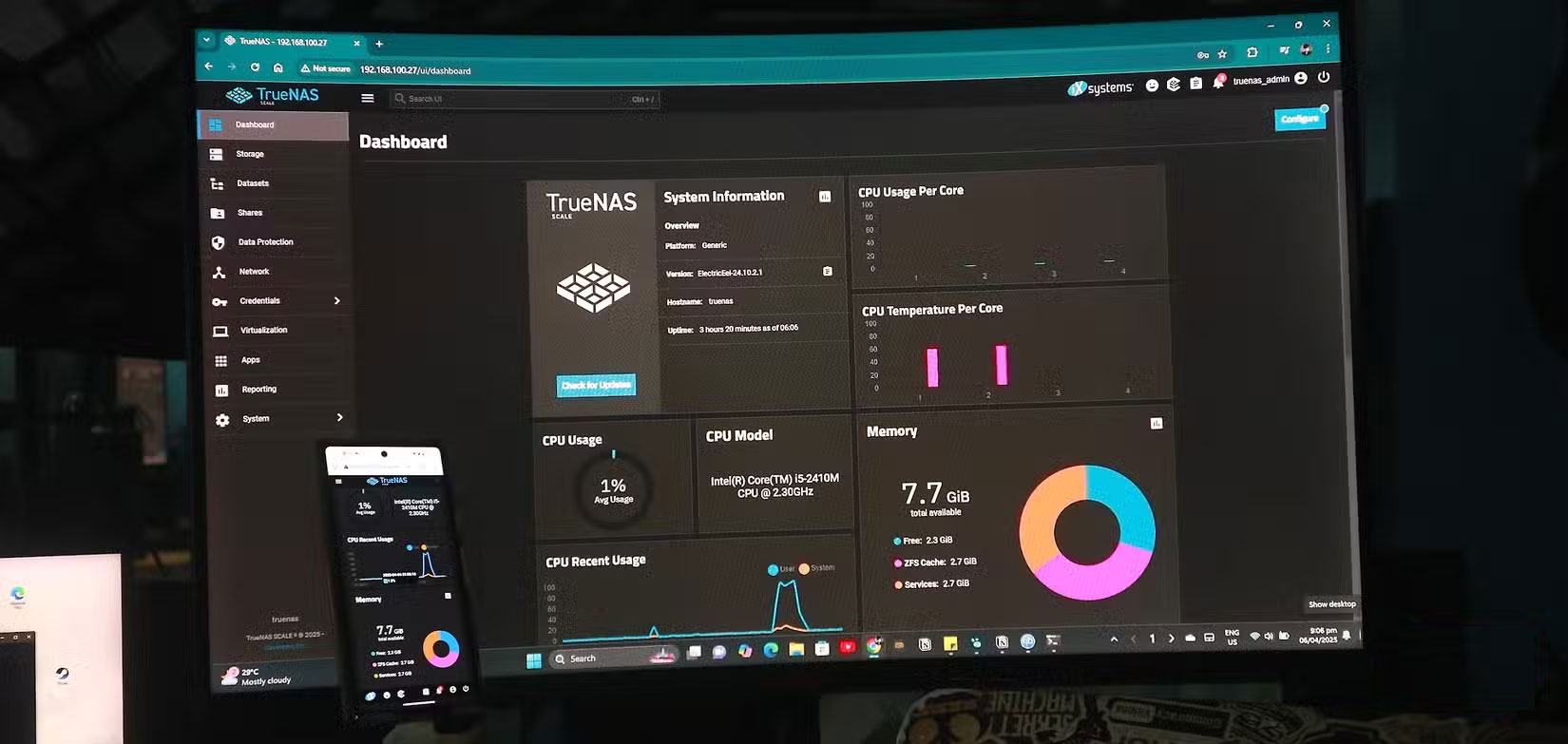
Having your own NAS doesn't just give you more storage space. It allows you to follow the 3-2-1 backup rule, adds a layer of protection, and turns old hardware into something actually useful.
3. Use a USB flash drive or SD card
When it comes to backing up small but important files on physical media, USB flash drives and SD cards are tried and tested favorites. They're so affordable these days that you can just buy a few and use them as cheap storage for all sorts of data.
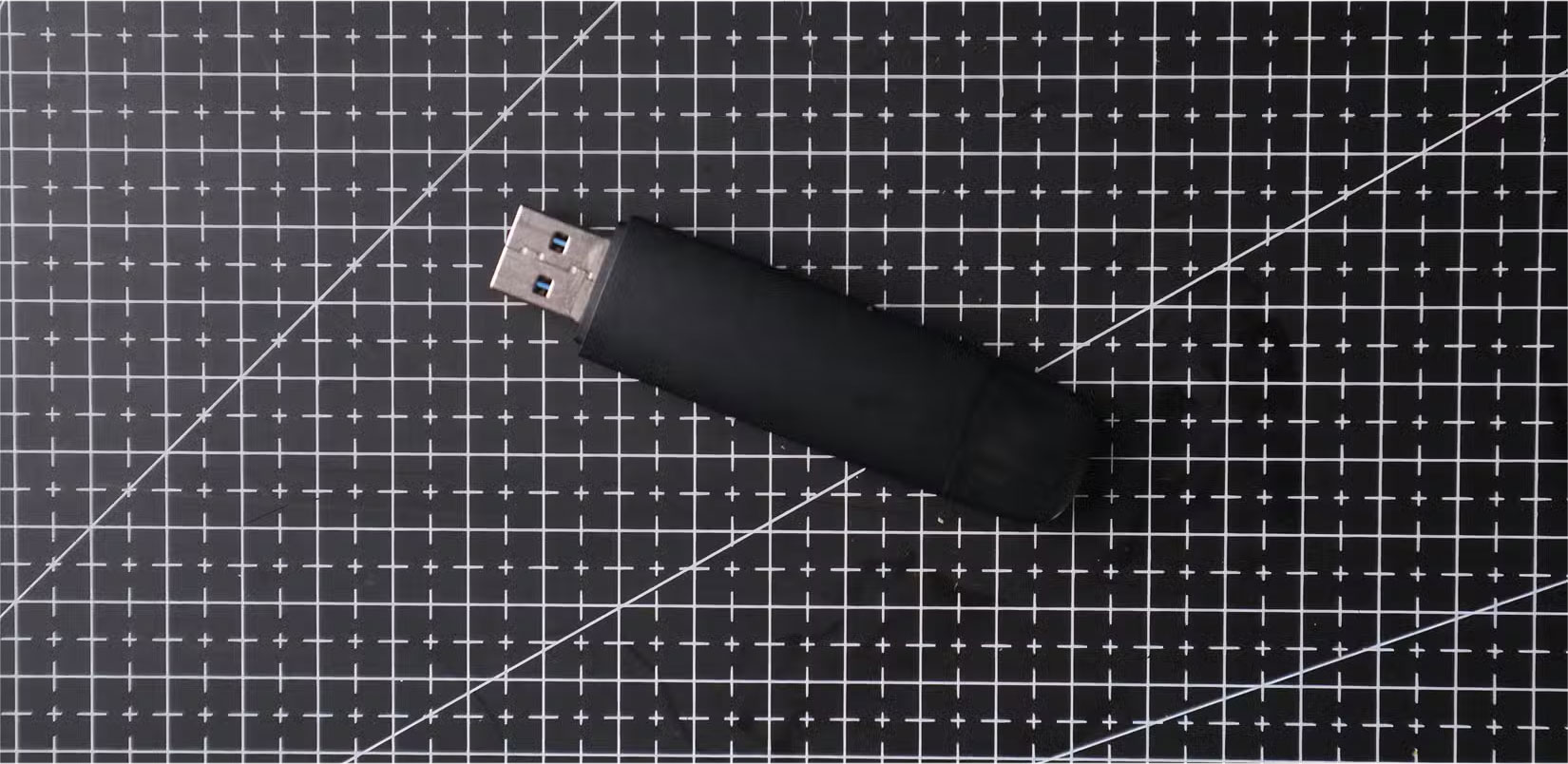
USB flash drives are extremely portable. You can carry one around for quick data transfers or emergency backups, especially when you're commuting to work or just want to keep some files close at hand. Since they're so lightweight, it's easy to slip one into your bag.
2. Backup to a secondary computer using Thunderbolt
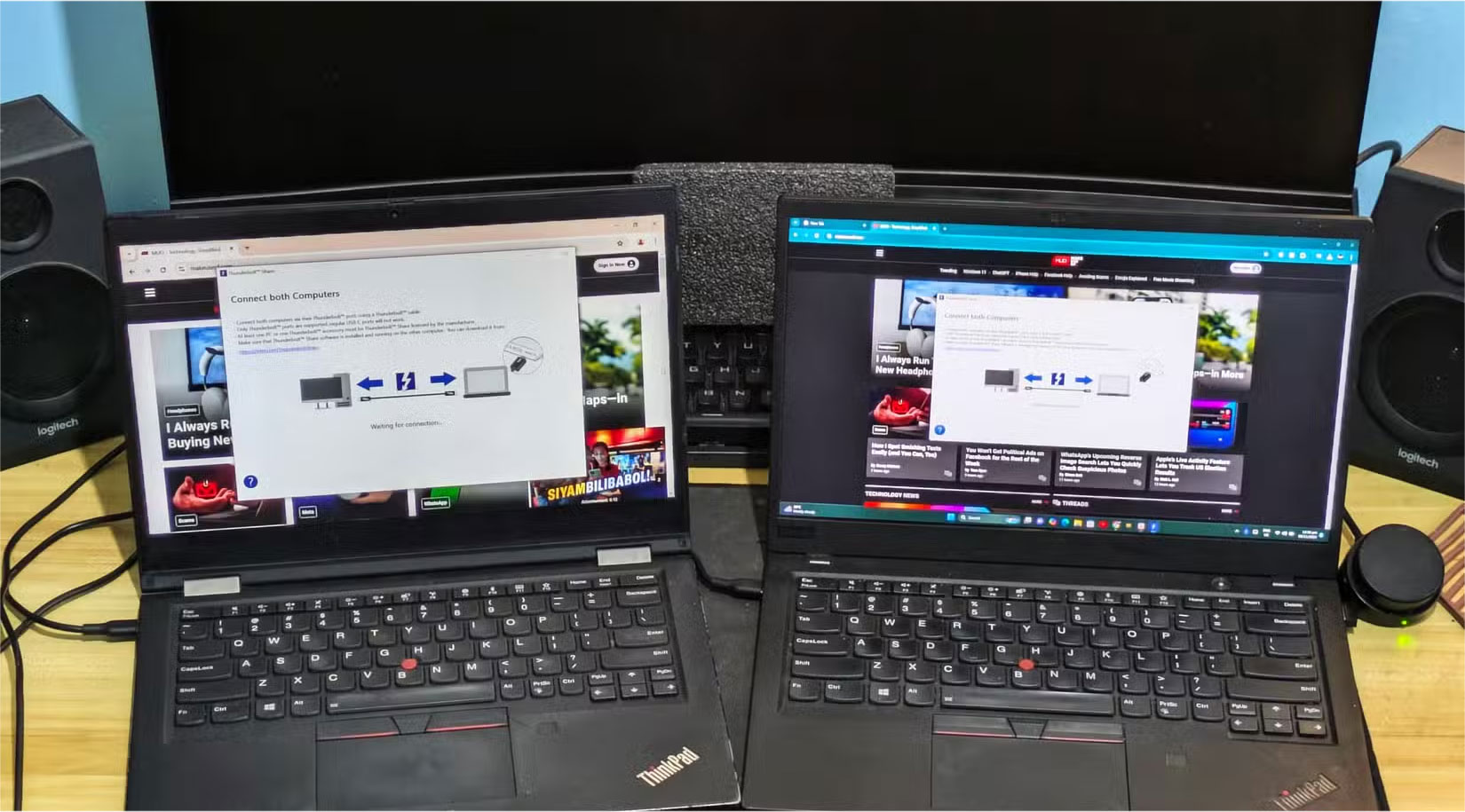
Backing up to a secondary computer isn't your first choice, but it's been surprisingly useful on more than one occasion. When you need to pass your old laptop to a family member, you'll find that a lot of your personal files are still on the drive. If you don't have time to organize everything, use a Thunderbolt USB-C cable to quickly transfer the entire drive to your desktop using Thunderbolt Share. The transfer is quick, and you don't have to worry about losing any important data.
1. Upload files to social networks and keep them private
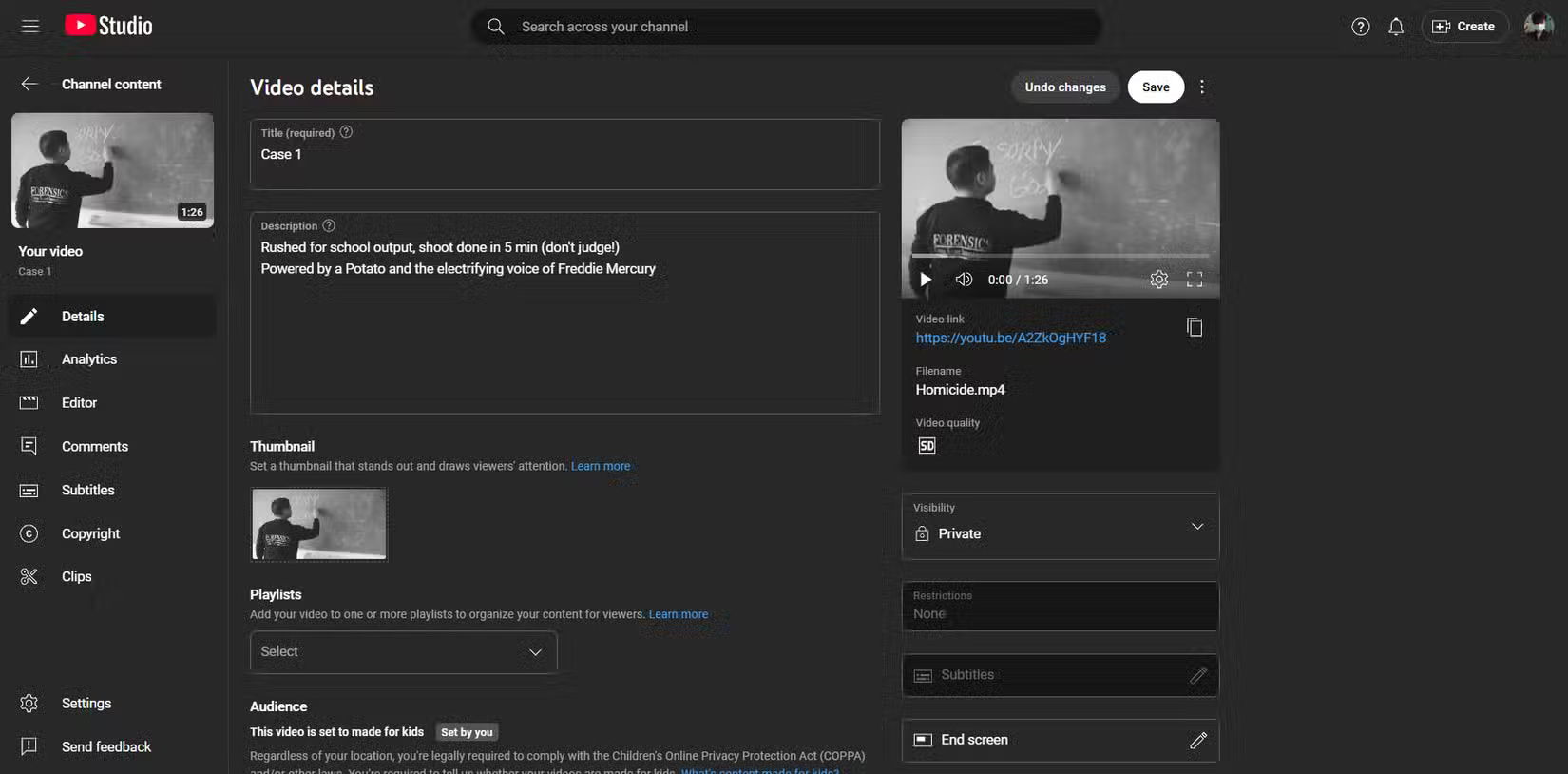
Many people used to think of social media as just a place to share life updates, but now YouTube and Facebook have quietly become part of their backup strategy for certain files. Whenever they think they've captured something interesting or recorded a family event, many people upload it to YouTube and set it to private or unlisted. For photos, create private albums on Facebook - after any special trip or moment, save those memories in an album set to "Only Me." This will keep your favorite photos and videos safe online, no matter what happens to your devices at home.
FAQ
What should you know about 6. Email important files to yourself?
Whenever you need to back up a Word document, spreadsheet, or small PDF, you can simply send it directly to Gmail. This is quick and fits into many people's workflows, especially since Gmail is often open in another tab while they're working or researching. If you like to keep your emails archived for years, you can easily.
What should you know about 5. Save files to cloud storage?
Cloud storage has become the go-to backup solution for all the photos and videos you take on your phone. Google Drive gives you plenty of space for the essentials. The great thing about cloud storage is that you can access your files from anywhere. At home, at a coffee shop, or halfway around the world, as long as you have an.
What should you know about 4. Save files to NAS (Network-Attached Storage)?
In addition to relying on cloud storage, always keep another copy of your files on your homemade NAS. Building your own NAS from an old laptop is one of the most rewarding tech projects you can ever undertake. With TrueNAS installed and the device connected to your home network, you create a backup system that works just like.
What should you know about 3. Use a USB flash drive or SD card?
When it comes to backing up small but important files on physical media, USB flash drives and SD cards are tried and tested favorites. They're so affordable these days that you can just buy a few and use them as cheap storage for all sorts of data.
Related Articles
 Advice on Buying an External Hard Drive7 minutes read
 Pros and Cons of Using an External Hard Drive for PS49 minutes read
 7 Best External Hard Drives9 minutes read
 External Hard Drive: Savior of Data7 minutes read
 How to Reformat an External Hard Drive Does Not Cause Data Loss9 minutes read
 5 Best External Hard Drives of 20267 minutes read
Reader Comments 0
Sign in with email or Google to join the discussion.