Table of Contents
This practical guide explains how to free up 48gb on Windows 11 PC without losing any important data. Follow the steps in order, review the requirements first, and use the troubleshooting notes when a setting or option does not work as expected.
8. Empty the Recycle Bin
Cleaning out old files and downloads can be effective, but if you don't empty your Recycle Bin afterward, it's like sweeping dust under the carpet. Until you empty your Recycle Bin, those files aren't really gone and are taking up as much space as they used to.
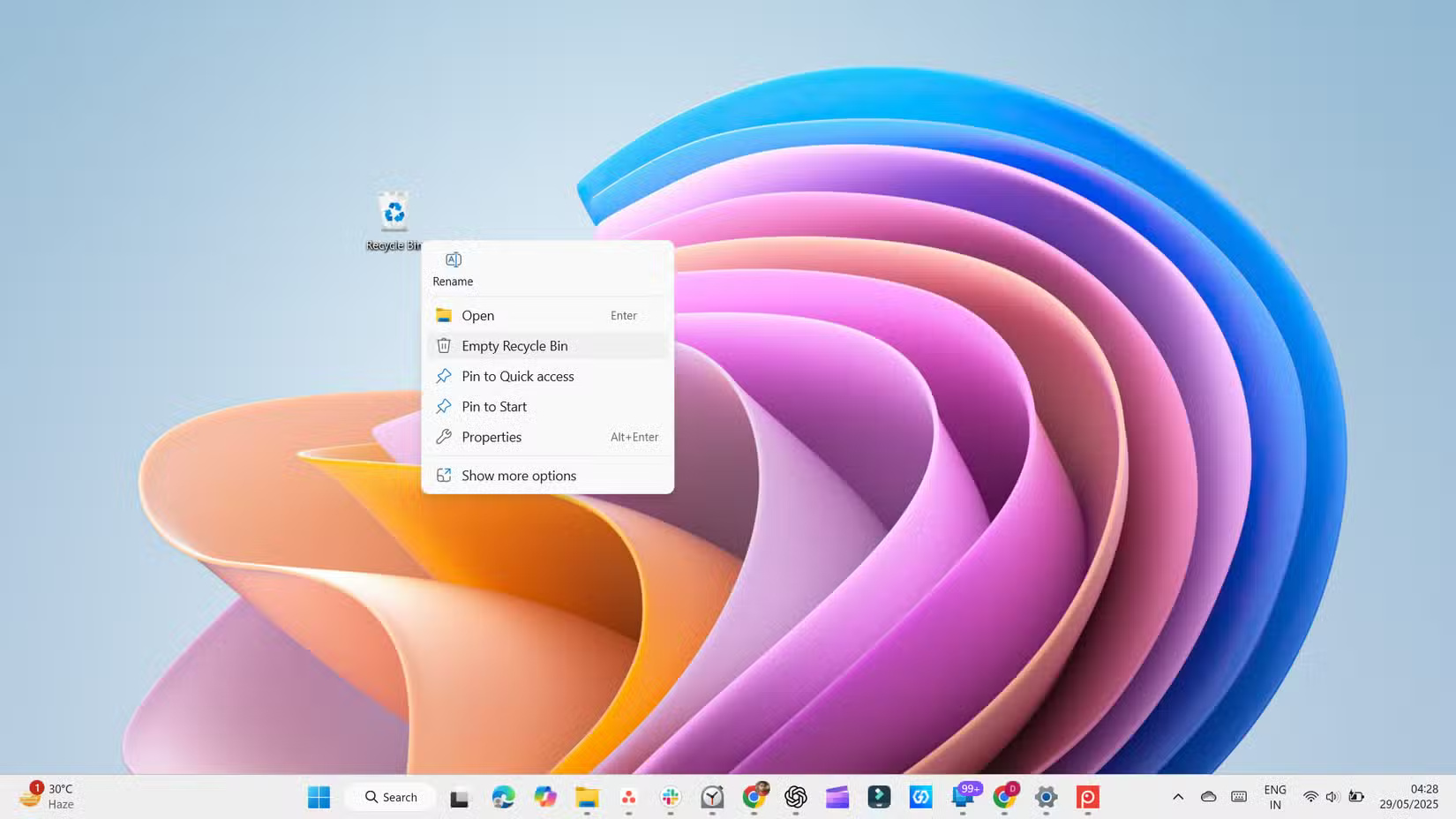
Also, unlike cloud storage services or smartphones, Windows 11 doesn't automatically empty the Recycle Bin after a certain period of time. To do that, you need to right-select the Recycle Bin icon and select Empty Recycle Bin .
7. Delete temporary files
As you continue to use Windows, the system creates various temporary files. While they may be useful in the short term and are generally harmless, they tend to stay around longer than they should. Over time, these forgotten files can silently accumulate and take up valuable storage space.
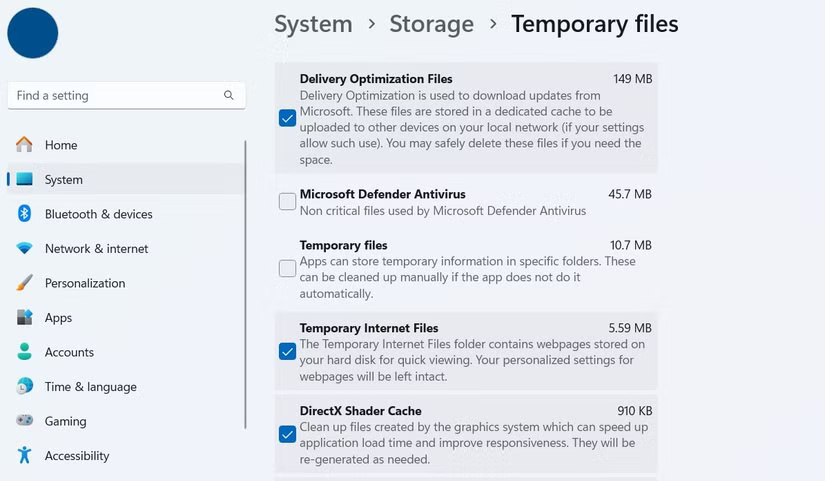
Luckily, Windows 11 makes it easy to delete them. Go to Settings > System > Storage , then click Temporary files and Windows will display a list of file types that can be safely deleted.
6. Delete old restore point
The System Restore feature can be a lifesaver when your computer crashes. It allows you to restore your computer to a previous state without having to do a complete reset. To do this, Windows reserves a portion of your hard drive to store restore points.
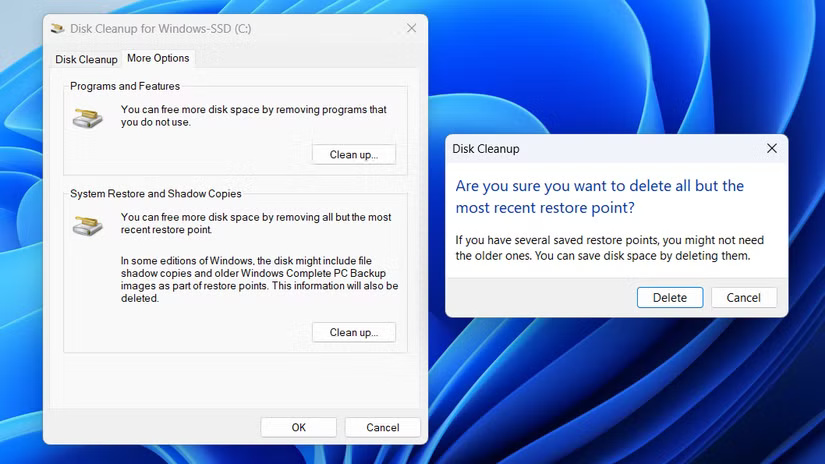
To delete all but the most recent restore point, you can use the Disk Cleanup tool. Open it using the Start menu, then click the Clean up system files button. Now, go to the More Options tab and click the Clean Up button under Restore Point and Shadow Copies . Finally, click Delete to confirm.
5. Uninstall unused apps
Unless you've removed bloatware, your Windows 11 computer probably has several apps you don't use and may never need. Some come pre-installed by Microsoft, while others come pre-packaged by your laptop manufacturer. And then there are the apps you may have installed months ago and forgotten about.
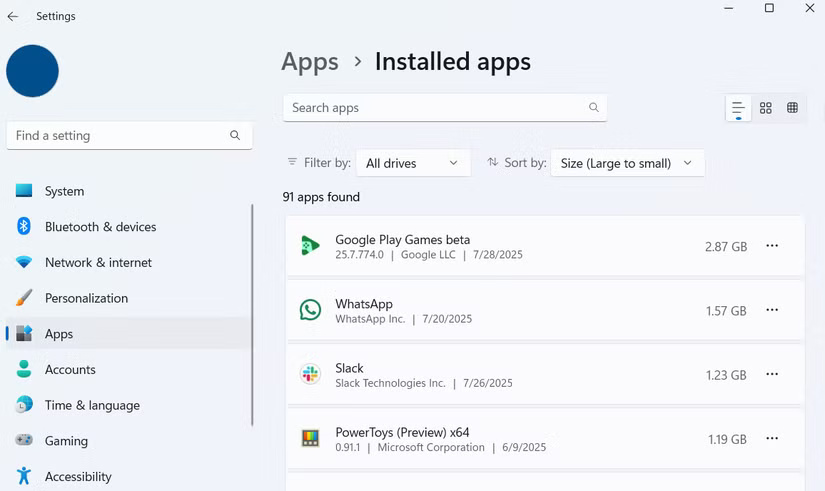
Go to Settings > System > Storage > Cleanup recommendations > Unused apps , and you'll see a list of apps that you can safely delete. You can also go to Apps > Installed apps and sort by size to find large apps that you no longer use. When you find them, uninstall them one by one.
4. Delete duplicate files
Duplicate files are one of the most obvious space wasters on any device. Whether it's the same photos stored in different folders, documents copied for backup (and forgotten about), or downloads that run multiple times, these files can take up valuable storage space.
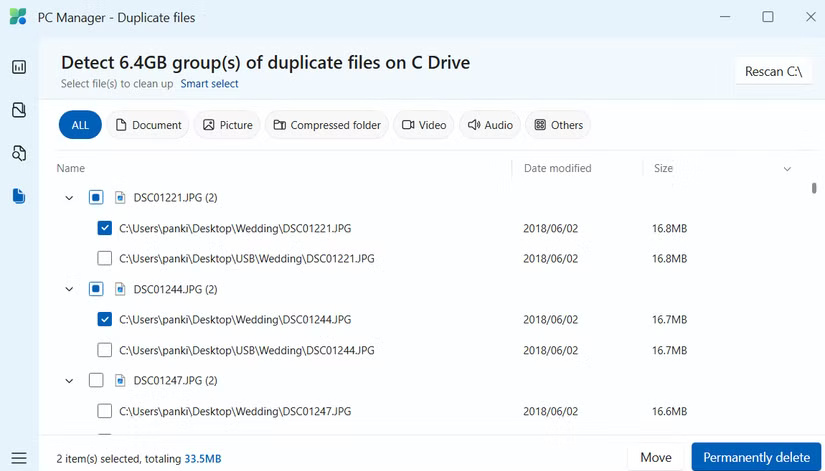
Download the PC Manager app from the Microsoft Store, then open it and navigate to Storage > Duplicate files . The app makes it easy to delete duplicate versions while keeping the originals. Plus, since deleted duplicate files are permanently deleted, you don't need to empty your Recycle Bin afterward.
3. Compress files and folders
To get started, find the file or folder you want to compress, then right-click it and select Properties . Next, click Advanced and select the Compress contents to save disk space check box. Then, click Apply > OK. Depending on the size of the file or folder, Windows may take a few minutes to compress.
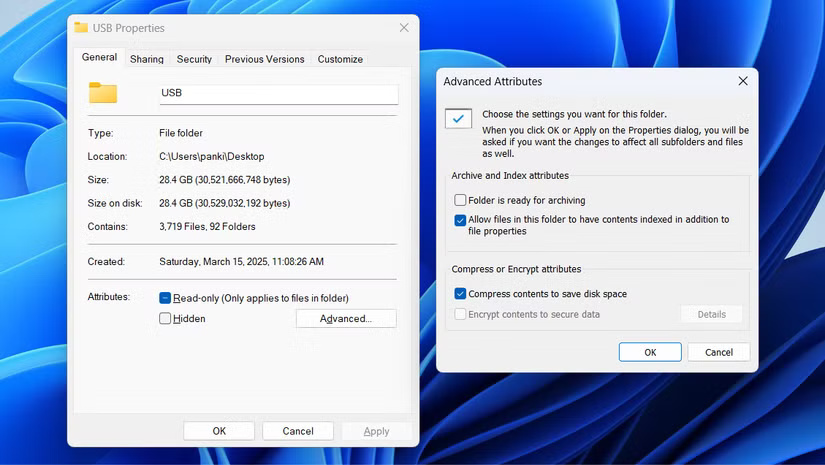
You can apply this compression to files, folders, and even entire drives. However, it's best to avoid using it on applications, system files, or anything you access frequently, as compression can have a slight performance impact.
2. Move large files to the cloud
Another smart way to free up storage space without losing access to important files is to move them to the cloud. Services like OneDrive, Google Drive, and Dropbox offer gigabytes of free space—and if that's not enough, paid plans offer plenty of space for larger libraries.
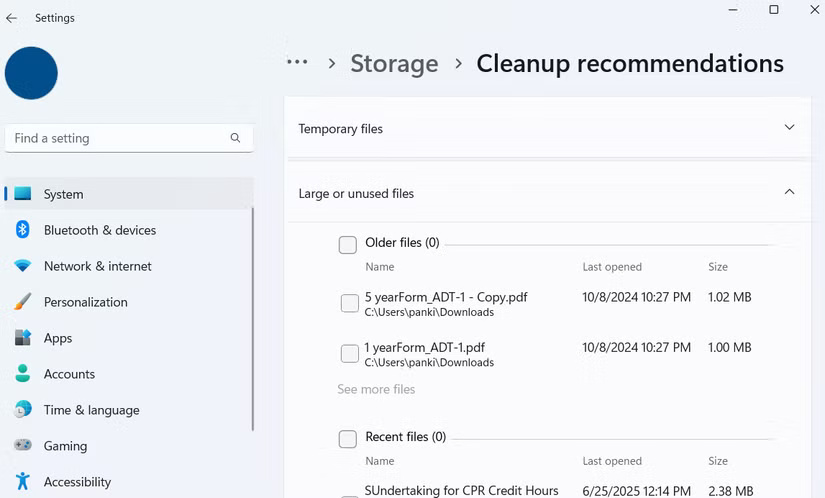
To identify unused files, go to Settings > System > Storage > Cleanup recommendations > Large or unused files . You can also use the PC Manager app to find all the large files on your PC.
1. Delete unwanted user accounts
Every account on your Windows 11 PC has its own set of files, settings, and apps, all of which take up storage space. If there are accounts you no longer need, deleting them can free up a surprising amount of space.
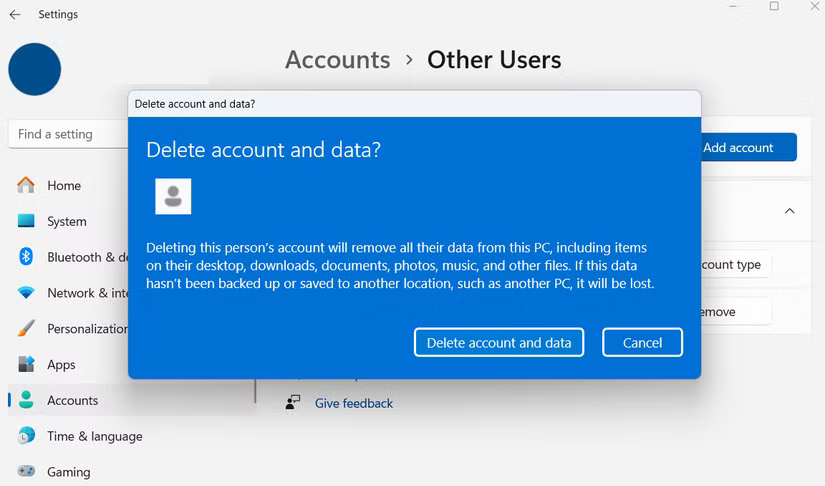
To delete an account, go to Settings > Accounts > Other users . You'll see a list of all the user profiles currently on your device. Find the profile you want to delete, tap the Remove button, then select Delete account and data to confirm.
FAQ
What should you know about 8. Empty the Recycle Bin?
Cleaning out old files and downloads can be effective, but if you don't empty your Recycle Bin afterward, it's like sweeping dust under the carpet. Until you empty your Recycle Bin, those files aren't really gone and are taking up as much space as they used to.
What should you know about 7. Delete temporary files?
As you continue to use Windows, the system creates various temporary files. While they may be useful in the short term and are generally harmless, they tend to stay around longer than they should. Over time, these forgotten files can silently accumulate and take up valuable storage space.
What should you know about 6. Delete old restore point?
The System Restore feature can be a lifesaver when your computer crashes. It allows you to restore your computer to a previous state without having to do a complete reset. To do this, Windows reserves a portion of your hard drive to store restore points.
What should you know about 5. Uninstall unused apps?
Unless you've removed bloatware, your Windows 11 computer probably has several apps you don't use and may never need. Some come pre-installed by Microsoft, while others come pre-packaged by your laptop manufacturer. And then there are the apps you may have installed months ago and forgotten about.
Related Articles
 How to Upgrade Windows 11 Without Losing Data Quickly5 minutes read
 Anti-theft Solution for Laptops6 minutes read
 How to Split the Hard Drive, Merge the Partition on Windows XP8 minutes read
 How to Partition Hard Drive without Losing Data on Windows 10, 117 minutes read
 How to Update to Windows 10 Creators Update Without Losing Data6 minutes read
 How to Switch from FAT32 to NTFS Without Losing Data with the CMD Command3 minutes read
Reader Comments 0
Sign in with email or Google to join the discussion.