Table of Contents
The Filesystem MCP server gives Claude Desktop tools for working with files in allowed folders. It can read and write files and perform other supported filesystem operations. Set it up with a small test folder first, because an incorrect instruction or an overly broad permission can expose or alter important data.
This guide covers manual local-server configuration. It is different from connecting a remote service through a web connector. The server process runs on your computer, but that does not mean information returned to Claude stays entirely on the computer.
Prepare a limited test folder
- Install Claude Desktop and a supported Node.js release from their official providers. The MCP setup guide recommends Node.js LTS.
- Open a terminal and check
node --versionandnpx --version. - Create a folder such as
C:/Users/YourName/ClaudeTeston Windows or/Users/YourName/ClaudeTeston macOS. - Add a harmless text file to that folder. Do not include credentials, private logs, customer data or your whole home directory.
Use the official local MCP server guide to check current prerequisites and interface differences.
1. Open Claude Desktop's developer configuration
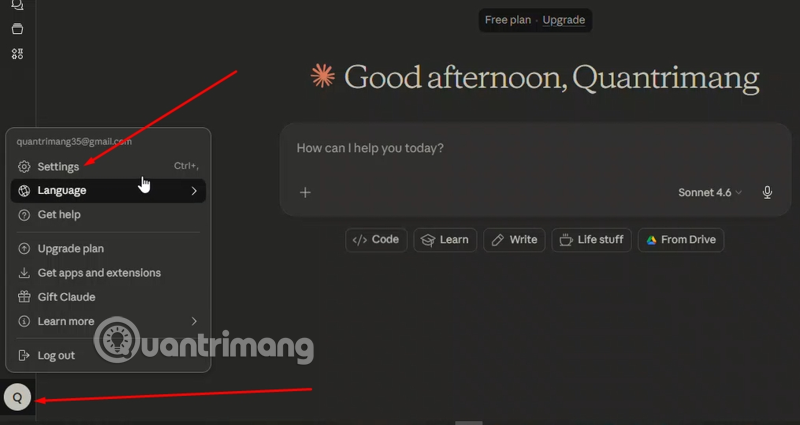
Open the desktop application's settings, then find Developer and select Edit Config. Desktop settings can be separate from your online account settings; if Developer is missing, check that you are in the desktop app's configuration window.
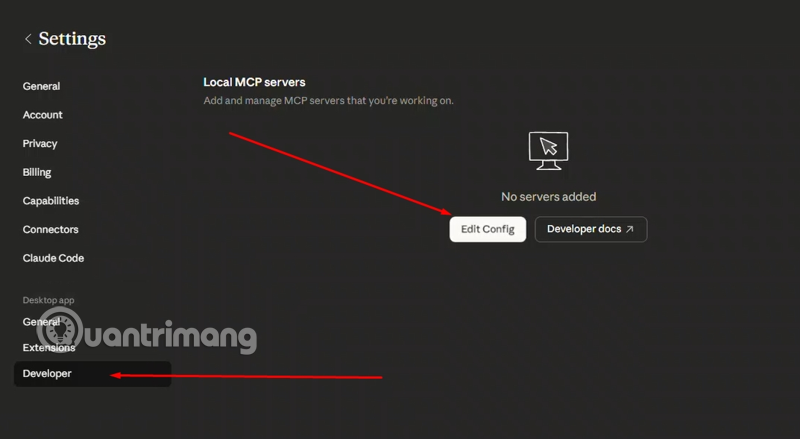
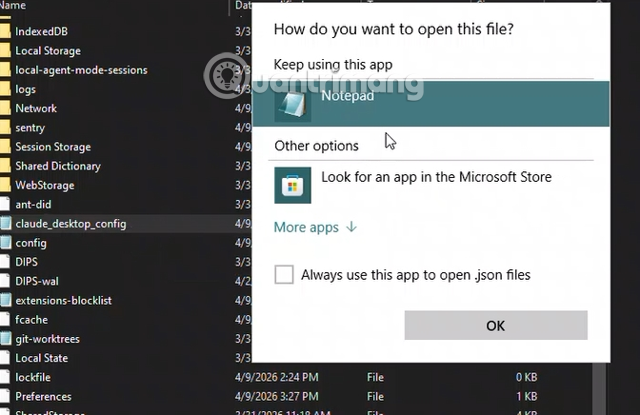
The file is named claude_desktop_config.json. Open it in a plain-text editor, such as Notepad or VS Code. Make a backup of an existing configuration before changing it.
2. Add the Filesystem server
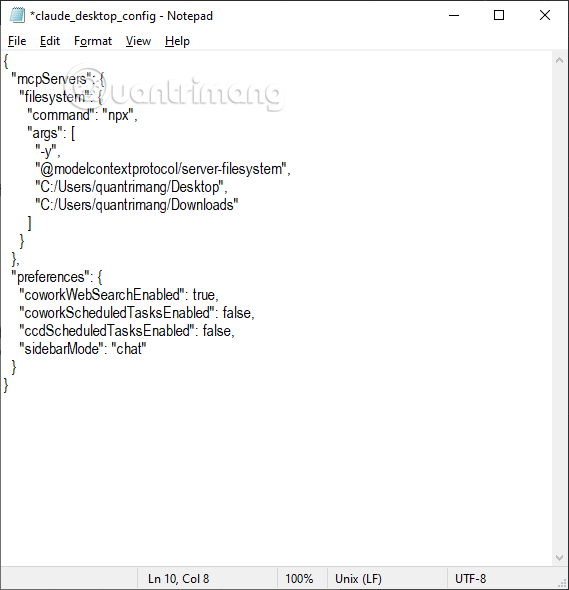
For a new configuration on Windows, this example allows one folder. Replace YourName and the folder path with a directory that actually exists on your computer:
{
  "mcpServers": {
    "filesystem": {
      "command": "npx",
      "args": [
        "-y",
        "@modelcontextprotocol/server-filesystem",
        "C:/Users/YourName/ClaudeTest"
      ]
    }
  }
}
On macOS, use the same structure with an absolute path such as /Users/YourName/ClaudeTest. Forward slashes make the Windows JSON example easier to read; if using backslashes, they must be escaped correctly in JSON strings.
If you already have an mcpServers object, add the filesystem entry inside it. Do not replace unrelated server entries or create a second top-level object. JSON does not allow comments or trailing commas.
Know what this starts: npx runs the package, and -y automatically accepts package installation when needed. Review the package and its source before using this configuration. For a managed or repeatable environment, use a reviewed package version rather than accepting an unreviewed update.
3. Save and fully restart Claude Desktop
Save the file with its exact name and .json extension. Quit the application completely, then reopen it so the configuration is loaded.
Check the server's status and available tools. A saved configuration alone does not prove the server started successfully.
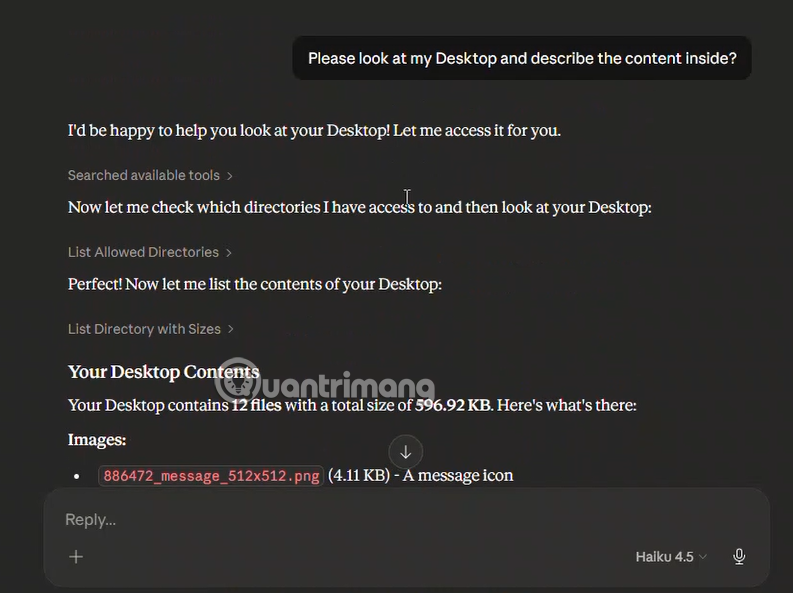
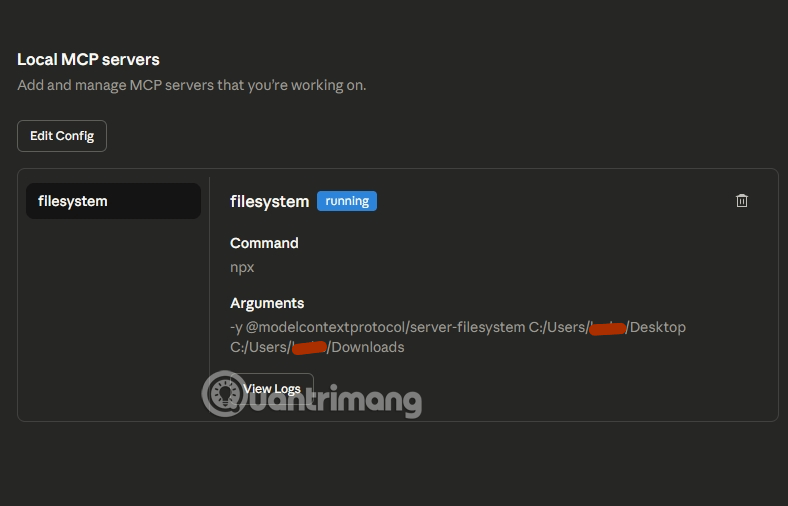
4. Test access before requesting changes
Start with a narrow read-only request:
Use the filesystem tools to show the currently allowed directories. Then list the files in my ClaudeTest folder. Do not create, modify, move or delete anything.
Check that the allowed scope matches your intention. The server README documents list_allowed_directories and explains that client-provided MCP Roots can replace the directories supplied through configuration arguments.
Next, ask Claude to read only the harmless test file. If you want to test writing, use a new disposable filename in the test folder and inspect the proposed content and target path before approving it. Check the result yourself in a text editor.
Troubleshoot a server that will not connect
| Symptom | Check |
|---|---|
| Configuration is not loaded | Verify the filename, valid JSON, Developer configuration location and full application restart. |
| Node or npx is not found | Confirm installation and command availability. A desktop app may inherit a different PATH from your terminal. |
| Server exits during startup | Read its error details; check package availability and whether every configured directory exists. |
| Access denied | Compare the requested absolute path with the server's current allowed directories and your operating-system permissions. |
| Unexpectedly broad access | Stop the task and review configuration and client Roots before allowing further file operations. |
Do not fix an access error by granting the entire drive or running Claude as an administrator. Resolve the specific path or permission problem instead.
Use filesystem access with care
- Keep allowed folders small and separate from secrets and personal records.
- Review write, move and delete requests carefully. A write can overwrite an existing file.
- Use backups or version control for work that matters.
- Do not treat instructions inside an untrusted file as permission for unrelated actions.
- Review the actual tools exposed by each installed server; MCP is a protocol, not a guarantee that third-party code is safe.
For other workflows, see connecting an AI model to Obsidian with MCP or using Claude Code in VS Code. Those are different integrations and need their own permission review.
Related Articles
 What Are Filesystems? Basic Knowledge of Filesystem19 minutes read
 Guide to Connecting MCP GitHub Local Dev21 minutes read
 What Is the Claude Code: Clear Explanation7 minutes read
 How to Organize Files on Your Desktop with Claude6 minutes read
 The Difference Between Desktop and Server6 minutes read
 Setting up and Running Claude Cowork for the First Time5 minutes read
Reader Comments 0
Sign in with email or Google to join the discussion.