Table of Contents
You can use Grok Imagine to turn a smartphone character image into short animated clips, then assemble those clips into a story. Reusing a reference image helps guide the design, but it does not guarantee that the character will look identical in every generation. Plan to compare results and regenerate inconsistent shots.
The output is a rendered video with a 3D animation style, not an editable 3D model or animation project. Available clip lengths, generation limits and paid features change; check the current interface and official Grok feature overview before planning a large project.
1. Break the idea into short, simple scenes
Choose one message for the video. For this example, a personified smartphone reacts to everyday frustrations. Give each scene one visible action so the viewer can understand it without a long explanation.
| Scene | Action | Continuity check |
|---|---|---|
| Introduction | The smartphone character waves from a desk. | Establish its face, body shape and scale. |
| Interruption | A few notification shapes appear and the character looks distracted. | Keep the same face and body proportions. |
| Resolution | The notification shapes disappear and the character relaxes. | Match the desk, lighting and camera position. |
This is an illustrative storyboard, not a factual claim about a particular phone. If your story makes product claims, verify those separately before adding narration.
2. Create one reusable character reference
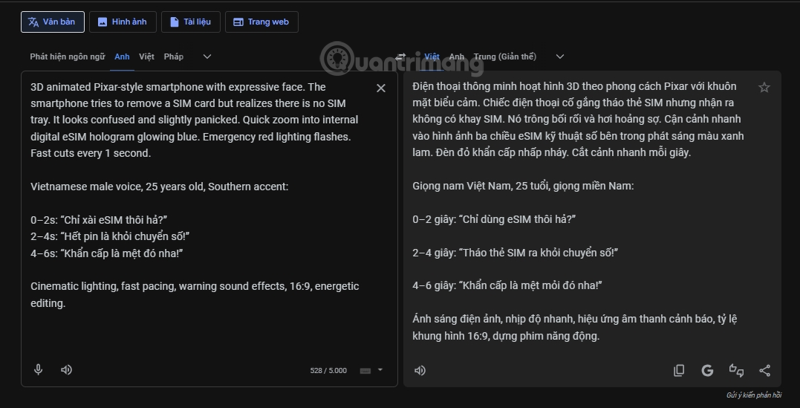
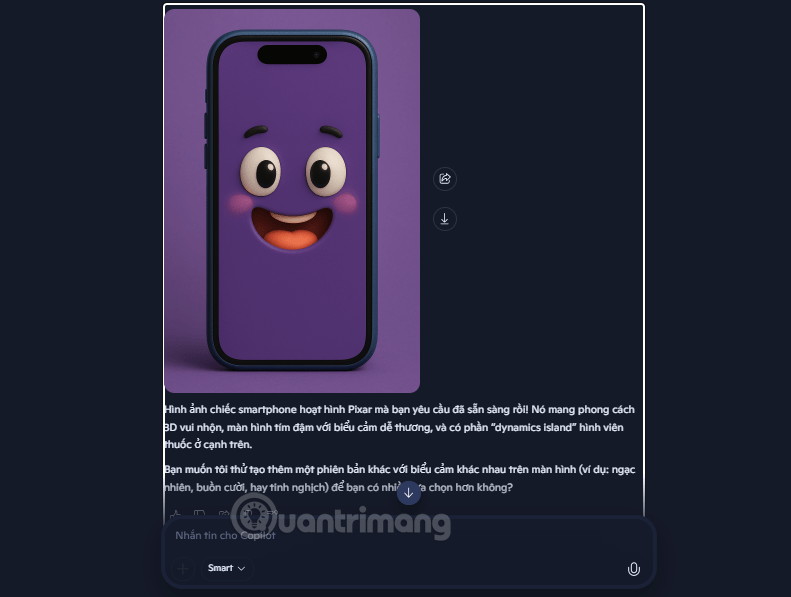
Prepare a clear image of the main character. Keep its silhouette, face and distinctive details easy to see. Use an original design or an image you have permission to use.
Save the reference and a short design description. For example: “Use the exact smartphone character in the reference: preserve its screen shape, face placement, body proportions and colors.” A reference is more useful than repeatedly asking for an unspecified “cute phone.”
Choose the final frame shape before generating the scenes. See setting a video aspect ratio in Grok if you need a landscape presentation or another specific layout.
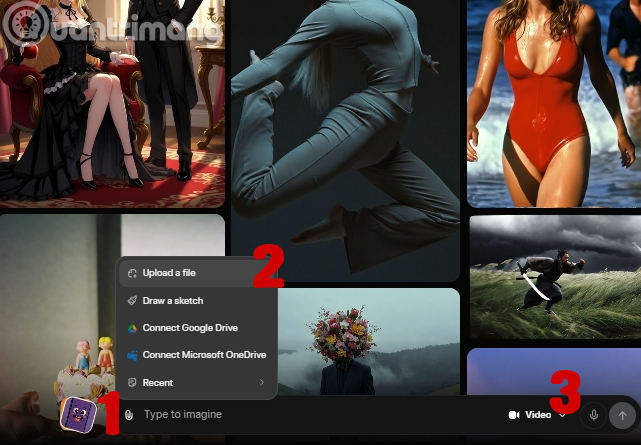
3. Upload the reference in Grok Imagine
Open Grok Imagine and sign in if requested. Use the available upload control to add the character image, then select the video-generation option. The screenshots show the interface used for this walkthrough; controls may move as the product changes.
4. Describe the action and the details that must stay fixed
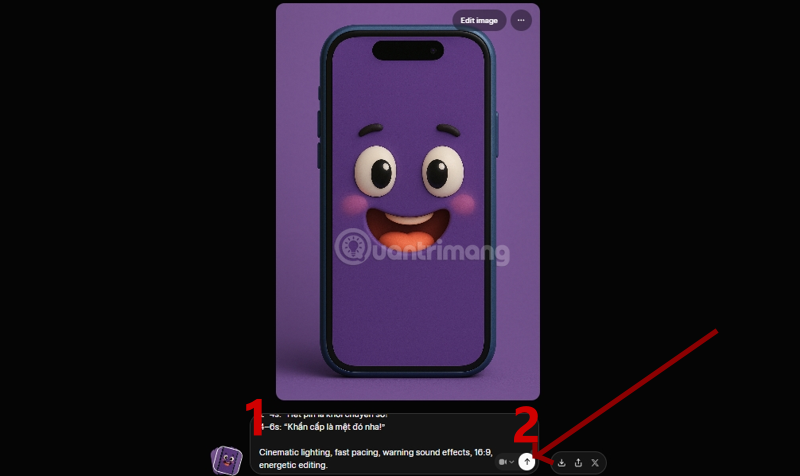
For the first scene, use a prompt like this:
Animate the smartphone character from the reference image in a polished 3D cartoon style. It stands on a simple desk and gives a small, friendly wave. Preserve the reference character's silhouette, face placement, proportions and colors. Use soft daylight, gentle shadows and a fixed medium shot. Keep the background simple and do not add text or extra characters.For the next scene, reuse the reference and replace only the action: “The same character glances at three floating notification shapes, then lowers its arms. Keep the desk, lighting and camera framing consistent.”
Words such as “soft shadows” describe a visual goal. Naming a rendering engine in the prompt does not mean that engine is actually used. Be specific about the appearance you want rather than relying on a string of style labels.
5. Review and save each clip
Play the result before downloading it. Compare the first and last frames with your reference. Reject clips in which the face changes, extra limbs appear, the phone changes shape or the background shifts without explanation.
If an available download control is shown, save the approved result with a scene number and take number so you can identify it later.
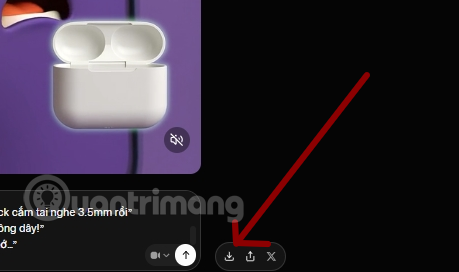
Use the same reference for each new scene. If you use a previous clip's final frame as a new reference, inspect it first: otherwise, a small distortion can become part of the next generation.
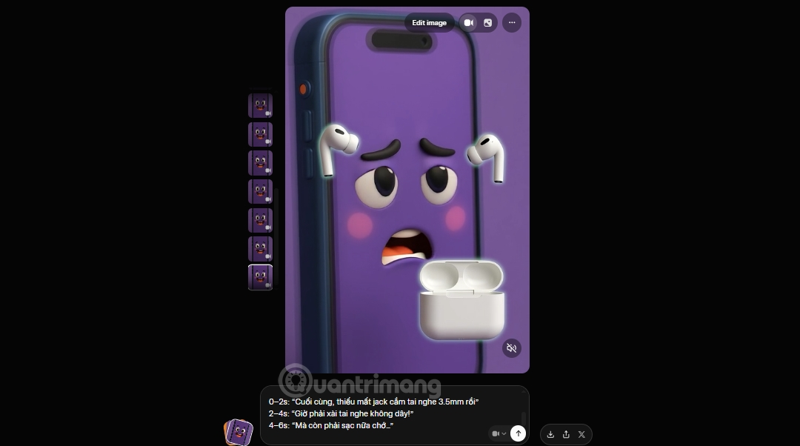
6. Edit the clips into a complete story
Arrange the approved clips in a video editor, trim awkward starts and endings, and add consistent titles or narration. If you need an editor, compare the options in the online video-editing guide.
- Keep the frame size consistent across scenes.
- Use captions or narration to explain the message rather than relying on generated text inside the image.
- Check cuts for sudden changes in character size, position or lighting.
- Review speech and sound effects; a visual prompt does not guarantee accurate dialogue or lip synchronization.
- Watch the entire export before publishing, including the final frame.
When a shot keeps changing the character, reduce the motion, simplify the background and retry one scene at a time. Consistency comes from reference reuse and review, not from a prompt that promises perfect results.
Related Articles
 Creating Videos from Photos Using Grok9 minutes read
 How to Create a Long Video on Grok10 minutes read
 Creating Animated Videos Using Anijam AI Is Definitely Worth a Try4 minutes read
 How to Create Animated Character Videos Using Canva AI5 minutes read
 How to Create a 3D Animated 'Stomach Crying for Help' Video with Veo 3 in Geminigen AI7 minutes read
 How to Write Basic Code with Grok: Step-by-Step Guide11 minutes read
Reader Comments 0
Sign in with email or Google to join the discussion.