Table of Contents
Quick Overview
Screen : Get a clear, practical overview of Screen, including Causes of computer screen flashing continuously and How to fix laptop screen flickering continuously.
After using a laptop for a while, sometimes you will encounter some errors, of which the most common is the computer screen flickering, flashing continuously, causing a very uncomfortable feeling. This guide will guide you to find the cause and how to fix the laptop screen flickering continuously .
What is the phenomenon of computer screen flashing continuously?
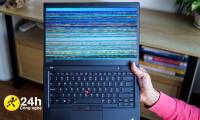
Laptop screen flickering continuously is a phenomenon where the image displayed on the laptop continuously flashes, blinks or jerks. This error affects your study and work. You need to find the cause and fix the error or take the device to a repair center to fix it.
Causes of computer screen flashing continuously
There are many reasons that cause the laptop screen to flash continuously . Based on the causes below, you can promptly detect the error and fix it.
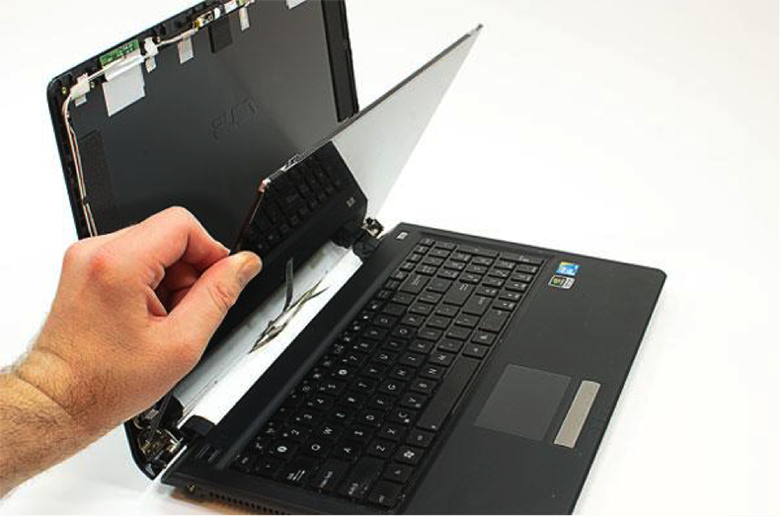
The screen cable is damaged due to long-term use.
The display cable is the only device that transmits the signal from the controller to the screen. If the cable is faulty or loose, it will affect the quality of the signal, causing the screen to flash continuously. Therefore, when you see the computer screen flashing continuously, you should check the cable.
Screen refresh rate is not compatible with computer
Screen refresh rate is the speed at which the screen displays images in one second. If the screen refresh rate is high and set to an inappropriate mode, it will cause image flickering even without any action.
Video card not working
The video card is a part that processes information about images and graphics of the computer. If this device is not installed compatible, it will cause errors or reduce quality. This is Among the reasons for poor image quality and jerkiness, causing the laptop screen to flash continuously .
Screen error
The computer screen is an electronic component and has a very high probability of failure. To check if the cause is due to a screen error, you can change the input signal plug. If changing the input signal plug fixes the error, then the other signal plug on the screen is faulty.
You can also try using another source instead of the computer to determine whether it is a screen error or a computer error. Some common sources that we can replace at home are: MyTV, FPT Playbox, TV signal input, etc.
Due to strong impact
Due to strong impact when moving, it can also affect the computer screen. At this time, the screen is at risk of flashing and flickering for unknown reasons.
Due to application error
Errors in installing incompatible application software, often called software conflicts, can also cause the laptop screen to flash continuously . Therefore, users should be careful when installing different programs.
How to fix laptop screen flickering continuously
With the causes of the laptop screen flickering continuously, the basic solution will be as follows:
Fix computer screen flickering continuously due to incorrect frequency
After checking and finding the cause of the laptop screen flickering continuously due to incorrect frequency, you need to fix this error as follows:
On Windows 7: Open the Start menu then open the Control Panel window >> click Adjust Screen Resolution. In the new Screen Resolution window that appears, select the Advanced Settings line and find the Monitor tab to reset the scan frequency (Hertz).
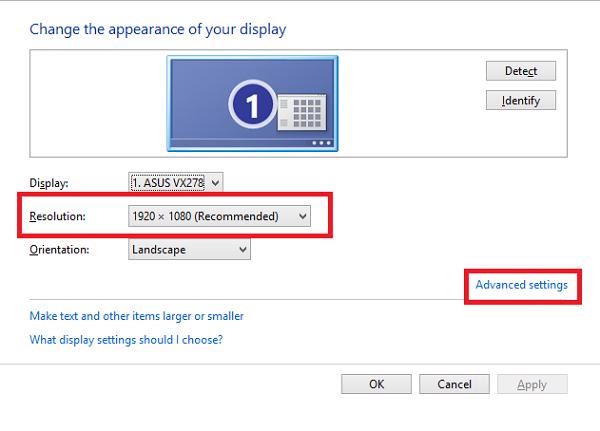
On Windows 8: Right-click on the Desktop screen >> select Screen Resolution >> select Advanced setting. Then, go to the Monitor tab to set the scan frequency (Hertz).
On Windows 10: Right-click on the Desktop screen >> select Display settings >> Display >> Advanced setting >> find the Monitor tab to set the scan frequency (Hertz).
Note: For normal laptops, the refresh rate is usually around 60, 75, 120 or 144 Hert.
If after trying the above method, the screen flickering error is still not fixed, the cause may not be due to the frequency. We will find another cause and solution.
Fix computer flickering error due to display driver error
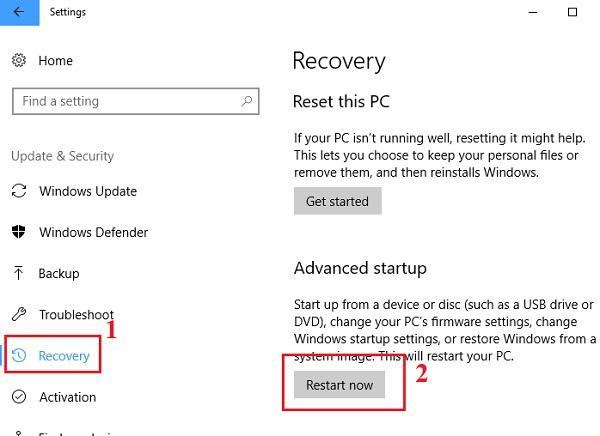
Step 1: Press the Windows + I key combination to access Boot into Safe Mode, then select Update & Security >> Recovery. Under Advanced Start-up, select Restart now.
Step 2: After the system restarts, click Troubleshoot >> Advanced options >> Startup settings >> Restart. Then you access option number 5 which is Safe Mode with Networking.
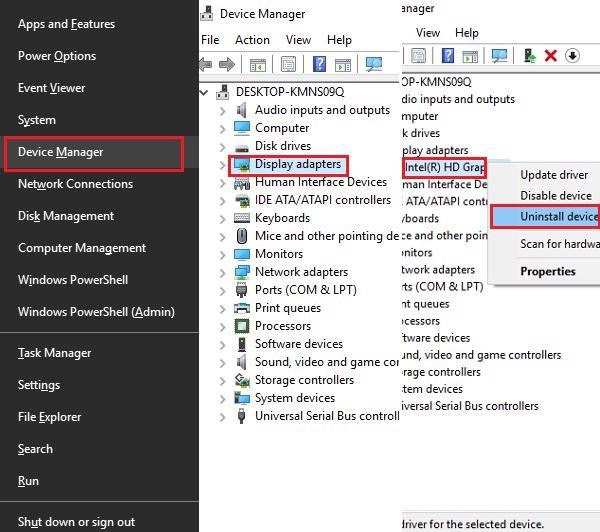
Step 3: Press Windows + X >> select Device Manager >> click on the arrow next to Display drivers >> right-click on the graphics card that the computer is using >> Uninstall device >> Delete the driver for this device >> OK >> restart the computer.
After performing the above steps, check to see if the computer screen flickering continuously has been fixed.
Conclude:
Above are the causes and simple ways to fix the problem of the laptop screen flickering continuously that you can do yourself at home. In case the laptop screen flickers due to hardware failure, the editorial team recommends that readers bring the device to a highly specialized technical facility for troubleshooting, repair or replacement. the editorial team currently provides many different laptop screen models, compatible with a variety of laptop models on the market. Readers can visit the editorial team branches nationwide for quick, guaranteed and most cost-effective replacement.
FAQ About Screen
What is Screen?
The screen cable is damaged due to long-term use
Why is Screen important?
Understanding Screen helps you evaluate its benefits, limitations, and potential risks before making a decision.
How can you use or manage Screen effectively?
To check if the cause is due to a screen error, you can change the input signal plug
Related Articles
 How to Fix Computer Screen Flickering Error12 minutes read
 Laptop Jerks: 101 Ways to Fix Laptop Screen Flickering Continuously8 minutes read
 Why Does My Laptop Screen Flicker and Get Noisy? How to Fix It6 minutes read
 Steps to Fix Laptop Screen Flickering3 minutes read
 How to Fix Screen Flickering Error on Windows 105 minutes read
 How to Fix LCD Screen Problems, from Screen Stripes to Flickering10 minutes read
Reader Comments 0
Sign in with email or Google to join the discussion.