Table of Contents
Learning how to fix LCD screen problems, from screen stripes to flickering doesn't have to be complicated. This updated guide presents a clear workflow, practical checks, and troubleshooting advice you can use while completing the process.
Key Takeaways
- Learn how to fix common errors on LCD screens.
- Follow the recommended steps in order to avoid common mistakes with fix LCD screen problems, from screen stripes to flickering.
- Review compatibility, settings, or requirements before making changes.
Fix Common Errors on LCD Screens
1. Screen error is jerky, flickering and unstable.

You will find many causes of screen jerking errors and this is also a common error on LCD screens. We must find out the cause of each error to try the fixes from simple to complex to be able to completely fix it. This helps you specifically handle the above error.
- First, the LCD screen error may be due to incorrect screen scanning frequency. Although this error rarely occurs, it is not impossible. Normally, the screen has a stable frequency of 60 Hz, but with new types of screens now the frequency can be higher and can even go up to 144 Hz, you need to check and set up your screen according to the correct standards.
Step 1: First, right-select the desktop screen and select Graphics Properties.

Step 2: Then the Graphics Properties section appears, continue to select Display.

Step 3: In Display, you just need to set the screen to 60 hz (usually 60 hz) by clicking Refresh Rate and selecting 60p Hz.

- The cause of the screen cable error can also lead to the situation of the LCD screen being jerky. The screen cable, whether laptop or desktop, after a period of use can be worn out, the contact pins are poor or damaged due to impact. On the laptop you have to take it to the store to check and fix this common error on the LCD screen if on the computer we just need to remove the cable and replace the new cable.
- If it is not due to the Cable, it could also be caused by the VGA itself, including the VGA port and the internal Chip. The port could be oxidized, and the internal Chip could also be due to usage errors, overheating, or improper cleaning. Of course, in cases like this, we can only take it to the warranty center for repair.
- The final cause of the LCD screen shaking can also be due to the screen itself being faulty due to external impacts, possibly due to collision with a hard object or being dropped. And there is no other way to fix it than to take it to a warranty center for repair.
2. Screen color stripes error

The color striped screen error is also quite common on old screens and there are many causes. However, it focuses on 2 problems: the screen and the graphics VGA.
- The main cause of the color stripe display is the error of the VGA graphics. This color stripe can be just one line but can also be a large area of color stripe. This is an error that you can't fix yourself. We can temporarily accept and ignore it, but if the lines cause too many obstacles, you must fix it immediately if there is only one color line.
- And the remaining error mentioned is also a common error on LCD screens, LCD screens with problems can be due to external impacts, or due to long-term use causing internal circuit breakage, circuit errors with laptop screens. Normally, you can only ask experts to fix the above errors, but with computer screens that are too old, you can throw it away to replace it with a new one.
3. Screen error with dead pixels
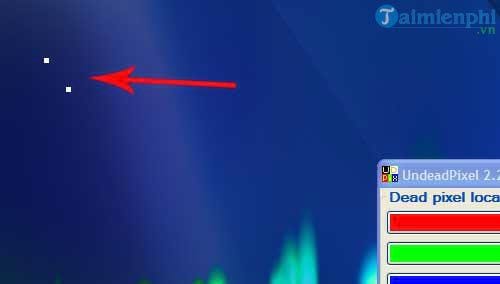
Dead pixels on the screen are very annoying because they not only appear on old screens but can also happen on new screens. The reason is that the pixels inside the panel are completely dead and can't light up again when electricity passes through. Simply put, this is an error that causes 1 or a few points on your screen to not display color regardless of what wallpaper the screen is using. There is no way to fix it, but we can check for dead pixels on the computer screen thanks to diagnostic and color display software. Refer to the instructions on how to check the computer screen to see if the screen has any dead pixels. It is not a problem, but if there are too many, you should replace the screen with a new one if there are few.
4. Screen error with cracks
With cracks appearing on the screen, there is only one cause: the user. Using the laptop improperly causes the laptop to be impacted or not have protective devices such as shockproof bags. The same goes for the computer screen when we move it to a new location and let it hit something. With errors caused by impact causing damage to the screen and to fix this common error on the LCD screen, replacement is the only option you can do.
5. Screen error making noise
The screen makes noise when you start the machine, it is likely that the power port is damp due to a period of disuse or in an environment that is too humid. This is not a major error, but you should not be subjective and should fix it to avoid causing danger to the user. Take it to a professional repairman for early repair.
6. Incorrect screen resolution error.
For those who are new to computers, this is a common error on LCD screens, caused by users accidentally setting the resolution incorrectly, not matching the resolution supported by the screen. This guide has also written an article and instructed readers on how to fix this. This helps you fix this situation. Specifically, you should refer to how to change the screen resolution, in the article you will be instructed on how to change as well as identify which resolution your screen should have for the sharpest and most stable.
7. Screen automatically turns off error.
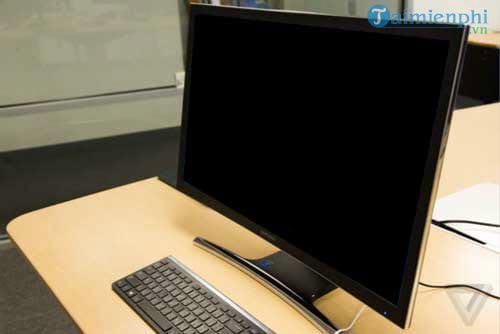
You have several reasons why the screen automatically turns off without a specific time while in use, and the main reason is a screen error. Because the screen has been used for a long time, some internal components may not operate properly and may be faulty.
Another cause is a problem with the display cable, it could be loose or it could be poor contact.
The repair is simple, but if it's the screen, you have to take it out for more specific inspection and repair if it's the cable.
With the 7 errors above, you can easily identify the cause of the problem on your computer screen. On laptops, errors such as horizontal and vertical stripes on the screen can be annoying and affect your work. You should repair it early to avoid further damage if you encounter this situation. In addition, to protect the screen, use a shockproof bag or backpack with a separate compartment for the laptop. This helps limit errors such as stripes, smudges or cracks on the screen due to external forces.
Final Thoughts
The most reliable way to handle fix LCD screen problems, from screen stripes to flickering is to follow the process in order, verify each important setting, and test the result before moving on. Use the guidance above as a practical reference, then adjust the details for your device, software version, or specific goal.
FAQ
What should I check before I fix LCD screen problems, from screen stripes to flickering?
Use the latest available software, confirm that your device meets the requirements, and make sure you have the necessary permissions, account access, or backup before changing anything.
Why might I be unable to fix LCD screen problems, from screen stripes to flickering?
Common causes include outdated software, missing permissions, incompatible settings, incomplete setup steps, or a temporary network problem. Recheck the process from the beginning and restart the app or device if needed.
Is it safe to fix LCD screen problems, from screen stripes to flickering?
It is generally safe when you use official tools, review every permission, and back up important data before making system-level or account-level changes.
Related Articles
 How to Fix Vertical Screen Stripes, Horizontal Stripes6 minutes read
 Steps to Fix Laptop Screen Flickering3 minutes read
 How to Fix Screen Flickering Error on Windows 105 minutes read
 How to Fix Computer Screen Flickering Error12 minutes read
 Laptop Screen Has Stripes - Causes and Fixes: Complete Overview7 minutes read
 How to Fix Striped Macbook Screen: Step-by-Step Guide7 minutes read
Reader Comments 0
Sign in with email or Google to join the discussion.