
Advice Computer
Can a Low-Level Format Repair Bad Sectors on a Hard Drive?
Understand why zero-filling a drive does not repair physical bad sectors, how to protect your data, and when to test, erase, or replace an HDD.
Browse more Explore computer hardware guides, buying advice, troubleshooting tips and practical information about components, laptops and peripherals.
Understand why zero-filling a drive does not repair physical bad sectors, how to protect your data, and when to test, erase, or replace an HDD.

Learn what registry defragmenters actually change, why the old Free Registry Defrag guide is outdated, and which Windows maintenance steps are safer.

Use HDDScan's SMART information and non-destructive surface tests to investigate a hard drive, interpret slow or unreadable blocks, and protect your data.

Install IObit Smart Defrag from the official source, analyze an HDD, choose an appropriate optimization mode, and avoid treating SSDs like mechanical drives.

Recognize read errors, SMART warnings, corrupted files, slow areas, and other bad-sector symptoms—and learn what to do before testing a failing drive.

The old MyDefrag workflow is no longer recommended. Learn what its options did and how to optimize HDDs and SSDs safely with supported Windows tools.

Learn how file fragmentation affects HDD performance, why SSDs are different, and how Windows Optimize Drives handles each storage type automatically.
Use fsutil to check Windows delete notifications, enable TRIM when needed, and let Optimize Drives handle SSD retrim on a safe schedule.

Verify Windows TRIM notifications, review the SSD retrim schedule, and run a repeatable speed test without confusing benchmark results with drive health.
Repurpose a working USB flash drive for offline file transfers, portable apps, recovery tools, or bootable installers—after checking its health and removing sensitive data.

Compare five Bluetooth headsets by use case, including travel ANC, budget listening, low-latency gaming, noisy-workplace calls, and luxury materials.

Compare five budget laptop families for everyday work, students, ChromeOS, display quality, and gaming—plus the specifications to check before buying.

Compare current AMD, Nvidia, and Intel GPUs for 1080p, 1440p, 4K, ray tracing, and creator workloads, with VRAM and power checks before buying.
Reuse an old PC as a NAS, dedicated game server, or home lab—with hardware checks, supported operating systems, backup planning, and security precautions.
Reduce PC fan noise with UEFI fan curves, manufacturer utilities, or Fan Control—after identifying the fan and checking temperatures, dust, and hardware support.

Cast a browser tab or mirror a desktop to a Nest Hub, or approximate an extended Windows display with a virtual monitor—while understanding the delay and limits.

Compare five PC cases for showcase ATX, value airflow, full-tower air cooling, Mini-ITX, and Micro-ATX builds, with the key clearance checks to make before buying.

Identify whether blocked vents, dust, a failing fan, background processes, startup apps, or software problems are making a laptop run hot, then follow a safe troubleshooting order.

See what Dell's 51.5-inch 6K ultrawide offers for multi-PC work, including its 120Hz IPS Black panel, Thunderbolt hub, KVM features, ports, and practical setup limits.
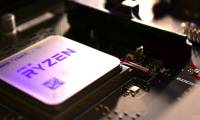
Older processors can rise in price when they are the best drop-in upgrade for a widely used motherboard platform. Use total platform cost, compatibility, and used-part risk to decide whether to buy one.