Table of Contents
MyDefrag is discontinued and its vendor no longer maintains the product or official download site. The old interface is still useful for understanding analysis and HDD defragmentation, but downloading an abandoned installer from a mirror is not recommended on a current Windows PC. Use Windows' supported Optimize Drives feature instead.
What the old MyDefrag options meant
MyDefrag offered scripts such as Analyze only, Defragment only, Consolidate free space, and daily, weekly, or monthly profiles for system and data disks. These profiles moved files on mechanical drives according to different schedules and placement rules.
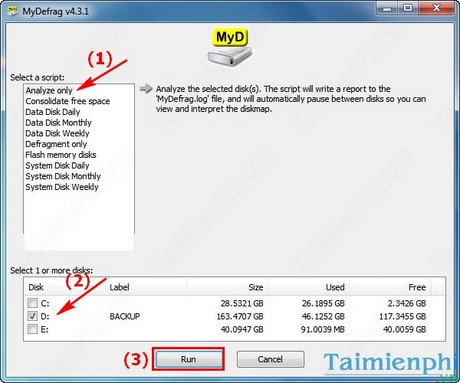
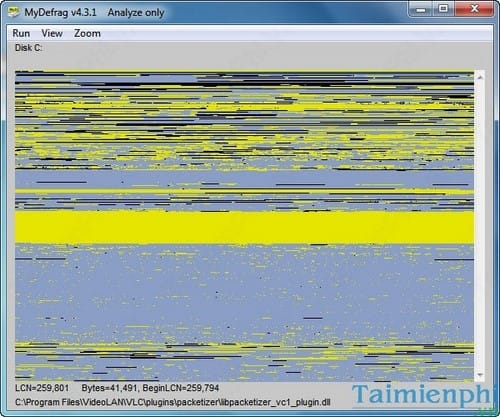
The old procedure was to choose a script, select a volume, and select Run. The disk map then showed progress and file placement.
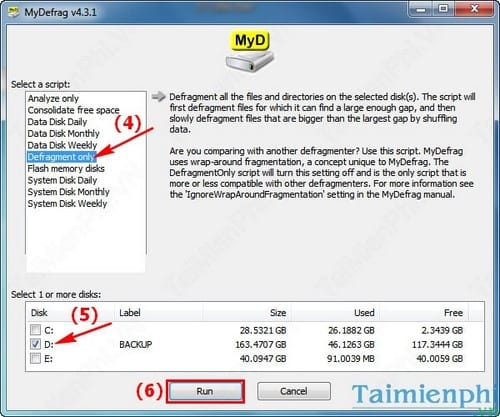
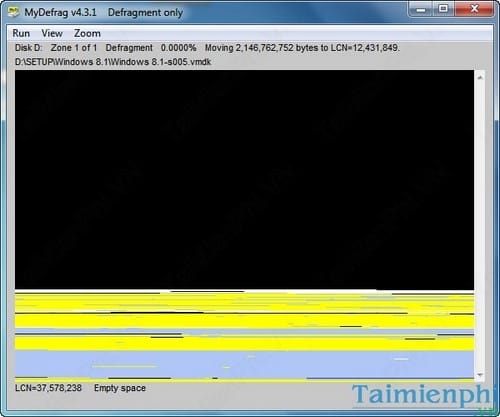
Do not follow the original “download the latest version” instruction. There is no current vendor-supported release, and a third-party copy cannot provide modern compatibility fixes or dependable support.
Optimize a drive with Windows
- Open Start, search for Defragment and Optimize Drives, and open the result.
- Check the Media type column and select the intended volume.
- Choose Analyze for an HDD when available, then choose Optimize.
- Select Change settings to review the automatic schedule.
Windows chooses an operation appropriate to the recognized storage type. It consolidates fragmented files on HDDs and uses storage-aware optimization such as TRIM for SSDs.
Do not treat an SSD like an HDD
Traditional defragmentation moves many blocks and is not routine SSD maintenance. Leave SSD optimization to Windows or the SSD manufacturer's supported utility. Do not run MyDefrag's old Flash memory disks script on a modern SSD without authoritative documentation for that exact device and tool.
Check health before performance tuning
Defragmentation cannot repair unreadable sectors, clicking, disconnects, SMART warnings, or a failing controller. Back up first and run the drive manufacturer's diagnostic if those symptoms appear. TipsMake explains how to check drive health.
Supported alternatives
Windows Optimize Drives is enough for most users. If you need reporting or enterprise scheduling beyond the built-in tool, choose software that is actively maintained, supports your Windows release, distinguishes HDDs from SSDs, and documents recovery behavior.
See TipsMake's overview of drive-defragmentation options. Avoid running multiple automatic optimizers on the same volumes, and keep a verified backup before any process that performs extensive data movement.
Related Articles
 These Quality Hard Drive Defragmentation Software7 minutes read
 When and How to Defragment Hard Drives on Windows 10?4 minutes read
 Defragment the Hard Drive with Disk Defragment2 minutes read
 How to Defragment the Windows 10 Hard Drive4 minutes read
 Why Doesn't Mac Hard Drive Need to Defragment?4 minutes read
 Why You Really Shouldn't Defragment Your SSD: Key Reasons Explained7 minutes read
Reader Comments 0
Sign in with email or Google to join the discussion.