Table of Contents
A laptop usually runs hot because its cooling system cannot move heat out quickly enough or because the CPU or GPU is working harder than expected. Start with the simple checks: move the computer to a hard surface, close unnecessary work, inspect the vents, and restart it. If temperatures remain high during light use, investigate the six causes below.
Warm air and fan noise during gaming, video editing, or charging can be normal. Repeated shutdowns, severe throttling, a fan that grinds or never spins, a burning smell, or a swollen battery are not. Stop using and unplug the laptop if you notice smoke, a burning odor, or battery swelling; those symptoms require professional service.
1. A cooling fan is failing
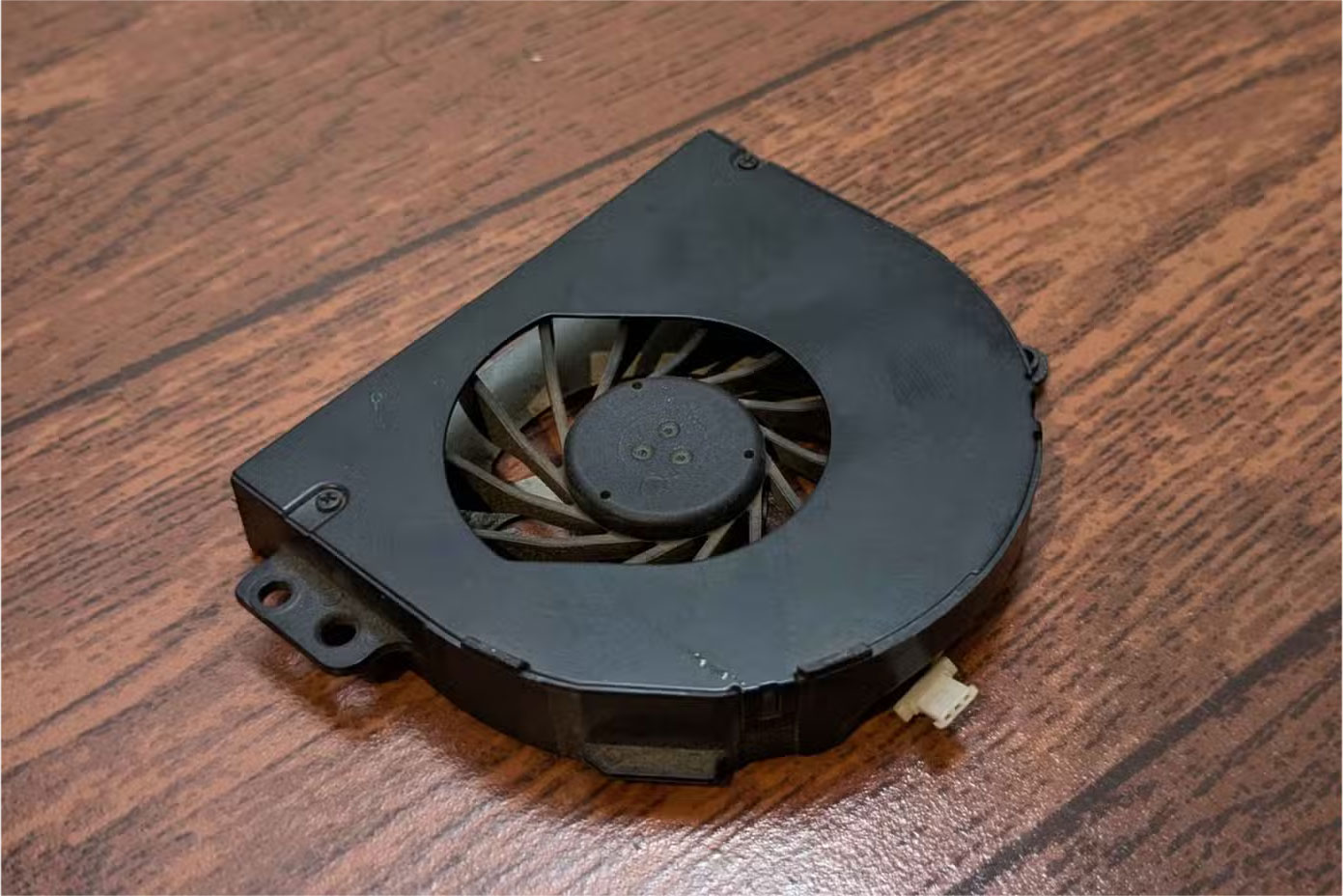
Most laptops adjust fan speed as component temperatures change. A fan that clicks, grinds, runs at full speed constantly, or stays silent while the chassis becomes very hot may be obstructed or failing. The laptop may also slow down or shut off to protect itself.
Listen near the exhaust while the computer is under a moderate load, and use the manufacturer's diagnostic utility if the model provides one. Temperature-monitoring software can show a pattern, but one reading does not prove that the fan is defective. Compare idle and load behavior and check the manufacturer's limits for the exact processor. This guide to checking a computer's operating temperature explains the basic monitoring process.
Do not put tools through a vent or open a laptop that is still under warranty unless its service instructions explicitly allow it. A fan replacement often requires model-specific disassembly.
2. The air vents are blocked
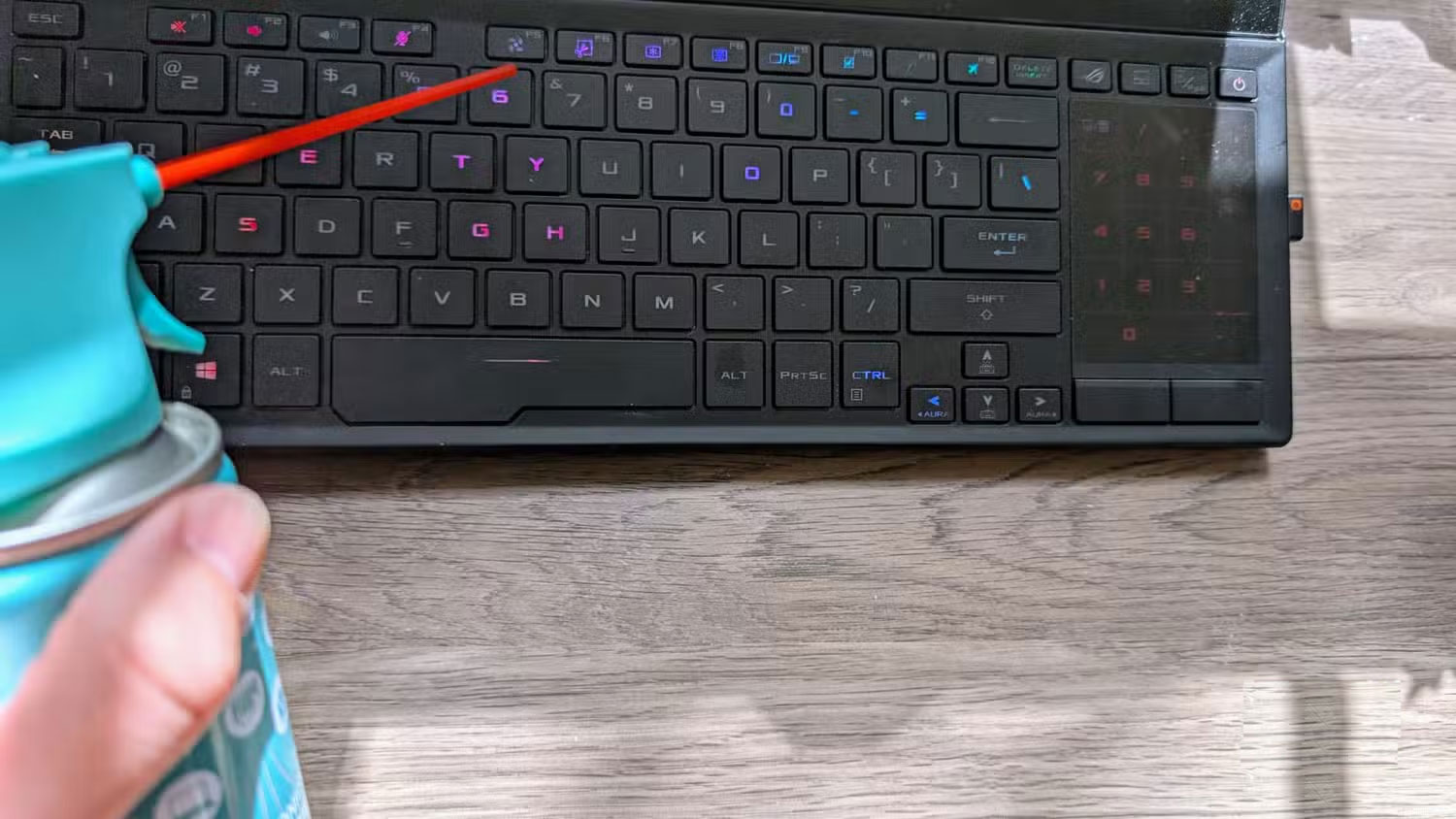
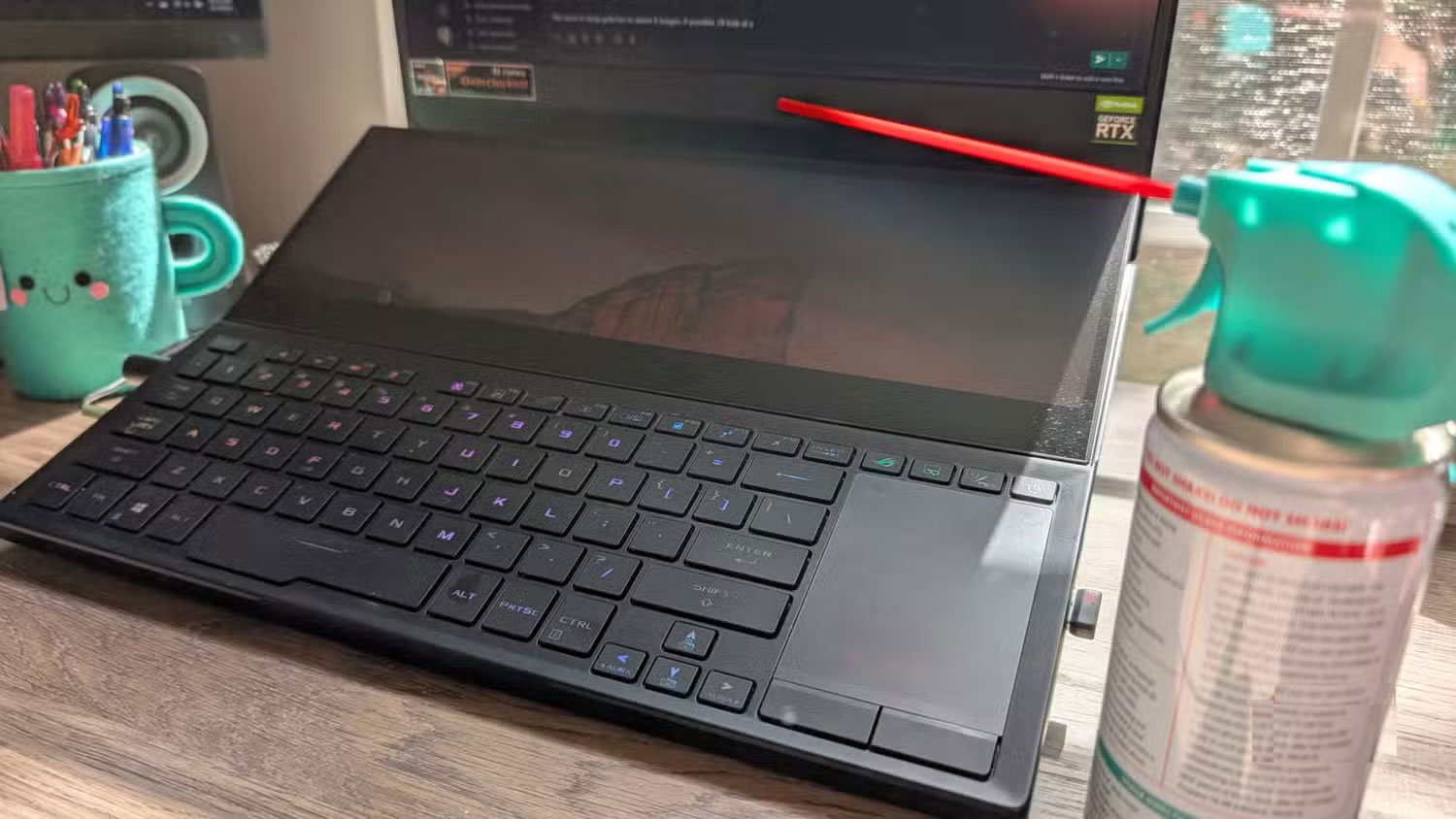
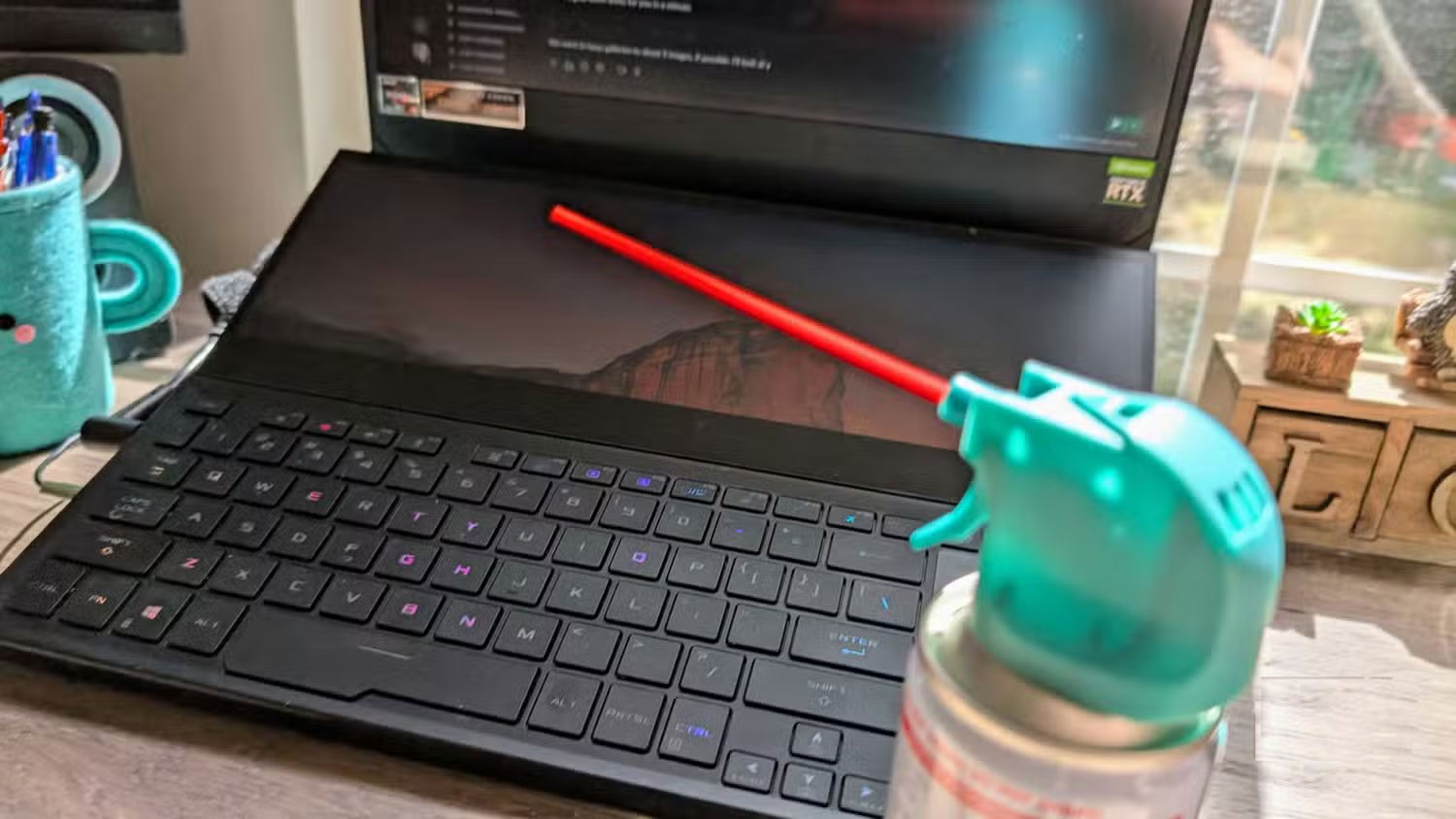
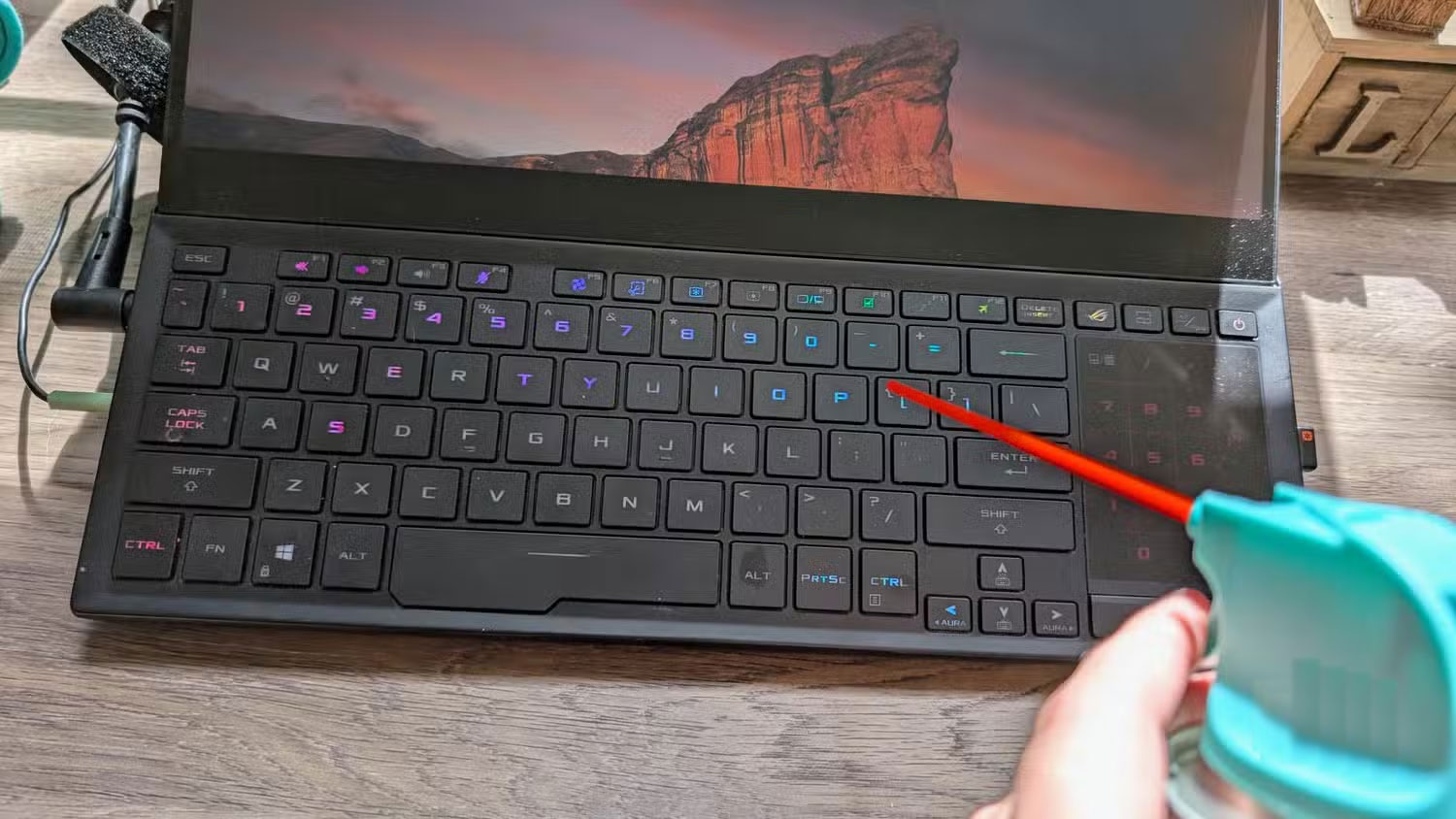
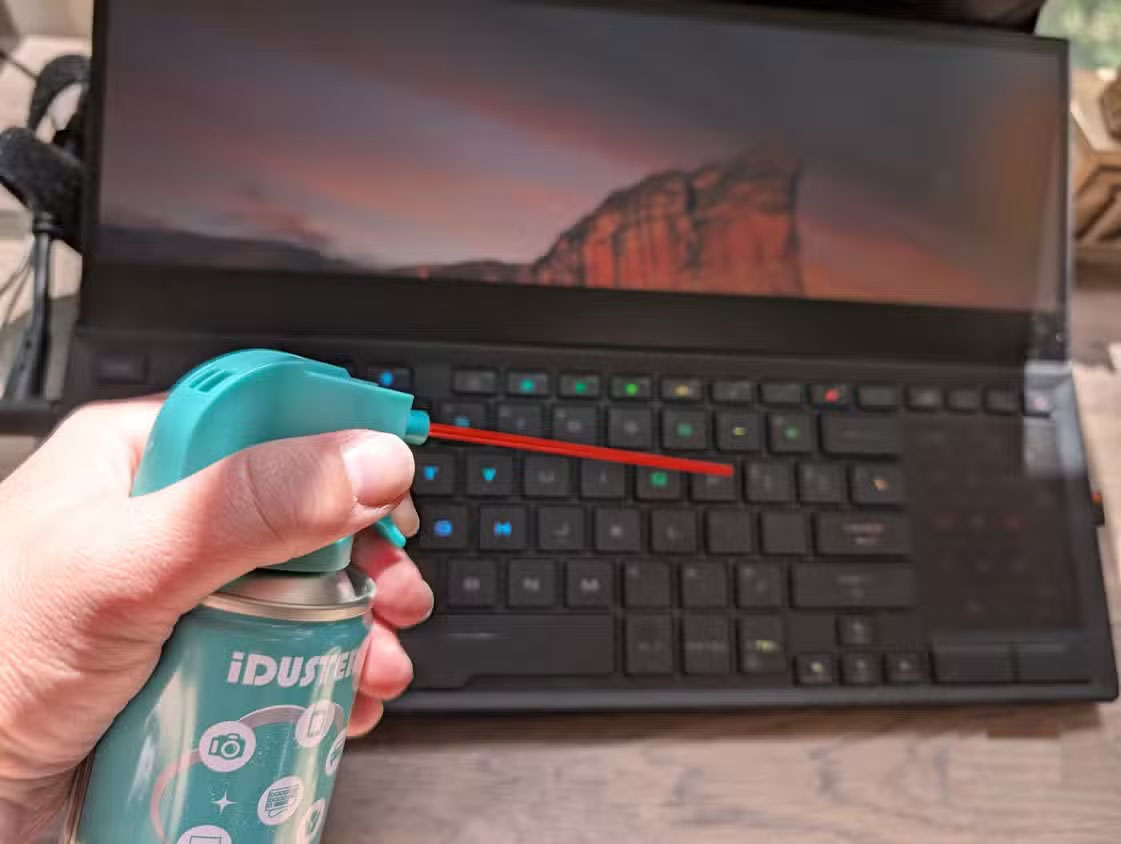
Soft bedding, a sofa, clothing, or even a lap can cover bottom intakes. Place the laptop on a clean, flat, hard surface and leave space around every inlet and exhaust. A stand can improve access to bottom vents, but it cannot repair a blocked heatsink or broken fan.
Turn the computer off and unplug it before cleaning the exterior. Wipe the vent grille with a dry microfiber cloth. If the manufacturer permits compressed air, use short, controlled bursts as directed in the service manual; forcing a fan to spin or driving dust deeper into the chassis can make the problem worse. Never insert metal objects or spray liquid through the vents.
3. Dust has accumulated inside
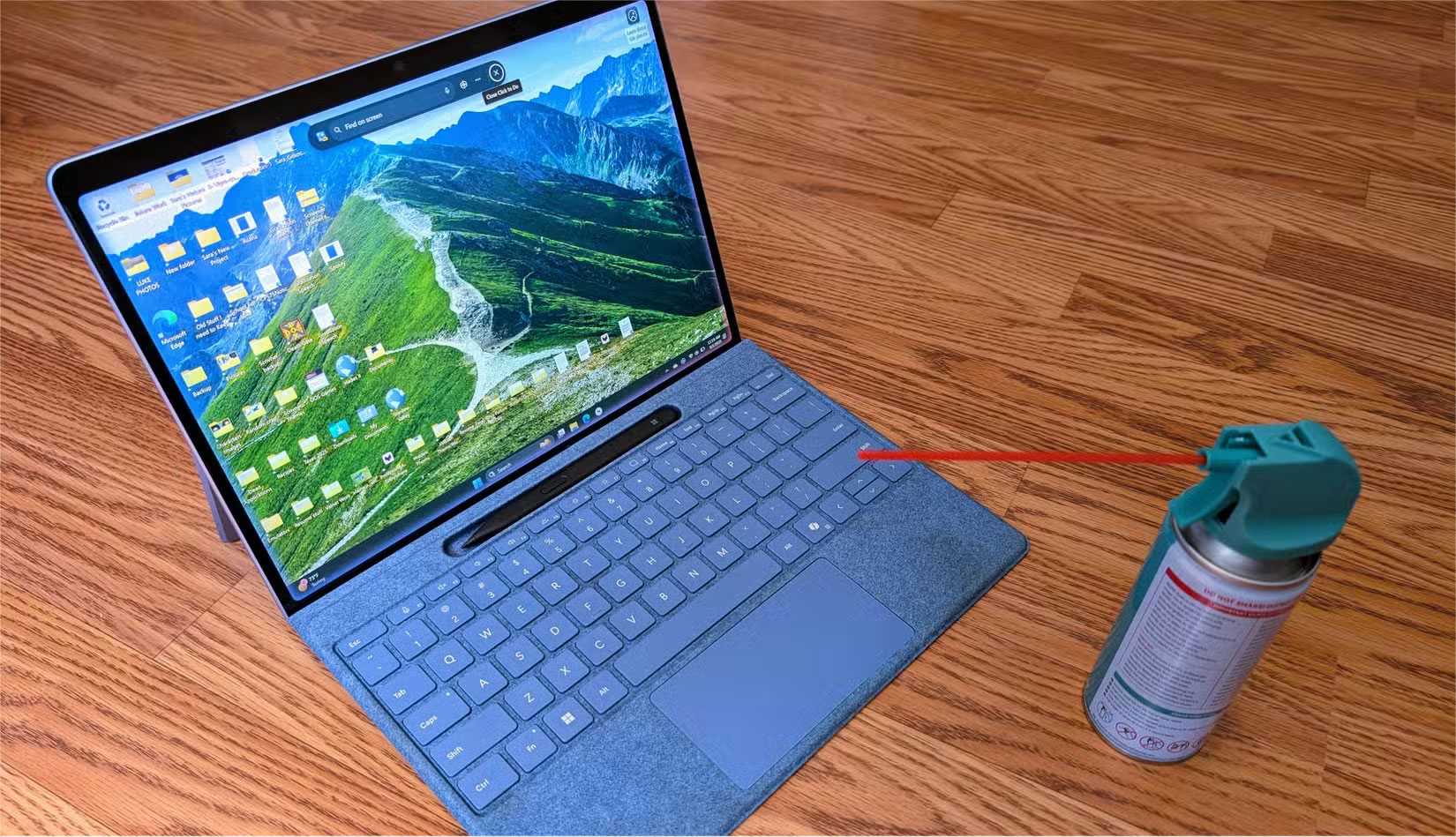
Vents can look clear while dust is packed between an internal fan and heatsink. Pet hair and dust restrict airflow and insulate hot components. A laptop that used to cool normally but has gradually become louder and hotter is a common clue.
Clean the work area regularly and keep food, smoke, and pet hair away from the air intakes. Internal cleaning may require disconnecting the battery and removing delicate cables, so use the model's official service manual or a qualified repair shop. Avoid generic disassembly videos that show a different revision of the laptop.
4. Too many programs start with the system
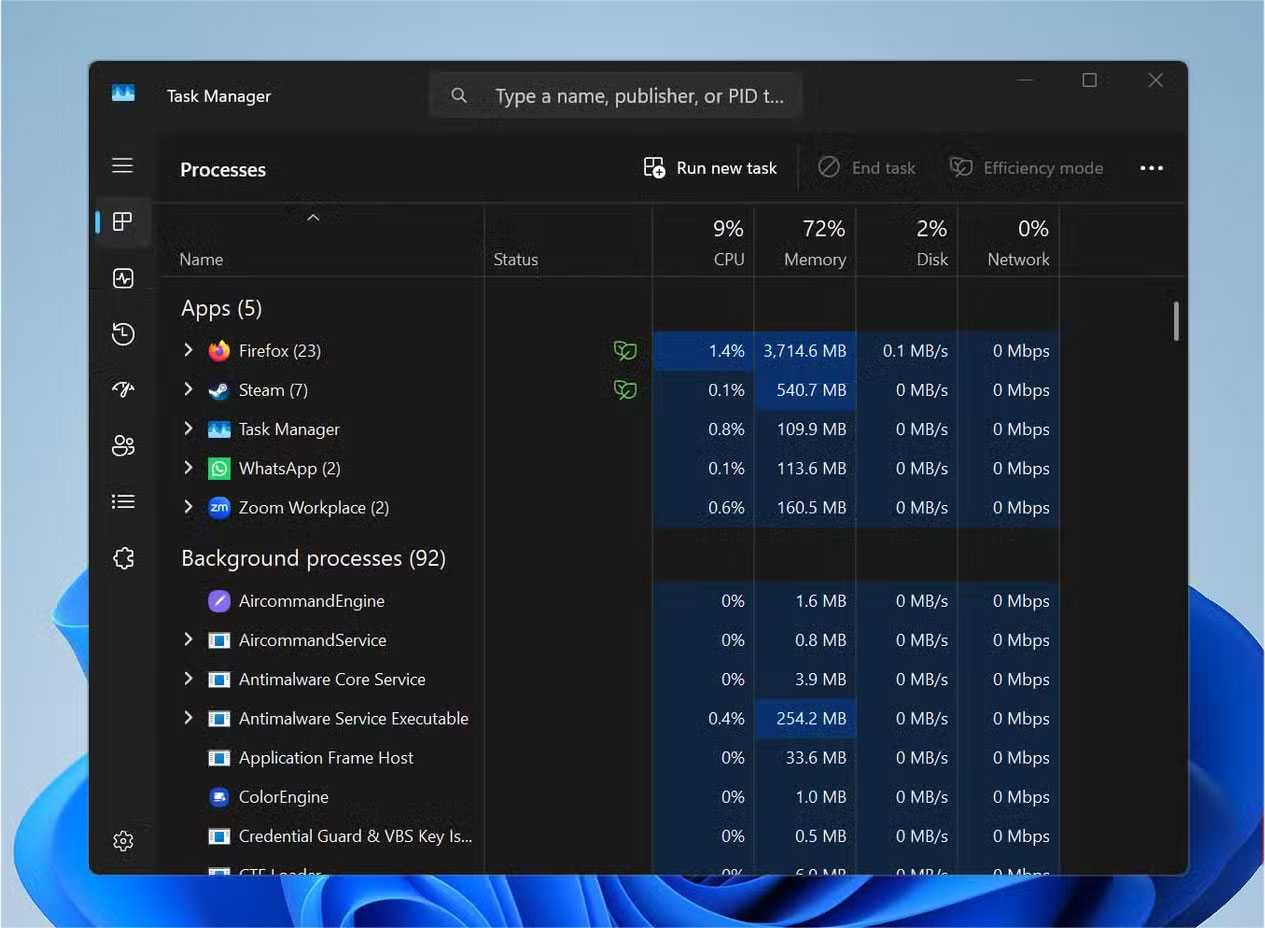
Launchers, synchronization tools, chat clients, and updaters can all begin working as soon as you sign in. Individually they may use little power, but together they can keep the processor active and the fan running.
Open Task Manager on Windows and review Startup apps, or open System Settings > General > Login Items & Extensions on a Mac. Disable only items you recognize and do not need immediately. Leave security software, hardware utilities, and required work-management tools enabled. Disabling startup does not uninstall the program, so you can reverse the change if necessary.
5. Background activity is consuming CPU or GPU resources
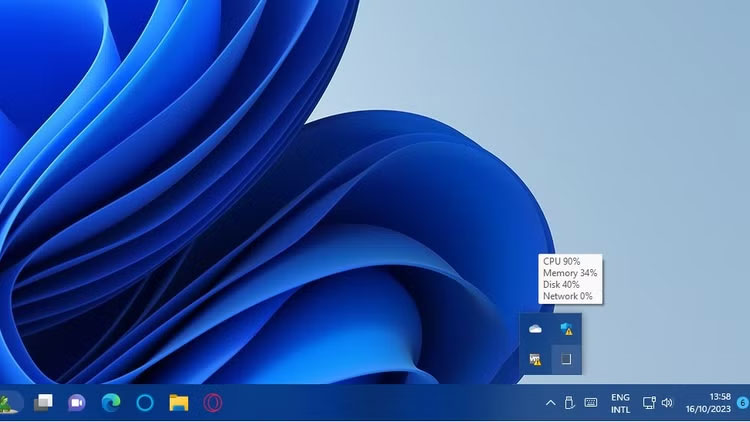
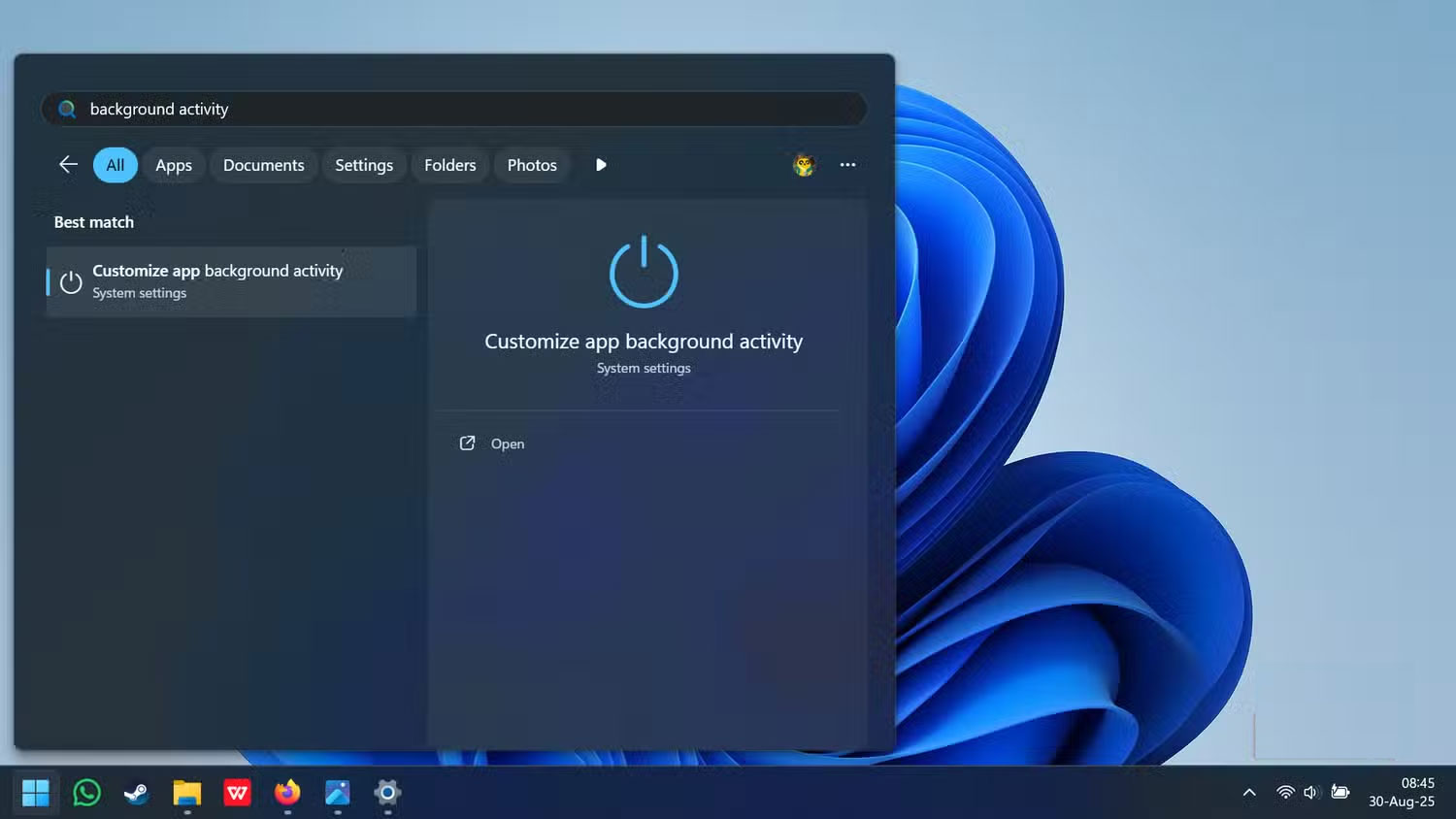
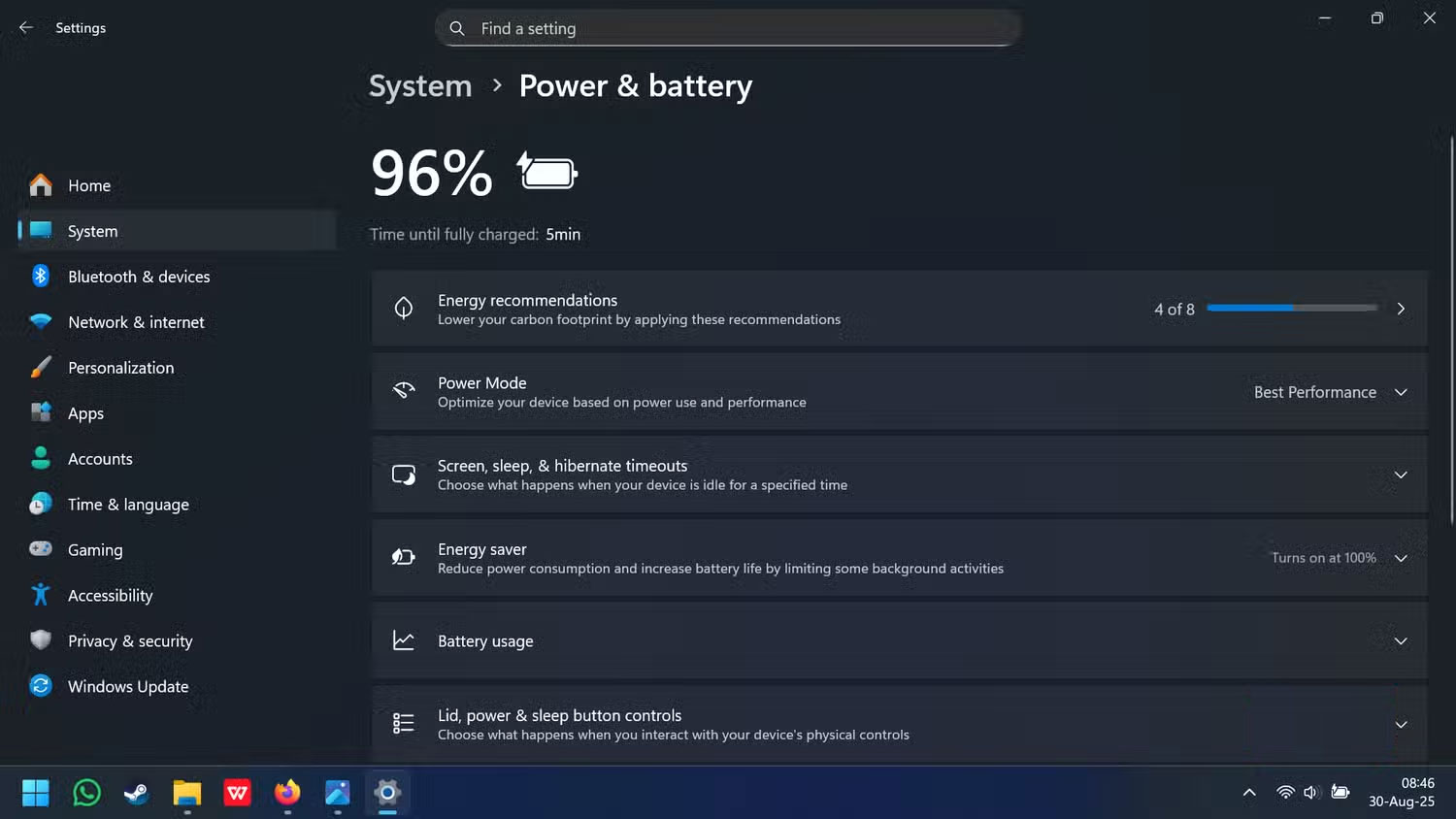
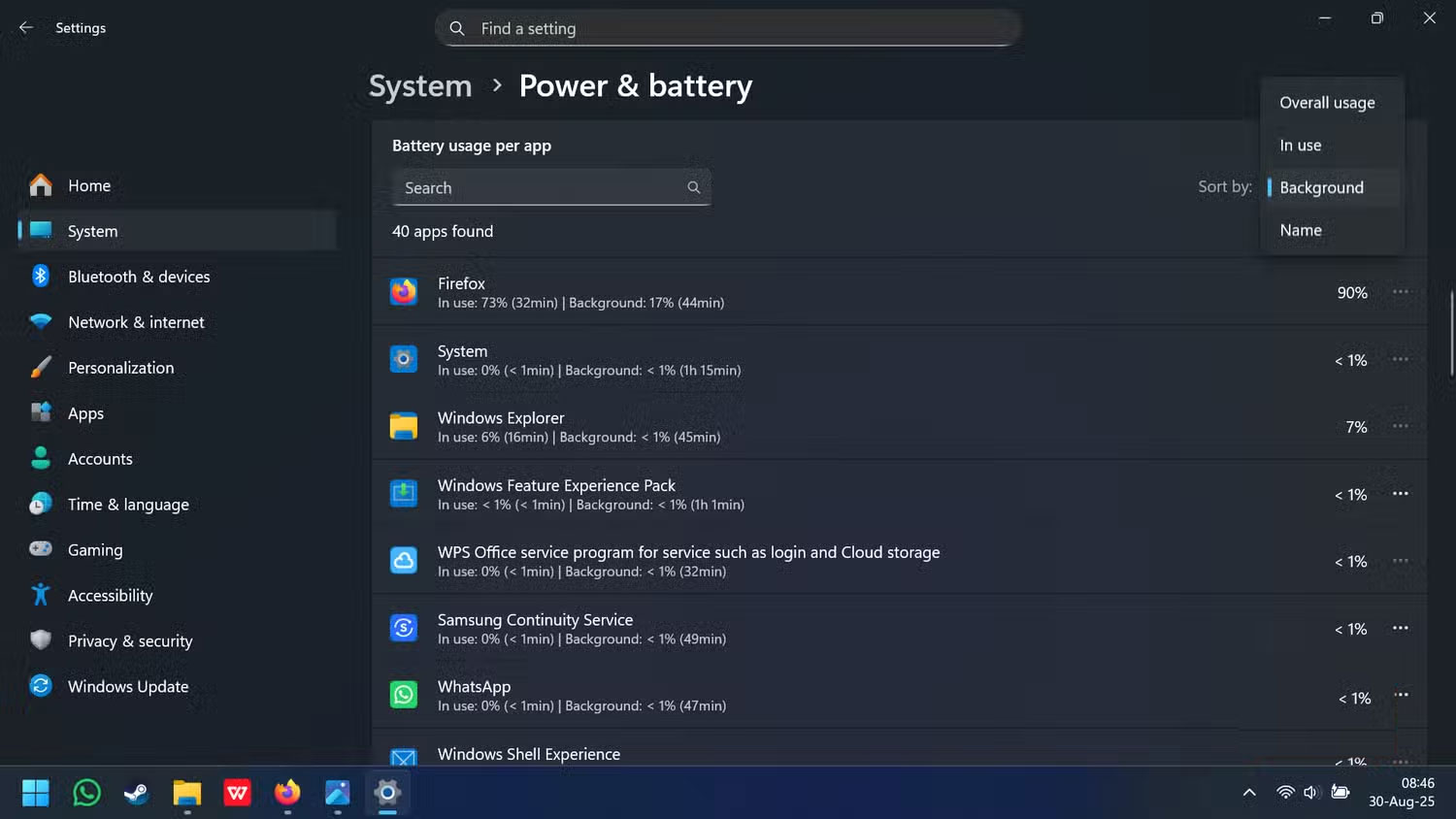
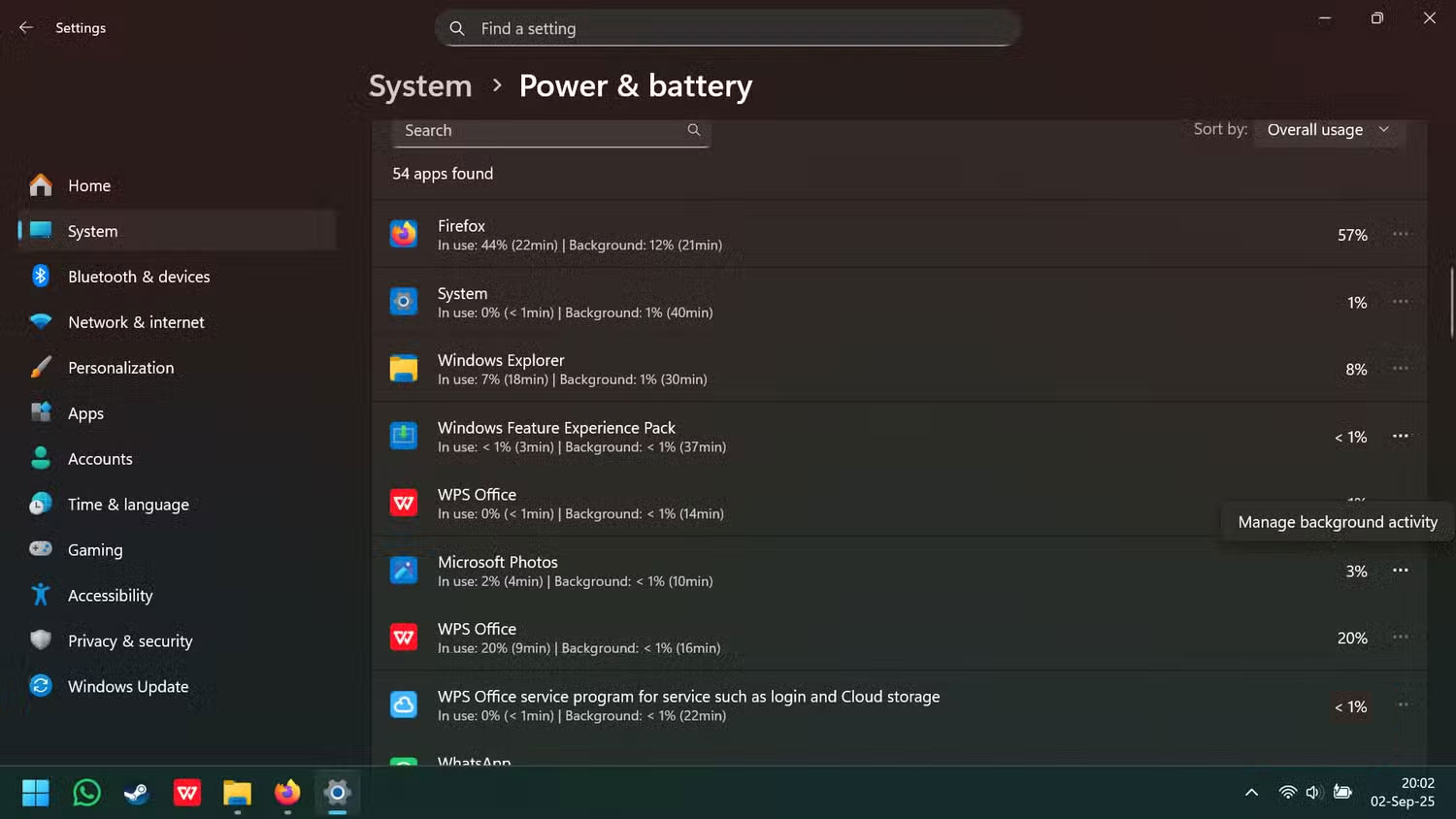
An application can remain active after its window closes. Cloud synchronization, browser tabs, game launchers, video calls, indexing, backups, and operating-system updates can all create legitimate short-term heat. Malware is possible, but heat alone is not evidence of infection.
In Windows Task Manager, sort the Processes list by CPU and GPU usage. In macOS, use Activity Monitor. Observe the system for a few minutes, because usage can spike briefly. Save your work and close an unneeded process through the application itself when possible; do not force-stop a process you cannot identify. If one application repeatedly consumes resources while idle, update, repair, reset, or remove it. More general slowdowns can be investigated with the steps in Computer Running Slow and How to Fix It.
If an unfamiliar process returns after restart, run the operating system's built-in security scan and verify the process name and file location before deleting anything.
6. Software, firmware, or drivers are misbehaving
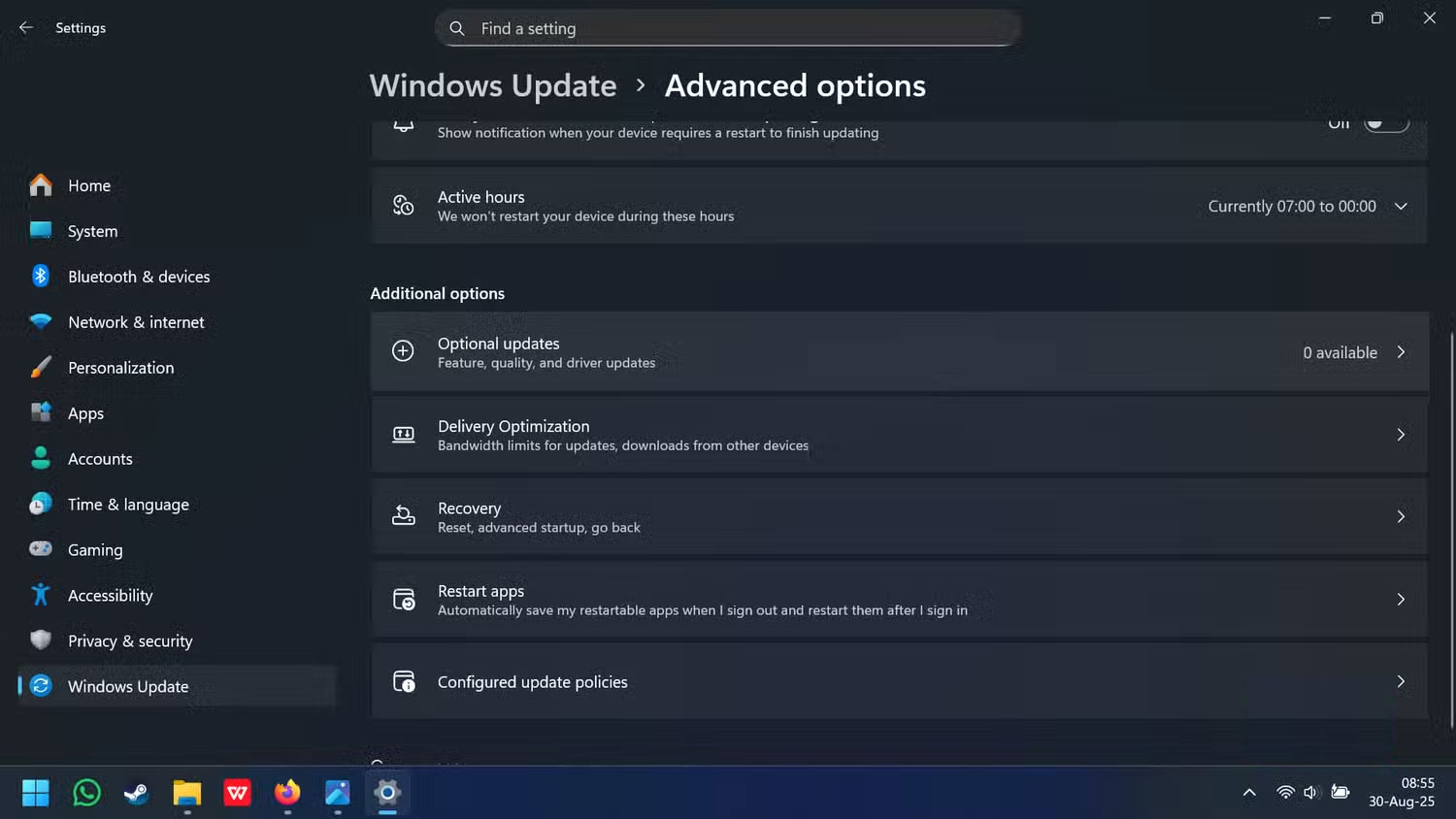
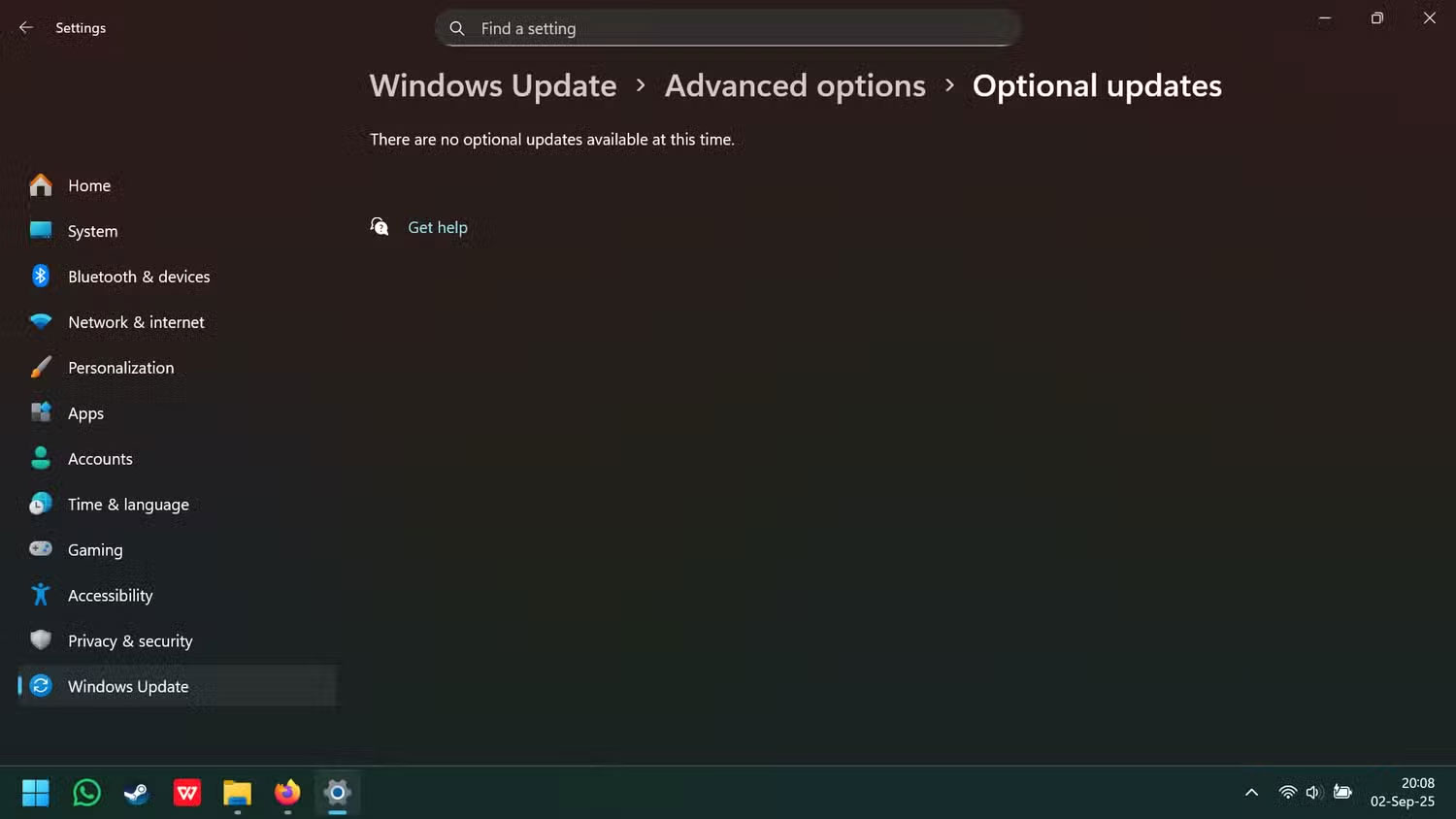
A faulty graphics driver, firmware bug, or application update can create abnormal load or interfere with power management. The timing matters: if overheating began immediately after a specific change, check that vendor's support page and release notes.
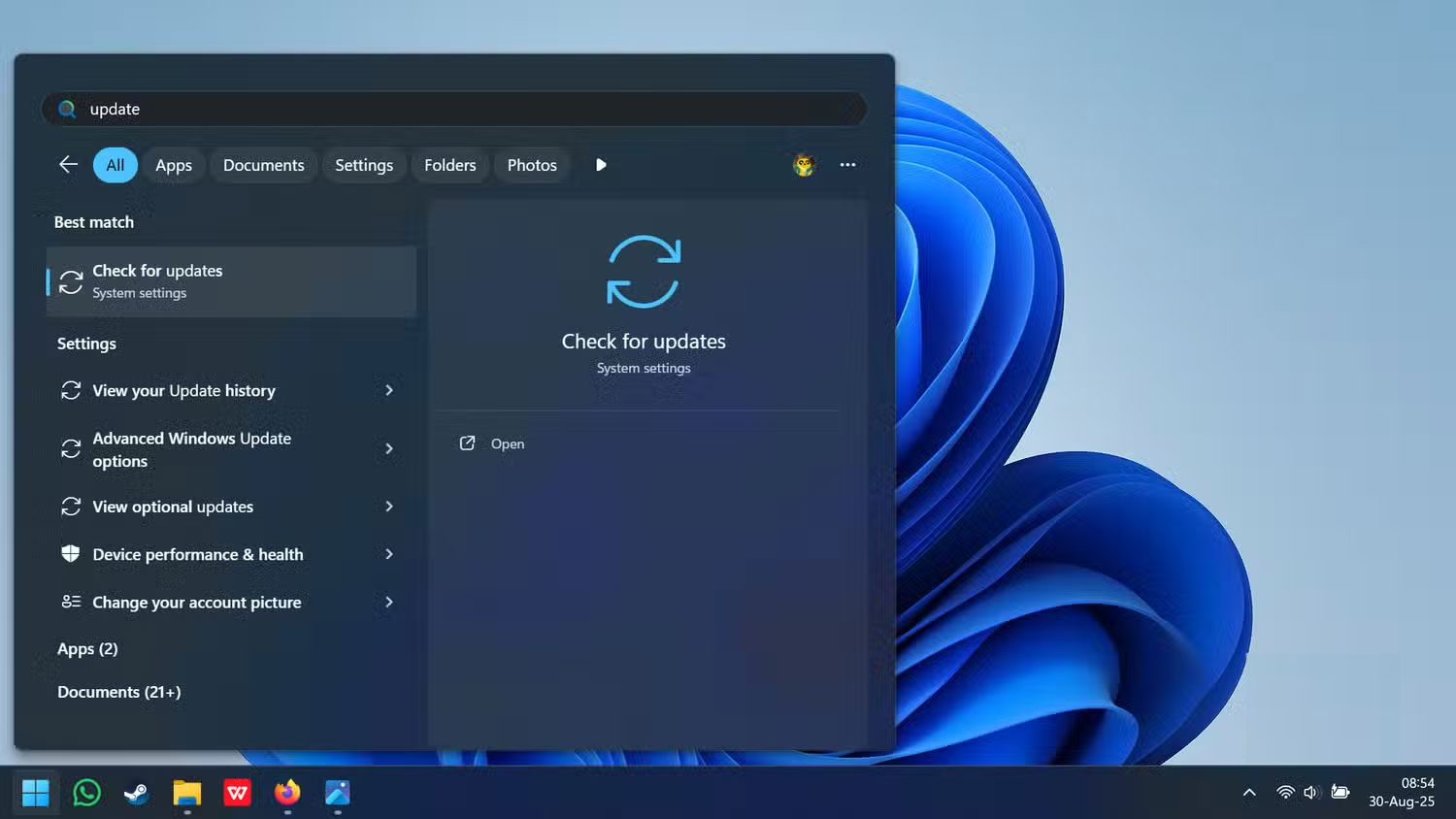
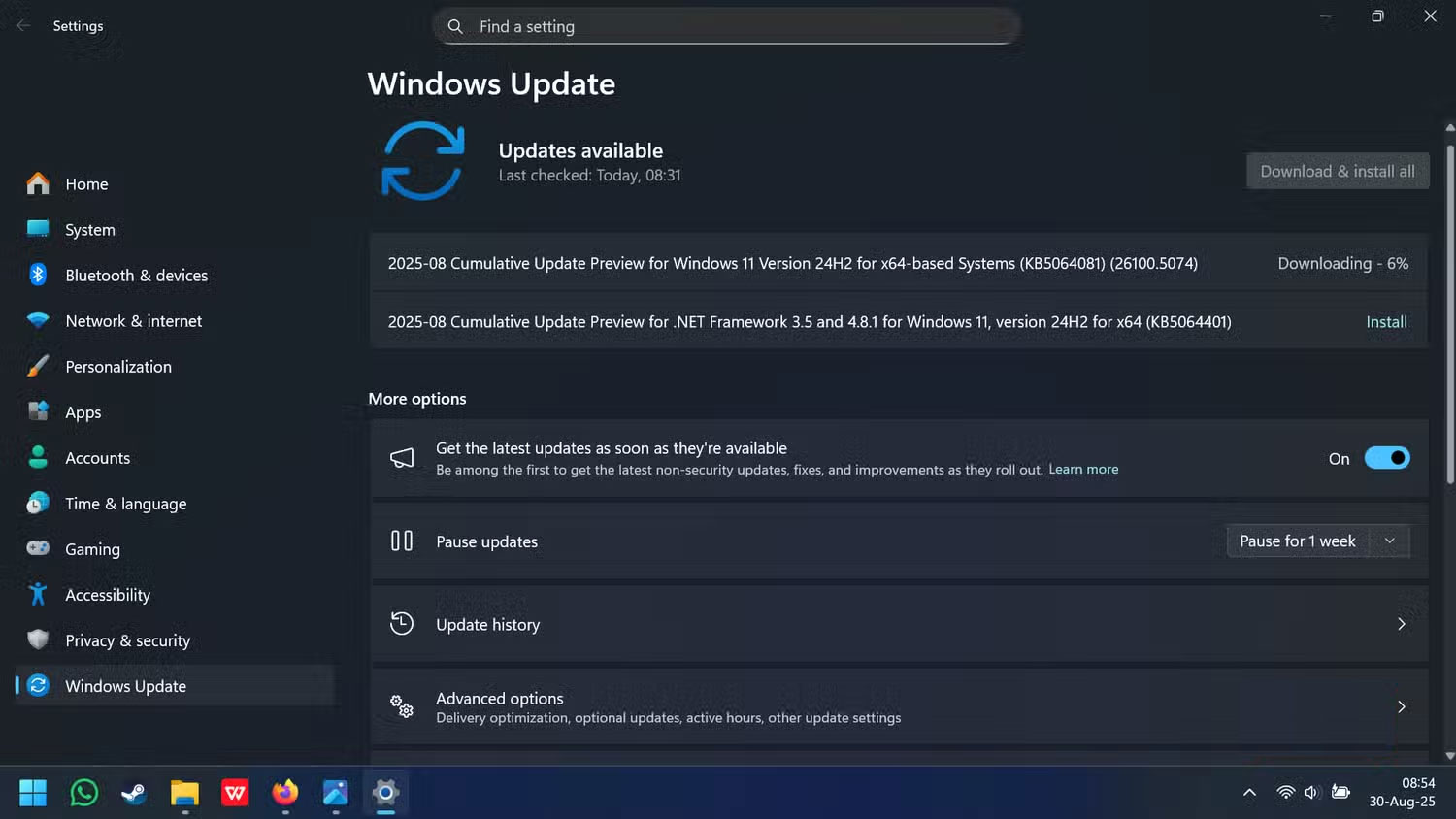
Install operating-system updates and obtain BIOS, chipset, and graphics updates from the laptop manufacturer or the relevant hardware vendor. Keep the AC adapter connected for firmware updates and do not interrupt them. Avoid third-party “driver updater” utilities, which can install an incompatible package. Restart after updates so pending changes take effect.
A practical troubleshooting order
- Shut down the laptop, let it cool, and move it to a hard, ventilated surface.
- Disconnect unnecessary peripherals and use the correct power adapter.
- Restart, then check CPU and GPU usage with no demanding application open.
- Inspect and clean the exterior vents using the manufacturer's instructions.
- Update the operating system and model-specific drivers or firmware.
- Test whether the heat appears only in one application or under every workload.
- If the system overheats at idle, shuts down, or reports a fan error, back up important files and arrange service.
Also check the power mode. A high-performance setting can intentionally favor speed over battery life and quieter cooling. Balanced or recommended mode is usually more appropriate for routine work, provided it does not hide an underlying hardware fault.
Related Articles
 How to Downgrade iOS 17.4 to 17.3 Without Jailbreak, Should4 minutes read
 More Than Half a Million Sony Laptops Are at Risk of Fire4 minutes read
 HP Recovered More Than 6 Million LS-15 Wires Because of Overheating3 minutes read
 Network: The Potential Dangers of Wi-Fi5 minutes read
 How to Treat High Potential Employees: Step-by-Step Guide16 minutes read
 Fixing Slow Laptop Startup and Long Screen Time Issues5 minutes read
Reader Comments 0
Sign in with email or Google to join the discussion.