Table of Contents
A Google Nest Hub can receive media, a browser tab, or a mirrored computer screen through Google Cast. It cannot natively function as a normal external monitor: it has no video input, Windows and macOS do not detect it as a display, and its touchscreen does not control the computer.
For a dashboard, presentation, music controls, or an occasional video, casting can still be useful. It is not suitable for gaming, precise mouse work, color-sensitive editing, or any task that needs low latency.
What you can do
| Method | Result | Best use |
|---|---|---|
| Cast a tab | Chrome sends a supported webpage or media session | Video, music, web dashboards |
| Cast a screen | Nest Hub mirrors one physical display | Presentations and passive viewing |
| Virtual display on Windows | Windows creates an extra software display, then Chrome mirrors it | Experimental extended workspace |
The third option only approximates a second monitor. The Nest Hub remains a delayed Cast receiver rather than a directly connected display.
Before casting
- Connect the computer and Nest Hub to the same local network.
- Update Google Chrome.
- Confirm that the Nest Hub appears and works in the Google Home app.
- Disable VPN routing or network isolation temporarily if it prevents local-device discovery.
- On macOS 15 or later, allow Chrome to access the local network when prompted.
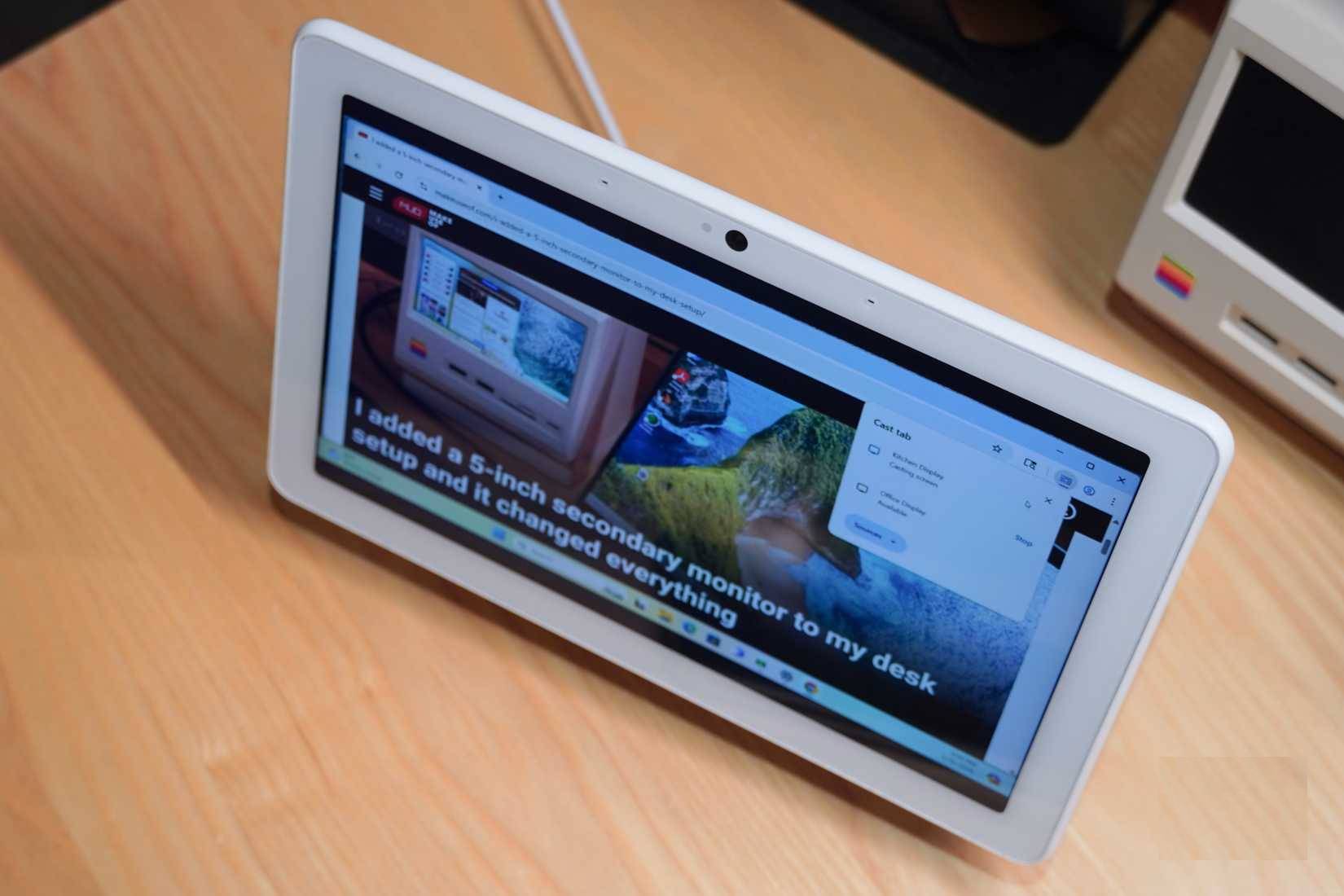
The 7-inch Nest Hub and 10-inch Nest Hub Max have small, relatively low-resolution displays compared with desktop monitors. Text may be difficult to read from normal monitor distance, and wireless encoding adds delay.
Method 1: Cast a Chrome tab
Casting a tab is the simplest and usually the most reliable method because Chrome sends only the selected web content.
- Open the page or media in Chrome.
- Click the three-dot More menu.
- Select Save and share > Cast. The wording may vary slightly by Chrome version.
- Select the Nest Hub.
- Use the Cast icon or Chrome's media controls to stop the session.
A Cast-enabled site's own Cast button may provide better playback than mirroring the tab. Some providers restrict which devices or content can be cast, and protected video may not display when screen mirroring is used.
Method 2: Mirror a computer screen
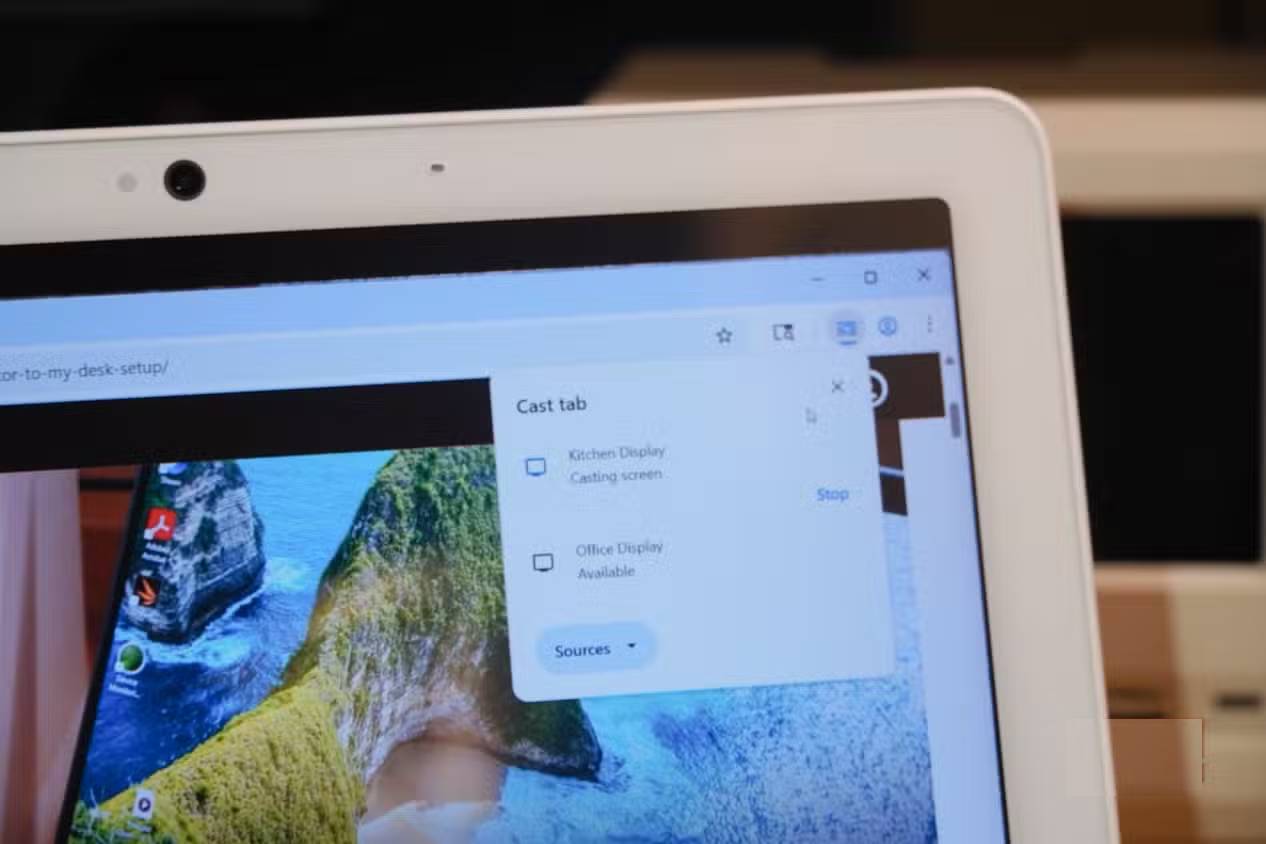
- Open Chrome and choose More > Save and share > Cast.
- Open Sources and choose Cast screen or Cast desktop.
- If the computer has multiple displays, select the screen you want to share.
- Select the Nest Hub and confirm any operating-system sharing prompt.
This mirrors a display; it does not add workspace. Computer audio may not follow in every operating system or sharing mode. Notifications and any sensitive information shown on the selected screen can also appear on the Nest Hub.
Method 3: Create a virtual extended display on Windows
Advanced Windows users can install a virtual display driver so Windows believes another monitor is attached. They can then set the desktop to Extend and cast that virtual screen. This relies on a third-party driver, is not supported by Google, and can stop working after Windows, graphics-driver, or Chrome updates.
Install and configure the virtual display
- Create a Windows restore point and back up important work.
- Download the signed installer from the Virtual Display Driver release page. Review the project and release notes before installing; do not use repackaged downloads.
- Follow the project's current setup instructions and create one virtual monitor.
- Open Settings > System > Display.
- Select Extend these displays, arrange the virtual screen, and choose a modest resolution close to the Nest Hub's aspect ratio.
- Open Chrome's Cast dialog, choose Cast screen, and select the virtual display.
- Choose the Nest Hub as the destination.
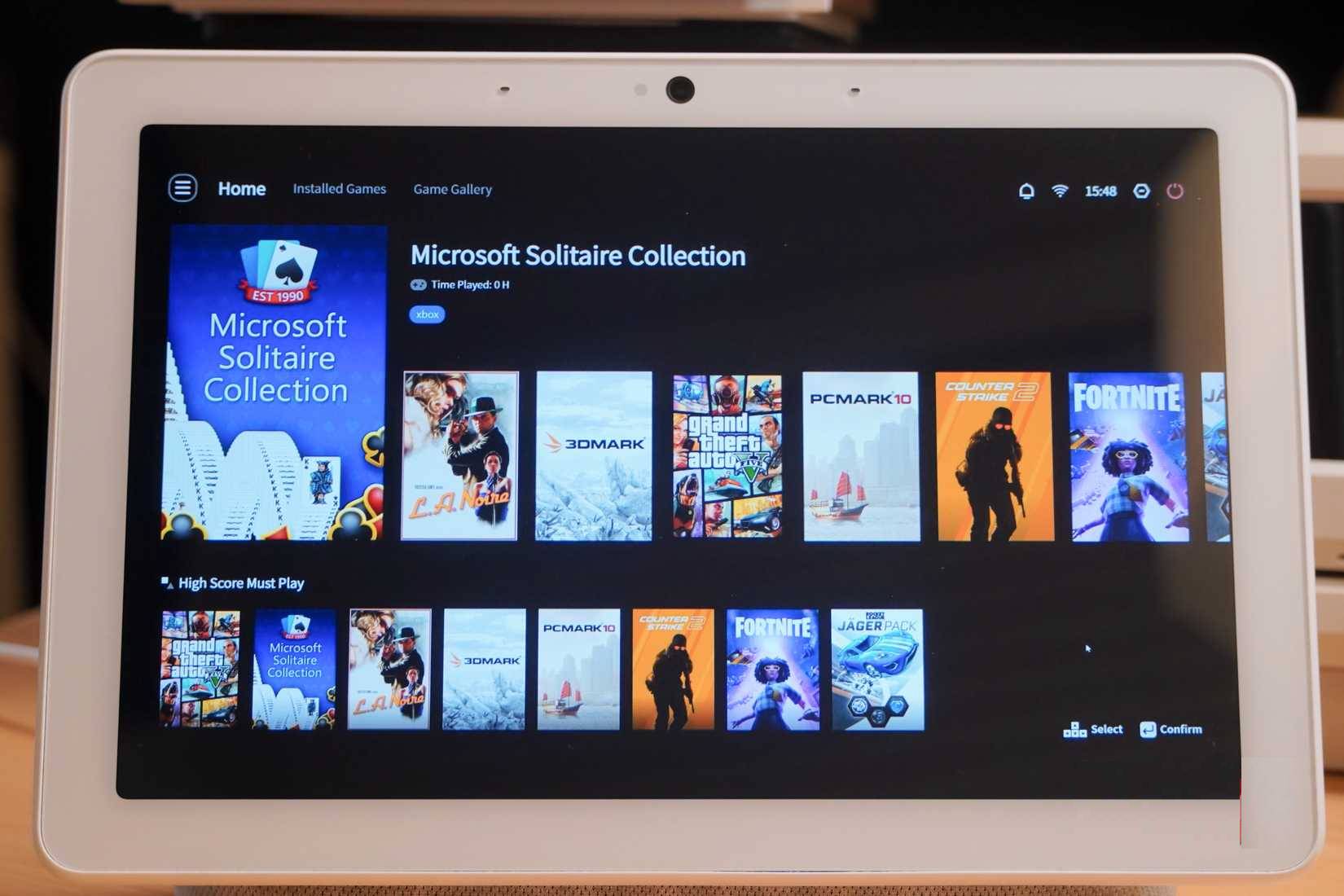
Keep the mouse pointer on the main monitor until the cast is visible; otherwise it can appear “lost” on the virtual desktop. Use Windows display settings to move an off-screen window back or temporarily switch to Duplicate if necessary.
Important limitations
- The stream is compressed and delayed, so pointer movement will not feel like a wired monitor.
- The Nest Hub touch panel cannot click or drag Windows items.
- Sleep, network changes, or Chrome closing ends the session.
- DRM-protected video may show a blank image.
- Installing a display driver adds system-level software; uninstall it if you no longer need it.
If the Nest Hub does not appear
- Make sure both devices use the same Wi-Fi or LAN and are not separated by a guest network.
- Restart Chrome, the Nest Hub, and the router.
- Update Chrome and the Nest Hub firmware.
- Allow local-network and screen-recording permissions on macOS.
- Temporarily disable a VPN or third-party firewall to test discovery, then create the narrowest required local-network rule.
- Test casting from a known Cast-enabled site to distinguish a discovery problem from a screen-sharing problem.
Google's official Chrome-to-Nest casting guide covers current requirements and controls.
Is it worth doing?
Use the Nest Hub for content that is mostly viewed rather than manipulated: a calendar, music queue, presentation preview, meeting display, or low-motion status page. A small USB-C monitor or tablet-based second-screen feature is a much better choice for daily text work and interactive applications.
For related setup context, see TipsMake's Google Home Hub overview and Nest Wi-Fi review.
Related Articles
 How to Use Google Nest to Find Phones: Step-by-Step Guide4 minutes read
 Review Google Nest Wi-Fi: Mesh Router Is Smarter10 minutes read
 How to Use the Nest.js Exception Filter for Error Handling: Clear Instructions7 minutes read
 Xiaomi Security Cameras Show Pictures of Strangers' Homes, Google3 minutes read
 How to Fix a Blurry External Display7 minutes read
 How to Turn Off the Laptop Keyboard to Use an External Keyboard4 minutes read
Reader Comments 0
Sign in with email or Google to join the discussion.