Table of Contents
An old Windows 10 PC can become a useful NAS, dedicated game server, or home lab, but do not leave it running an unsupported operating system. Standard Windows 10 support ended on October 14, 2025. If the hardware cannot run a supported Windows version, install a maintained Linux distribution or a purpose-built server operating system.
Check the PC before reusing it
- Back up existing files: installing a server OS normally erases the system drive.
- Test the hardware: check drive health, run a memory test, clean dust, confirm fans work, and inspect the power supply and cables.
- Measure power use: an old desktop that is efficient for a few hours may be expensive and noisy when left on all day. Compare its idle consumption with a small modern system.
- Use wired Ethernet: it is generally more stable and predictable than Wi-Fi for storage and game hosting.
- Plan maintenance: the machine needs security updates, backups, monitoring, and a safe shutdown method just like a new server.
Microsoft explains the Windows 10 end-of-support options. Consumer Extended Security Updates can provide temporary coverage for eligible Windows 10 22H2 systems, but they are a transition measure, not a permanent server strategy.
1. Build a network-attached storage server
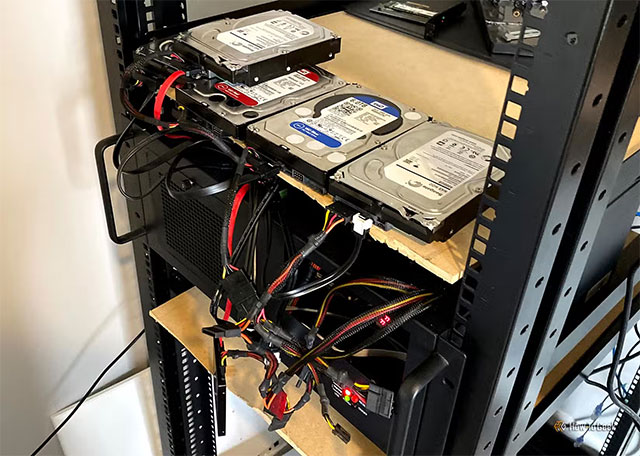
A NAS makes folders available to computers and phones on the local network. It can store shared documents, photo libraries, device backups, and media. An old desktop is useful because it may have several SATA ports, drive bays, replaceable memory, and a standard Ethernet adapter.
Choose the NAS software
- OpenMediaVault: a Debian-based option suited to straightforward file sharing and lighter hardware.
- TrueNAS: a ZFS-focused platform with snapshots, checksumming, and replication. Current guidance recommends at least 8GB of RAM for basic operation and more for apps, virtual machines, or demanding storage workloads.
- Unraid: a paid option that can combine storage, containers, and virtual machines with flexible disk arrangements.
Check each project's current hardware requirements before installing. A NAS operating system may need its own boot device and direct access to the data drives.
Protect the data
RAID, parity, and ZFS redundancy can keep a service online after some drive failures, but they are not backups. Accidental deletion, ransomware, fire, theft, or a bad configuration can affect every disk in the server. Keep at least one separate copy, preferably disconnected or off-site, and test that files can be restored.
Use new or known-good drives for important data. Enable SMART monitoring and alerts. Do not expose SMB file sharing directly to the public internet; use a properly configured VPN or the NAS vendor's supported remote-access method.
Compare the practical tradeoffs in TipsMake's OpenMediaVault, TrueNAS, and Unraid guide and review other open-source NAS operating systems.
2. Host a dedicated game server
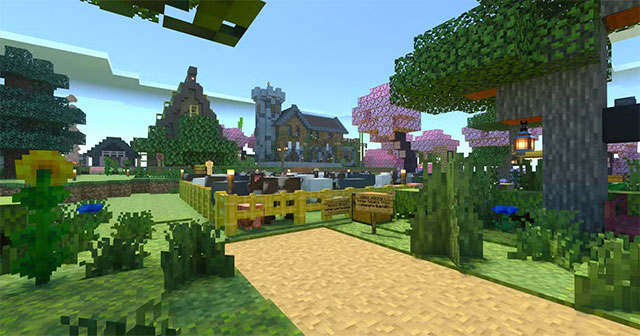
A dedicated server runs the multiplayer world and network simulation without rendering the game locally. Many server packages therefore do not need a discrete GPU, but CPU speed, RAM, storage, bandwidth, and platform support vary greatly by game.
Plan the server
- Find the game's official dedicated-server documentation and hardware requirements.
- Check whether it supports Windows, Linux, or both. Linux can reduce background overhead, but it is not automatically faster for every server.
- Install the server on an SSD if the game frequently loads world data.
- Reserve enough RAM for the operating system and peak player count.
- Back up world files and configuration before updates or mods.
Valve's SteamCMD installs and updates many Steam dedicated servers from the command line. Each game has a separate App ID and startup parameters, so use the game's own instructions rather than copying commands for another title.
Secure network access
Only open the ports the game requires. Restrict management services such as SSH or Remote Desktop to trusted devices or a VPN, use key-based authentication where supported, and keep the server and mods updated. Place a public server on a separate network segment if possible so a compromised game service cannot reach personal devices.
Hosting from home also depends on router configuration, upload capacity, latency, ISP terms, and whether the connection uses carrier-grade NAT. If friends cannot connect, confirm those conditions before repeatedly changing firewall rules.
3. Create a Proxmox home lab
A home lab is an isolated place to learn virtualization, containers, Linux administration, networking, monitoring, and self-hosted applications. Proxmox Virtual Environment combines KVM virtual machines and Linux containers with a web management interface.
Confirm virtualization support
For x86 systems, Proxmox requires a 64-bit Intel or AMD processor; hardware virtualization support (Intel VT-x or AMD-V) is required for full KVM virtualization. Proxmox recommends at least 2GB of memory for the host services, plus the memory assigned to every guest. ZFS, Ceph, and multiple virtual machines require substantially more.
Check the current Proxmox VE requirements, enable virtualization in the BIOS/UEFI, and install the hypervisor on reliable storage. Do not allocate all CPU cores or RAM to one guest; leave resources for the host.
Start with small, useful services
- A local DNS filtering service
- A test web server
- A media library for your own network
- A monitoring dashboard
- A disposable Linux VM for learning and testing
Keep the lab separate from irreplaceable storage and critical home services while learning. A snapshot is convenient for rolling back a virtual machine, but it is not a substitute for an independent backup. Export important configurations and verify restores.
Which reuse project should you choose?
| Hardware strength | Best starting project |
|---|---|
| Several healthy drive bays, 8GB+ RAM | NAS |
| Strong single-core CPU, adequate RAM, stable wired network | Dedicated game server |
| Virtualization support, SSD, 16GB+ RAM preferred | Home lab |
If the PC is unreliable, extremely power-hungry, or cannot run maintained software, recycling it responsibly may be better than operating it as a 24/7 server. Reuse should improve utility without creating a security or data-loss risk.
Related Articles
 6 of the Most Effective Ways to Make the Most of Your Old iPad: Turning an Outdated Device into Something Useful6 minutes read
 6 Smart Ways to Use Your Old Android Phone: Practical Guide7 minutes read
 What Is Windows TAP? Ways to Remove It3 minutes read
 6 Easy Ways to Take Screenshots on Windows 10 And 115 minutes read
 Summary of Ways to Turn Off Windows 11 Computers4 minutes read
 3 Ways to Run Windows on a Mac4 minutes read
Reader Comments 0
Sign in with email or Google to join the discussion.