Table of Contents
TRIM and speed testing answer different questions. TRIM tells the SSD which blocks no longer hold live data; a benchmark measures performance under a particular workload. Neither result alone proves that an SSD is healthy.

Check whether Windows enables delete notifications
- Right-click Start and open Terminal (Admin).
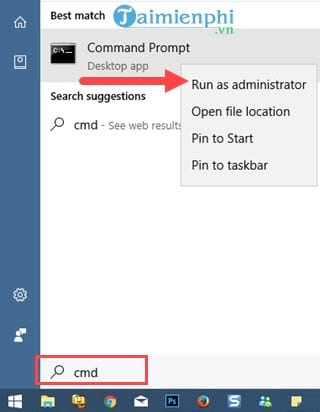
- Run:
fsutil behavior query DisableDeleteNotify
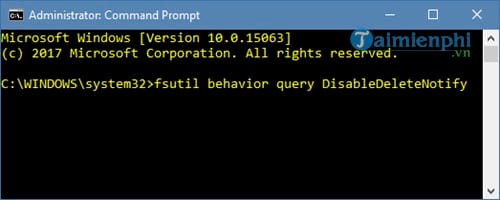
NTFS DisableDeleteNotify = 0: NTFS delete notifications are enabled.NTFS DisableDeleteNotify = 1: they are disabled.
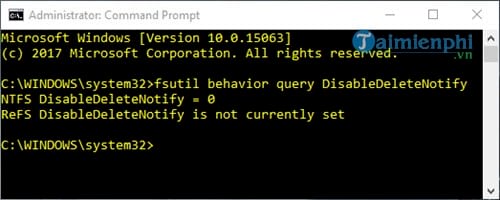
The command reports the Windows setting. It does not prove that every controller, RAID layer, virtual disk, or USB adapter passes TRIM to the physical SSD.
If the NTFS setting is disabled and the storage vendor has not instructed otherwise, enable it with:
fsutil behavior set DisableDeleteNotify 0Review the Windows retrim schedule
Search Start for Defragment and Optimize Drives. Select the SSD to confirm that Windows recognizes its media type, then select Change settings to review the schedule.
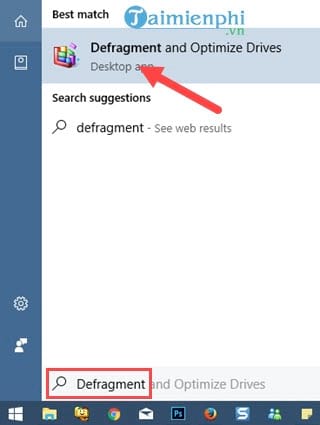
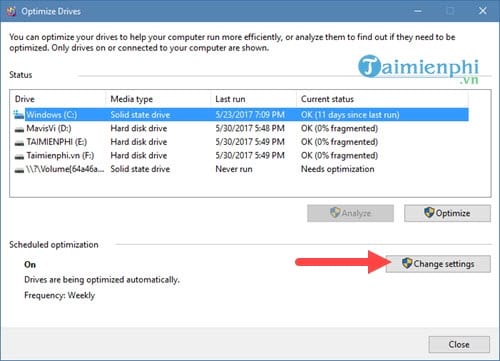
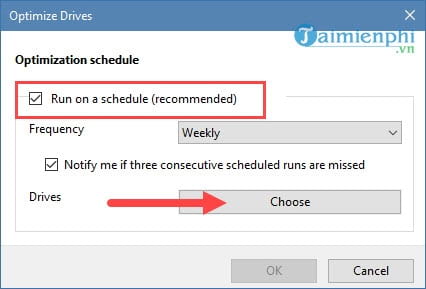
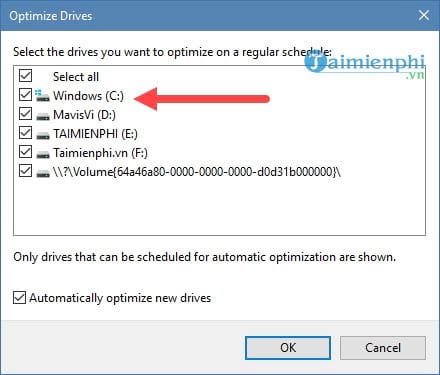
Keep normal scheduled optimization enabled unless the PC manufacturer or storage administrator documents a reason to change it. Windows applies a storage-appropriate action; the word “Optimize” does not mean it blindly performs a traditional HDD defragmentation on every SSD.
Measure SSD read and write speed
Before testing, close large transfers and other storage-heavy applications, connect a laptop to power, and make sure the SSD has reasonable free space. Encryption, cache state, temperature, background activity, power mode, test size, and queue depth can all change the result.
For a quick built-in assessment, open Terminal (Admin), replace C with the intended SSD's drive letter, and run:
winsat disk -drive CWinSAT reports several storage measurements, including sequential and random results. Record the exact command, Windows power mode, and free space if you plan to compare runs.
For manufacturer comparisons, use the SSD vendor's supported benchmark or a reputable tool with the same test settings each time. Avoid running write-heavy benchmarks repeatedly; they consume write cycles and may trigger thermal throttling.
Interpret benchmark results carefully
- Compare like with like: the same interface, test size, queue depth, and amount of free space.
- SATA and NVMe drives have different interface limits; a lower number than another model is not automatically a fault.
- Short bursts may use a fast write cache, while long transfers can be slower after that cache fills.
- A very low result can come from a slow USB enclosure, negotiated link speed, heat, power saving, encryption, background work, or a nearly full drive.
Check health separately
Review the SSD's SMART/health data and firmware with the manufacturer's utility. Back up immediately if Windows logs storage errors, files become corrupt, or the drive disconnects. TipsMake covers drive-health checks and explains why SSD optimization differs from HDD defragmentation.
Related Articles
 To Enable Trim, Use the Trim Command on Windows3 minutes read
 Software to Check the Read and Write Speed of SSD Hard Drives, HDD Best11 minutes read
 Drive: 4 Ways to Test SSD Speed and Performance6 minutes read
 How to Enable / Disable TRIM Support for SSDs in Windows 105 minutes read
 How to Test the Read and Write Speed of a USB Drive5 minutes read
 Check the Status of Your Hard Drive with the CMD Command Prompt3 minutes read
Reader Comments 0
Sign in with email or Google to join the discussion.