 HOME
HOME System
 Windows 10
 Windows 11
 Fix computer error
 Ghost - Install Win
 Wifi tips
 Speed up the computer
Add Date and Time to Multiple Photos in Seconds (PC & Mac)
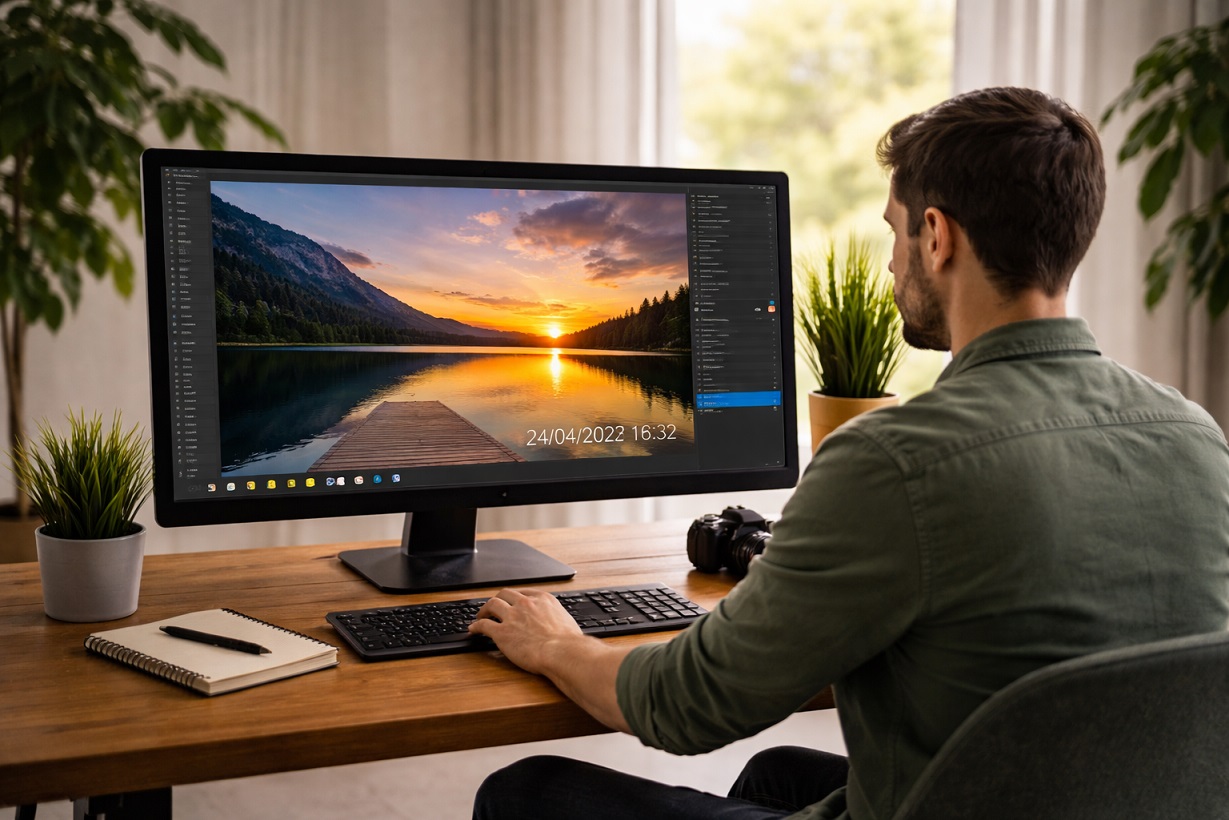
Adding the date and time directly onto a photo can completely change how that picture feels. For example, a visible timestamp can give your photographs that nostalgic, vintage look reminiscent of old film cameras, where moments were permanently marked in time.
Beyond the aesthetic or decorative purpose, a date stamp can also be practical. Both businesses and everyday users can benefit from having an accurate visual record. Whether you're documenting property damage for insurance claims, authenticating surveillance materials for legal proceedings or keeping a visual log of specific projects, a timestamp will provide clear, reliable evidence.
How to Date Stamp Photos in Bulk
There are a couple of ways you can perform this operation.
You can set your camera to imprint the date/time information directly on photos at the moment of taking them. There are cameras that offer this feature. The problem is that the process is irreversible; once applied, the stamp can't be removed from the original shots. Moreover, it won't look that great, since you can't adjust the placement on the image, its font, color or size.
Another option would be to transfer your images to your computer and use a tool with a dedicated date stamping feature, such as BatchPhoto. BatchPhoto is a photo editor for Windows and Mac designed to add date and time to photos in bulk. The software reads the date and time info from the EXIF/IPTC metadata records and automatically inserts it into your pictures. Why does this represent the optimal solution:
- It does not alter your original files.
- It allows you to fully customize the date/time stamp.
- It can fix the date and time if they were incorrectly recorded by your camera.
- It will accurately apply the stamp on portrait photos through the Auto Rotate feature.
- It can process dozens or hundreds of files within minutes.
With BatchPhoto, it is quite easy to timestamp your images. This is due to the intuitive, step-based UI. There are three steps to follow: Add Photos, Edit Photos and Setup. Here's how to perform this task:
Step 1 – Add Your Photos
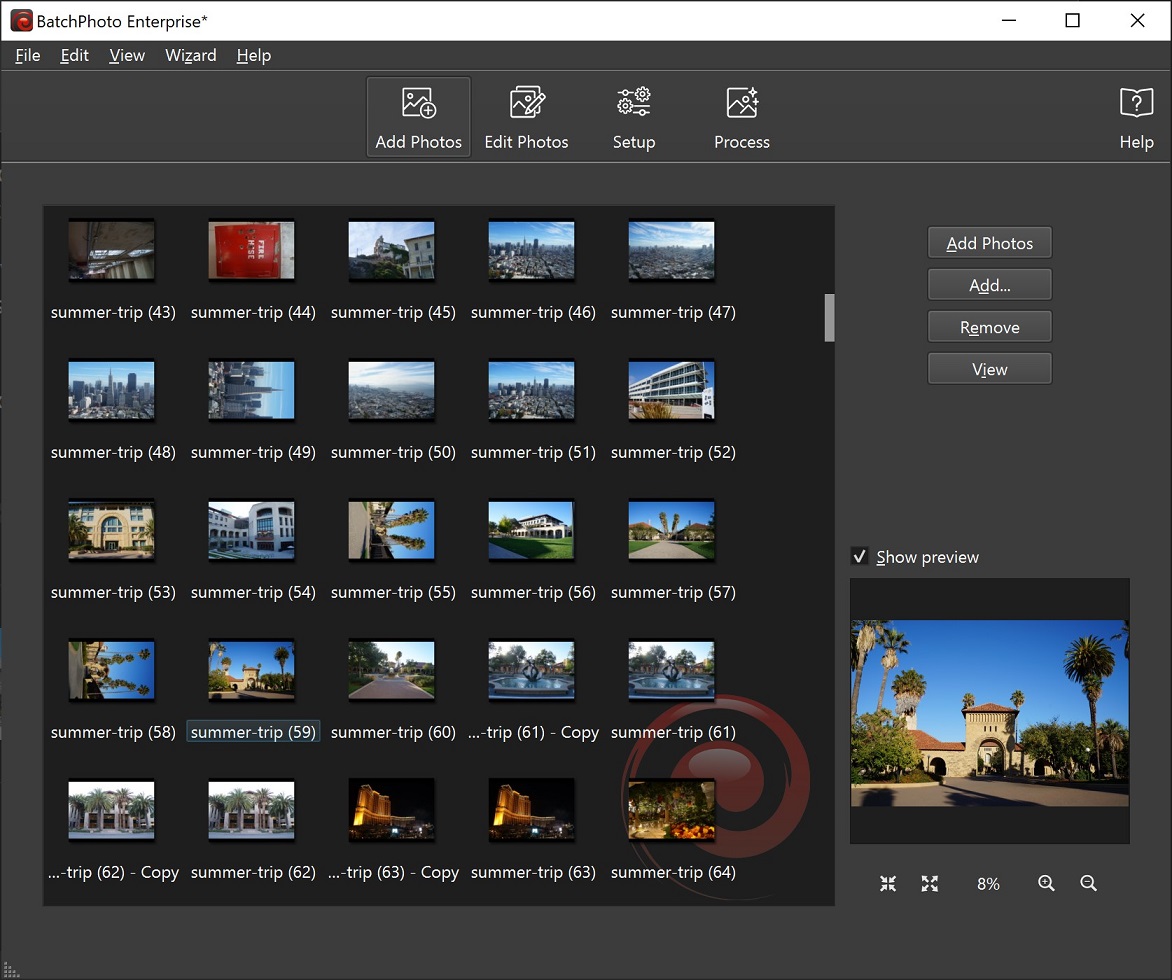
The first thing you need to do is bring your images into the program. You can drag & drop them, click on Add Photos to select them or click on the Add button to add an entire folder.
Step 2 – Apply the Date Stamp
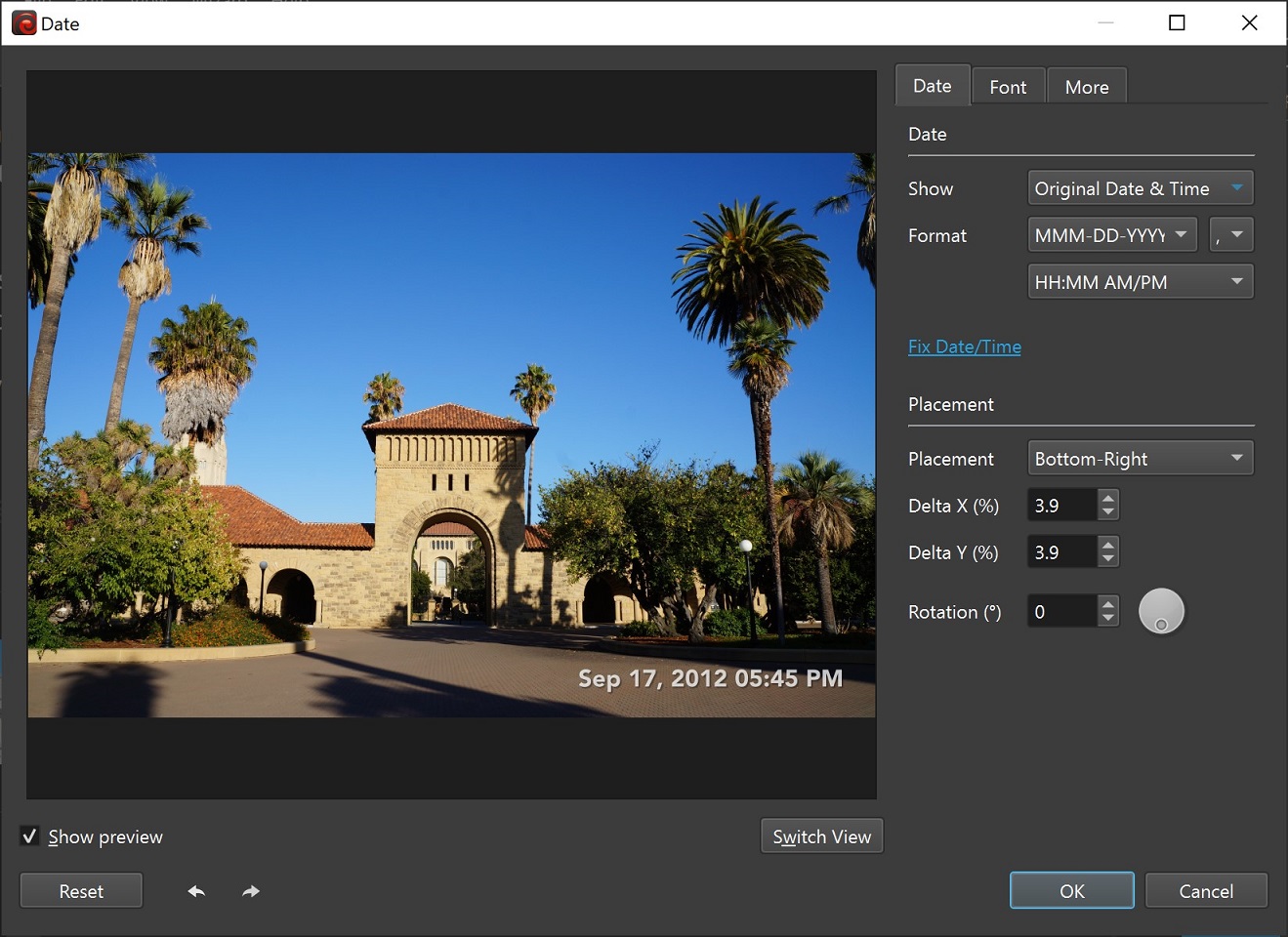
This is where you insert the date. In order to do so, go to Add Filter > Annotate > Date. Now you can begin making adjustments to your stamp. BatchPhoto gives you the possibility to choose the preferred date format and separators, correct the date/time, choose the exact position on the photo, select the desired font, color and size, adjust the transparency, apply special effects like stroke, shadow or draw a bounding box.
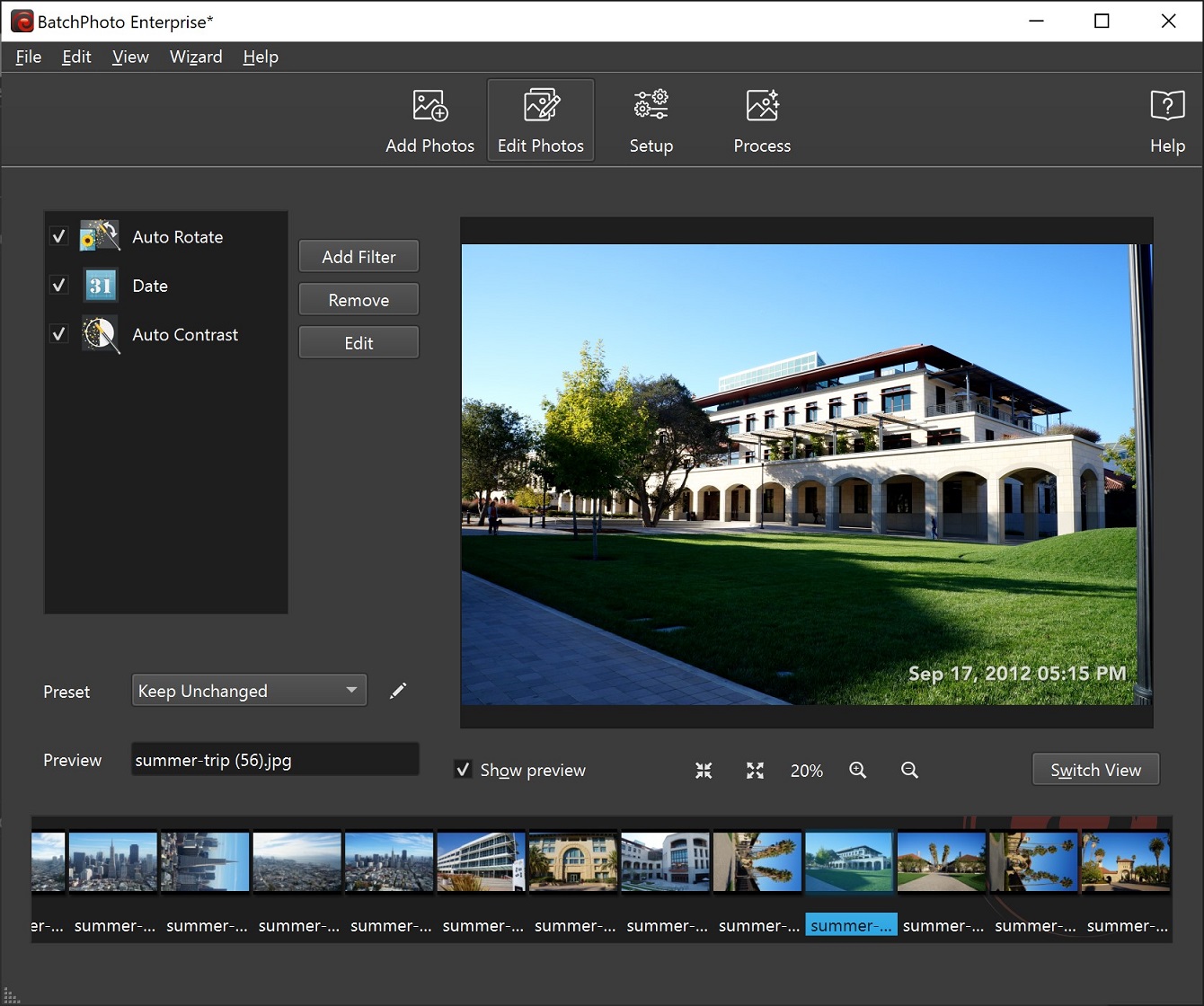
Once you've customized the stamp, the software will automatically apply it to all the pictures.
Step 3 – Choose Your Configuration
In Step 3, called Setup, you select your final parameters before processing the photos. Choose where you'd like to save your photos (on a local folder, send them via email or upload them to FTP), as well as the preferred output format.
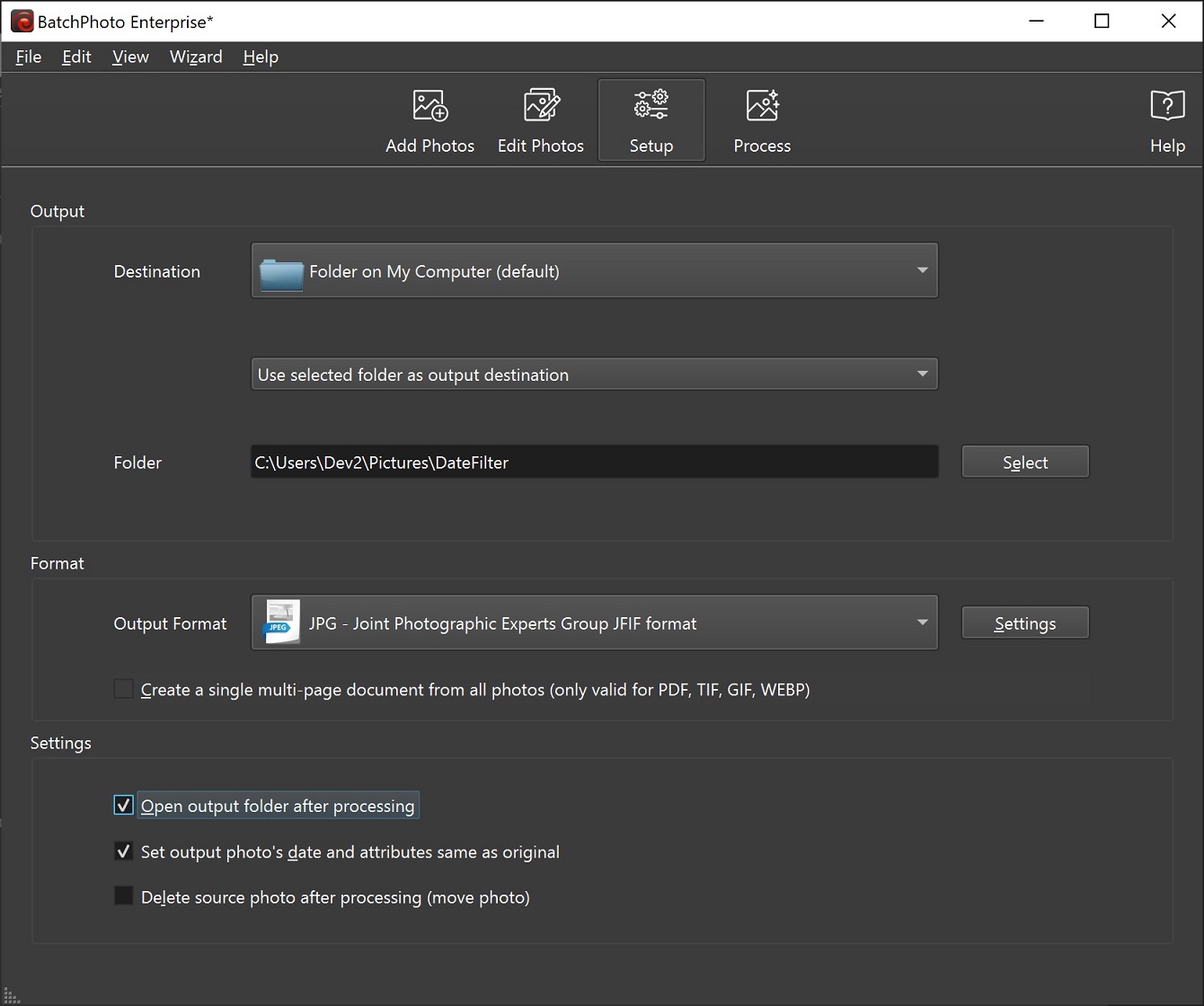
Once you're ready, hit the Process button.
Besides the date feature, BatchPhoto is equipped with other useful options to retouch and optimize images for web use. Among others, you'll be able to convert, resize, crop or watermark photos, add text comments, adjust the contrast, gamma level, brightness and colors, sharpen your pictures, apply artistic effects and decorate them with frames and borders.
If you'd like to try out the editor, you can download the fully-featured trial version here.
Bottom Line
Inserting the date and time into your pictures is a great idea, because it combines style with substance. This operation enhances the look of your photos while turning them into trustworthy records. And if you're working with larger batches of images, being able to add timestamps automatically can save hours of manual effort.
 Marvin Fry
- Date and Time in C ++
- How to change the date and time format on Windows, change the slash to a dot.
- How to change date and time on Windows 11
- How to change time, date and month in Windows 10?
- How to change date and time manually in macOS
- How to send multiple photos at once on WhatsApp
- Why must I set the correct date and time for Smart TV?
- How to Compare Two Dates in Java
- time.h in C
- Flick, the new time unit instead of seconds, uses Facebook video frame rate
- How to Open Applications With Root Privileges on a Mac
- How to create Hackintosh USB with Clover Bootloader
- How to Toggle WiFi on and Off with a Keyboard Shortcut on Mac
- How to fix 'Dyld: Library not Loaded' error on macOS
- How to Add a PowerPoint to iMovie
- How to Open an EMZ File on PC or Mac
- How to Create Credits in iMovie
- How to Bypass Parental Controls on a Mac
- How to Use Telnet on Mac OS X
- Making Linux look like macOS with these easy tweaks!
-
 How to calculate years of service in Excel, standard formula
-
How to change the date and time format on Windows, change the slash to a dot.
-
Apps Script for Google Sheets is the productivity solution you've been missing out on
-
DATE Function: Converts numbers to a valid date format
-
Latest Pet Evolution Diary Code and How to Redeem Code
-
Latest King's Choice Code and How to Enter Code
 How to calculate years of service in Excel, standard formula
 How to change the date and time format on Windows, change the slash to a dot.
 Apps Script for Google Sheets is the productivity solution you've been missing out on
 DATE Function: Converts numbers to a valid date format
 Latest Pet Evolution Diary Code and How to Redeem Code
 Latest King's Choice Code and How to Enter Code
 Mac OS X
 Mac OS System software
 Mac OS Security
 Mac OS Office application
 Mac OS Email Management
 Mac OS Data - File
 Mac hardware
 Hardware
 Game
Game Tech info
 Technology
 Science
 Life
Life Application
 Electric
 Program
 Mobile