Table of Contents
Learn how to change the date and time format on Windows, change the slash to a dot with practical instructions, useful tips, and troubleshooting guidance…
During Windows installation, incorrect region configuration can lead to date and time formats that are not suitable for users. For example, in the US, the month is written before the day, which can be confusing for users in other regions. If you encounter problems with your Windows date and time format, you can change it yourself using the instructions below.
Change the Date Format on Windows 11
Change It Directly on the Taskbar
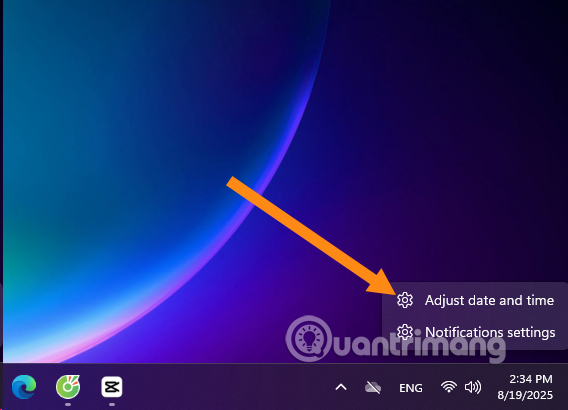
Step 1: Right-click on the date and time section on the right side of the Taskbar and select Adjust date and time.
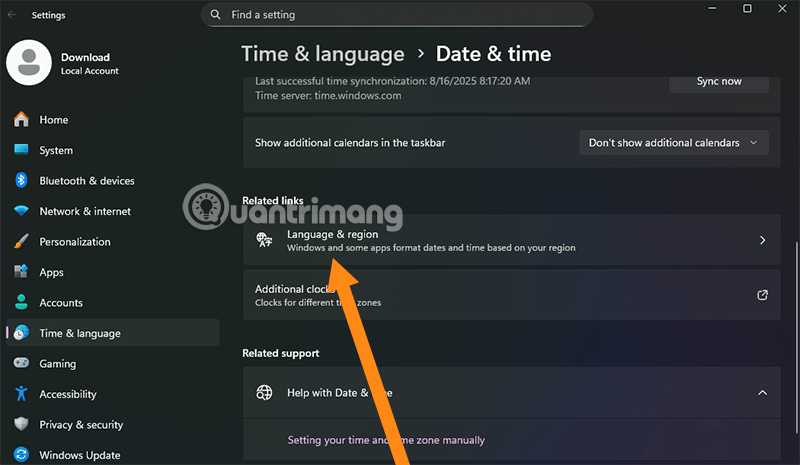
Step 2: Here you will see an option called Language & region ; select this option.
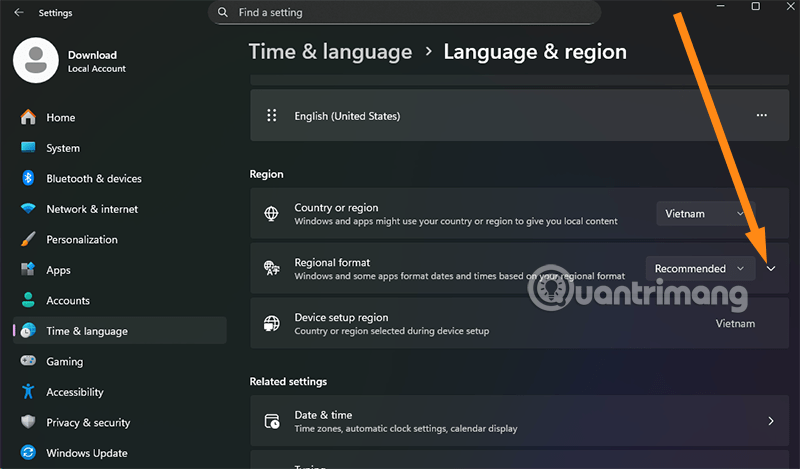
Step 3: In the Language & Region options, find the Regional format section and select the dropdown menu next to the Recommended button, as shown in the image below.
Step 4: Select Change Format .
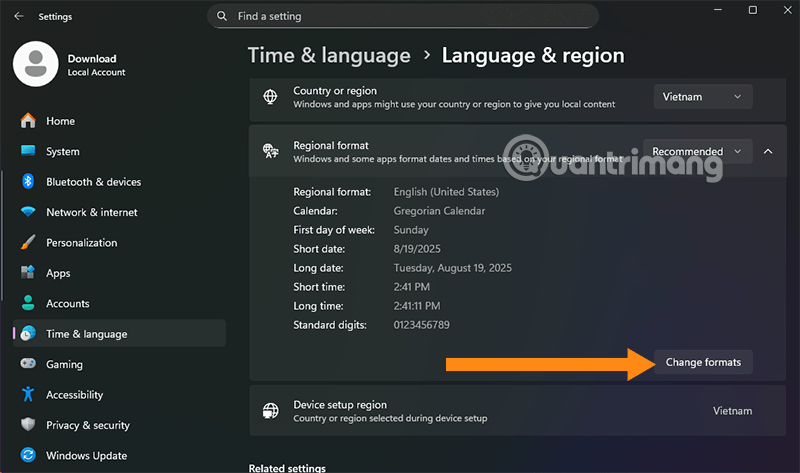
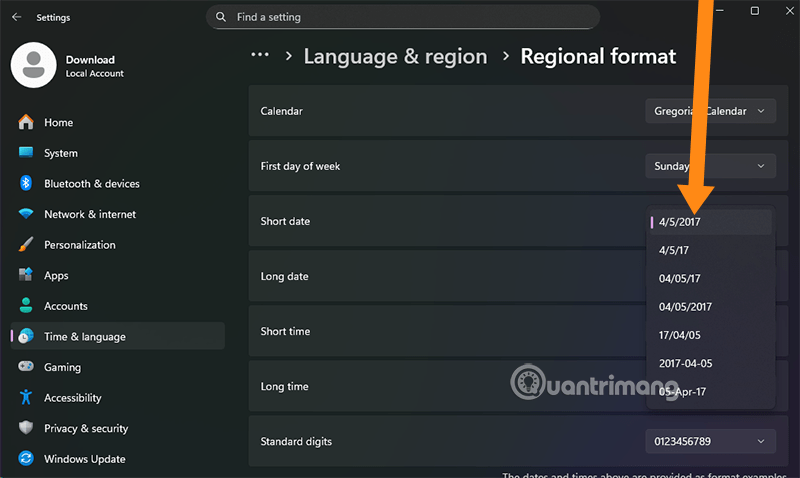
Step 5: Select Short date and you will see several changeable date and time formats here.
Change the Format via the Control Panel
Step 1:
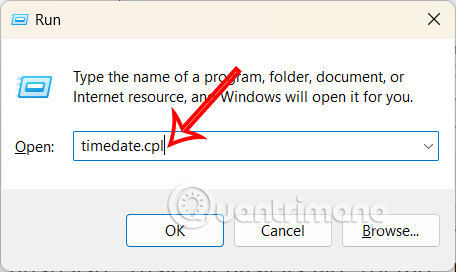
Press the Windows + R shortcut key , then type timedate.cpl in the Run dialog box that appears.
Step 2:
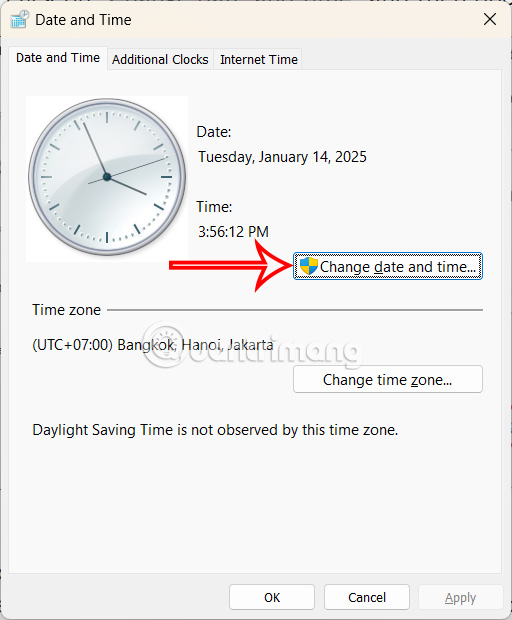
This displays the date and time settings interface on Windows 11. We click on " Change date and time" in the interface.
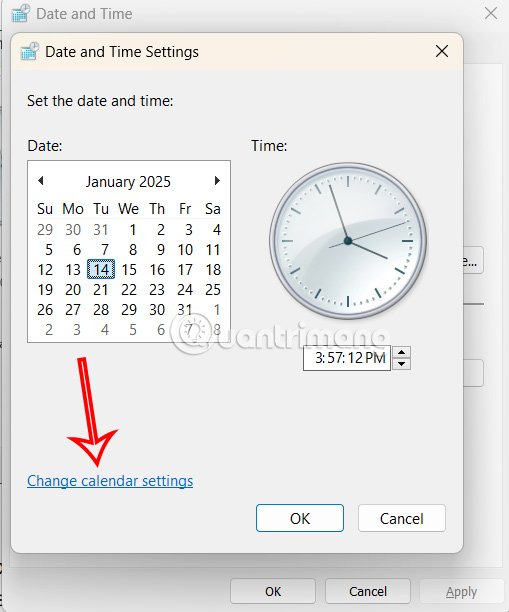
Continue by clicking Change calendar settings to change the calendar settings on your computer.
Step 3:
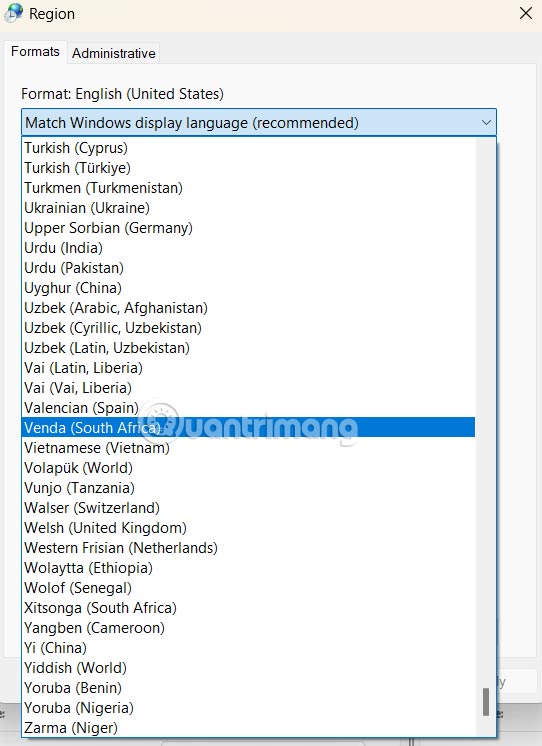
First, under Format, the user selects the desired format for their country.
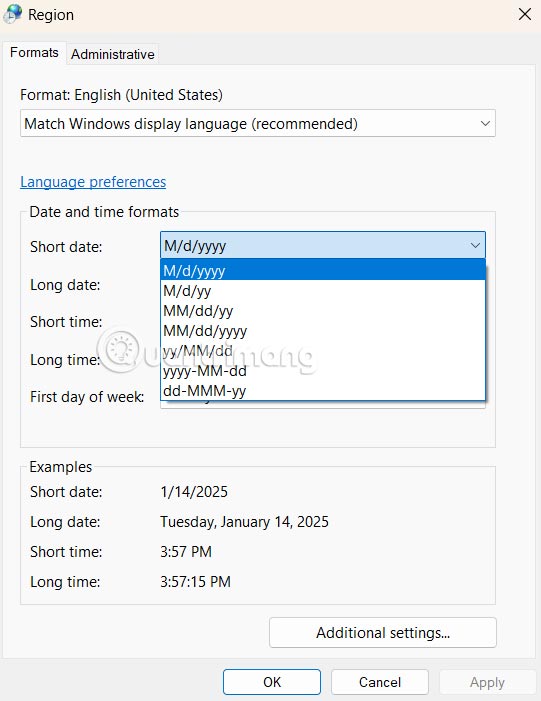
Then, under Short date, you can also choose the date and time format you want to set for your computer.
Change the Date and Time Format on Windows 10
To change the date and time format displayed on Windows 10, follow these steps:
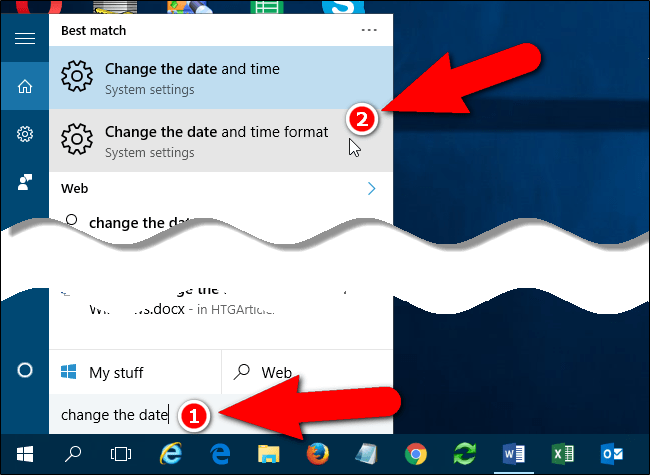
Step 1: First, type " change the date" into the search box on Windows 10. Then, click on " Change the date and time format" from the search results.
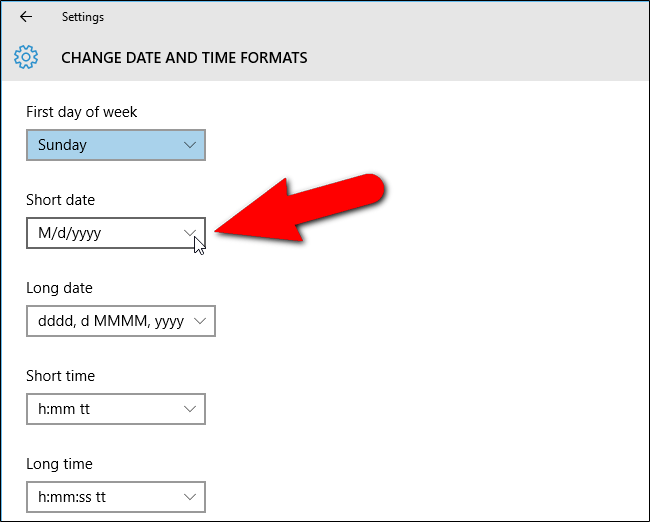
Step 2: On the date and time format settings interface, you can select different formats from the Short date, Long date, Short time, and Long time options.
- Short date: will display the day/month/year in the format: 03/03/2021.
- Long date: will display the day of the week, date, month, and year in the format: Wednesday, March 3, 2021.
- Short time: displays the time including hours, minutes, AM/PM: 08:28 AM.
- Long time: displays hours, minutes, seconds, AM/PM: 08:28:29 AM.
Additionally, if you can't find the date and time format you want in the options list—for example, if the options list only shows a date and time format using slashes, but you want to use a dot format—you can access the Control Panel to set your desired date and time format.
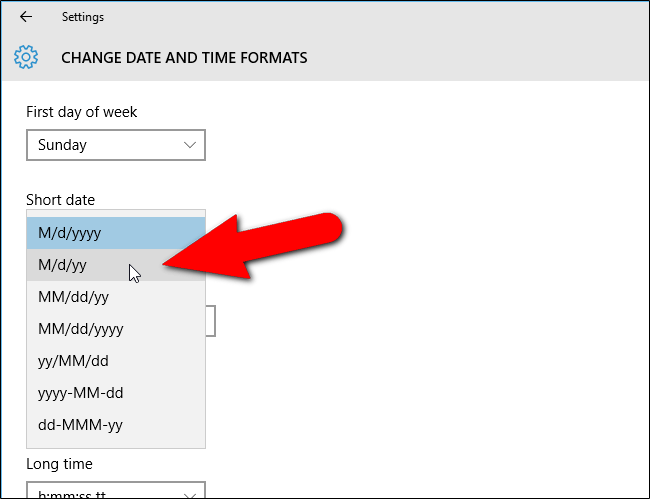
Step 3: To access the Control Panel, click the back arrow in the upper left corner of the Settings interface.
You will now return to the Date & Time interface in Time & Language.
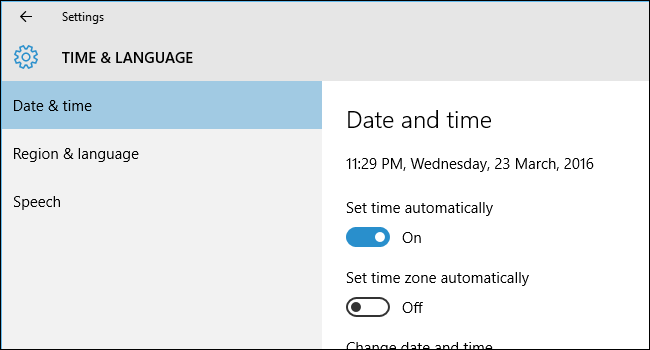
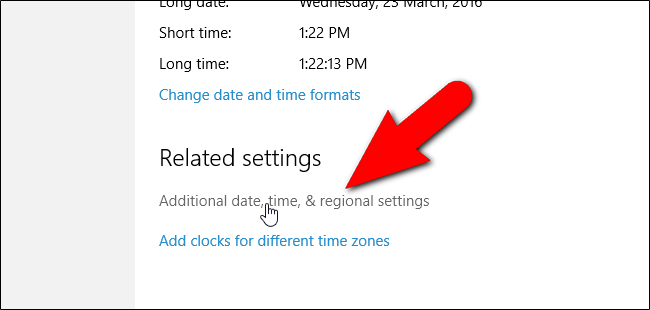
Step 4: On the Date & Time interface in the right-hand pane, scroll down and click the " Additional date, time, & regional settings" link located under "Related settings".
Step 5: At this point, the Clock, Language, and Region interface will appear on the screen.
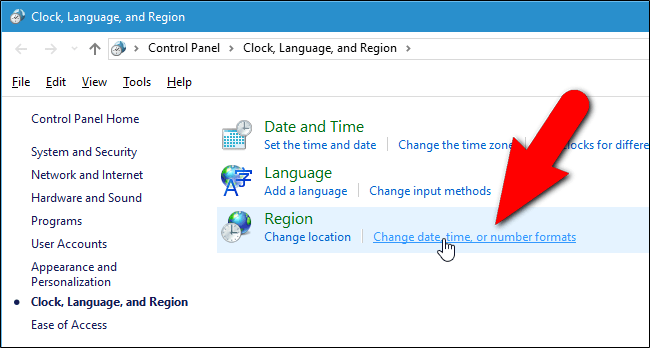
Step 6: Here, in the Region section on the right-hand pane, click the Change date, time, or number formats link to open the Region dialog box.
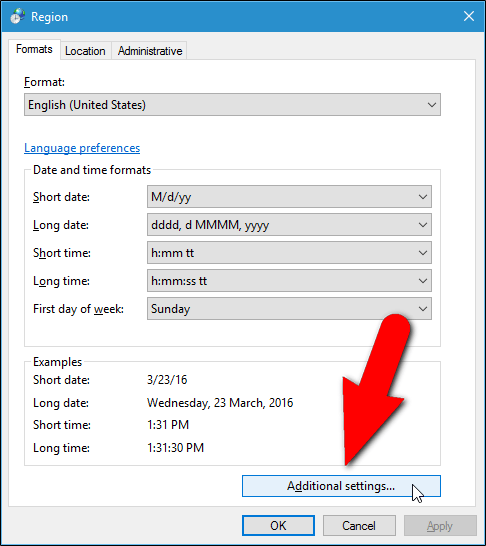
Step 7: If you are using Windows 10 or 8.1, in the Region dialog box, select the Format tab, scroll down a bit, and click Additional settings .
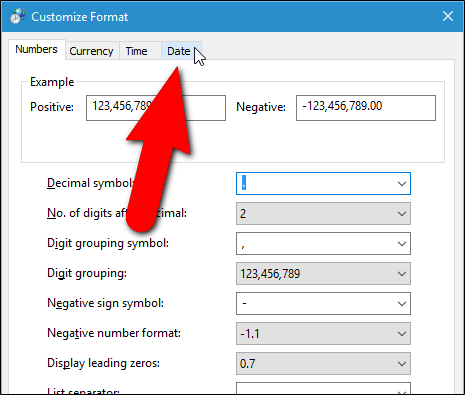
Step 8: In the Customize Format dialog box, click the Date tab.
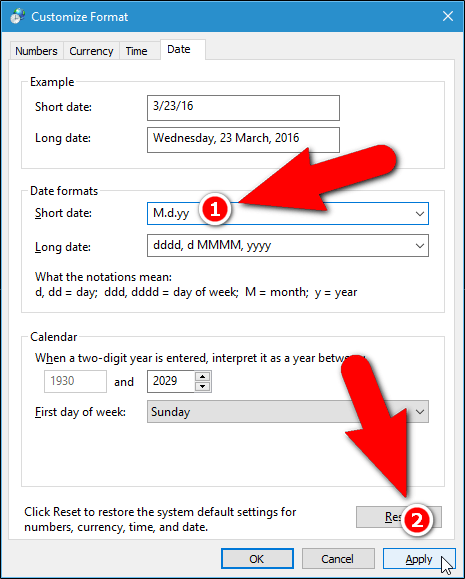
Step 9: In the Date formats section, find the Short Date option. You can choose different formats and edit the date formats here.
Simply enter the desired date format in the Short Date box. For example, month.day.year.
Click the downward arrow to select different formats such as MM.dd.yyyy,. For example, 03.09.2016,.
After entering the desired format in the Short date box, click Apply .
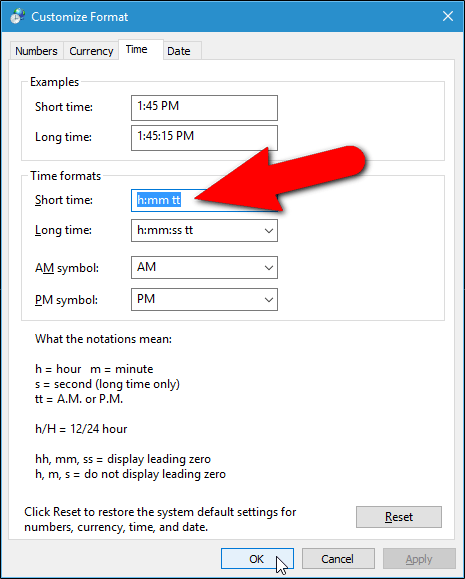
Additionally, you can change the time format by clicking the Time tab. Enter the format you want to use in the Short Time box.
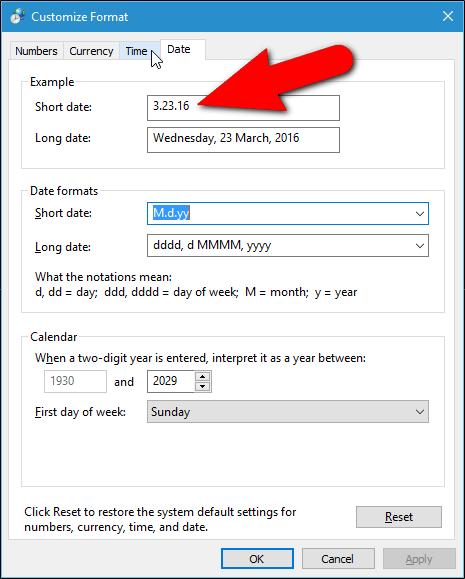
After you have finished setting the date and time, click OK to close the Customize Format dialog box.
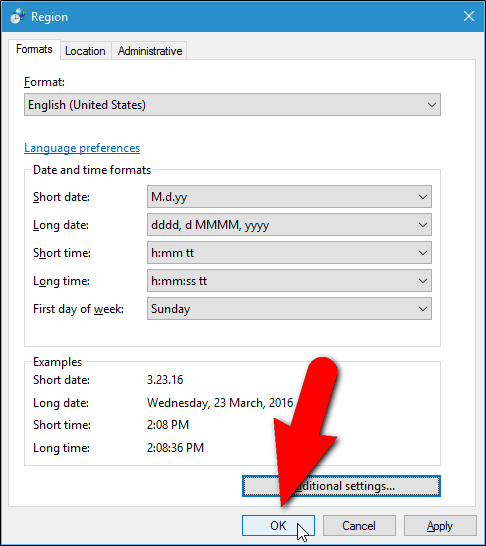
Click OK to close the Region dialog box.
Click the X icon in the upper right corner to close the Control Panel and the Settings window.
Now you can see the changed date format in the system tray on the Taskbar.

Change the Date and Time Format Settings on Windows 7
To access the Date and Time settings interface on Windows 7, first click the Start Menu button and then type " change the date" into the Search box.
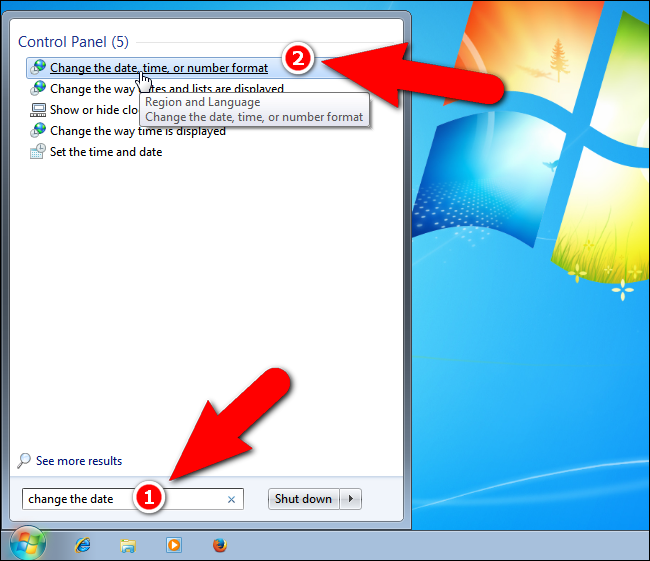
Next, click the " Change the date, time, or number format" link in the search results to open the Region dialog box.
Why Change the Date and Time Format?
Changing the date and time format serves several important purposes, primarily to meet the diverse needs of users and systems. Here are the main reasons:
1. In line with cultural and regional standards.
Each country and region has its own conventions for writing dates.
- Vietnam and many Asian and European countries: Day/Month/Year (e.g., August 19, 2025).
- United States: Month/Day/Year (e.g., 08/19/2025).
- Some other countries use the Year/Month/Day format (e.g., 2025/08/19), often used in computer systems for easier sorting.
Changing the format makes it easier for users to read, avoids confusion, and suits their daily usage habits.
2. Optimization for systems and applications
- Data storage: Database systems typically use international standard formats such as ISO 8601 (YYYY-MM-DDTHH:mm:ssZ). This format makes sorting, filtering, and retrieving date and time data easy and accurate, regardless of language or region.
- Programming: In programming, converting date and time formats helps handle tasks such as calculating time intervals, comparing dates, and synchronizing time between different systems.
3. Improve aesthetics and readability.
User Interface (UI/UX): Depending on the design, date and time formats may be modified to be cleaner, more intuitive, or to match the application's style. For example:
- "Today, August 19th" (user-friendly format)
- "Aug 19, 2025" (English format)
- "3 hours ago" (relative format, commonly used on social media)
4. Meeting a specific purpose
- Accounting and finance : Require precise date and time formatting down to the second and millisecond to record transactions.
- Logistics and production: It's necessary to format dates and times by shift, team, or week number in a year to manage progress.
- Aviation and travel: Use international time zones and formats (GMT or UTC) to avoid confusion.
In summary, changing date and time formats is not just a technical issue, but also a crucial part of ensuring accuracy, compatibility, and convenience for users worldwide.
FAQ
What is the best way to change the date and time format on windows, change the slash to a dot?
Learn how to change the date and time format on Windows, change the slash to a dot with practical instructions, useful tips, and troubleshooting guidance...
What should you prepare before you change the date and time format on windows, change the slash to a dot?
Key takeaway: Learn how to change the date and time format on Windows, change the slash to a dot with practical instructions, useful tips, and troubleshooting guidance...
What common mistakes should you avoid?
During Windows installation, incorrect region configuration can lead to date and time formats that are not suitable for users.
Related Articles
 How to Change the Date and Time Format on Windows?7 minutes read
 Change the Slash to a Dot in Excel Format: Execel3 minutes read
 How to Change Time, Date and Month in Windows 10?5 minutes read
 Change the Date and Time Format on Windows4 minutes read
 How to Change Date and Time on Windows 114 minutes read
 How to Change Date and Time Manually in macOS4 minutes read
Reader Comments 0
Sign in with email or Google to join the discussion.