Table of Contents
This updated guide compares Microsoft excel formatting habits to break and highlights the details that matter most. Whether you're new to Excel or an expert, avoiding bad formatting habits will help you process data tables faster, speed up your workflow, and ensure your data in Excel works properly. Here are some Excel formatting habits to avoid when working.
Merge Cells in Excel
for instance, there is a row in Excel with the same data in each cell. Instead of repeating the same value multiple times, you merge the cells using Merge And Center. Still, formatting the data like this will affect the table, because Excel works best when the grid of individual cells is arranged in consistent rows and columns.
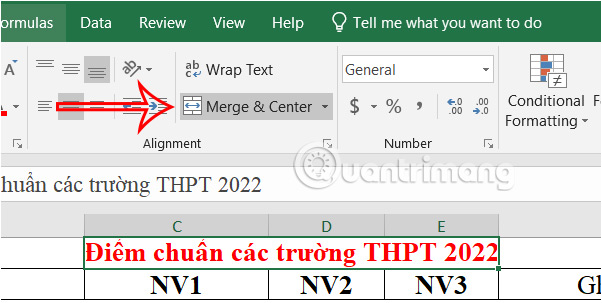
So you use the Center Across Selection option . You select the row you want to merge and then choose the arrow icon at Alignment to expand.
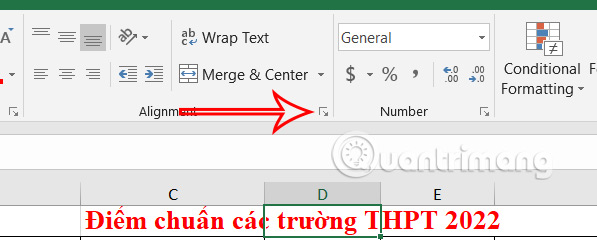
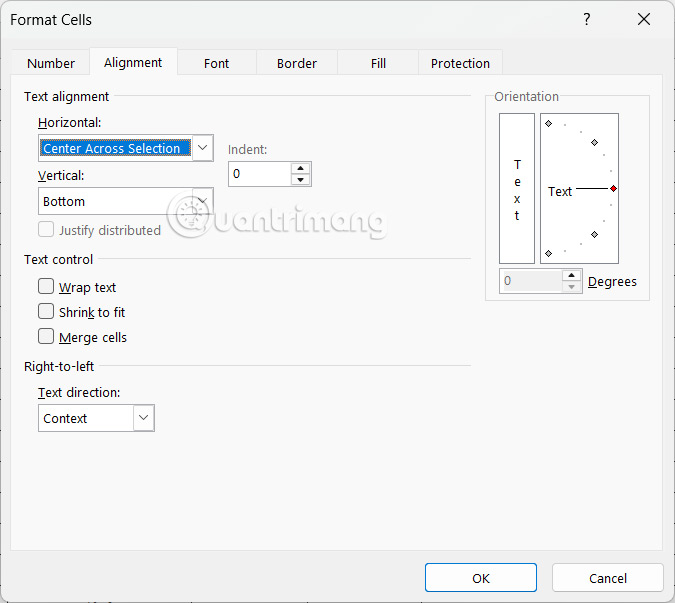
Then you choose Center Across Selection .
Align Numbers in the Center and to the Left
When you enter text into a cell in Microsoft Excel, the text aligns to the left, and when you enter a numeric value, the text aligns to the right.
Many people choose to center their data, but in some cases Excel automatically places numeric values to the right of the cell.
Aligning all numbers to the right makes them easier to read and compare than center-aligning. On the other hand, right-aligning numbers makes it easier to distinguish between different types of data.
Do Not Use Date Format
When you enter a value that Excel recognizes as a date format, it displays the data in date format.
Still, if Excel still displays the General format for dates, it means that the cell is understood as text. Thus, we cannot use Excel functions related to dates.
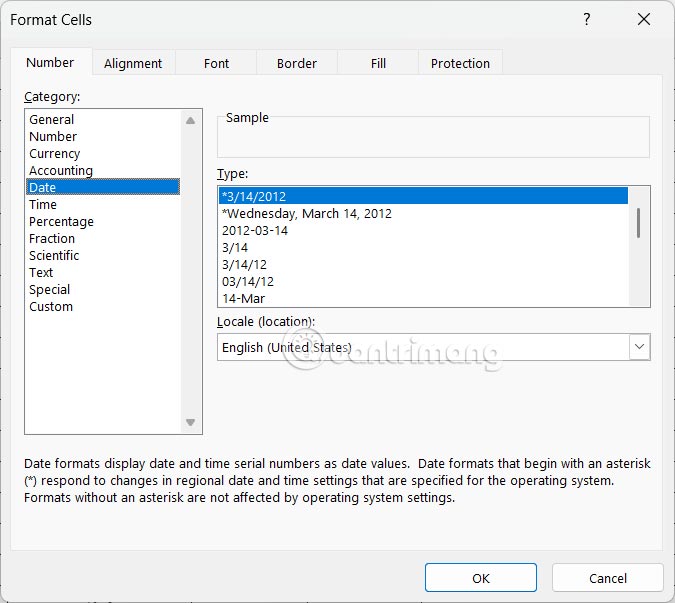
To fix this, delete that cell and press Ctrl+1 to open Format Cells and choose Date to set the format.
Color an Entire Column or Row
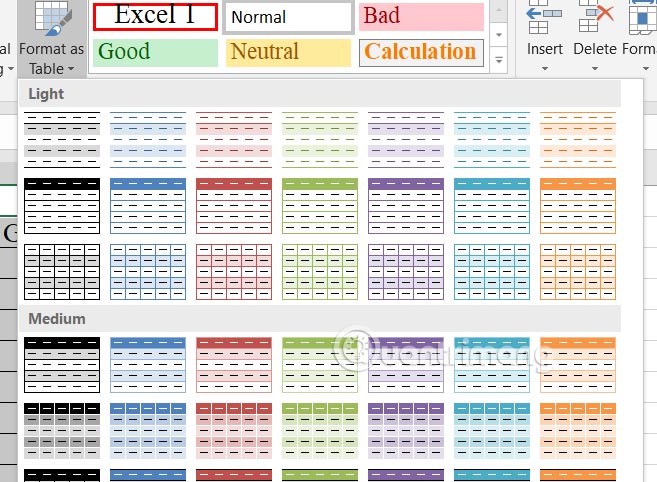
for instance, if you have a total or value column at the bottom of the table that needs to be highlighted, It is best to not color the entire column, but format the data as an Excel table and bold the rightmost column.
Click Format As Table to choose to format the data as a table.
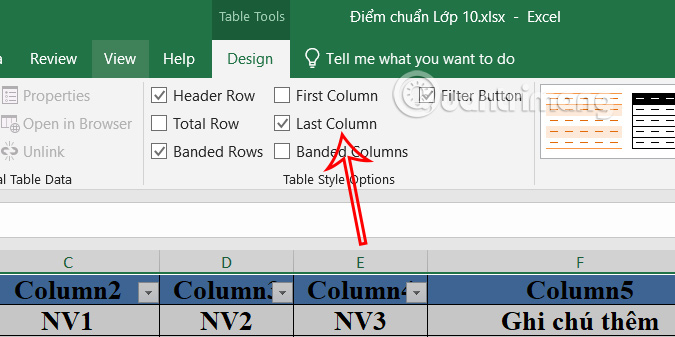
Then check the Last Column box to highlight the total value column or the column that needs to be highlighted at the end of the table.
Use Different Fonts
Mixing fonts in Excel makes your spreadsheet look messy and unprofessional, and can make it difficult for people to read your data. it is best to choose a generic, easy-to-read font.
Manual Table Formatting
In Microsoft Excel, you can apply manual formatting to your data to highlight some data. In fact, formatting your table manually can cause other problems later.
Instead, It is best to choose the correct Excel table format at Format As Table.
FAQ
How were the microsoft excel formatting habits to break options evaluated?
The comparison focuses on practical features, ease of use, limitations, compatibility, and the type of user each option is most likely to help.
Which option is best for beginners?
Beginners should prioritize a clear interface, useful documentation, reliable support, and the core features needed for their first project.
Should I choose a free or paid option?
Start with a free option when it covers your needs. A paid plan may be worthwhile when you need advanced tools, commercial rights, collaboration, or professional support.
Related Articles
 Ms Excel - Lesson 13: Use Conditional Formatting in Excel2 minutes read
 MS Excel 2003 - Lesson 13: Using Conditional Formatting in Excel2 minutes read
 Excel 2019 (Part 6): Formatting Cells9 minutes read
 How to Use Conditional Formatting to Conditional Formatting in Excel7 minutes read
 Excel 2019 (Part 23): Conditional Formatting6 minutes read
 How to Use Conditional Formatting in Microsoft Excel 20169 minutes read
Reader Comments 0
Sign in with email or Google to join the discussion.