Table of Contents
If a Windows laptop feels slow, three settings are worth checking: storage cleanup, startup applications, and background activity. They can help when low disk space or unnecessary processes are the cause. They cannot fix every slowdown, so change one thing at a time and compare the result.
1. Free space with Storage Sense
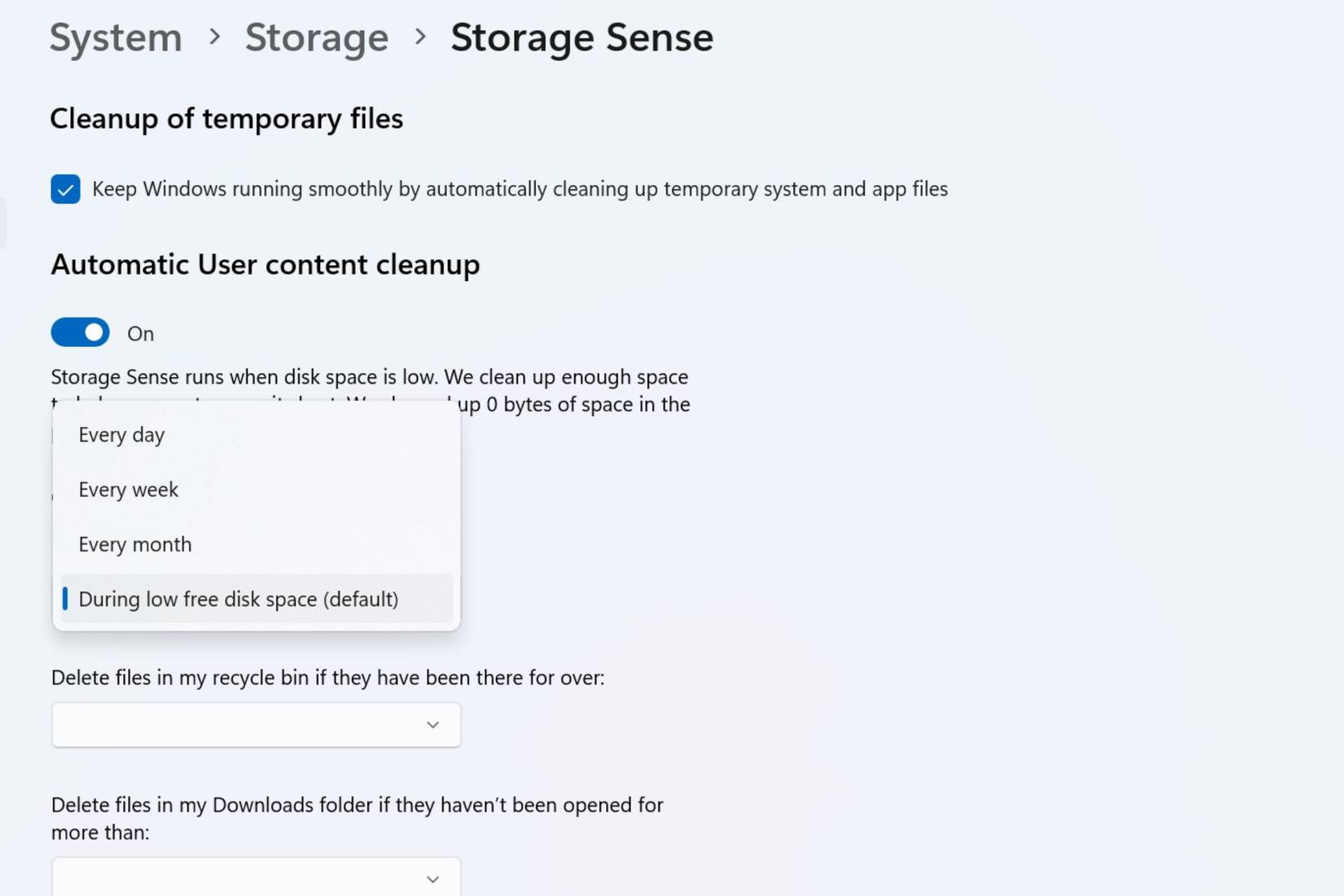
- Open Settings > System > Storage and review the drive's free space.
- Open Temporary files and read the selected categories before removing anything.
- Open Storage Sense to choose when cleanup runs and which items it may manage.
Be especially careful with Downloads, the Recycle Bin, and previous Windows installations. You may still need those files, and removing a previous installation can affect rollback options. Storage Sense does not decide whether a personal document is important to you.
If you use OneDrive, making a file online-only frees its local copy but means internet access may be needed to open it. Keep essential offline files marked to remain on the device. Storage Sense primarily manages the Windows system drive; review other drives separately.
2. Reduce unnecessary startup apps
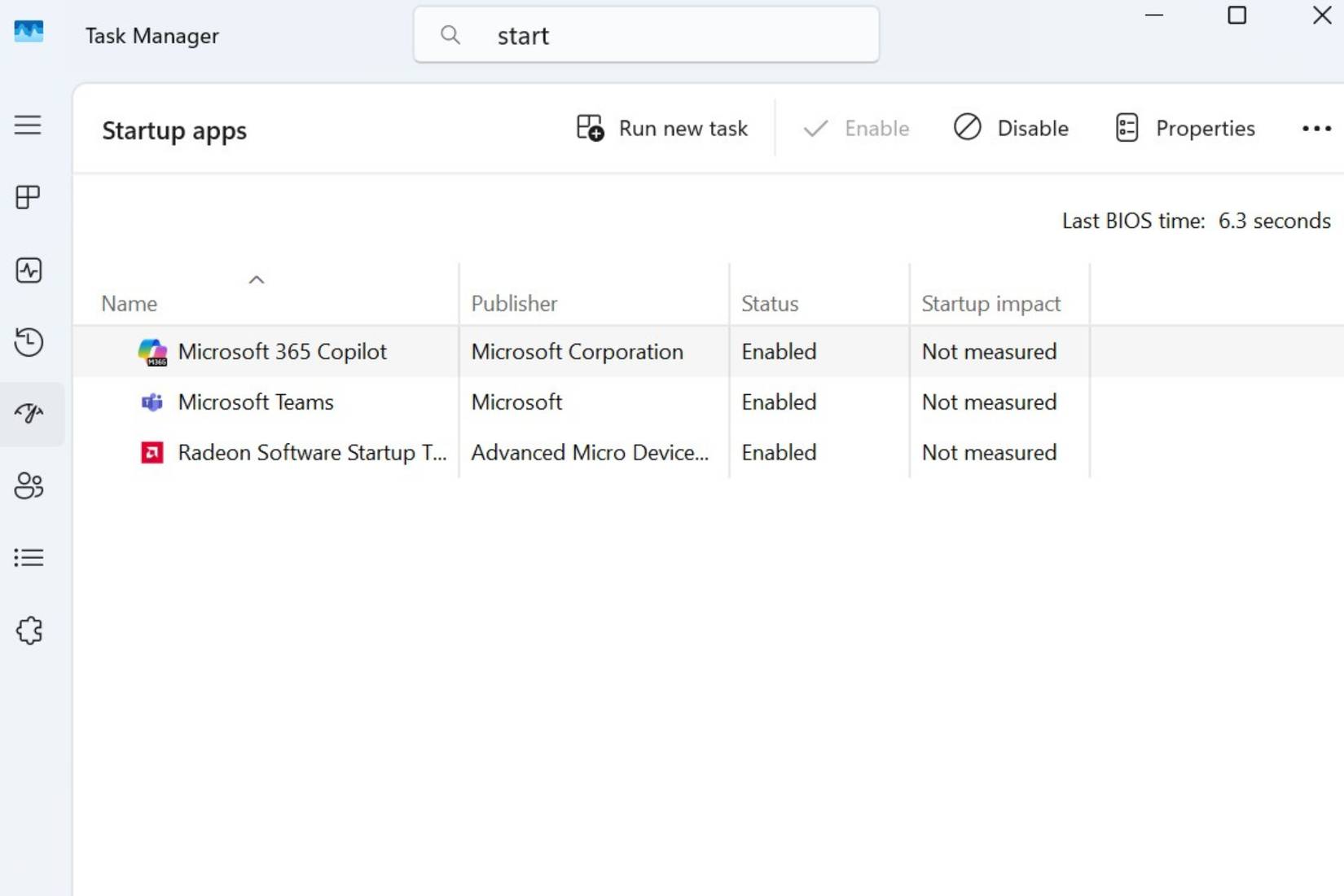
- Open Settings > Apps > Startup, or press Ctrl + Shift + Esc and open Task Manager's Startup apps section. Older layouts may call the tab Startup.
- Look for apps you recognize that do not need to open at sign-in, such as a game launcher you use occasionally.
- Disable selected entries, restart, and compare the time until the laptop is usable.
Disabling a startup entry does not uninstall the app. You can launch it manually or enable the entry again. Leave security tools and required hardware or workplace software alone unless you understand their role. Fewer startup processes may reduce contention after sign-in, but a specific speed or battery-life improvement is not guaranteed.
3. Limit background activity selectively
First check Task Manager's Processes view for an application repeatedly using substantial CPU, memory, or disk resources. Brief activity during updates or syncing can be normal. Close an unneeded app through its own controls before ending unfamiliar processes.
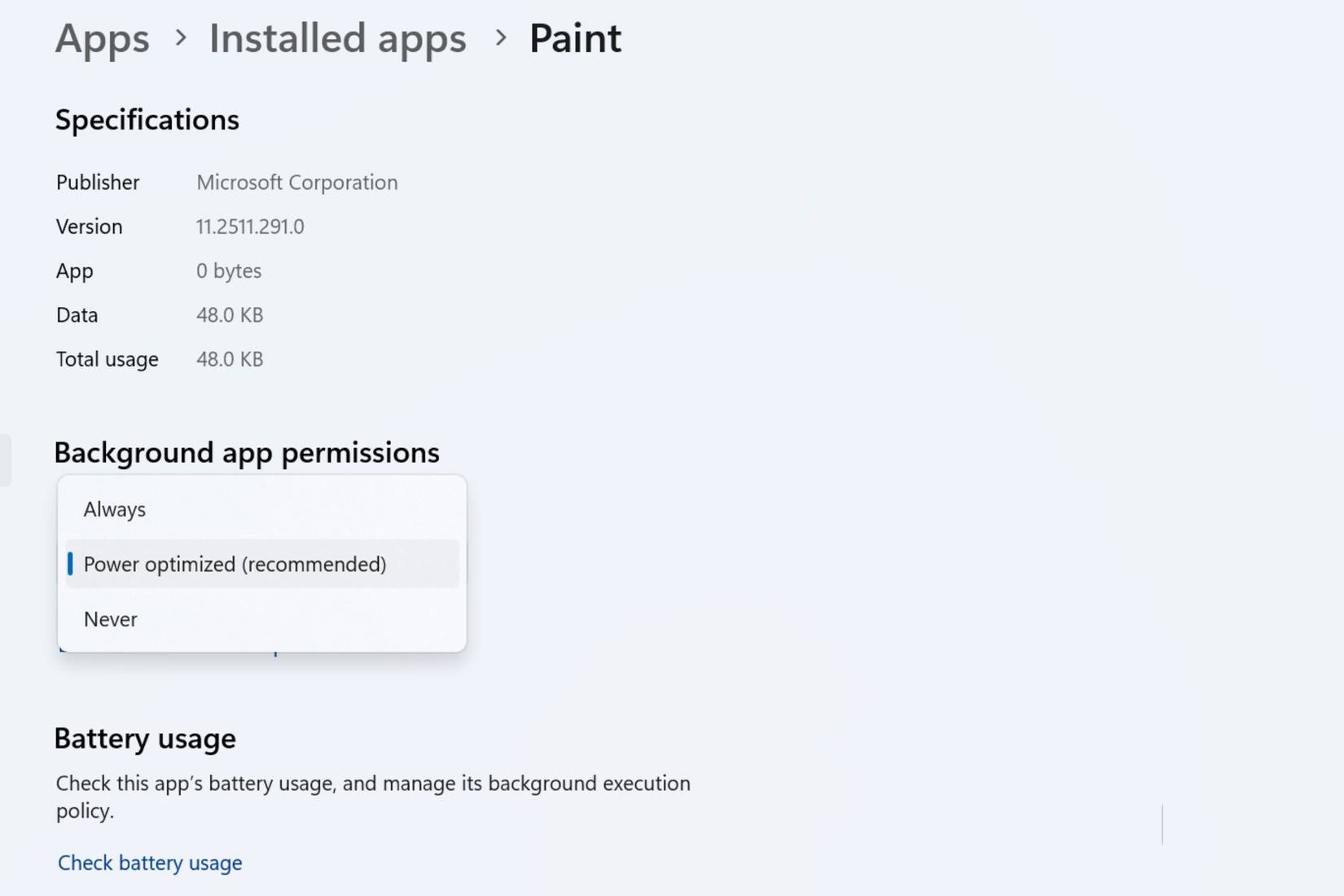
For supported apps on Windows 11, open Settings > Apps > Installed apps, select the app's three-dot menu, then Advanced options. If Background app permissions is available, choose an appropriate option such as Power optimized or Never. On Windows 10, supported controls are under Settings > Privacy > Background apps.
Not every desktop application has this Windows permission. For those apps, use their own settings for startup, sync, or background operation. Restricting activity can delay notifications and updates, so keep the features you rely on enabled.
If the laptop remains slow
Compare the same task before and after each change. If the slowdown occurs in only one application, investigate that application first. Persistent high resource use, overheating, or drive faults require a different diagnosis. See how to diagnose a slow computer and Windows 11 performance checks for the next steps.
Related Articles
 How to Make Old Laptop Run Faster Immediately: Step-by-Step Guide5 minutes read
 9 iPhone Settings to Change for Privacy and Convenience9 minutes read
 9 Default Windows Settings to Change Now10 minutes read
 8 Settings to Change to Make Your Mac Trackpad and Keyboard Work10 minutes read
 10 Ways to Make Your Laptop Run Faster: Expert Selection Guide11 minutes read
 How to Make Your Laptop Run Faster: Step-by-Step Guide4 minutes read
Reader Comments 0
Sign in with email or Google to join the discussion.