Table of Contents
Explore 8 Android gestures you shouldn't miss, including the key concepts, practical examples, important considerations, and useful guidance.
These gestures let you switch apps, multitask, take screenshots, and even access your favorite accessibility features without having to dig through menus or waste time. Once you get used to them, they become part of your memory, and honestly, you'll regret not discovering some of them sooner.
Switch apps and tabs with a swipe
Swipe your way
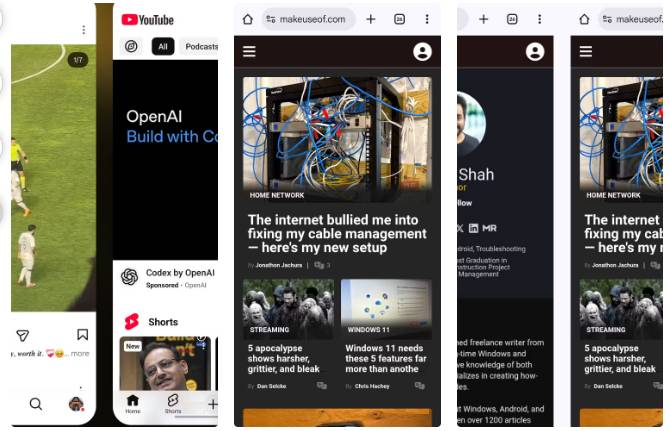
Android's app switcher menu makes it easy to switch between recently opened apps, but you don't have to open it every time. You can also swipe left or right on the navigation bar at the bottom to quickly open the previous or next app.
The same trick works in Chrome. Instead of swiping on the navigation bar, you can simply swipe left or right on Chrome's URL bar to switch between open tabs. This is useful when comparing product prices or searching for information.
Open apps in split screen or window mode
Multitask like a pro
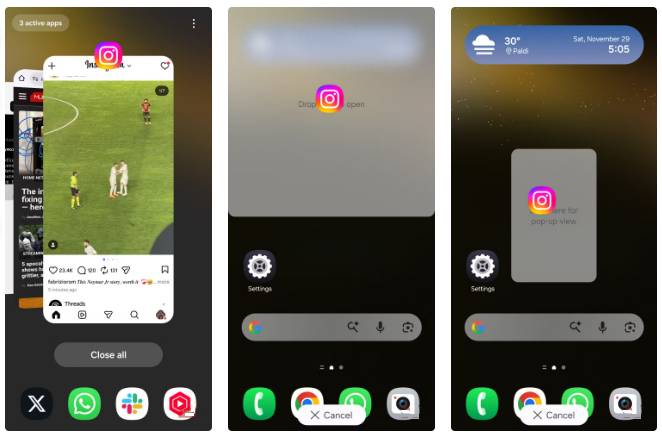
Android phones come with a ton of useful multitasking features that make life easier. One of the most underrated is split-screen mode. To open an app in this mode, press and hold the app in the app switcher and drag it to the top or bottom half of the screen.
If you have a Samsung phone, One UI also offers a window mode option. To do so, press and hold an app in the app switcher and drag it to the center of the screen. The app will then open in a floating window that you can resize or move around like a small app on your desktop.
Switch to one-handed mode
Master the big screen
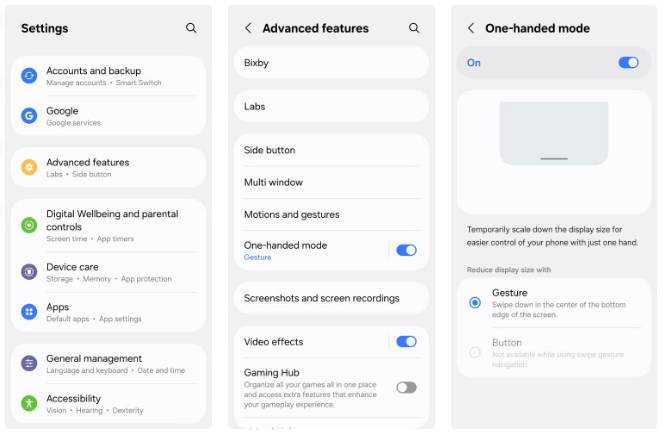
Our phones are no longer small enough to comfortably use with one hand. Turning on one-handed mode shrinks your phone's screen so you can interact with it with just one hand. To access this mode, all you have to do is swipe down on the navigation bar.
Note that on some phones, you may need to enable one-handed mode from the Settings app first for this gesture to work. Once enabled, the same swipe-down gesture will take you out of one-handed mode.
Swipe to take a screenshot or switch accounts in the Google app
Capture and convert easily
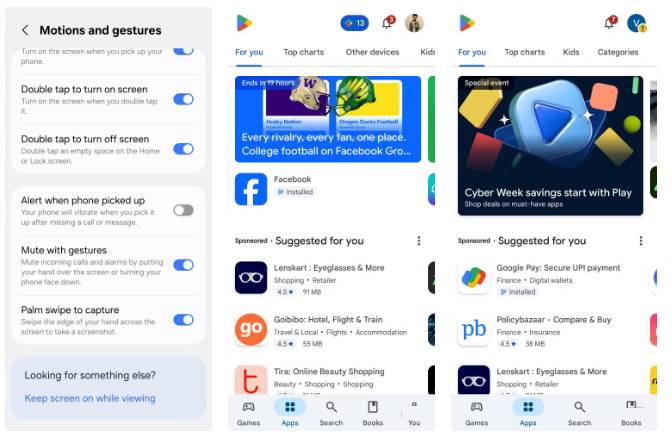
Some gestures feel so natural that you forget they're even a feature. Swipe to take a screenshot is one of them. Instead of trying to press both the power and volume buttons at the same time, you can just swipe down with three fingers on any screen to take a photo. This works on OnePlus, Oppo, Vivo, and some other phones. On Samsung phones, it works a little differently. You swipe the edge of your hand across the screen to take a screenshot without a button.
Another swipe gesture that has become a favorite across most Google apps. To switch between accounts in apps like Google, Gmail, Photos, Google Drive, Play Store, and others, you can swipe up or down on your profile picture in the upper right corner. Once you get used to it, you'll never go back.
Swipe with two fingers to use accessibility features
Activate your favorite tool
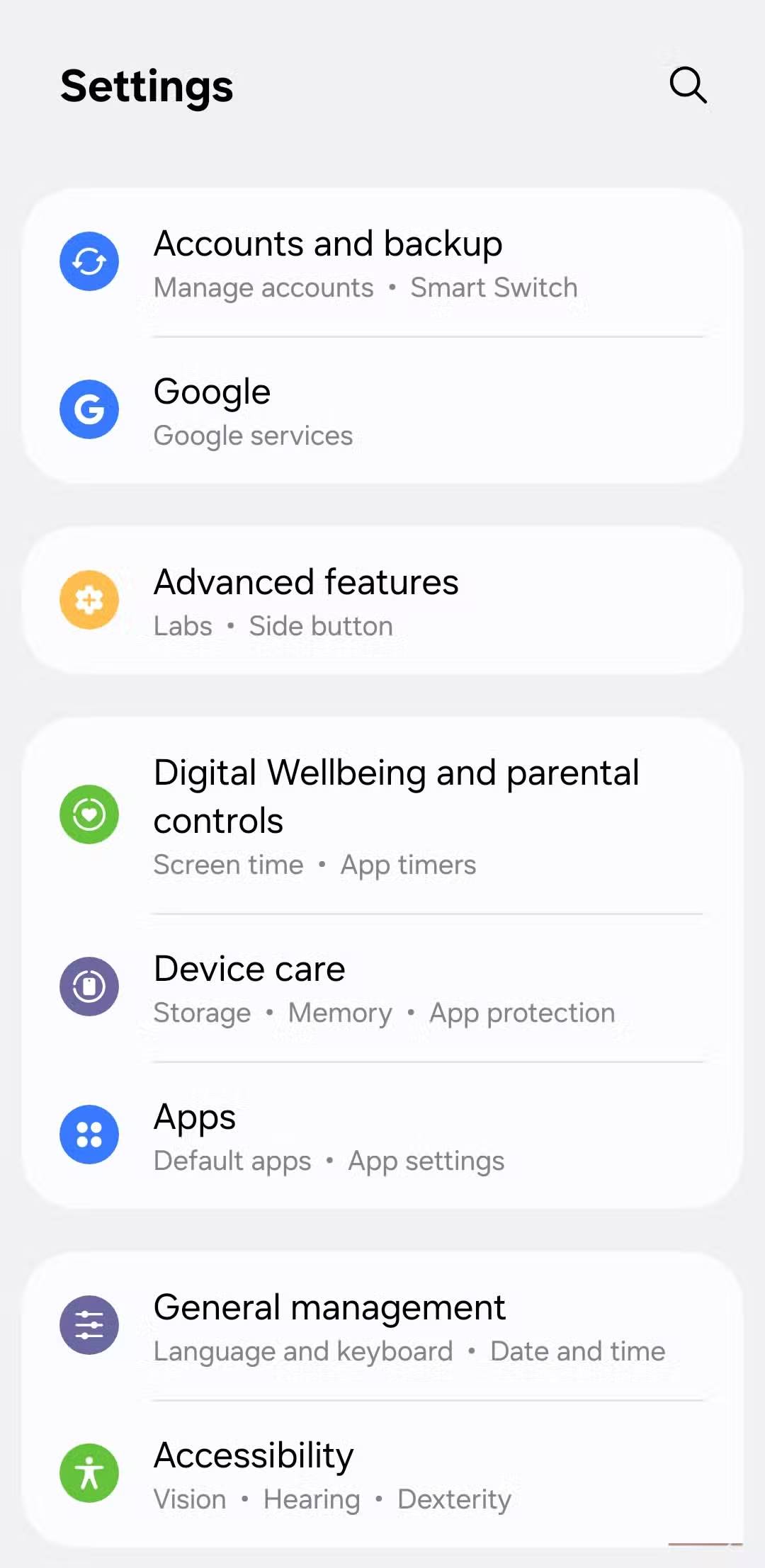
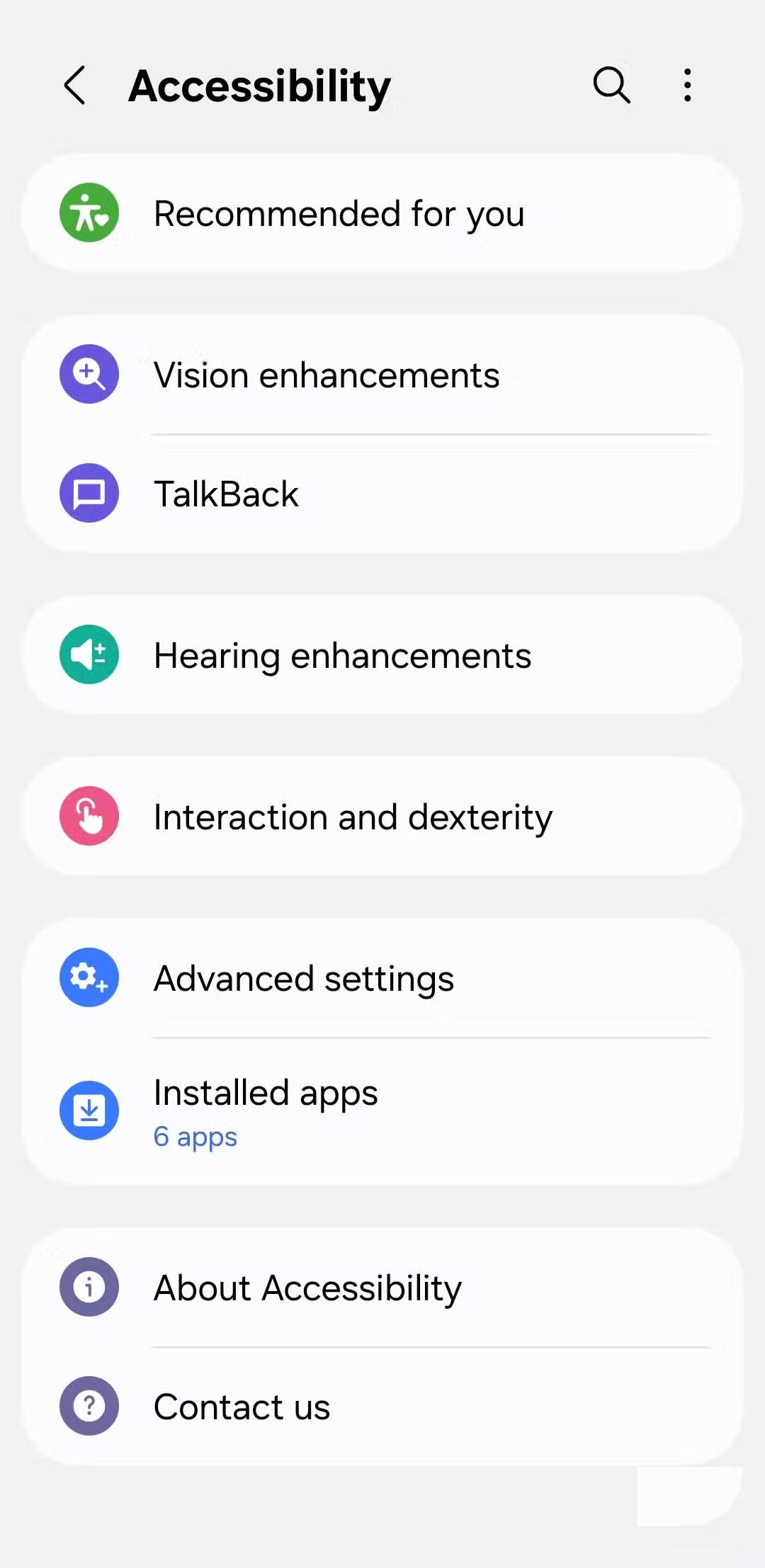
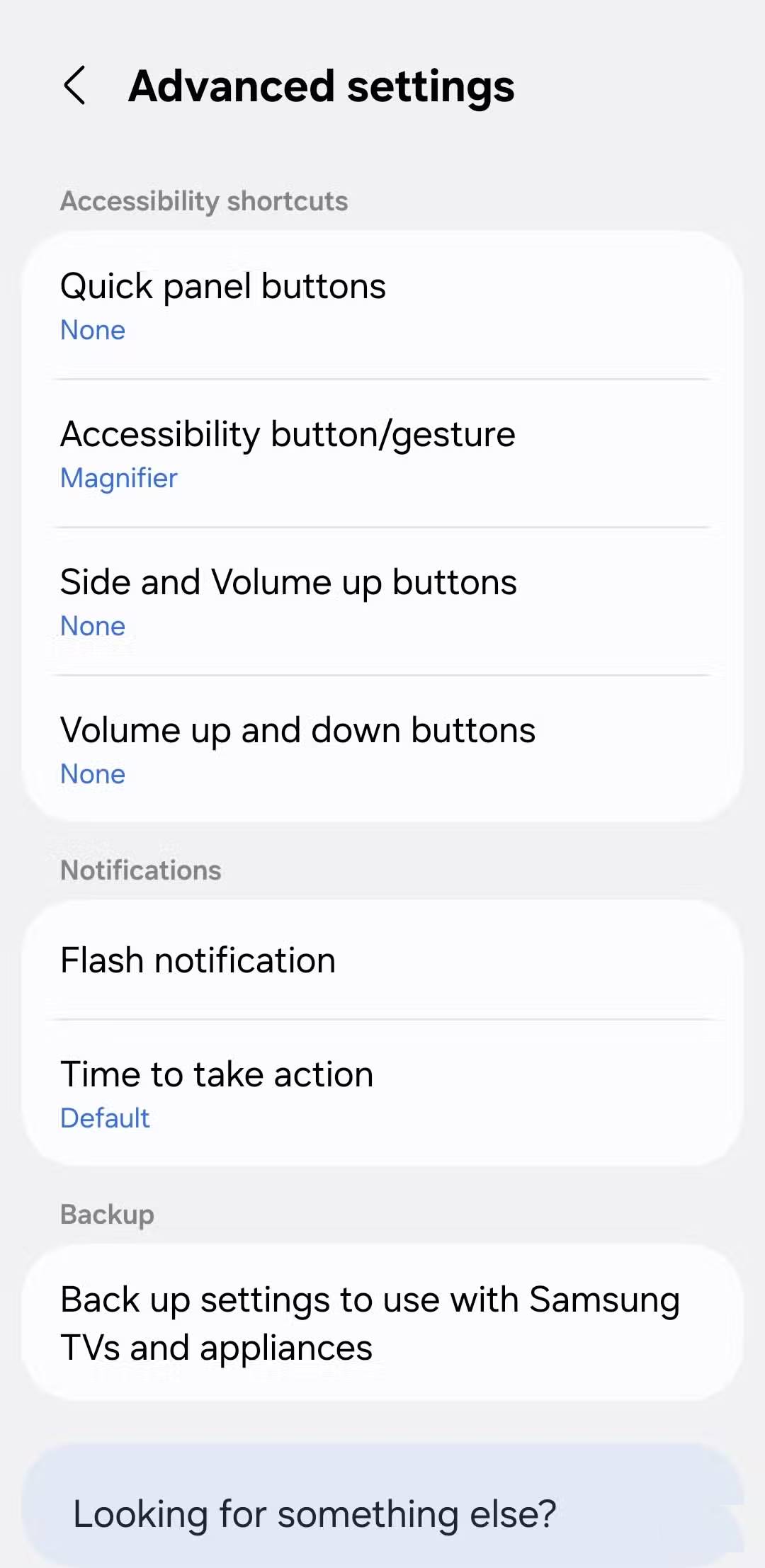
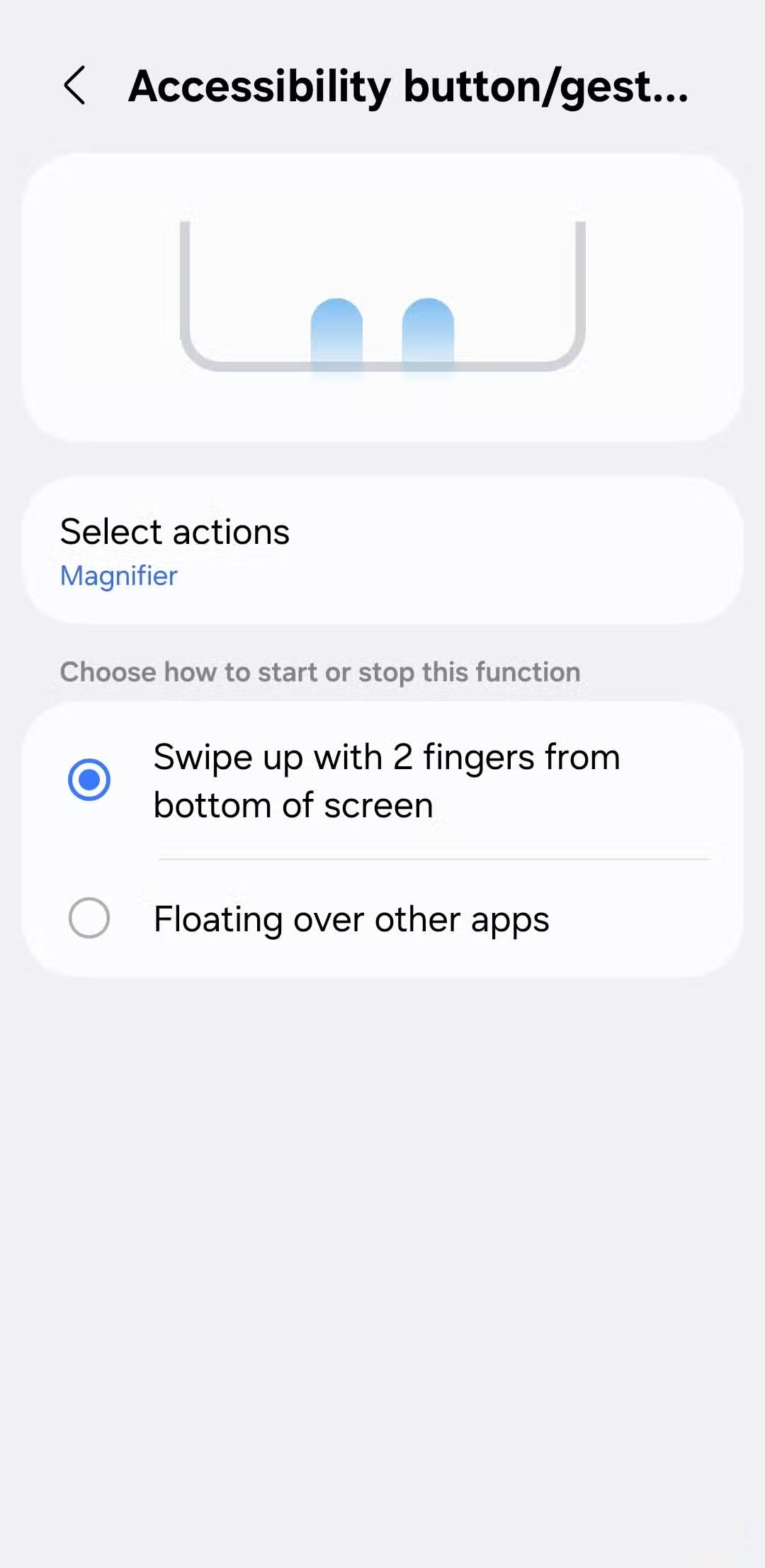
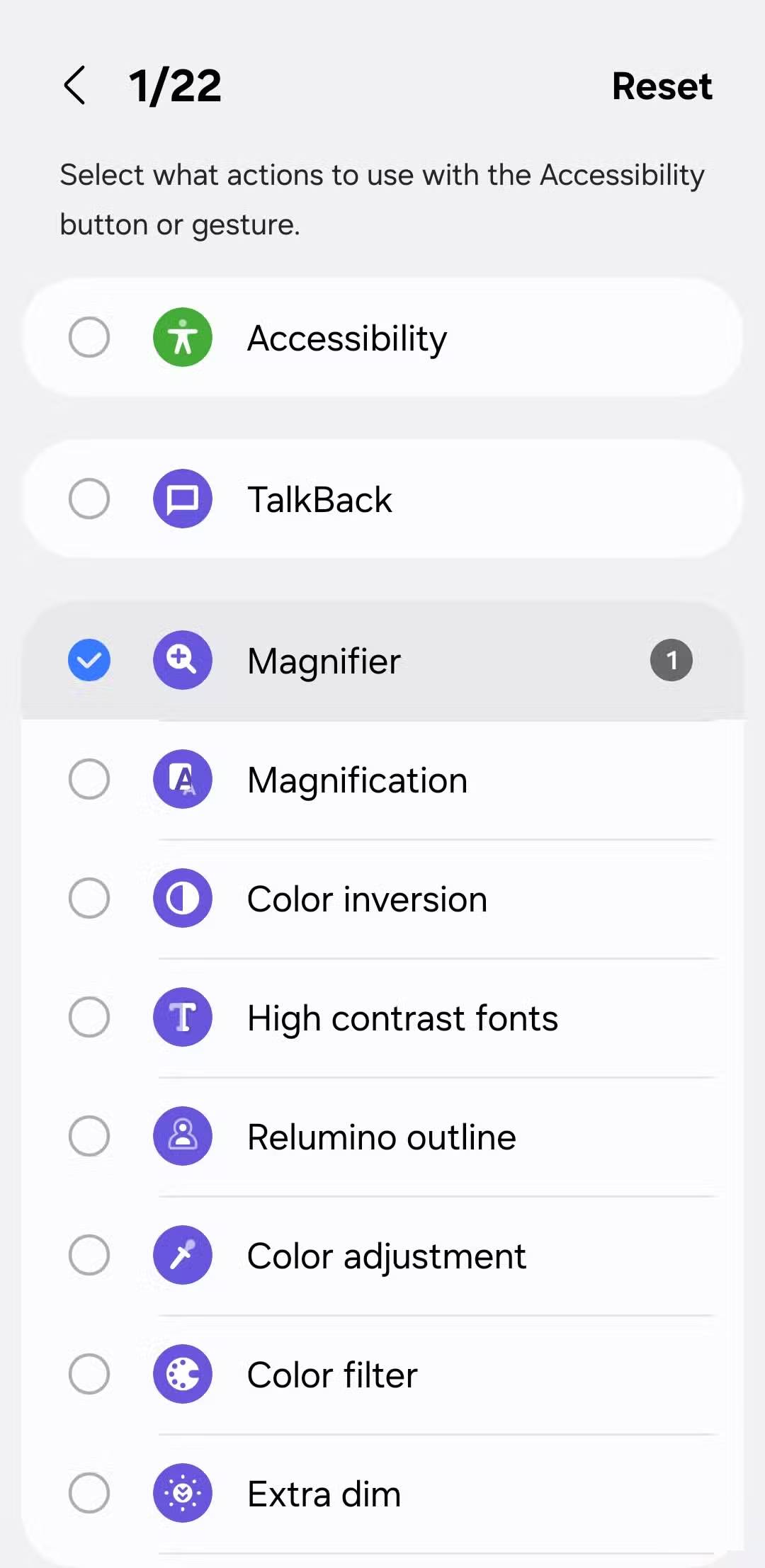
While Android's accessibility features are designed for people with specific needs, there are some that are useful for everyone. For example, you can use your phone's camera as a magnifying glass to read small text or turn on Live Captions to watch videos.
You can activate your favorite accessibility feature by swiping up from the bottom with your finger. To set which feature this gesture activates, go to Settings > Accessibility > Advanced settings > Accessibility button/gesture .
Tap the back of your phone to perform specific tasks
Use the secret button
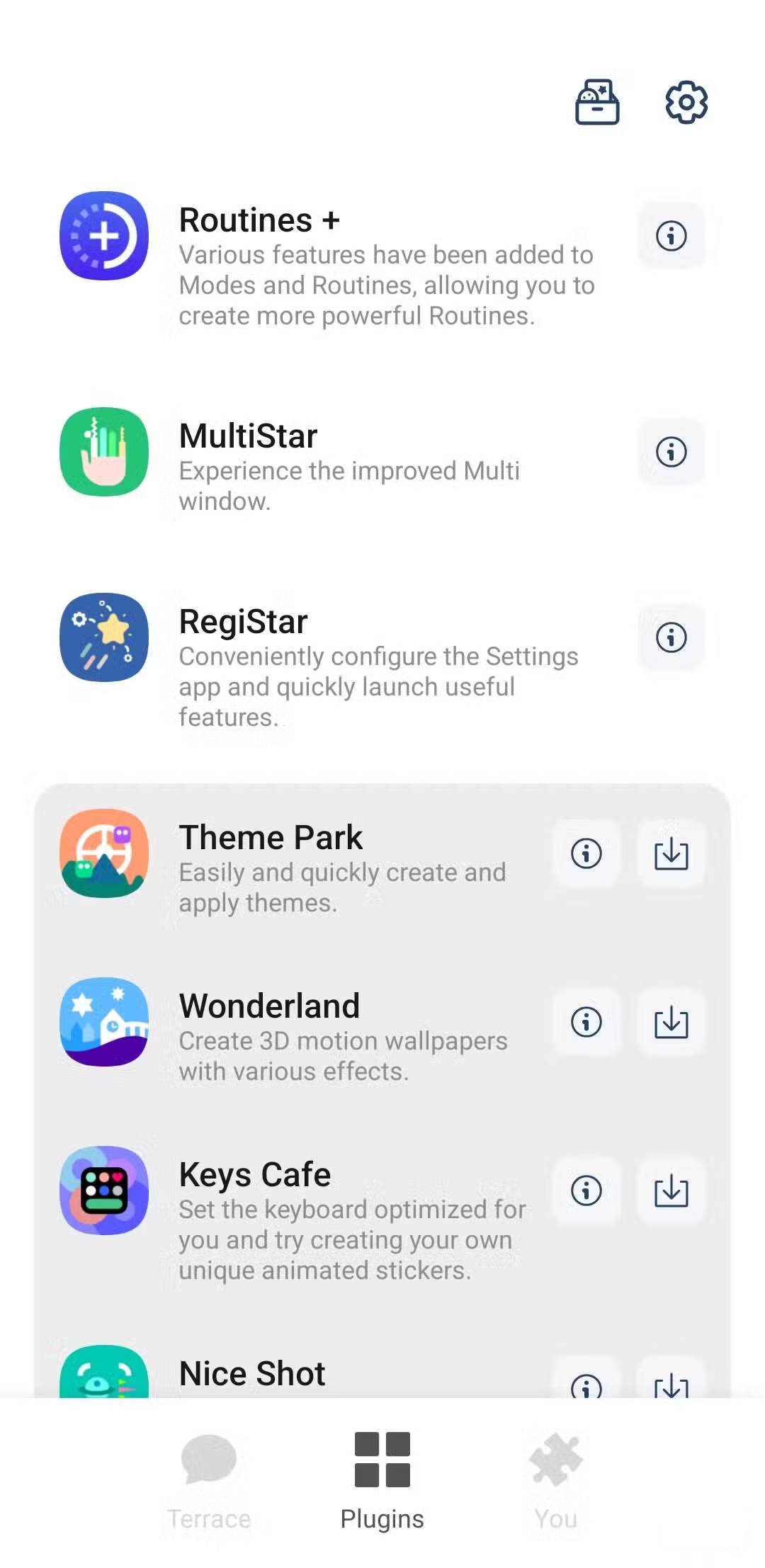
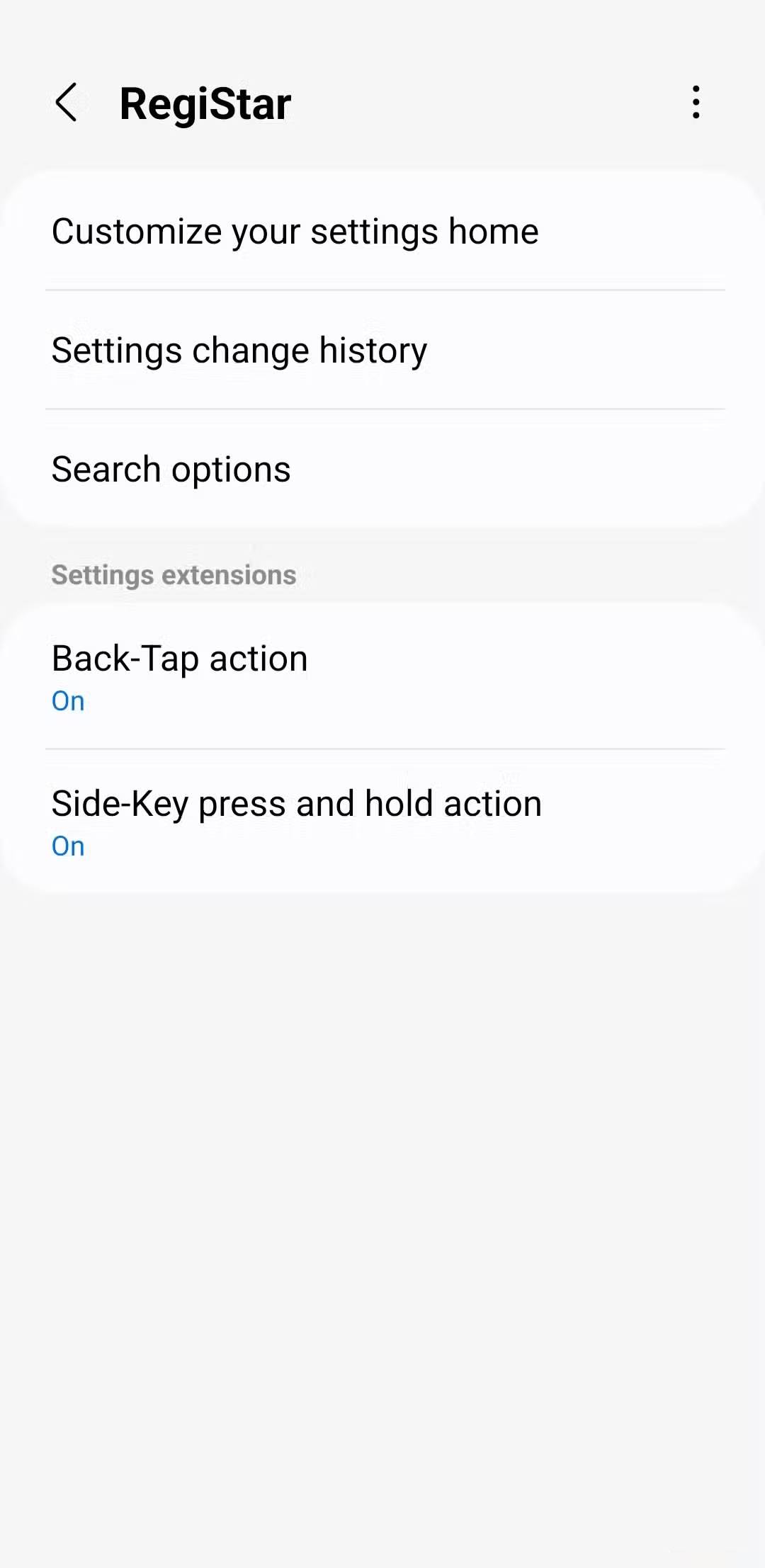
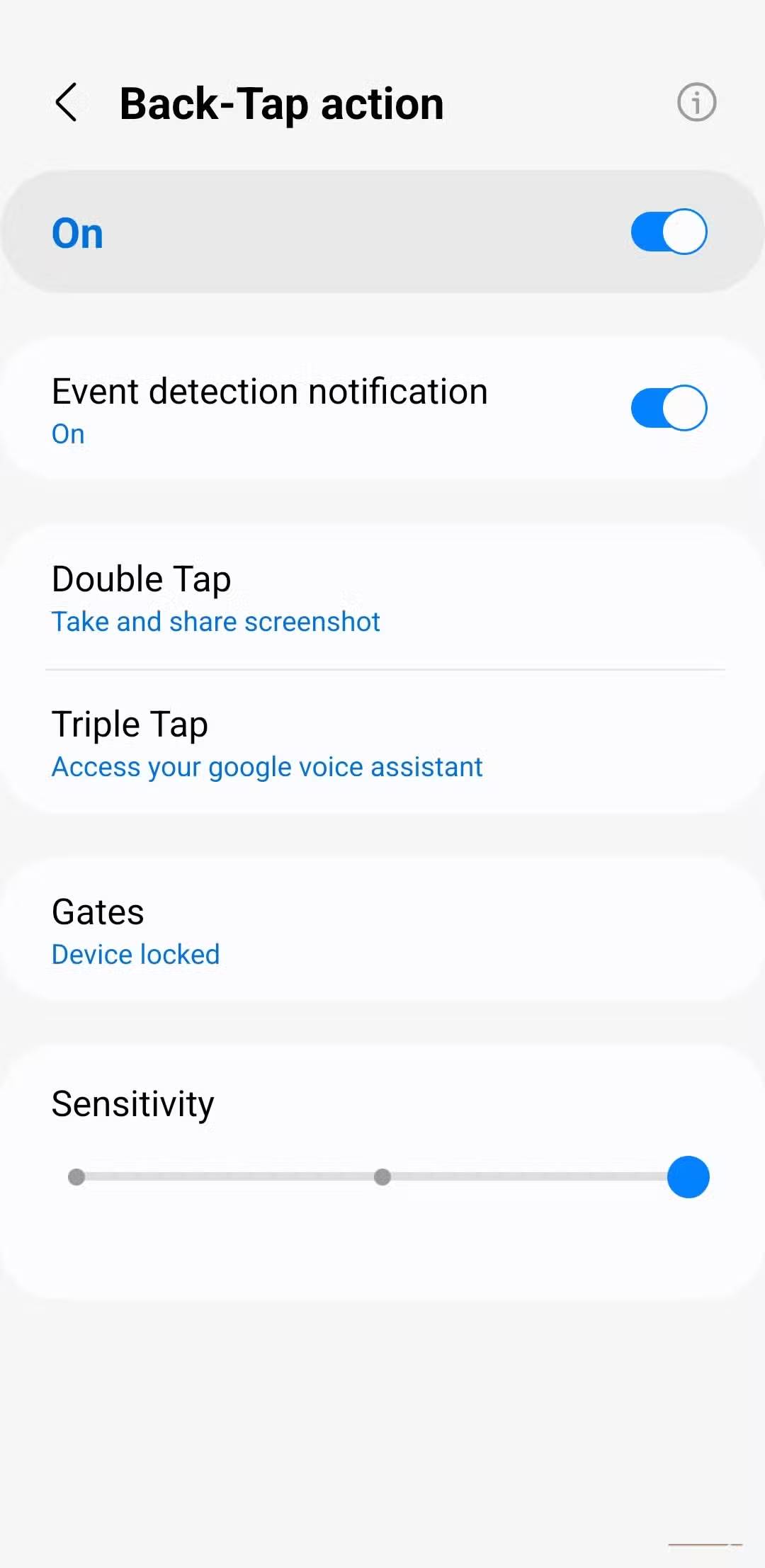
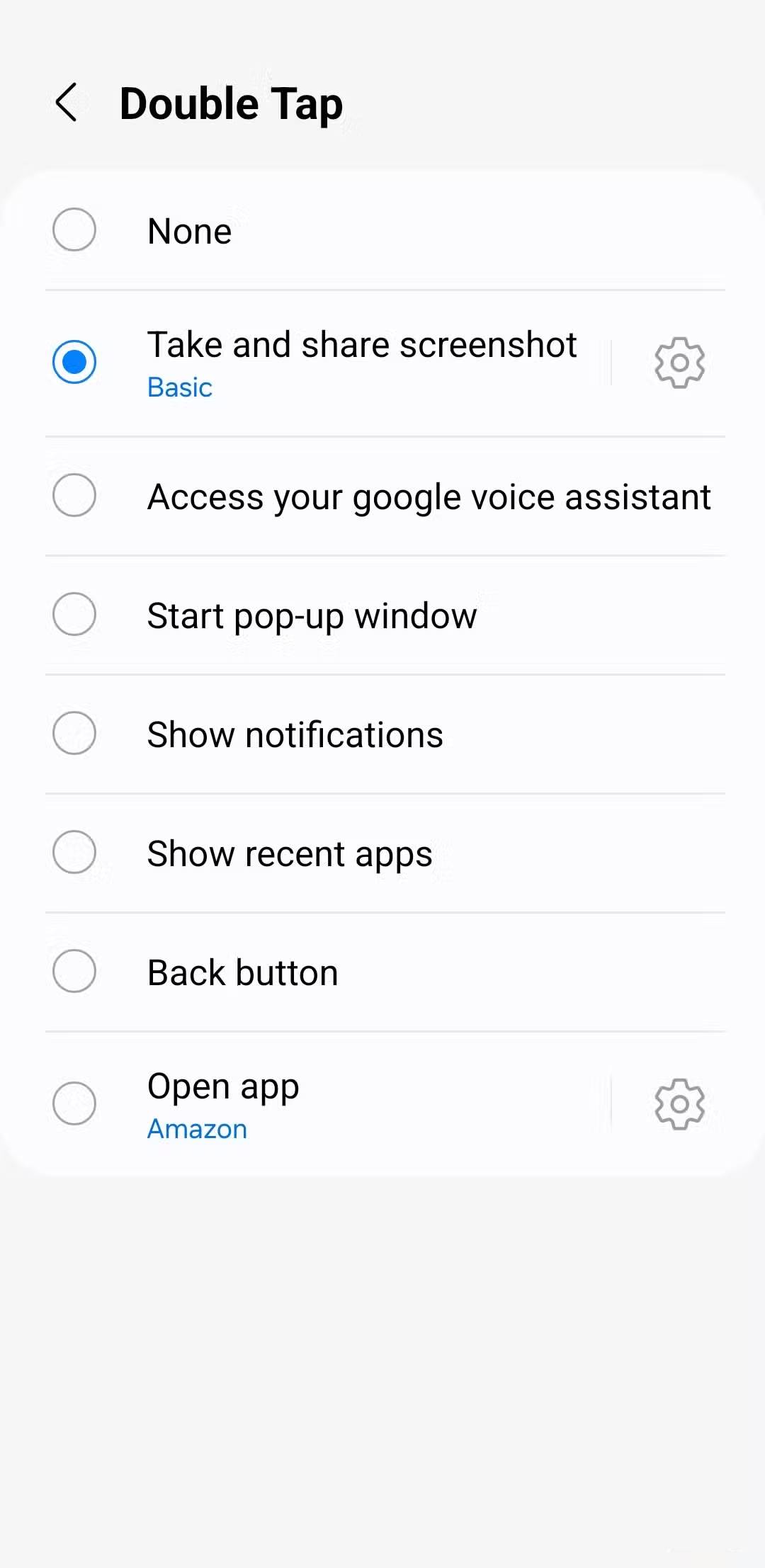
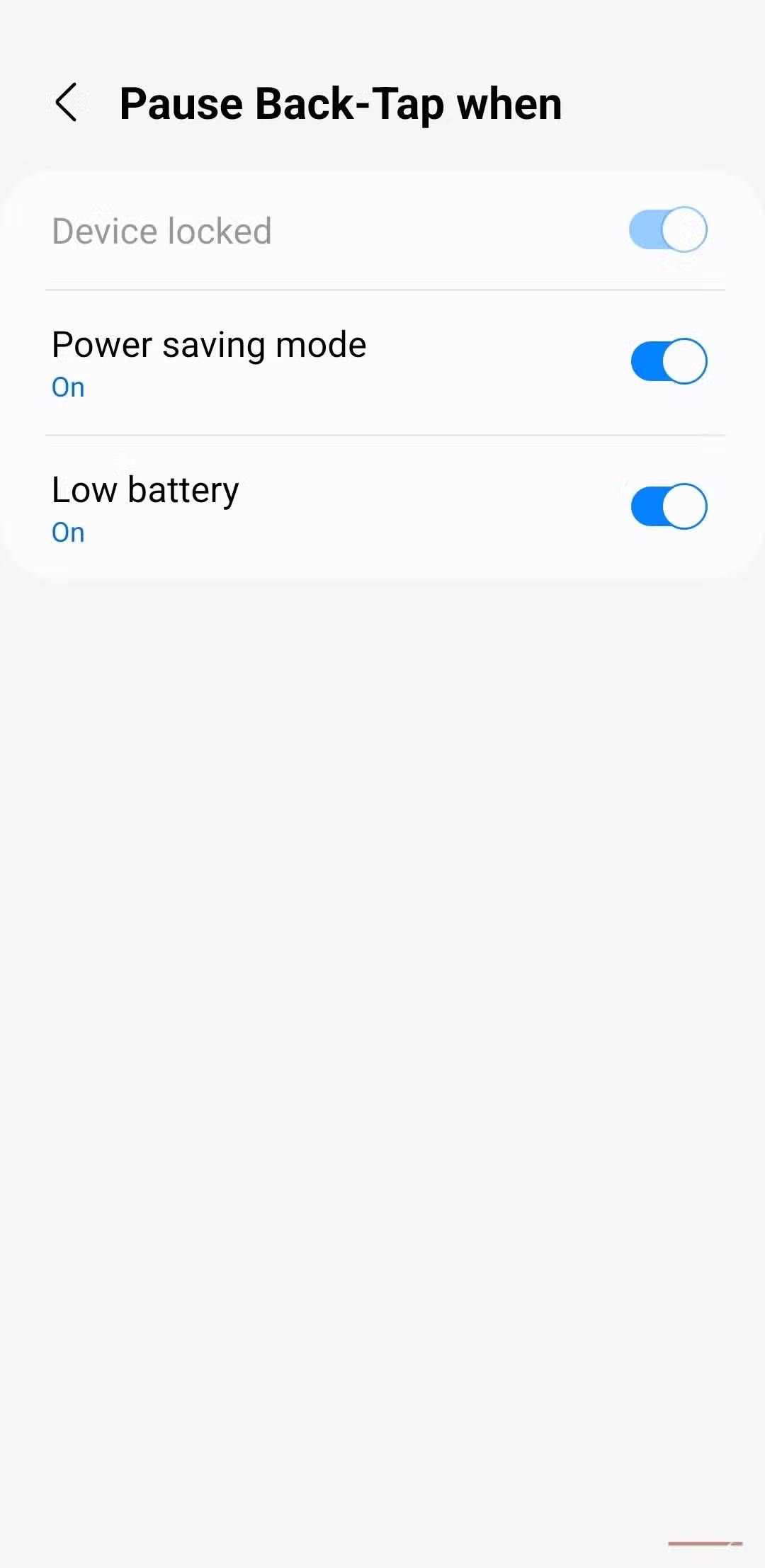
It feels weird to perform a task by tapping the back of your phone two or three times quickly. It's almost like you have a secret action button. Pixel calls it Quick Tap. Samsung phones can do it too, but you need the Good Lock app to use it.
The great thing about back tap is that you can set it to do almost anything you do regularly. It could be launching a specific app, taking a screenshot, controlling music, opening the notification panel, etc. You can use back tap to quickly take notes and view Instagram direct messages.
Getting used to some of these gestures can take some time, but once you do, you'll be able to use your phone with ease. In addition to the default Android gestures, most apps have their own smart shortcuts that make everyday tasks easier, so keep an eye out for them.
Final Thoughts
Understanding 8 android gestures you shouldn't miss makes it easier to evaluate the information and apply the most relevant recommendations. Focus on the key points above and verify details that may change over time.
FAQ
What is 8 android gestures you shouldn't miss?
Explore 8 Android gestures you shouldn't miss, including the key concepts, practical examples, important considerations, and useful guidance.
What key points does this article cover?
The article focuses on Switch apps and tabs with a swipe, Swipe your way, Open apps in split screen or window mode, with practical explanations and examples.
How can you use this information in practice?
Use the explanations to compare options, verify important details, and make a more informed decision. Apply the recommendations that best match your goals and situation.
Related Articles
 7 Android Gestures You May Not Know Yet7 minutes read
 How to Adjust Gmail Android Swipe Gestures3 minutes read
 Basic Guide to Touchpad Gestures on Windows 115 minutes read
 Learn How to Use Touch Gestures in Lion14 minutes read
 8 Hidden Windows Touchpad Gestures That Make Your Workflow Lightning7 minutes read
 3 Newly Changed Settings of Android P5 minutes read
Reader Comments 0
Sign in with email or Google to join the discussion.