Table of Contents
macOS can use a built-in or connected camera to move the pointer with head movement and turn facial expressions into actions such as left-click, right-click, double-click, or drag and drop. These controls are part of Accessibility > Pointer Control; no third-party app is required.
The screenshots below were captured on an older macOS release, where Apple used the name System Preferences. On newer releases, open System Settings. The feature names remain Head Pointer and Alternate Pointer Actions.
Turn on Head Pointer and Alternate Pointer Actions
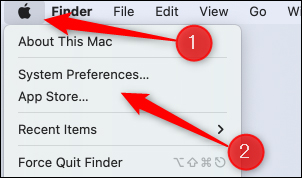
- Open the Apple menu and choose System Settings. On macOS Catalina through Monterey, choose System Preferences.
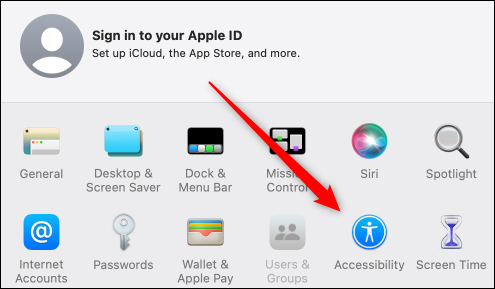
- Select Accessibility.
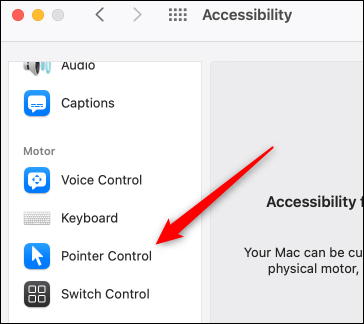
- Scroll to the Motor section and select Pointer Control.
- Turn on Alternate pointer actions if you want facial expressions or keys to perform clicks. Turn on Head pointer if you want head movement to move the pointer. Older macOS versions place both checkboxes on an Alternate Control Methods tab.
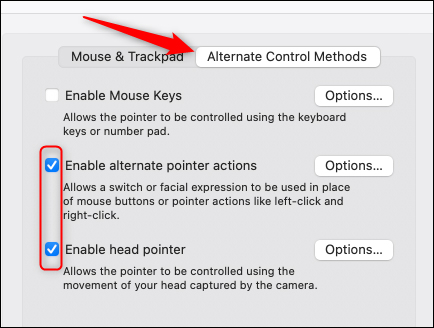
- If macOS asks for camera permission, approve it. The camera must be able to see your face, so sit in even light and keep the lens unobstructed.
Turn on one feature at a time during setup. That makes it easier to adjust sensitivity and prevents an unfamiliar expression from triggering a click while you configure the pointer.
Assign a facial expression to a mouse action
Alternate Pointer Actions can map a keyboard key, an assistive switch, or a recognized facial expression to a mouse action.
- Beside Alternate pointer actions, open Options or click the information button, depending on the macOS version.
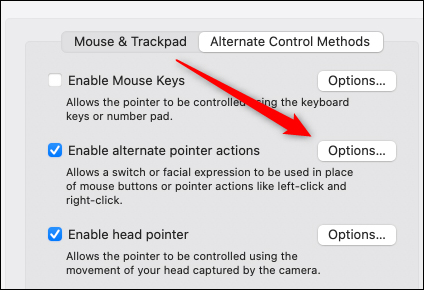
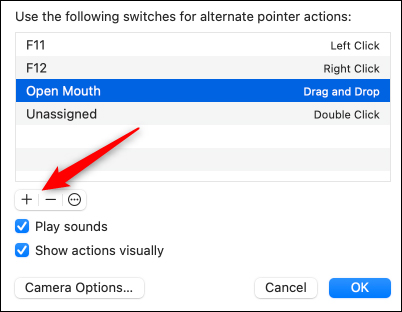
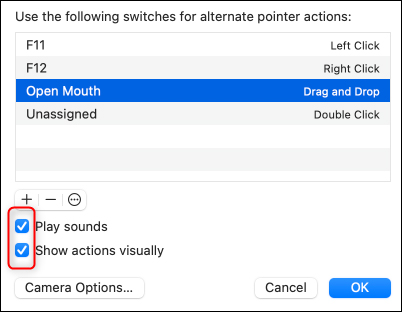
Older versions may already show F11 and F12 as switches for left- and right-click. Select the add button to create another action.
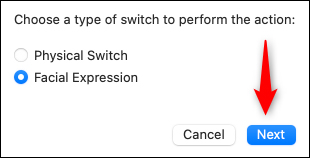
- Choose Facial Expression. If you want to use a key or assistive device instead, choose Physical Switch.
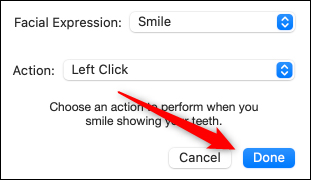
- Select an expression and then the action it should perform. Available expressions can include a smile, open mouth, raised eyebrows, blink, nose scrunch, tongue movement, or lip movement. Options vary with the Mac and macOS release.
- Choose an action such as left-click, right-click, double-click, or drag and drop, then save the assignment.
For a physical switch, press the key or switch when prompted, give it a recognizable name, and choose the mouse action it should perform.
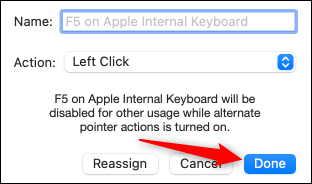
A click occurs as soon as the configured expression is recognized. Drag and drop requires two activations: the first starts the drag and the second releases the item. Test with a harmless desktop item before using the action in an application.
Enable Play sounds for audible confirmation or Show actions visually for an onscreen confirmation. On newer macOS versions, you can also adjust how expressive a gesture must be before it is recognized.
Configure how Head Pointer moves
Open the options or information panel next to Head pointer. The two movement modes behave differently:
- When facing screen edges: turn your face away from the center to move the pointer in that direction. Face the center again to stop it. This behaves somewhat like a joystick.
- Relative to head: move your head in the desired direction. The pointer stops when the movement stops, more like moving a mouse.
Pointer speed controls how quickly the pointer travels. When using the screen-edge mode, Distance to edge controls how far your face must turn from the center before movement begins. A higher distance can reduce accidental movement.
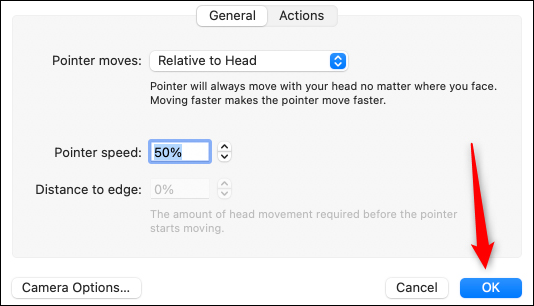
If more than one camera is connected, use Camera Options to select the correct one. Newer macOS versions can also assign a switch or facial expression to pause, resume, or recalibrate Head Pointer.
Make the controls easier to use
- Position the camera near the center of the display and keep your face evenly lit.
- Choose an expression you do not make frequently during normal conversation.
- Start with a slower pointer speed, then increase it after you can stop accurately.
- Assign a convenient pause action before doing detailed work.
- Keep a mouse, trackpad, or keyboard available while learning the controls.
- If actions trigger unintentionally, increase the required expressiveness or select a less common gesture.
Head Pointer moves the pointer, but it does not click by itself. Pair it with Alternate Pointer Actions, an assistive switch, Mouse Keys, or Dwell to complete selections. Keyboard users can also review Mac keyboard and shortcut settings, while Mac volume controls provide another example of tasks that can be handled without precise pointer movement.
Related Articles
 Control iPhone with Head Gestures: Smile, Stick Out Tongue: How-To Guide3 minutes read
 Instructions for Using Eva Facial Mouse Application to Control6 minutes read
 How to Control VLC by Mouse Gestures: Vlc Tricks5 minutes read
 Basic Guide to Touchpad Gestures on Windows 115 minutes read
 Google Will Let Users Control Chromebooks with Their Faces3 minutes read
 How to Customize Force Sensor Gestures on Airpods Pro3 minutes read
Reader Comments 0
Sign in with email or Google to join the discussion.