Table of Contents
Learn how to clear iPad cache to increase storage capacity with clear steps, practical tips, and troubleshooting guidance for a reliable result.
How to Clear iPad Safari Browser Cache
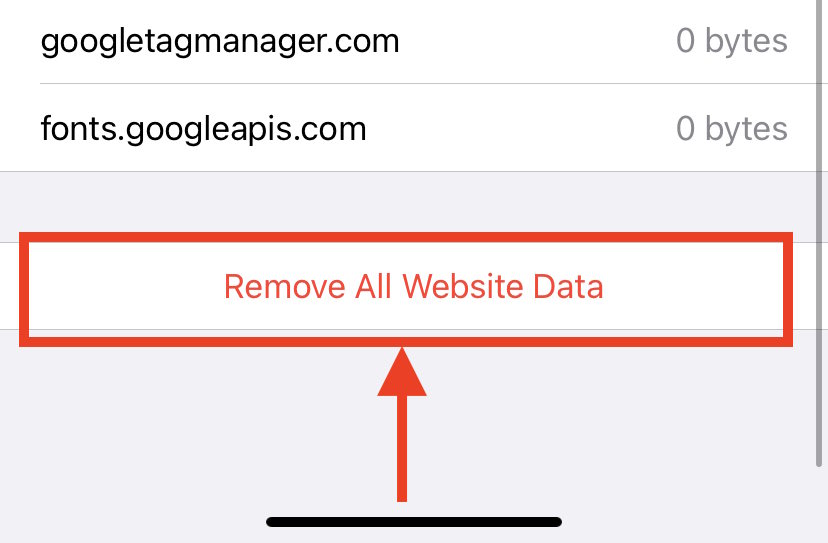
You access the Settings application then click on the Safari browser to proceed to clear the cache. In the browser interface, scroll down below, select Advanced then click Remove All Website Data below the interface and select Remove Now to perform.
Instructions for clearing Chrome browser cache on iPad
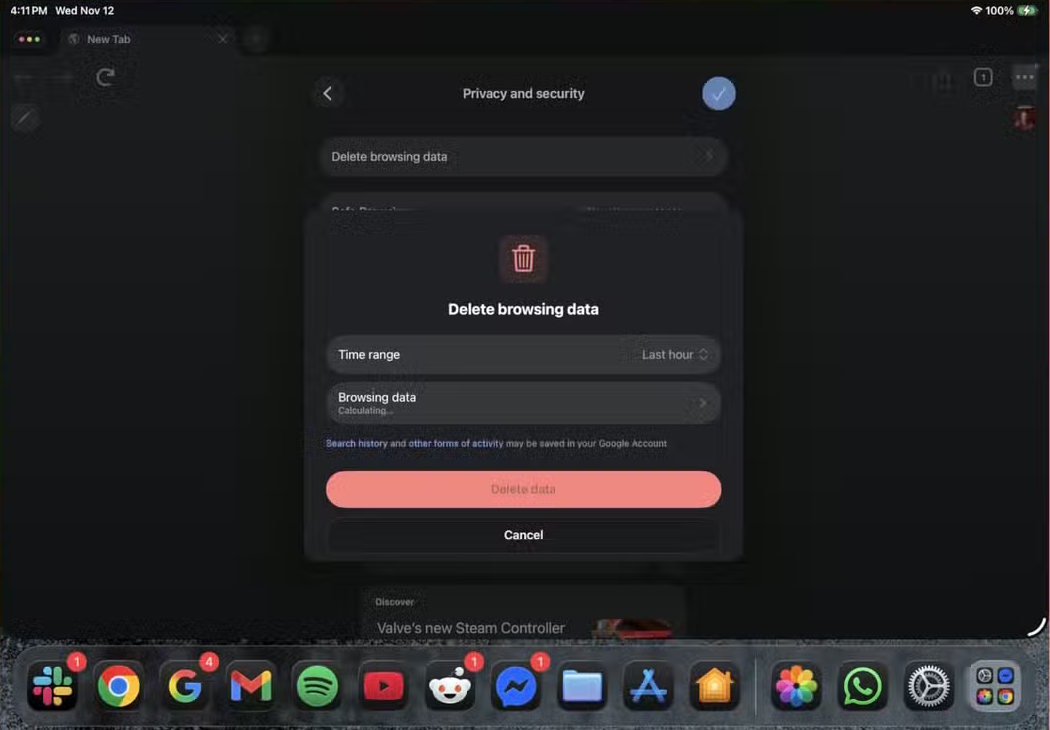
You open the Chrome browser then in the right corner, we click on the 3 dots icon . Now the user clicks on the gear icon and selects Privacy and security .
Here you select Delete browsing data then select delete All time to remove cache from the past until now.
In the Browsing data section, select the data you want to delete, including Cached images and files, and probably Cookies to remove the Chrome browser cache on iPad.
Restart your iPad device
There is no specific software or option that can easily clear the iPadOS cache, but you can try restarting your device once a month or even once every two months. If your iPad is running slow or lagging, you can restart it once a week.
Final Thoughts
Use this guide as a practical checklist for how to clear ipad cache to increase storage capacity. Work through the steps in order, verify each result, and adjust the options to match your needs.
FAQ
What do you need before following this How to Clear iPad Cache to Increase Storage Capacity guide?
Review the required tools, accounts, settings, or materials mentioned in the article. Learn how to clear iPad cache to increase storage capacity with clear steps, practical tips, and troubleshooting guidance for a reliable result.
What are the main steps for how to clear ipad cache to increase storage capacity?
Follow the sections in order, especially How to Clear iPad Safari Browser Cache, Instructions for clearing Chrome browser cache on iPad, Restart your iPad device. Complete each step before continuing and verify the result as you go.
What should you do if the process does not work as expected?
Recheck the prerequisites, update the relevant app or service, review the settings, and repeat the step that caused the issue. Use any troubleshooting notes included in the guide.
Related Articles
 Instructions for Clearing Twitter Cache on iPhone and iPad5 minutes read
 Instructions to Clear Cache on Twitter Are Very Simple3 minutes read
 minutes read
 How to Clear System and Internet Cache on Mac: Clear Instructions7 minutes read
 How to Regain Storage Space for Chromebooks8 minutes read
 How to Clear Cache on Kodi: Delete Kodi Cache Using Merlin Wizard4 minutes read
Reader Comments 0
Sign in with email or Google to join the discussion.