Table of Contents
Learn how to change iPhone video recording settings to reduce video size with clear steps.
How to adjust iPhone video recording settings in Settings
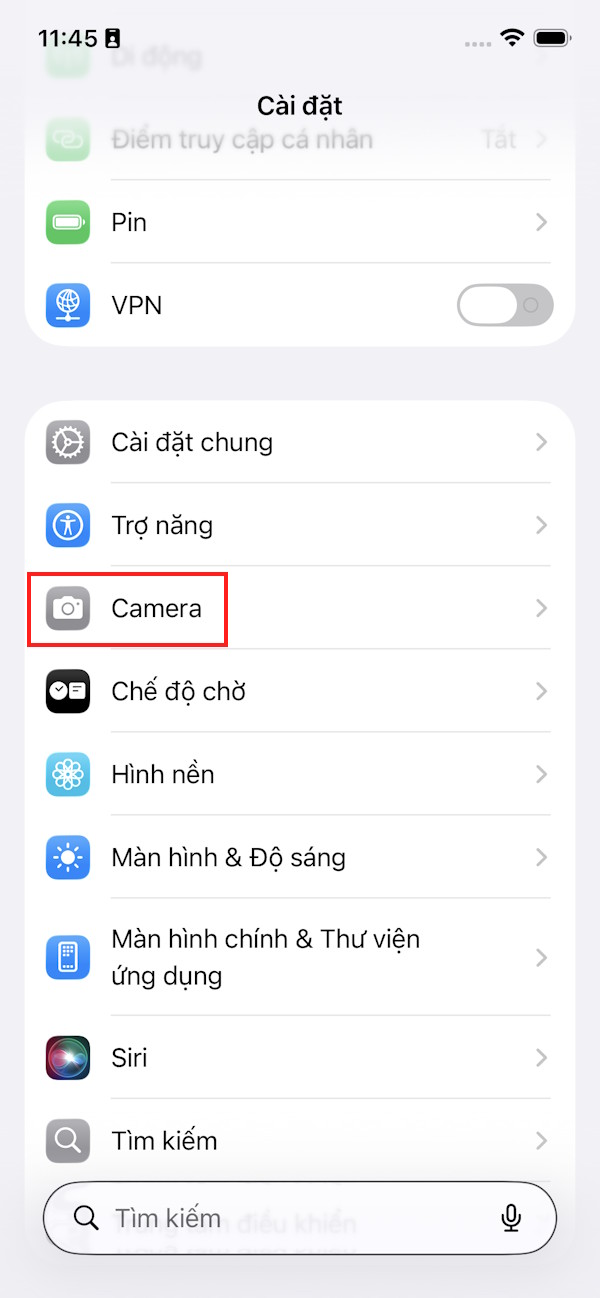
Step 1
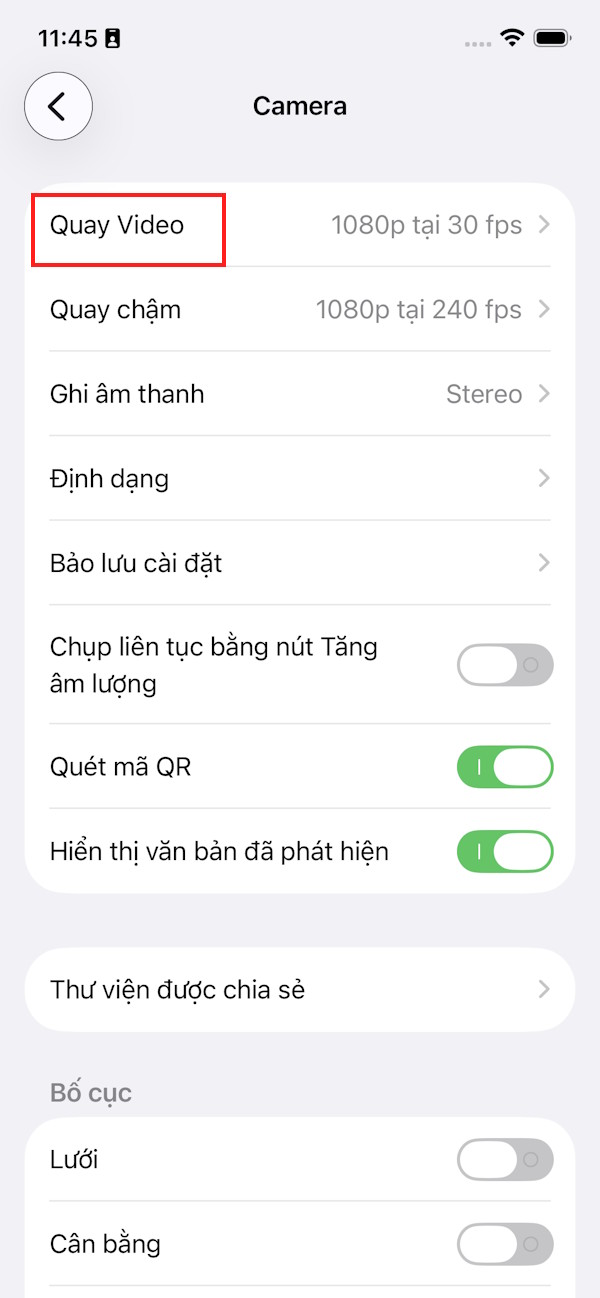
You access Settings on iPhone then click on the Camera application to adjust. Go to the settings interface, the user clicks on Video Recording to proceed with adjustment.
Step 2
Now users will see many video recording options on iPhone from 720p to 4k at 120fps.
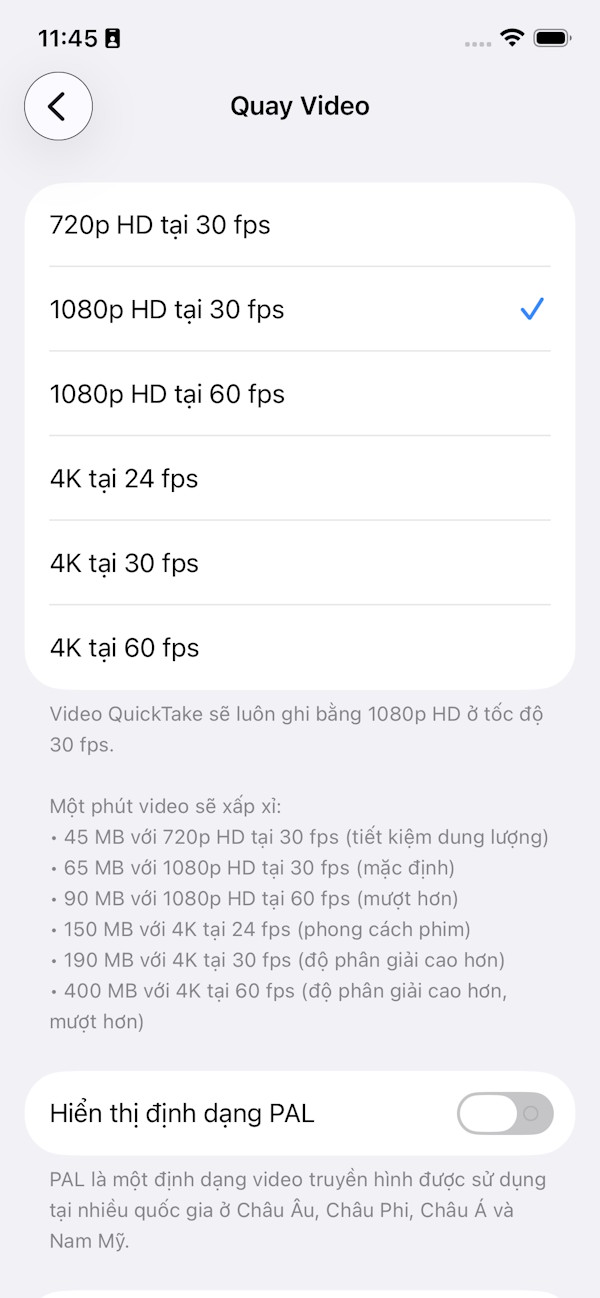
4K video is high quality but the video size is quite large. For example, a 1-minute video shot at 4K resolution, 30 fps will be about 150MB in size, while a 1-minute video shot at 1080p resolution, 30 fps will only be 65MB.
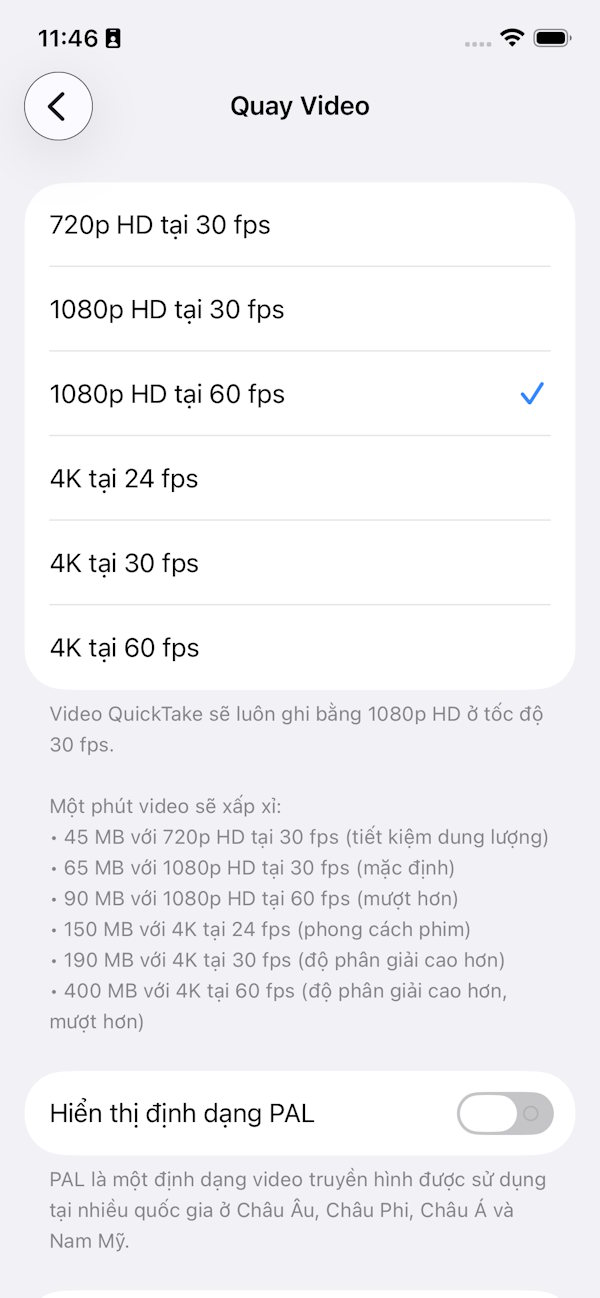
We recommend 1080p HD at 30fps to get quality video even when uploading to social media sites. However, if you want smooth video, you can also choose the 1080HD at 60fps option.
Change video recording settings in Camera to reduce video size
Step 1
First you click on Video mode then click on Resolution and Frame Rate icon above to adjust.
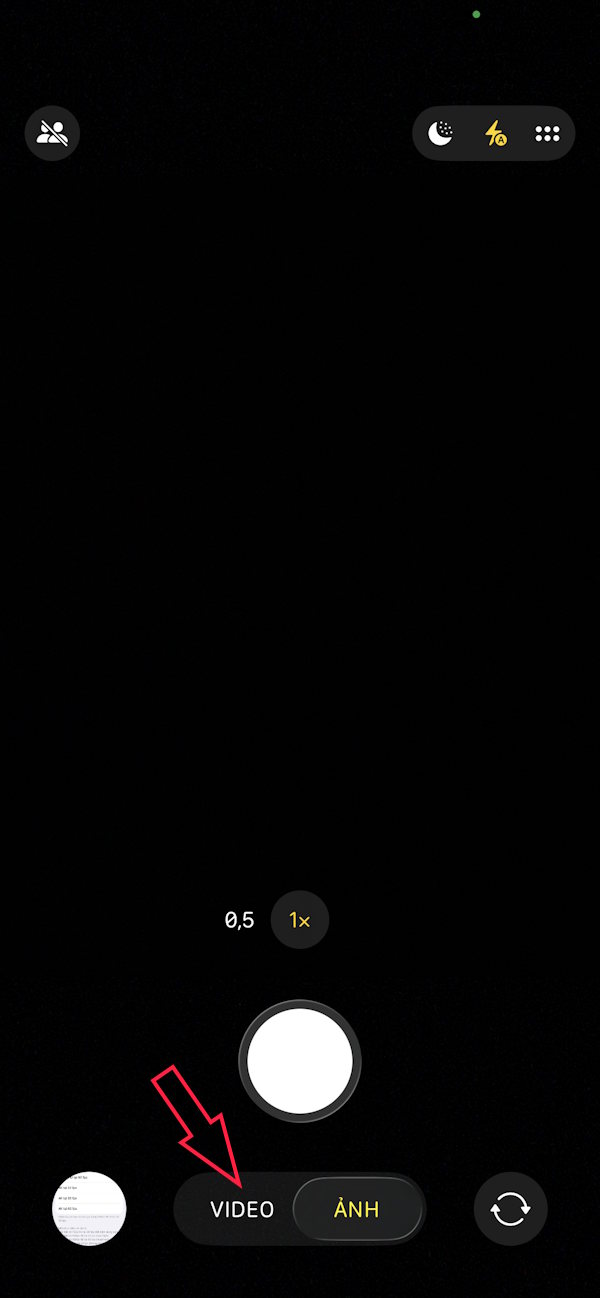
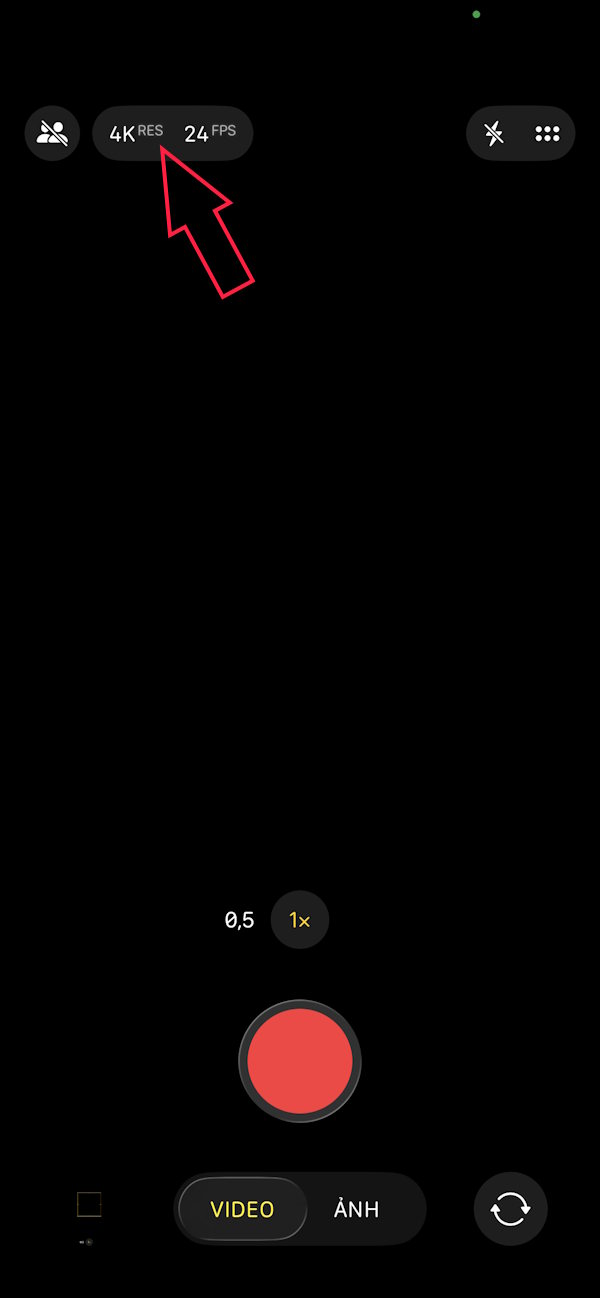
Step 2
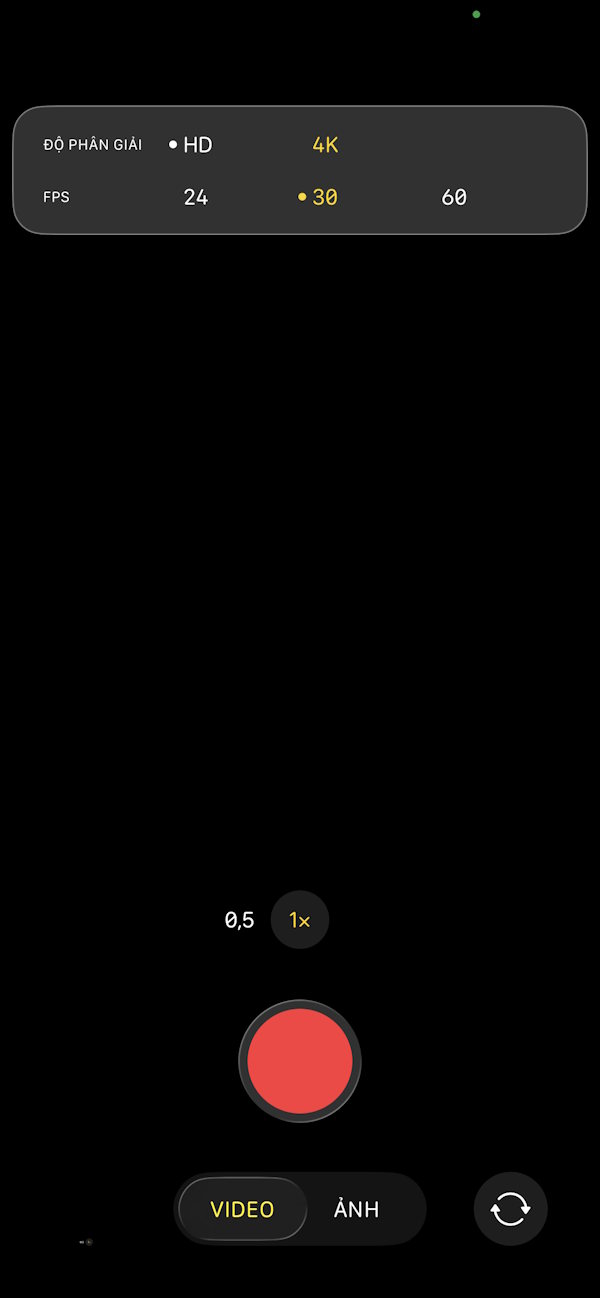
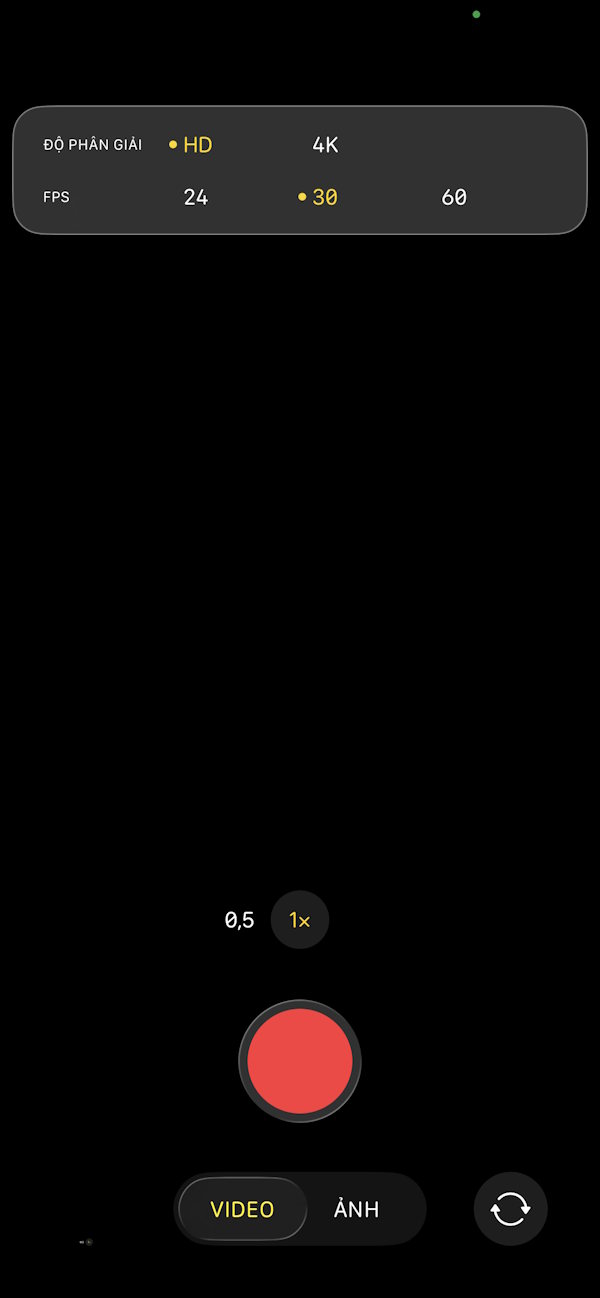
Here we also have many options for recording videos on iPhone. You should choose HD quality and 30 30fps for the best results.
Final Thoughts
Use this guide as a practical checklist for how to change iphone video recording settings to reduce video size. Work through the steps in order, verify each result, and adjust the options to match your needs.
FAQ
What do you need before following this How to Change iPhone Video Recording Settings to Reduce Video Size guide?
Review the required tools, accounts, settings, or materials mentioned in the article. Learn how to change iPhone video recording settings to reduce video size with clear steps.
What are the main steps for how to change iphone video recording settings to reduce video size?
Follow the sections in order, especially How to adjust iPhone video recording settings in Settings, Step 1, Step 2. Complete each step before continuing and verify the result as you go.
What should you do if the process does not work as expected?
Recheck the prerequisites, update the relevant app or service, review the settings, and repeat the step that caused the issue. Use any troubleshooting notes included in the guide.
Related Articles
 5 Ways to Reduce Video Capacity for iPhone5 minutes read
 Pocket Some Quality Video Recording Tips on iPhone8 minutes read
 How to Reduce Video Size: Step-by-Step Guide11 minutes read
 How to Enable HDR Video Recording on iPhone4 minutes read
 6 Ways to Reduce Video Size for iPhone: Recommended Choices8 minutes read
 How to Reduce Video Size but Keep Quality: Step-by-Step Guide7 minutes read
Reader Comments 0
Sign in with email or Google to join the discussion.