Table of Contents
Learn how to control message recording in iPhone imessage with clear steps, practical tips, and troubleshooting guidance for a reliable result.
How does the iPhone Raise to Listen feature work?
When you receive a new audio message in the Messages app, just raise your iPhone to your ear to listen. This feature will default to 2 minutes after you hear the message.
In case you want to extend the 2-minute time to listen to audio messages on iPhone is also very simple. You access Settings and select Applications , then we select Messages to adjust again.
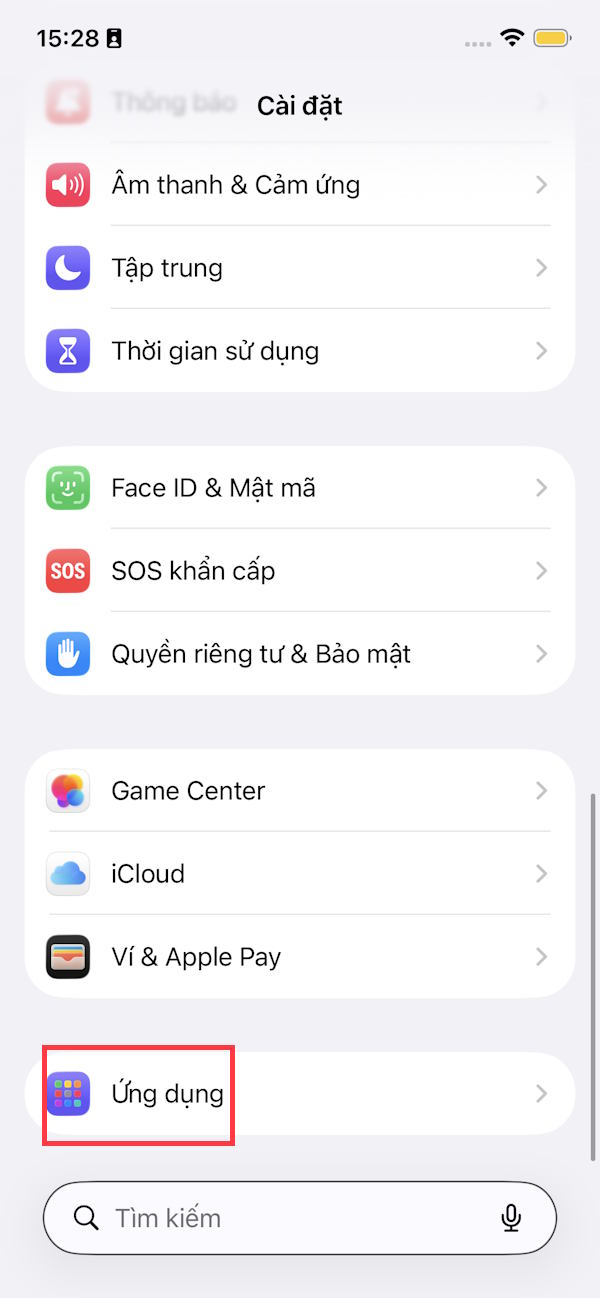
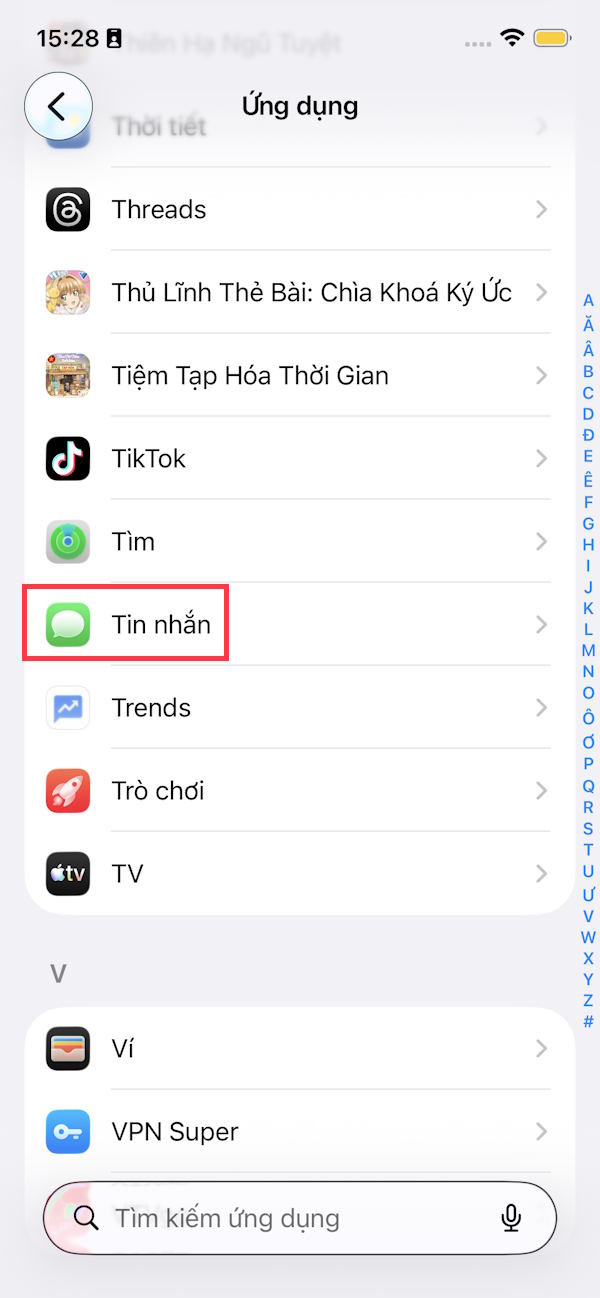
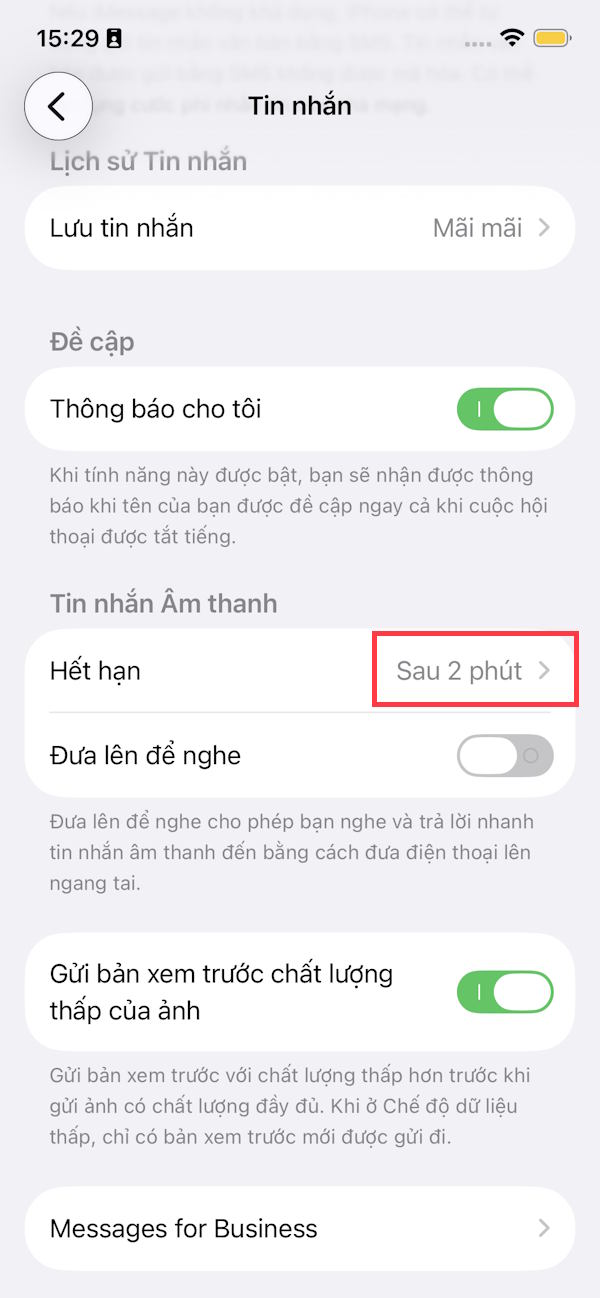
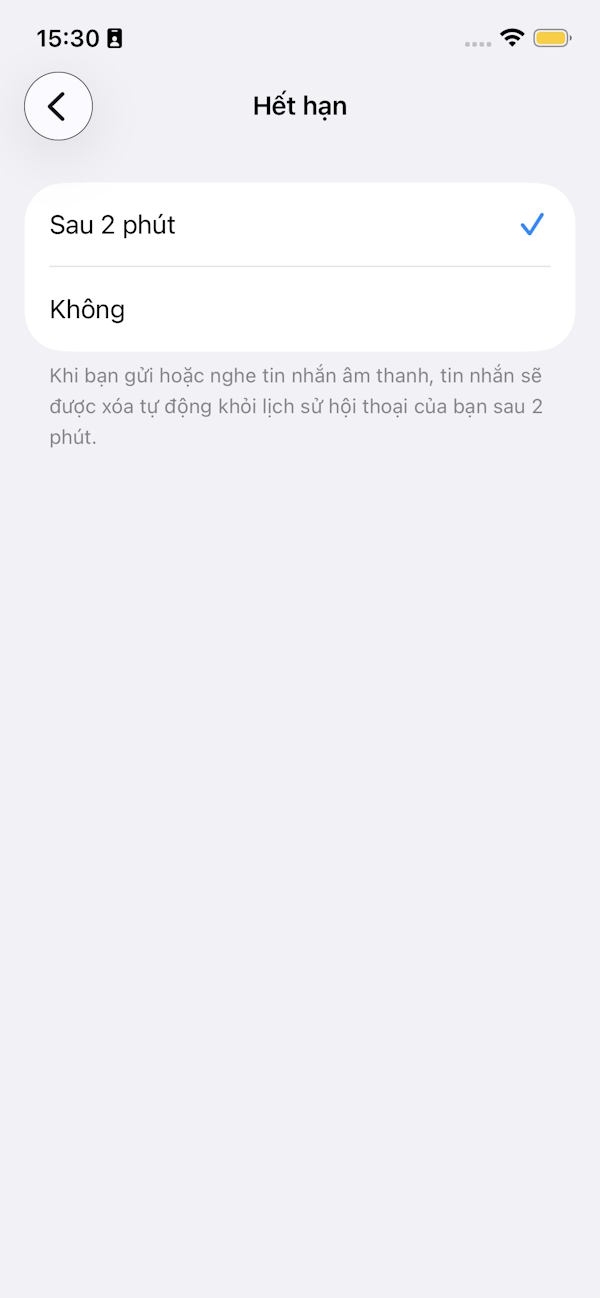
In the message settings adjustment interface, we see the default Expires in 2 minutes. You can change it to No to listen to unlimited voice messages.
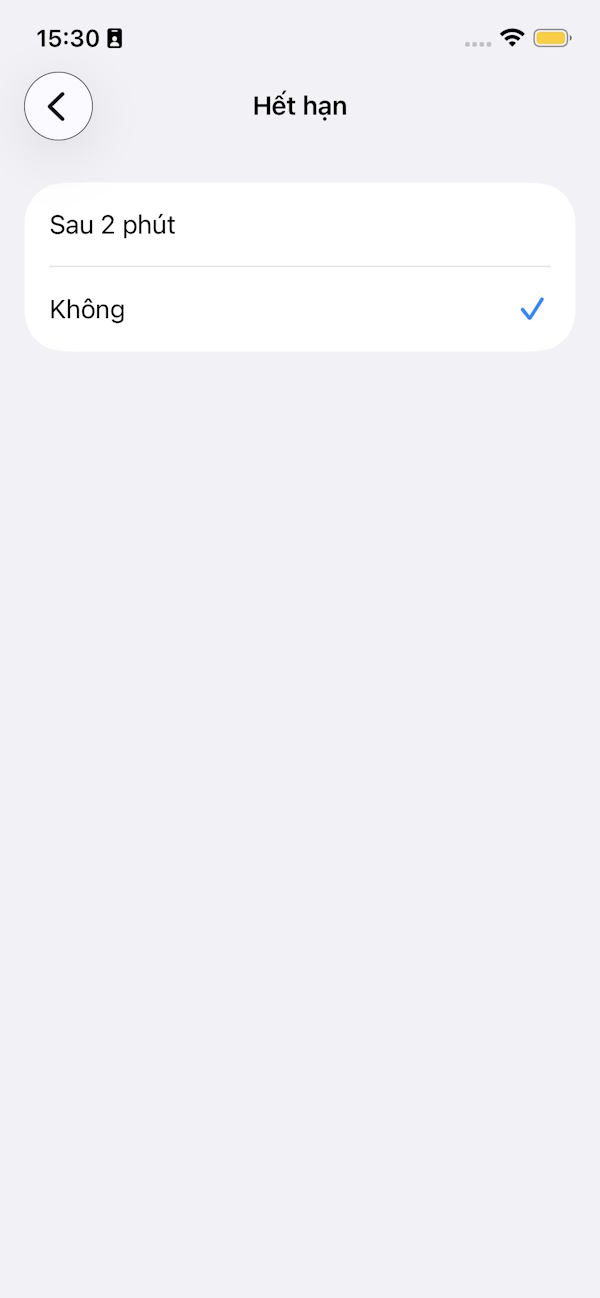
After you hear an incoming audio message, lower your iPhone and bring it to your ear if you want to send an audio message back. When you're done speaking, lower your iPhone again and the recording you just created can be sent if you want.
How to Prevent Accidentally Sending iPhone Voice Messages
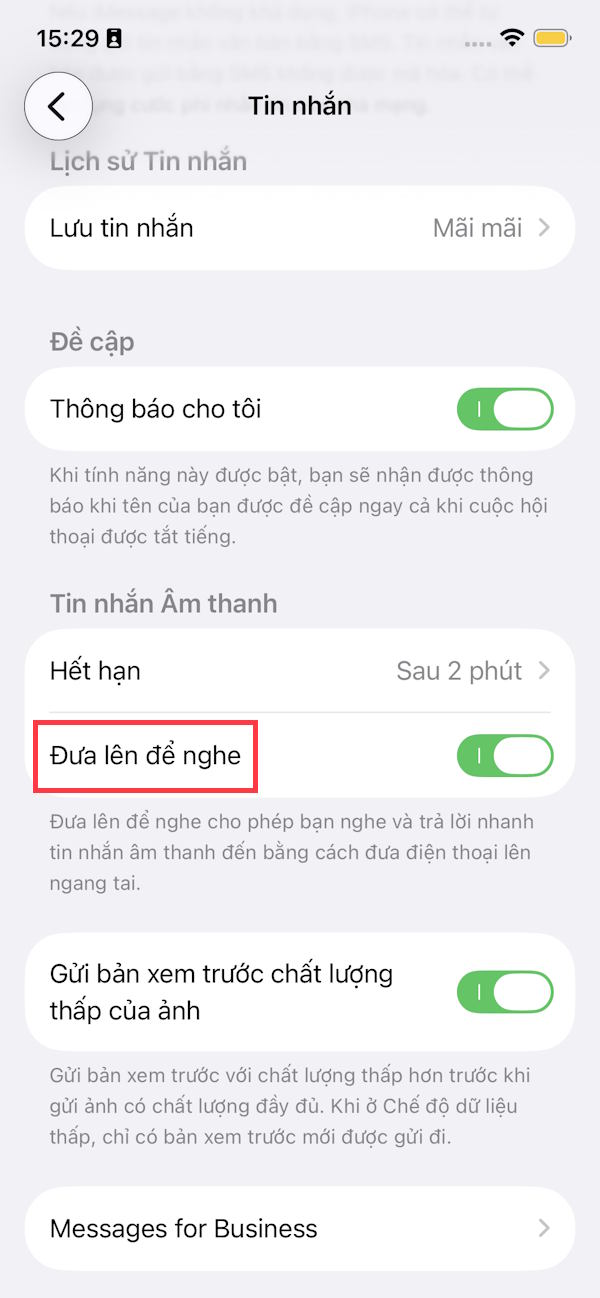
As mentioned above, after listening to a voice message by lifting the iPhone up and then lowering it, if you want to record the sound to send it back, just lift the iPhone up again. This causes us to accidentally record the voice and send it to the other person without knowing. If so, turn off the raise to listen setting to limit the situation of sending the wrong audio message.
We also access the message settings in Settings. Here you just need to turn off Raise to listen .
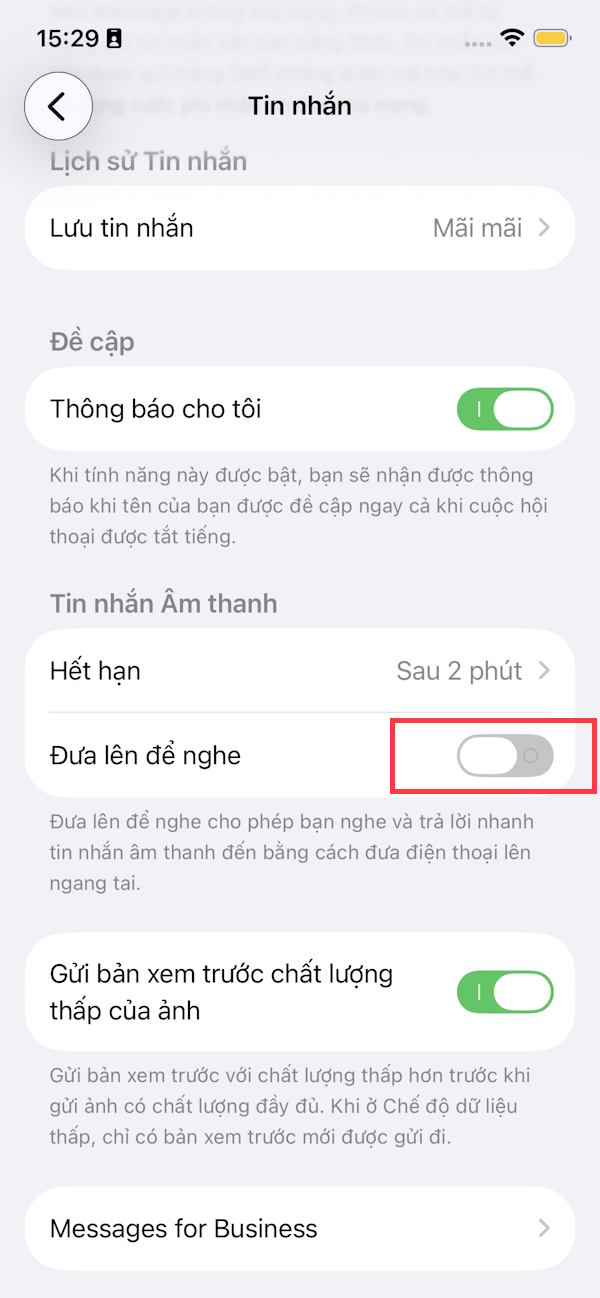
Turning off Raise to Listen still allows you to receive audio messages, but you have to manually press the play button on the message to start and pause playback.
Final Thoughts
Use this guide as a practical checklist for how to control message recording in iphone imessage. Work through the steps in order, verify each result, and adjust the options to match your needs.
FAQ
What do you need before following this How to Control Message Recording in iPhone IMessage guide?
Review the required tools, accounts, settings, or materials mentioned in the article. Learn how to control message recording in iPhone imessage with clear steps, practical tips, and troubleshooting guidance for a reliable result.
What are the main steps for how to control message recording in iphone imessage?
Follow the sections in order, especially How does the iPhone Raise to Listen feature work?, How to Prevent Accidentally Sending iPhone Voice Messages. Complete each step before continuing and verify the result as you go.
What should you do if the process does not work as expected?
Recheck the prerequisites, update the relevant app or service, review the settings, and repeat the step that caused the issue. Use any troubleshooting notes included in the guide.
Related Articles
 How to Increase Security for Imessage iPhone / iPad Messages6 minutes read
 How to Cancel Imessage on iPhone, iPad and Computer: Step-by-Step Guide3 minutes read
 10 Messaging Tips on iPhone You Should Not Ignore6 minutes read
 How to Fix the Error Cannot Be Used on Imessage iOS 105 minutes read
 Imessage Does Not Receive, Send Messages, This Is a Fix6 minutes read
 How to Use iMessage: Step-by-Step Guide13 minutes read
Reader Comments 0
Sign in with email or Google to join the discussion.