Table of Contents
Discover why samsung's now bar is the best one ui feature in years and explore the main causes, risks, practical effects, and recommended actions.
This feature brings notifications directly to your phone's lock screen and always-on display, allowing you to track games, check your route, and control your music with just a few taps. It's definitely one of the most convenient features that you should use more often.
What makes the Now bar useful?
Fast, accurate information where you need it
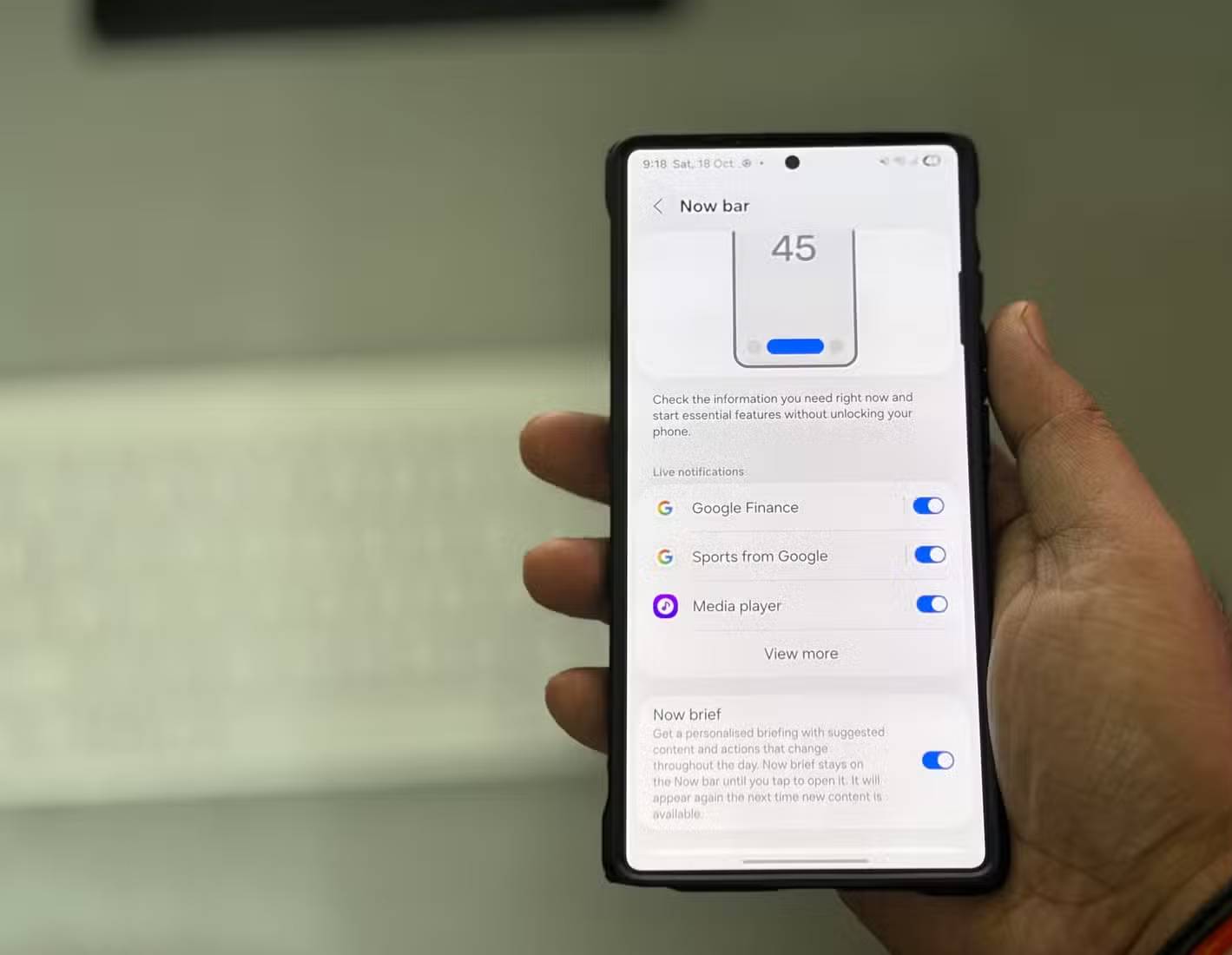
Samsung's Now Bar is one of the rare additions that feels like it's been part of One UI since the beginning. It brings live notifications, music controls, modes, and routines directly to the lock screen and always-on display. Once enabled, it displays a small, pill-shaped widget whenever it detects a supported activity.
For example, if you're listening to music, the controls will be at the bottom, ready to use. The same convenience applies when your favorite sports team is playing. Instead of opening an app or checking a widget, the Now bar will display live scores right there.
Navigation is perhaps the most impressive example. When you use Google Maps, the Now bar shows you turn-by-turn directions at a glance. Everything that would normally require you to turn on and unlock your phone appears directly on the lock screen and always-on display with the Now bar.
Right now, the Now bar is limited to Samsung apps, like the media player, Notes, Samsung Health, Samsung Wallet, and Clock. Google and Google Maps also work, which is great because navigation support and Google updates are some of its best use cases.
Set up Now bar in just a few steps
Customize in seconds
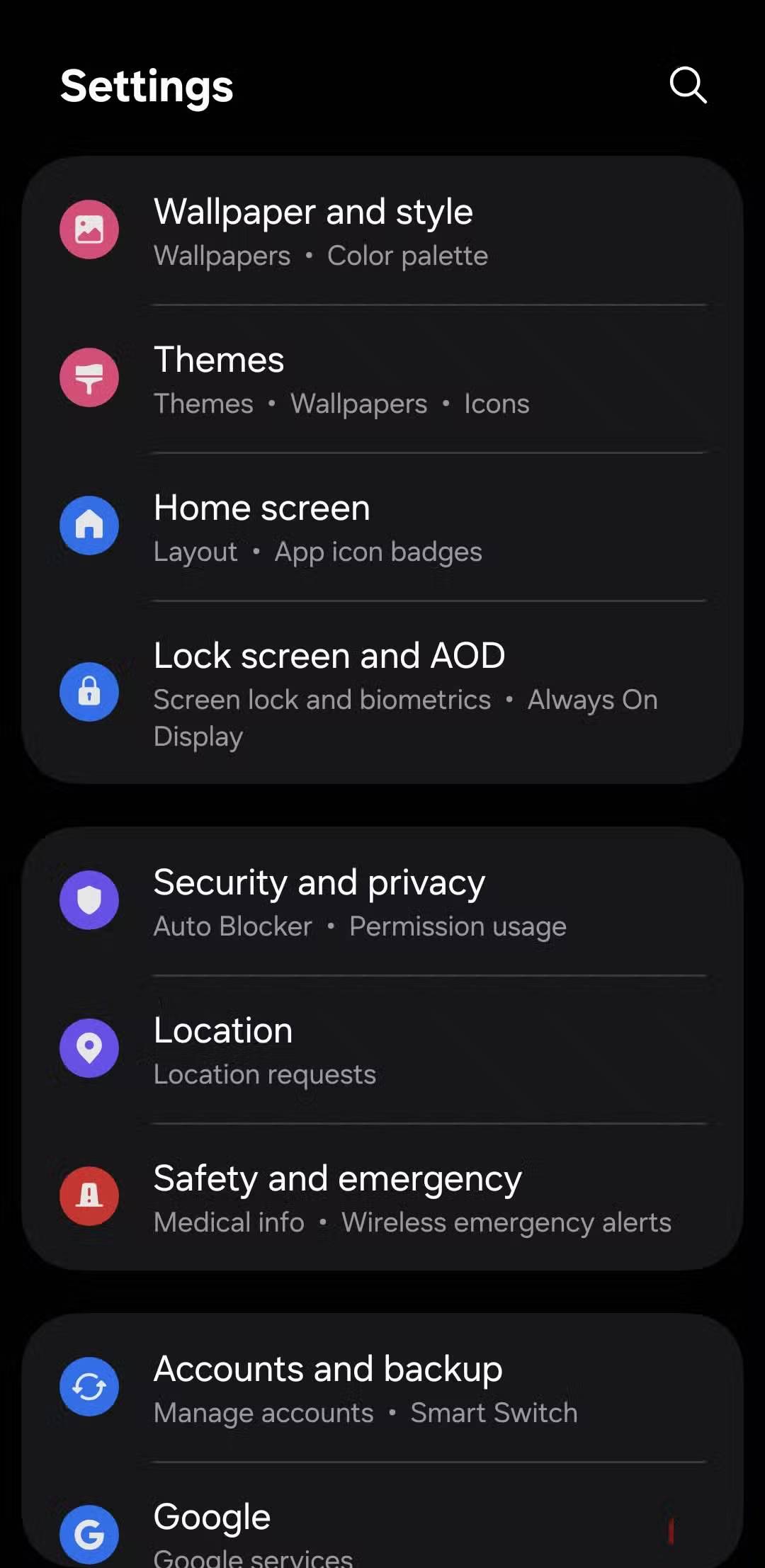
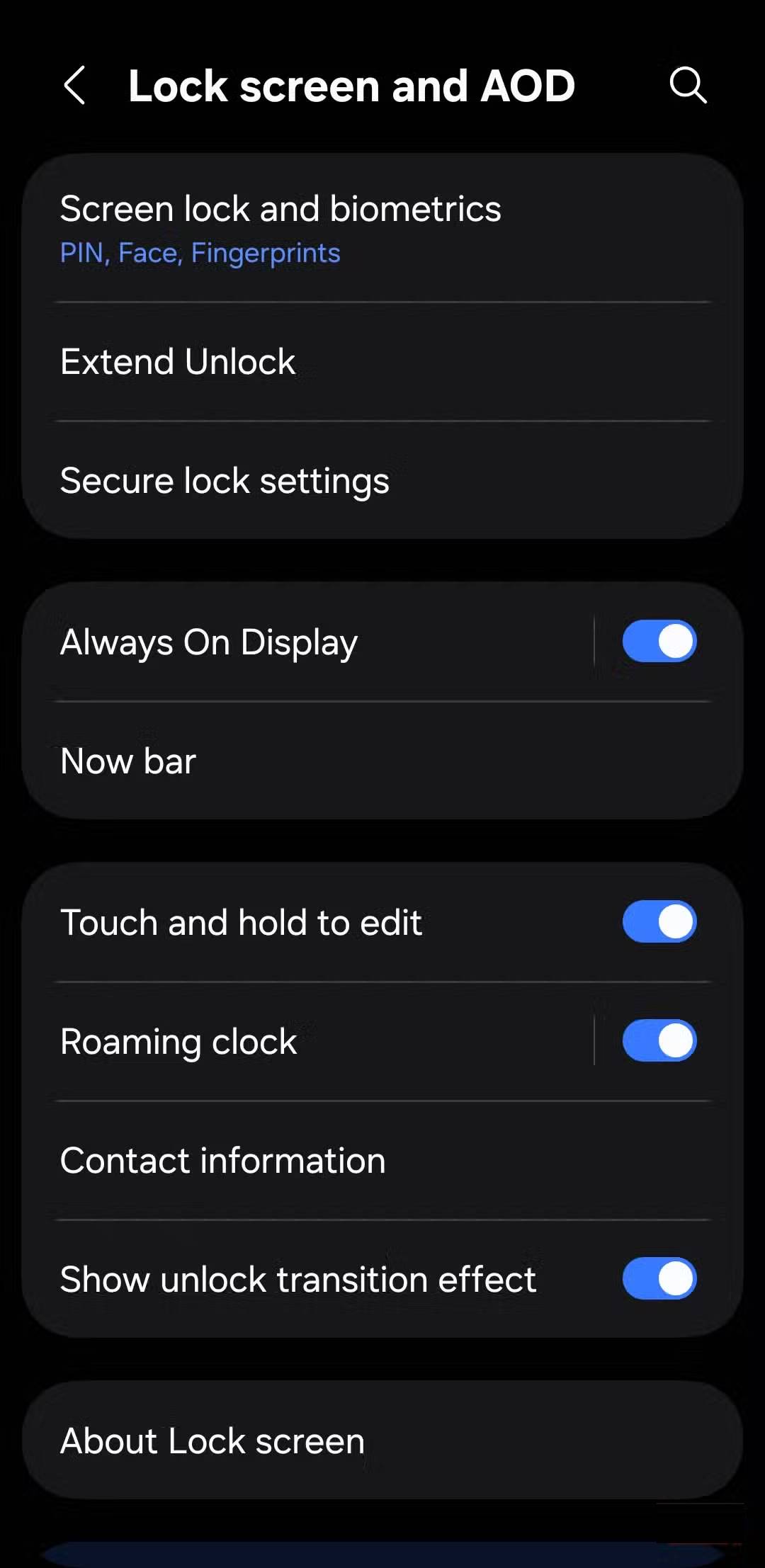
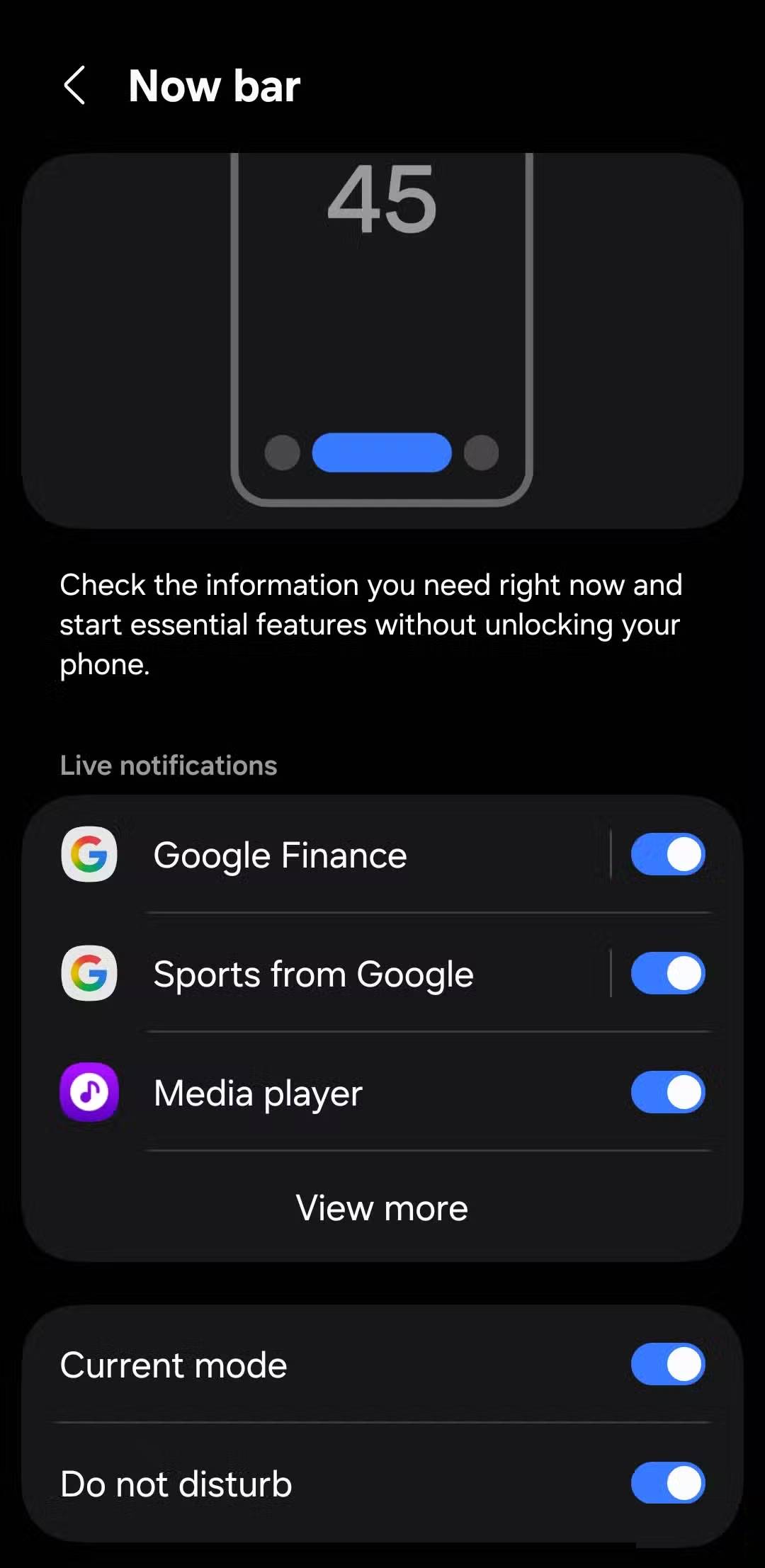
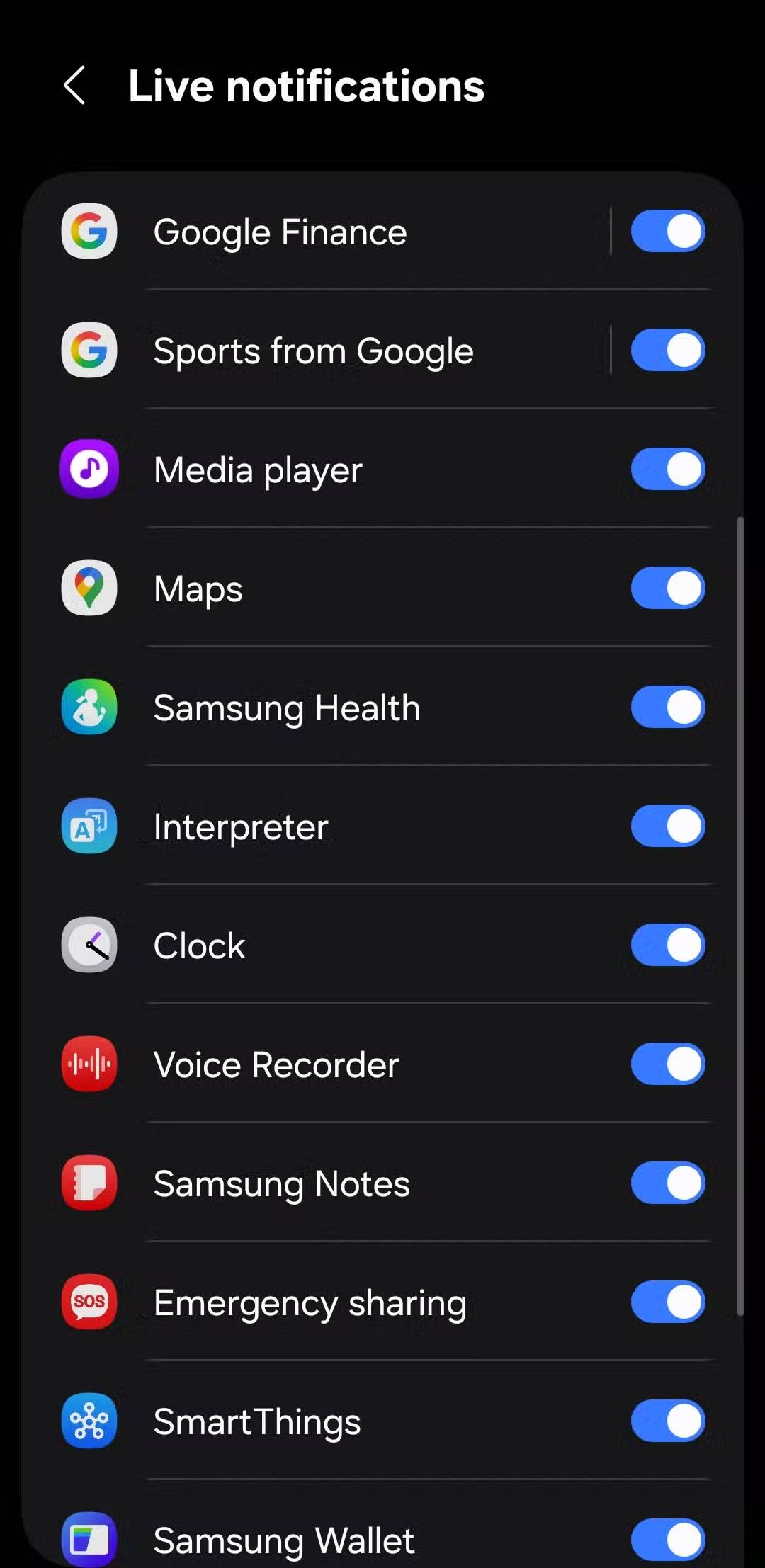
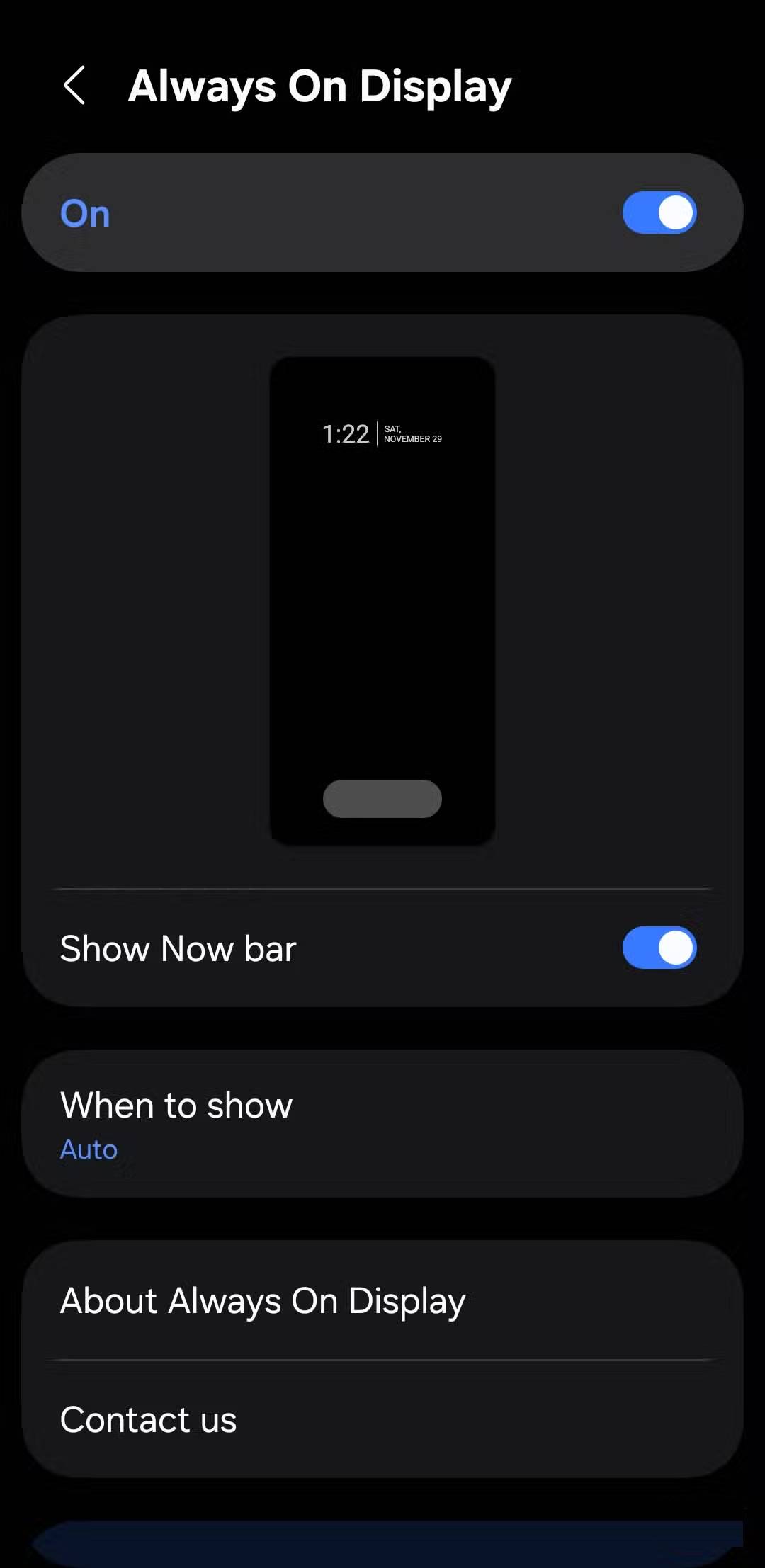
The Now bar is available on all Samsung phones running One UI 7 or later, although the list of supported apps will vary by device. The feature is built-in, and you can go into settings to enable or disable live notifications for specific apps.
Go to Settings > Lock screen and AOD > Now bar and you'll see a list of compatible apps. Each app has its own toggle, so you can decide what you want to show. Maybe you want music controls but not wallet shortcuts, or navigation updates but not reminders. The choice is yours. Note that the app must have permission to show notifications on the lock screen for the Now bar to detect it.
You can also extend the Now bar to the always-on display. To do that, go back to the lock screen and AOD menu, tap Always On Display . Then, turn on the Show Now bar toggle option.
Use Now bar on lock screen and AOD
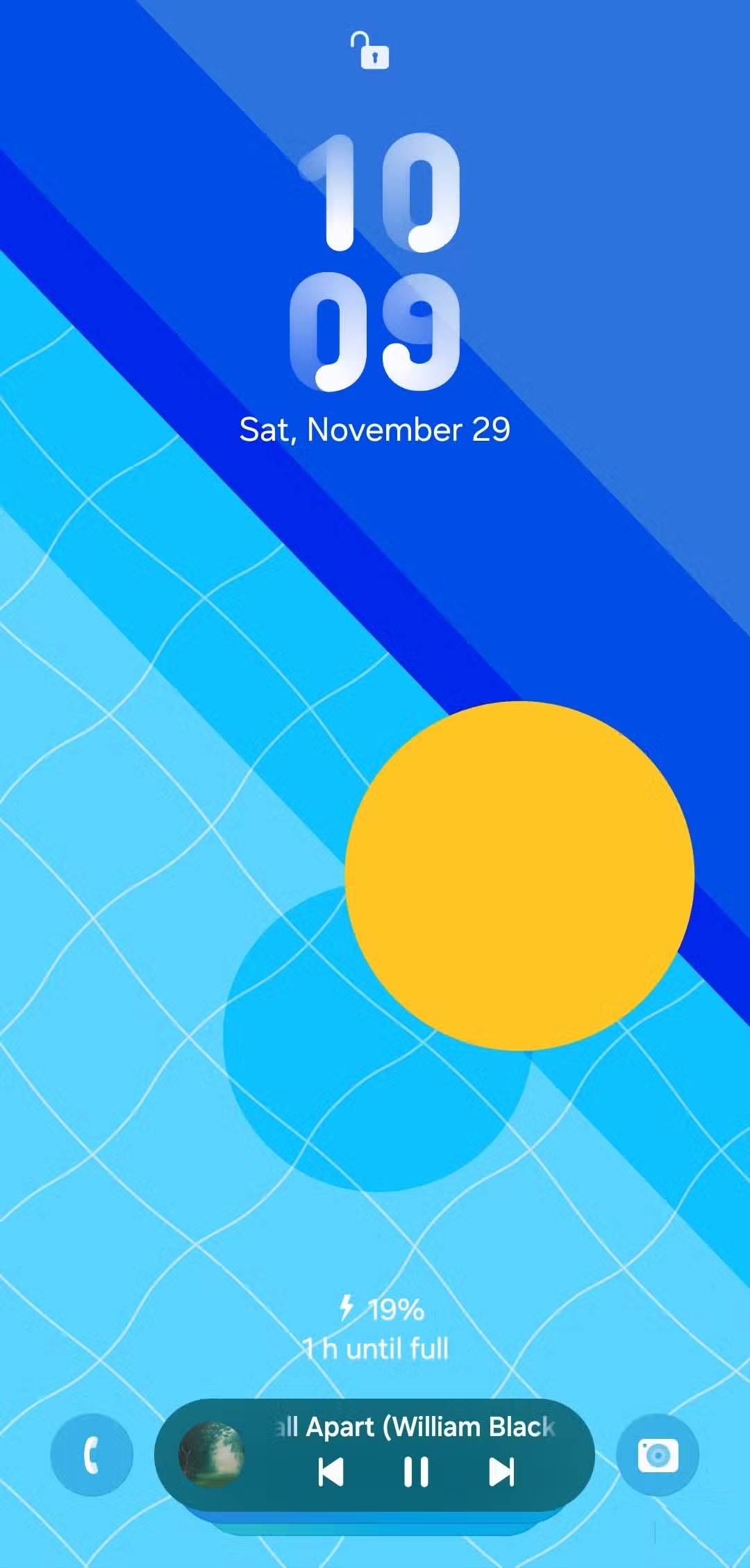
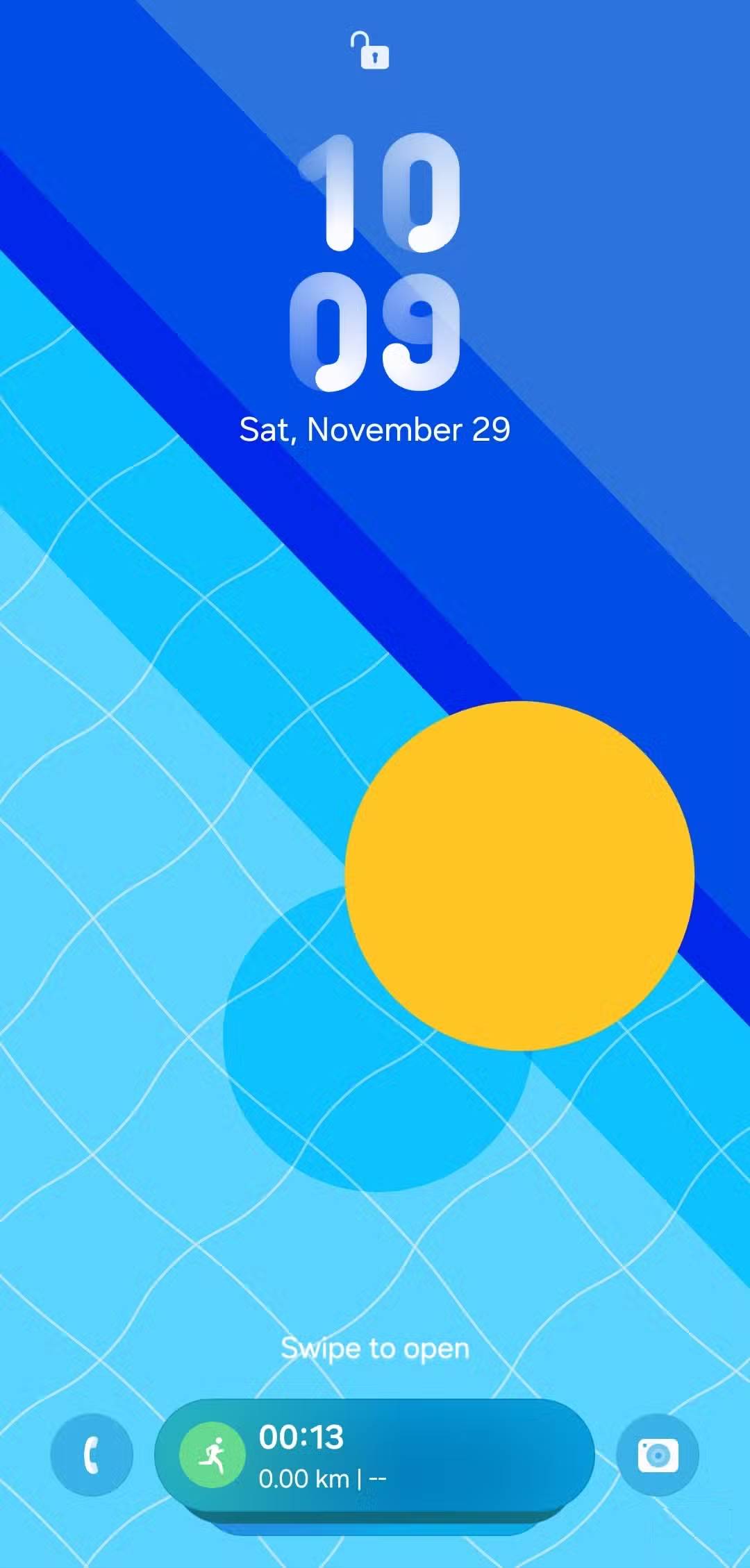
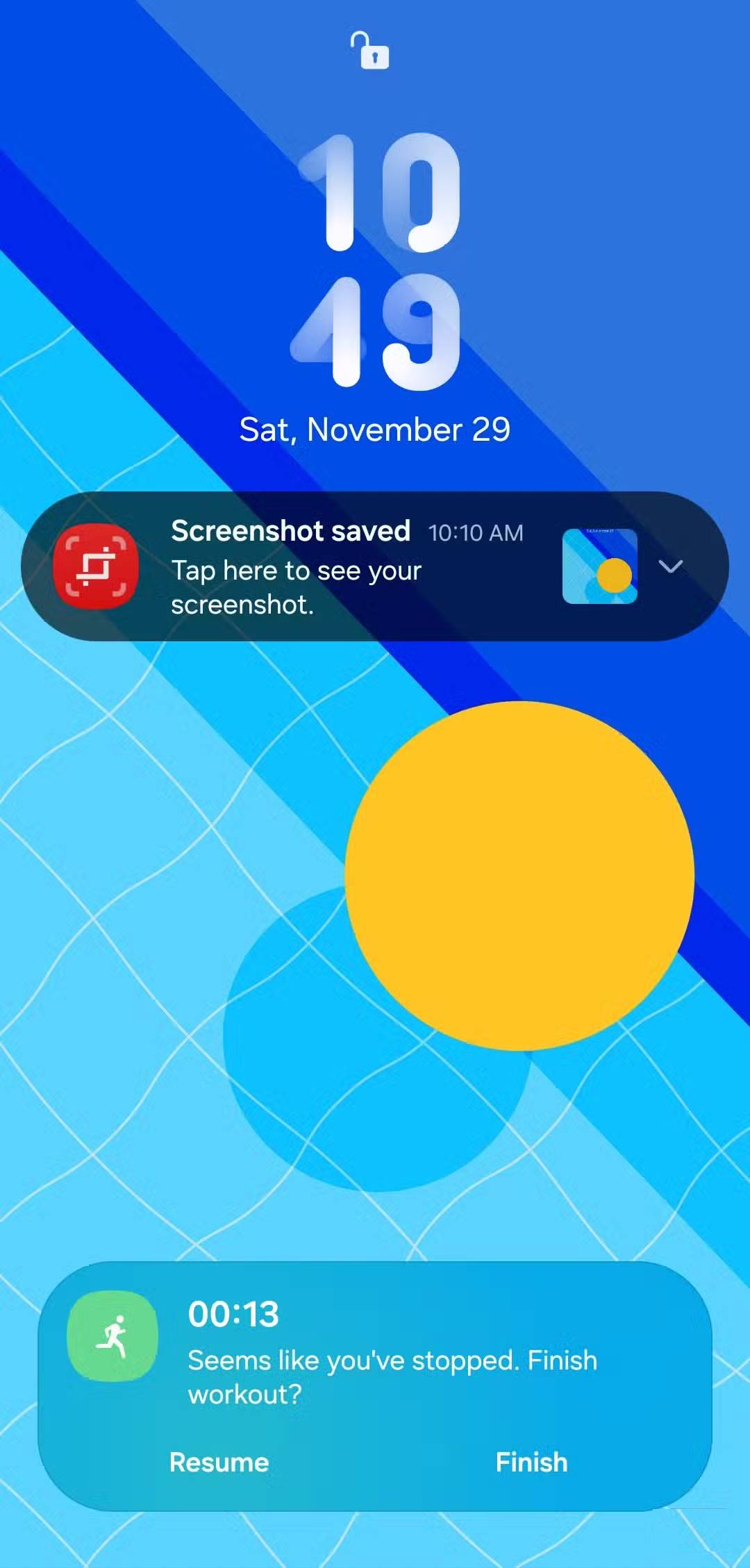
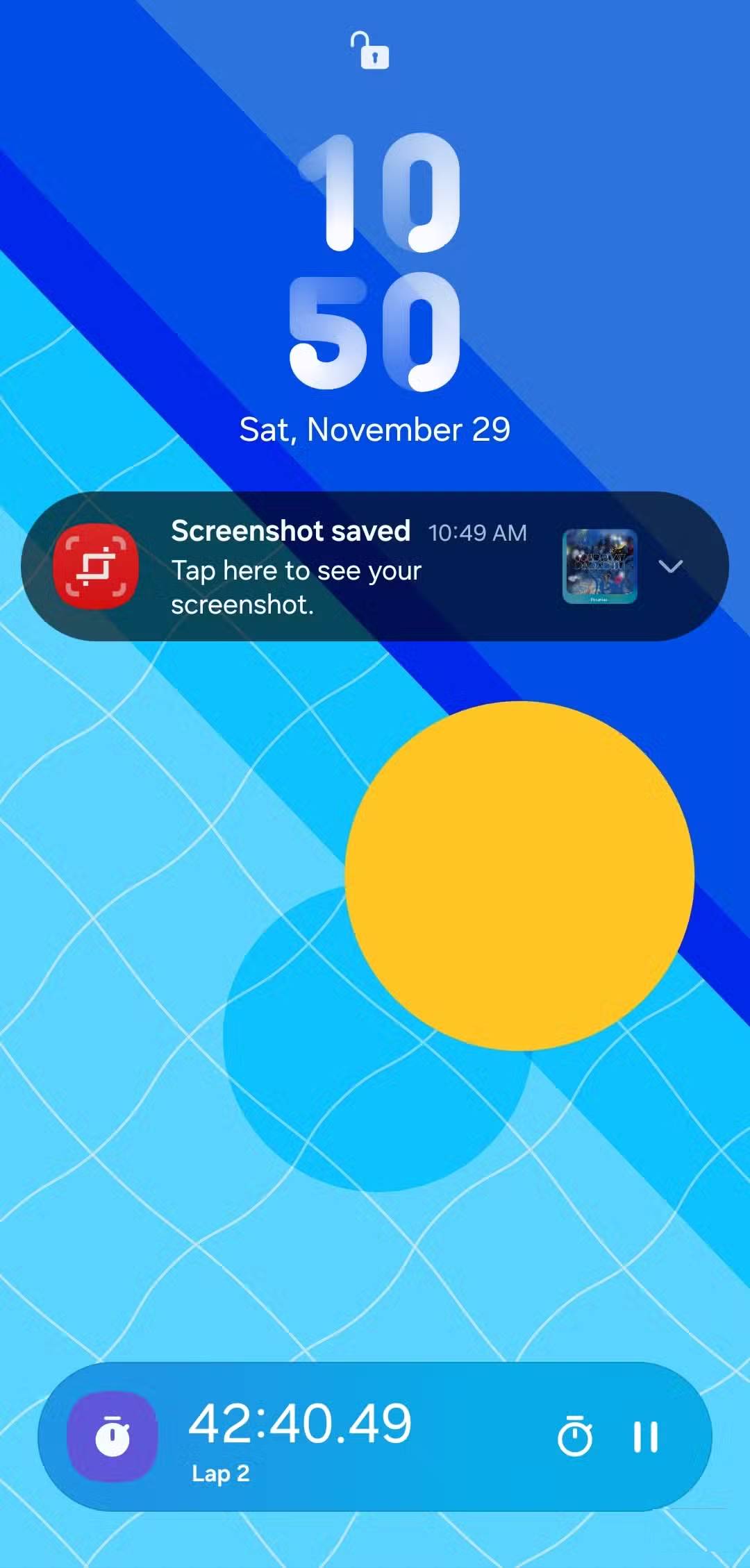
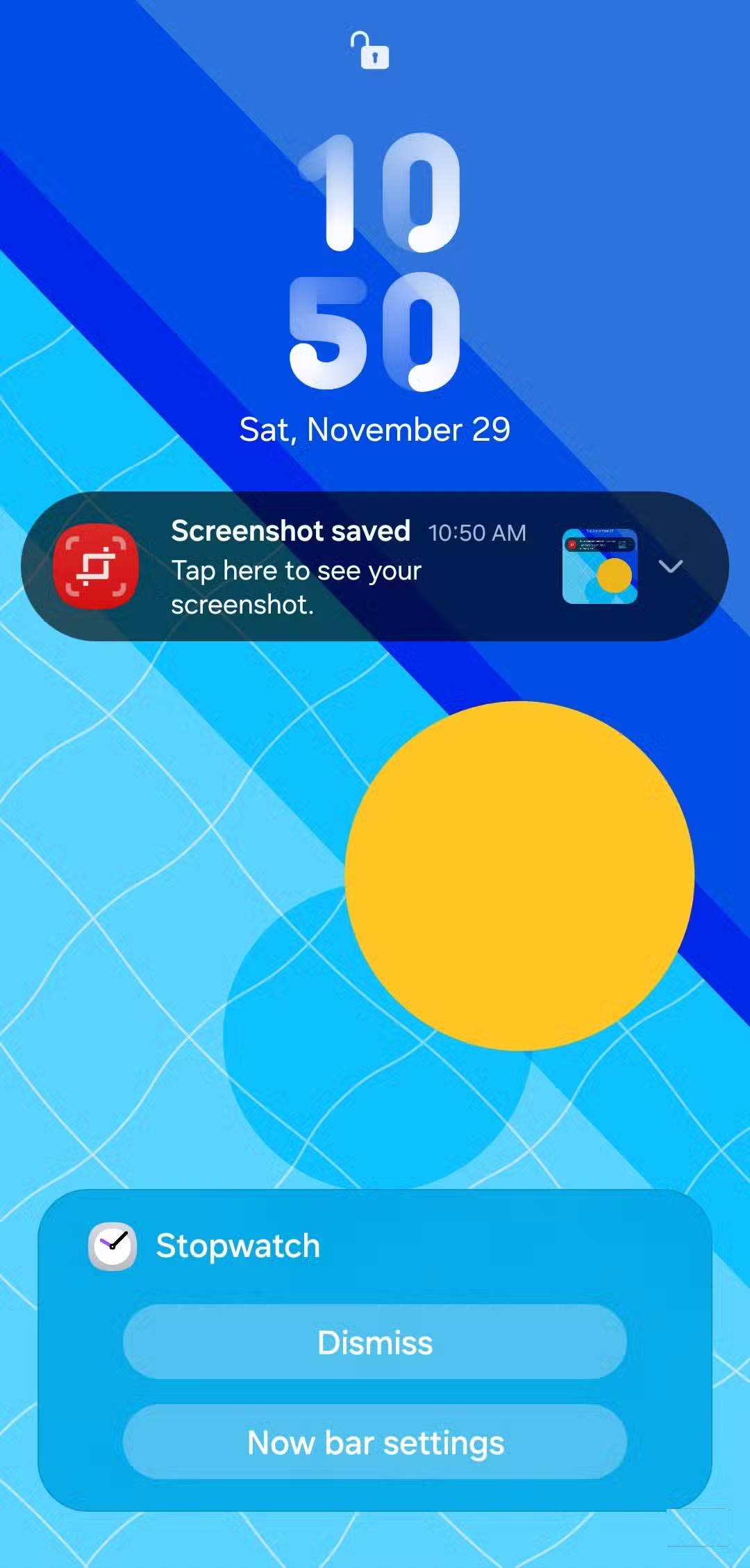
When the Now bar appears on the lock screen, it's pretty straightforward to use. You can tap on the pill-shaped notification to expand it and see more details about the activity. If you have multiple activities running, like music playing and a timer, they'll be stacked on top of each other and you can swipe up or down to switch between them.
If there's a notification that you don't want to see, you can press and hold the notification directly and turn it off. Or, you can go into the Now bar settings and set your preferences.
On the always-on display, the Now bar plays a more passive role. You can't interact with it there, but you can still quickly see live information like scores, navigation prompts, or media details.
However, what people love most about the Now bar is using it to track live match scores. This feature doesn't always work on its own unless you're already following your favorite team on the Google app. To do this, simply search for the match you want to track, tap the three-dot icon, and select Pin live score . The Now bar will then automatically save that score, displaying it right on the lock screen and AOD, making it convenient for quick updates.
Final Thoughts
Understanding why samsung's now bar is the best one ui feature in years makes it easier to evaluate the information and apply the most relevant recommendations. Focus on the key points above and verify details that may change over time.
FAQ
What is why samsung's now bar is the best one ui feature in years?
Discover why samsung's now bar is the best one ui feature in years and explore the main causes, risks, practical effects, and recommended actions.
What key points does this article cover?
The article focuses on What makes the Now bar useful?, Fast, accurate information where you need it, Set up Now bar in just a few steps, with practical explanations and examples.
How can you use this information in practice?
Use the explanations to compare options, verify important details, and make a more informed decision. Apply the recommendations that best match your goals and situation.
Related Articles
 Microsoft Forgot to Update This Windows Feature for 30 Years Explained6 minutes read
 Google Authenticator: Complete Guide3 minutes read
 Google Recently Revived a 'Dead' Feature Since 20094 minutes read
 The Movie's Release Date Has Been Moved to 100 Years Later, So You Won't Be Able4 minutes read
 Olm Salamander, Strange Animals Do Not Budge for 7 Years, Eat3 minutes read
 Is 28 Years Later as Worth Watching as the Original 28 Days6 minutes read
Reader Comments 0
Sign in with email or Google to join the discussion.