Table of Contents
Explore 6 tips to extend battery life for Android phones you should apply today.
Once you tweak your phone's display settings, turn off unnecessary haptic feedback, and reduce the number of widgets cluttering your home screen, you'll start to see real improvements. And the best part is that none of these changes will cost you anything in terms of usability.
Keep the brightness low and steady
A small tweak makes a big difference
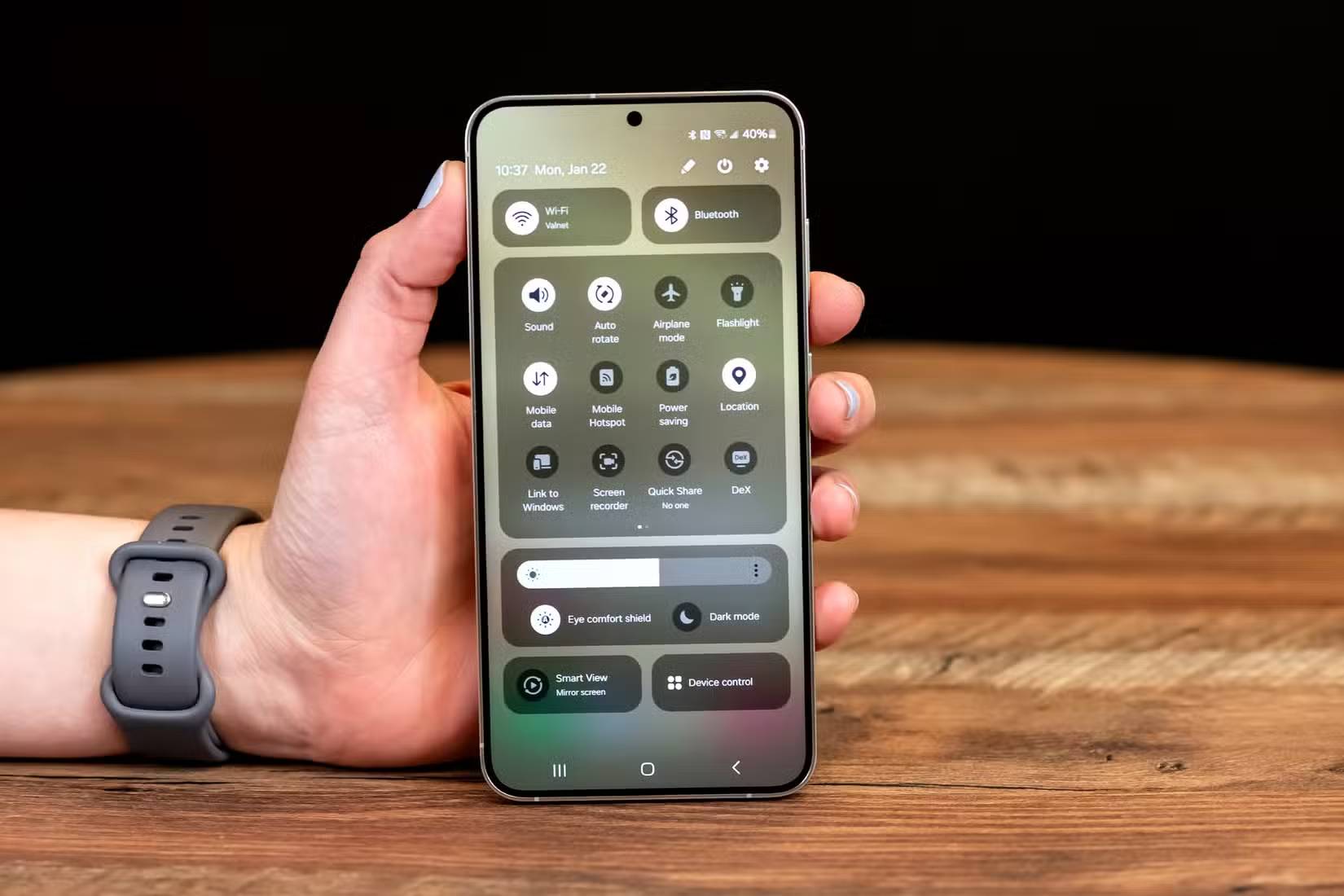
Your phone's display affects battery life more than anything else. And that means tweaking your display settings is one of the most effective ways to get more battery life out of a charge. Most people don't realize how often they turn up the brightness and leave it on. This small change will drain your battery throughout the day without doing you any good.
To avoid this, try keeping your screen at a comfortable low level and only turning it up when absolutely necessary. Over time, adaptive brightness will automatically adjust to your relaxation habits.
Use Dark Mode Everywhere
A simple but effective change
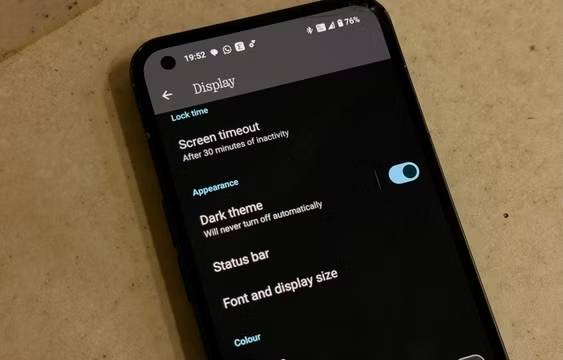
Dark mode isn't just a style choice. On modern Android phones with OLED or AMOLED displays, it can significantly extend battery life. That's because in Dark mode, the screen only lights up individual pixels instead of the entire screen, so when part of the screen is black, more pixels are completely off. And fewer lit pixels means less power used.
Another benefit of Dark Mode is that it's easier on the eyes, especially at night or in low light conditions. This means you'll have to increase the brightness less to compensate. It's a win-win all around.
Shorten screen timeout
Don't leave the screen on when you're not using it
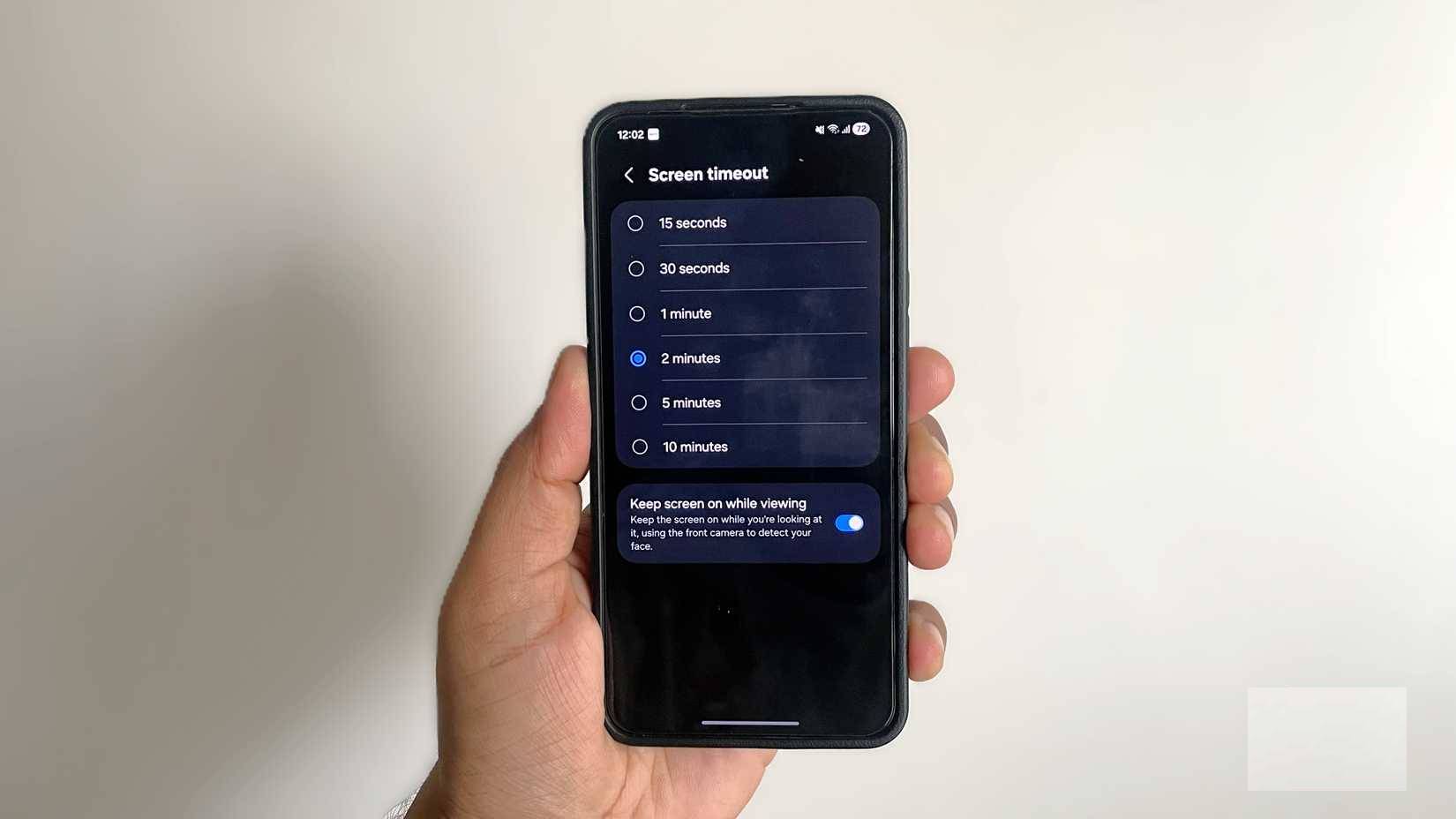
Another silent battery drainer is your phone's screen timeout. Think about it. Every time you put your phone down without locking it, the screen stays on for longer than necessary. Those extra seconds may not seem like much, but when it happens dozens of times a day, it can add up.
You can turn on Keep screen on while viewing . This setting uses the front camera to detect whether you're looking at the screen. If you are, the screen will stay on.
Turn off keyboard sounds and haptic feedback
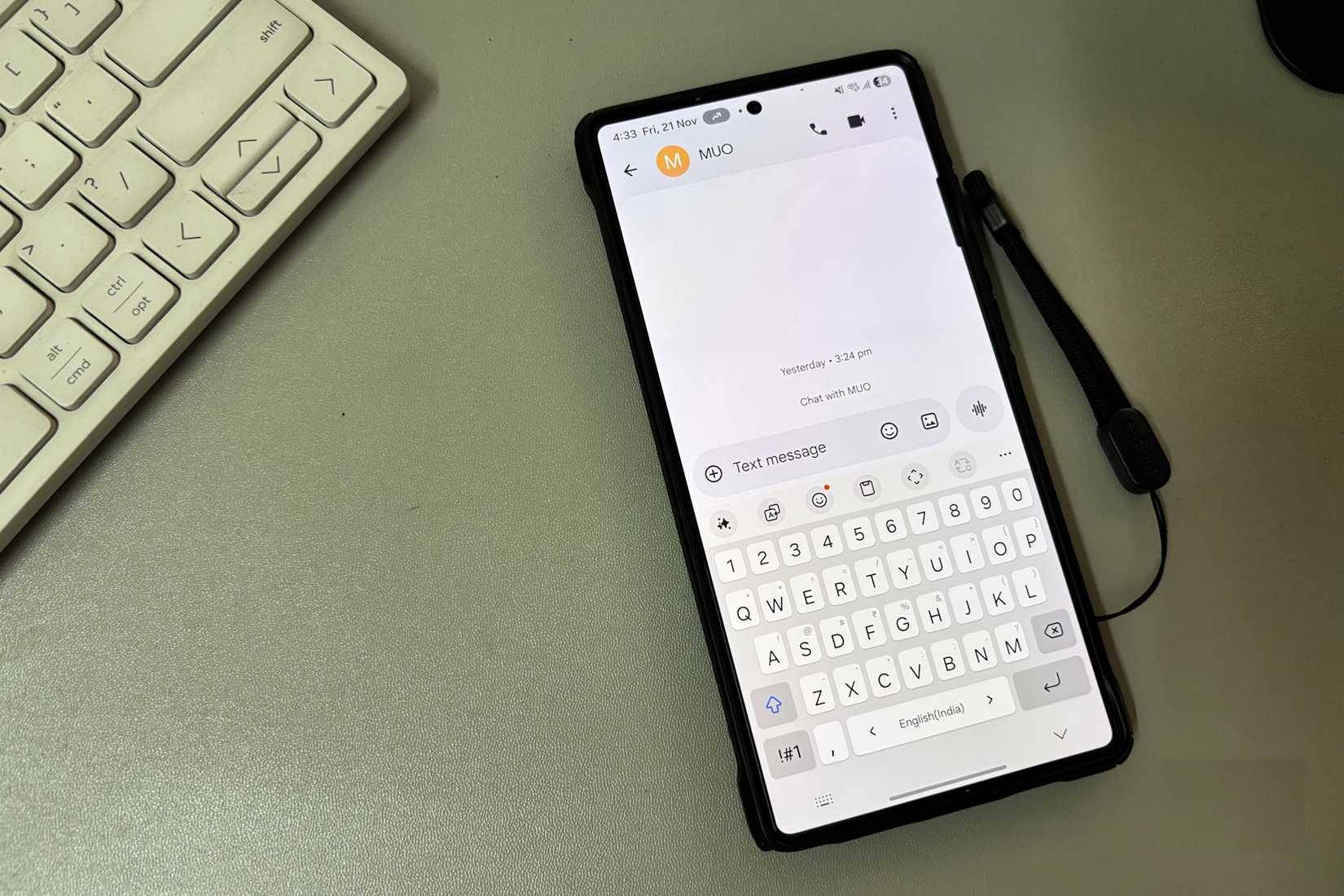
By default, phone keyboards make little clicks and vibrate with each tap. It might feel nice at first, but those sounds and vibrations take up battery life. And if you're a heavy typist, you can imagine how much your keyboard can affect your battery life.
The truth is, most people don't really need this feedback. After a day or two without it, you'll barely notice it's gone. What you'll notice is that your phone holds more battery at the end of the day.
Reduce the number of widgets
Keep useful widgets and ignore the rest
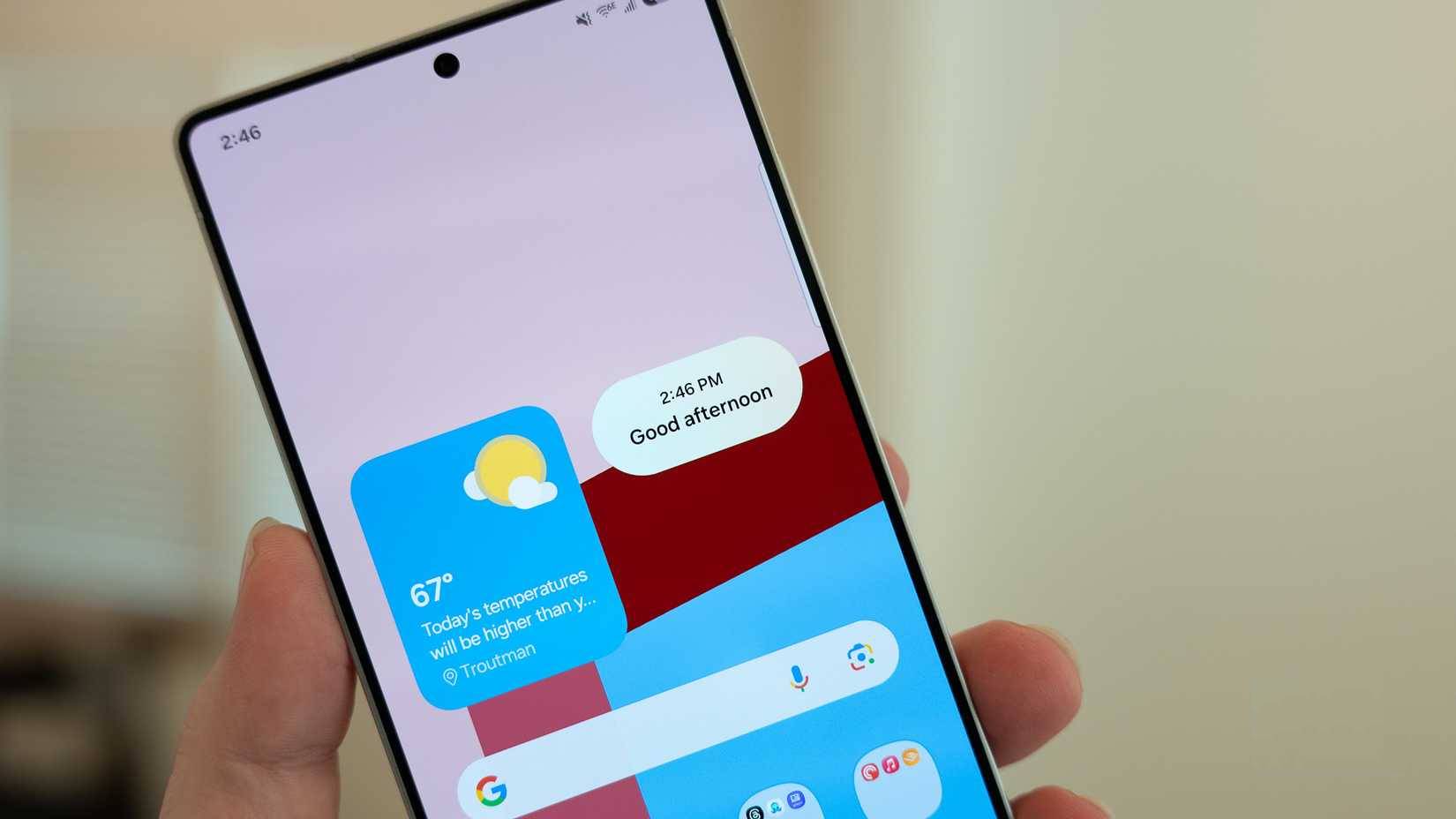
Widgets are convenient. You can glance at your home screen or lock screen and see important information without opening anything. But this convenience comes at a cost. Since widgets need to be constantly refreshed to update with live data, they affect battery life.
Of course, two or three won't make a huge difference. But don't go overboard and add a widget for every little thing. If there's a widget that was once useful but you barely notice it anymore, it's probably time to get rid of it.
Turn off Wi-Fi, Bluetooth and location when not needed
Use connections only when necessary
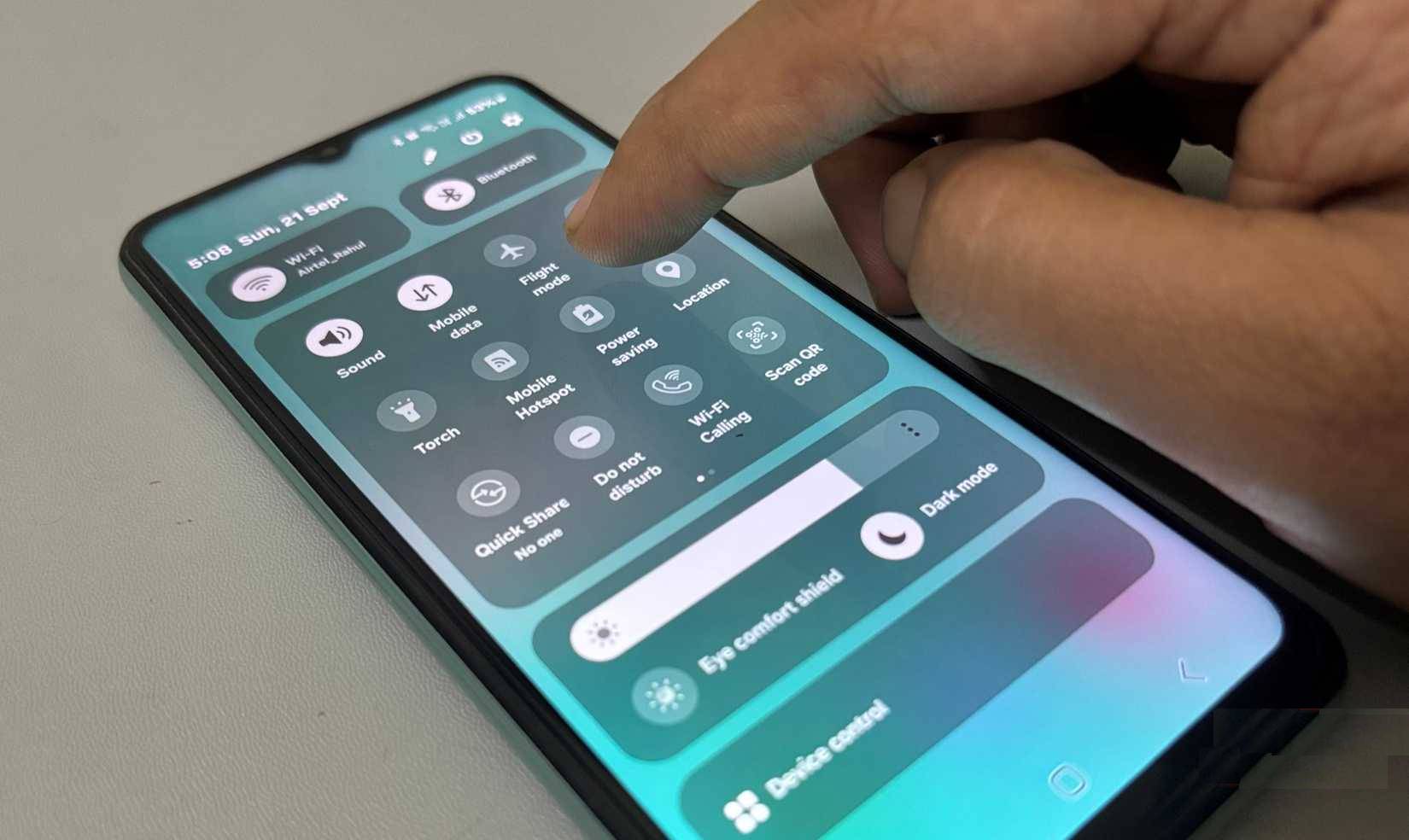
Your Android phone is constantly searching for a connection. Wi-Fi scans for networks, Bluetooth searches for nearby devices, and location services constantly check your location. These features are incredibly useful, but they also take a toll on battery life.
The fix is simple. If you're not using it, turn it off. Leaving Wi-Fi on while you're away from home or the office will only drain your phone's battery. The same goes for Bluetooth.
However, location services are one of the biggest battery drainers. Because any app with tracking permissions can check your location even when you're not using it. So it's best to turn off location services from the quick settings panel when you don't need them.
- 8 tips to save maximum battery for your phone
- How to customize battery saving mode on Android Oreo
Final Thoughts
Understanding 6 tips to extend battery life for android phones you should apply today makes it easier to evaluate the information and apply the most relevant recommendations. Focus on the key points above and verify details that may change over time.
FAQ
What is 6 tips to extend battery life for android phones you should apply today?
Explore 6 tips to extend battery life for Android phones you should apply today.
What key points does this article cover?
The article focuses on Keep the brightness low and steady, A small tweak makes a big difference, Use Dark Mode Everywhere, with practical explanations and examples.
How can you use this information in practice?
Use the explanations to compare options, verify important details, and make a more informed decision. Apply the recommendations that best match your goals and situation.
Related Articles
 9 Tips to Extend Battery Life for Android Phones You Should Apply10 minutes read
 Extend Battery Life Android Does Not Need Root with This Application8 minutes read
 How to Increase, Extend Battery Life on Android Phones Effectively3 minutes read
 Battery Saving Tips for Android Phones8 minutes read
 9 Tips to Make Your Android Battery Last Longer While Traveling9 minutes read
 How to Extend the Latest Phone Battery Life 202210 minutes read
Reader Comments 0
Sign in with email or Google to join the discussion.