Table of Contents
Some iPhone features you'll never use, while others become non-negotiable once you try them. Here are 6 settings you need to enable when using your iPhone!
6. Stolen Device Security
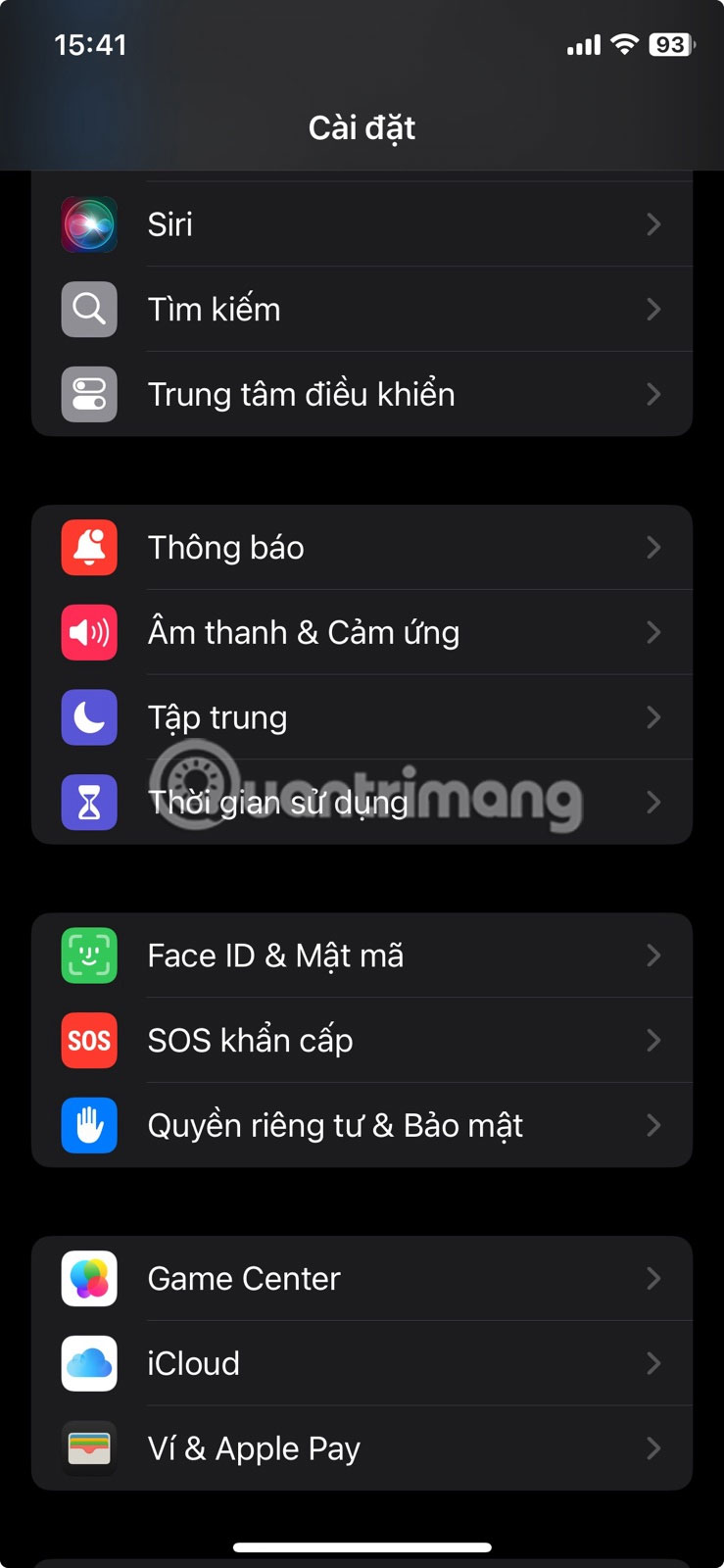
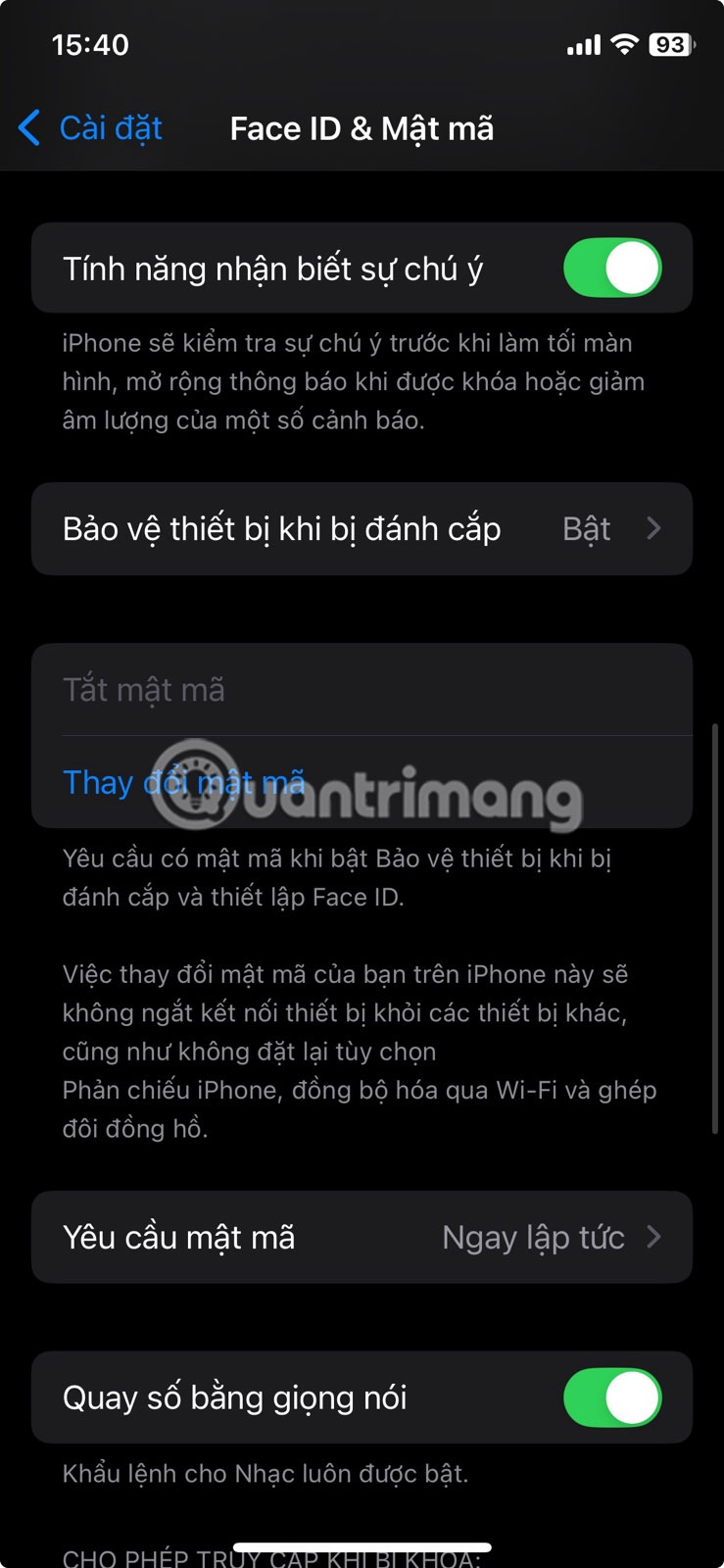
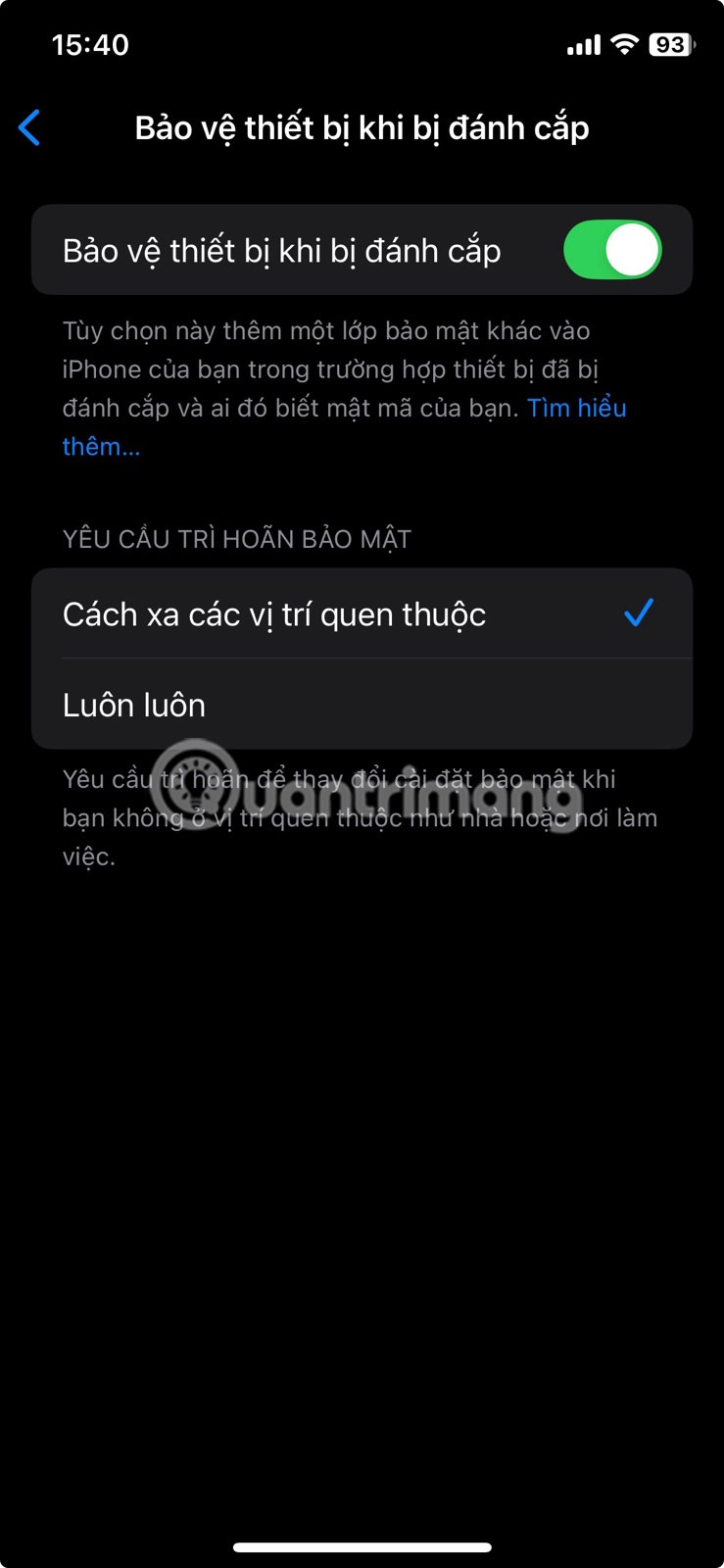
Apple has added Stolen Device Protection to protect you if someone steals your iPhone and knows your passcode. It blocks quick takeovers by requiring Face ID or Touch ID for sensitive actions and, when necessary, adds a short delay before changes are made.
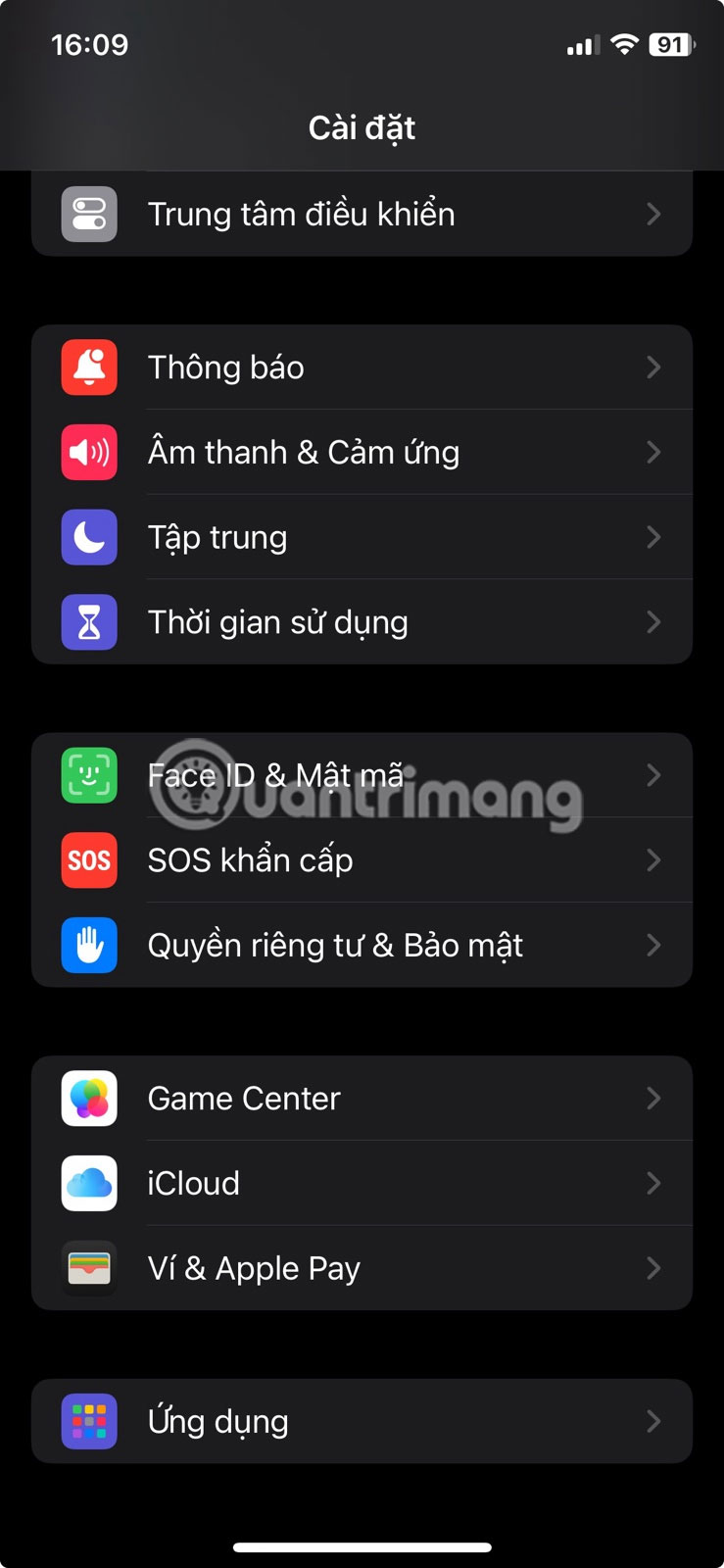
To enable this feature, open Settings , go to Face ID & Passcode and enter your passcode. Scroll down to Lost and Found Protection and turn it on. If you want to increase protection everywhere (not just in familiar places like home or work), go to Request Security Delay and select Always .
5. Block password and account changes
If someone knows your passcode, they can do more than just unlock your iPhone. They can go into Settings and change your passcode or Apple ID information, which can lock you out of your device. That's why you need to add a second layer of protection before anyone can touch those settings.
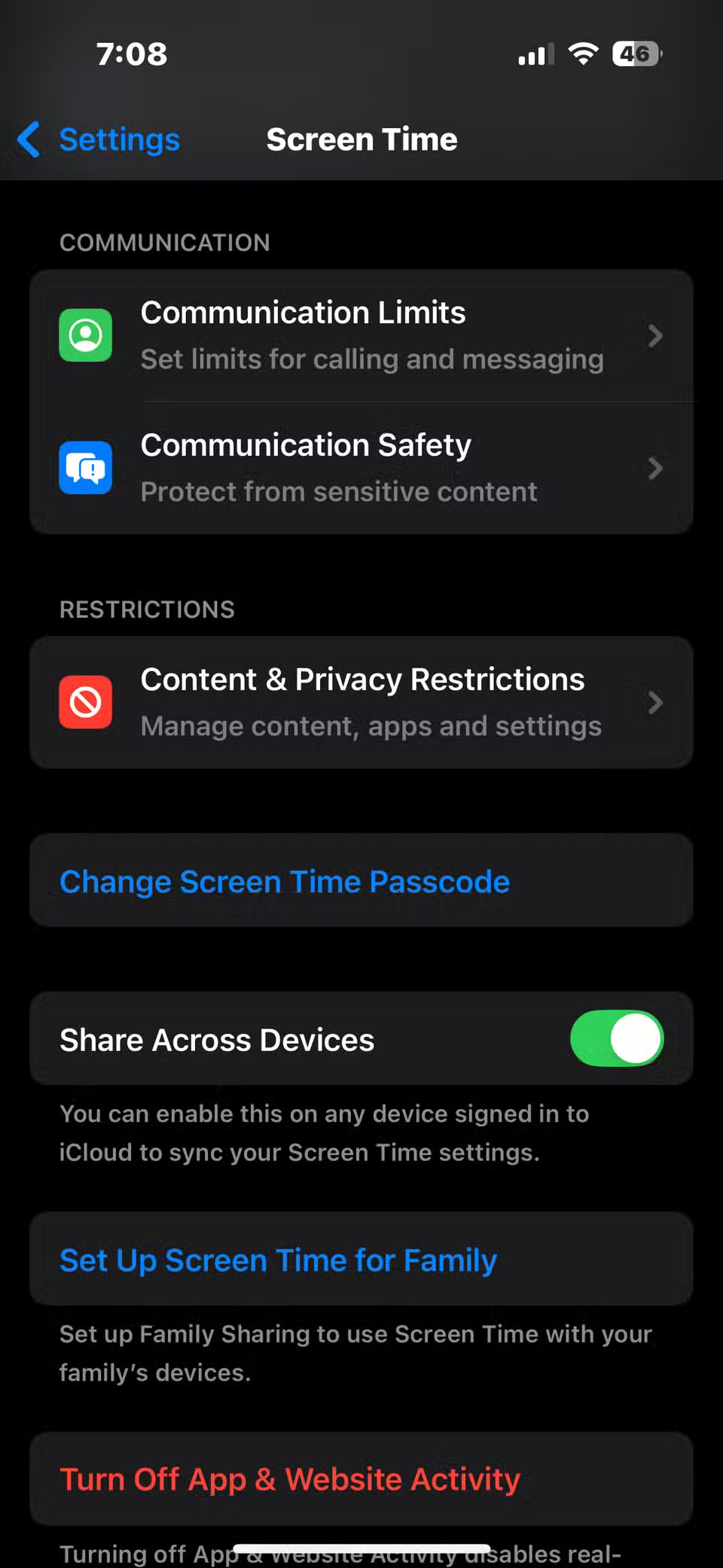
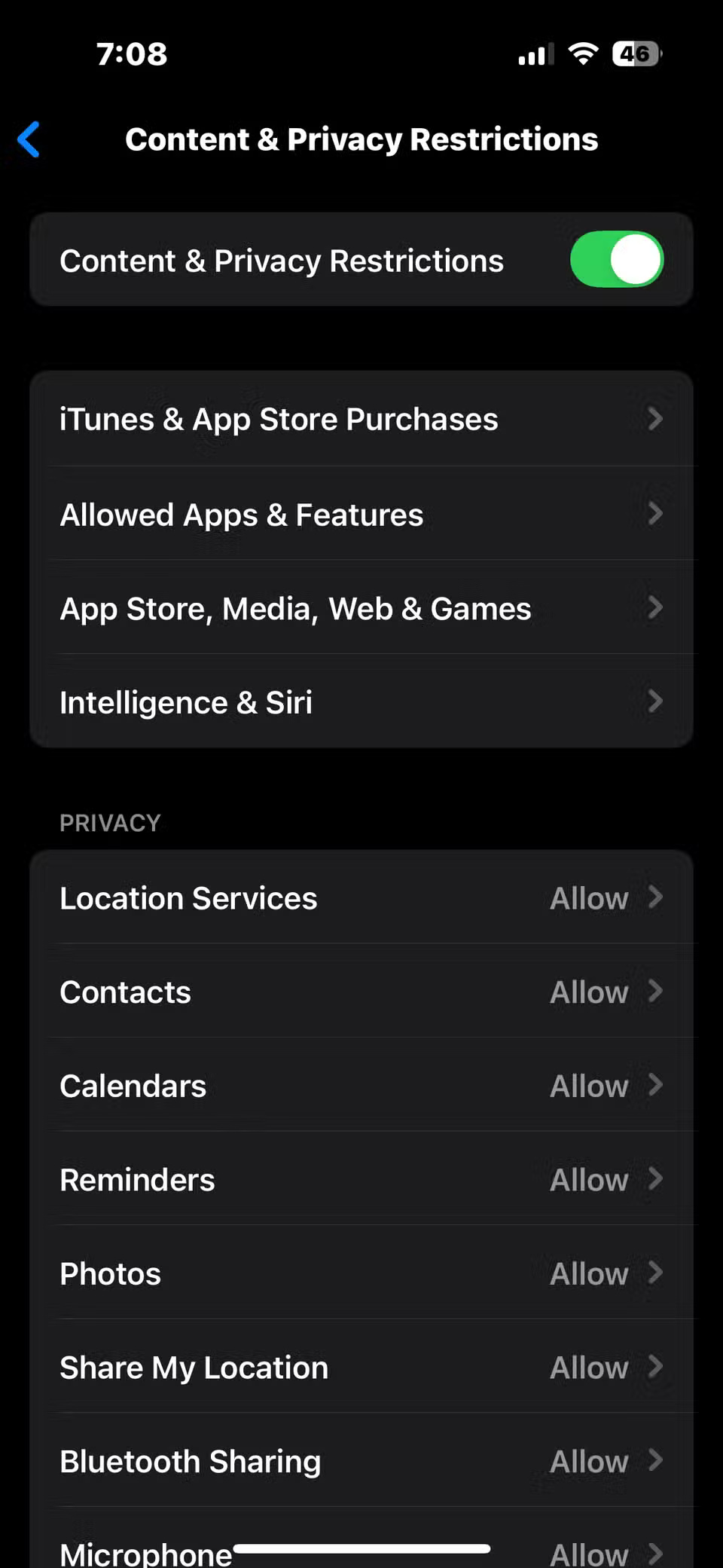
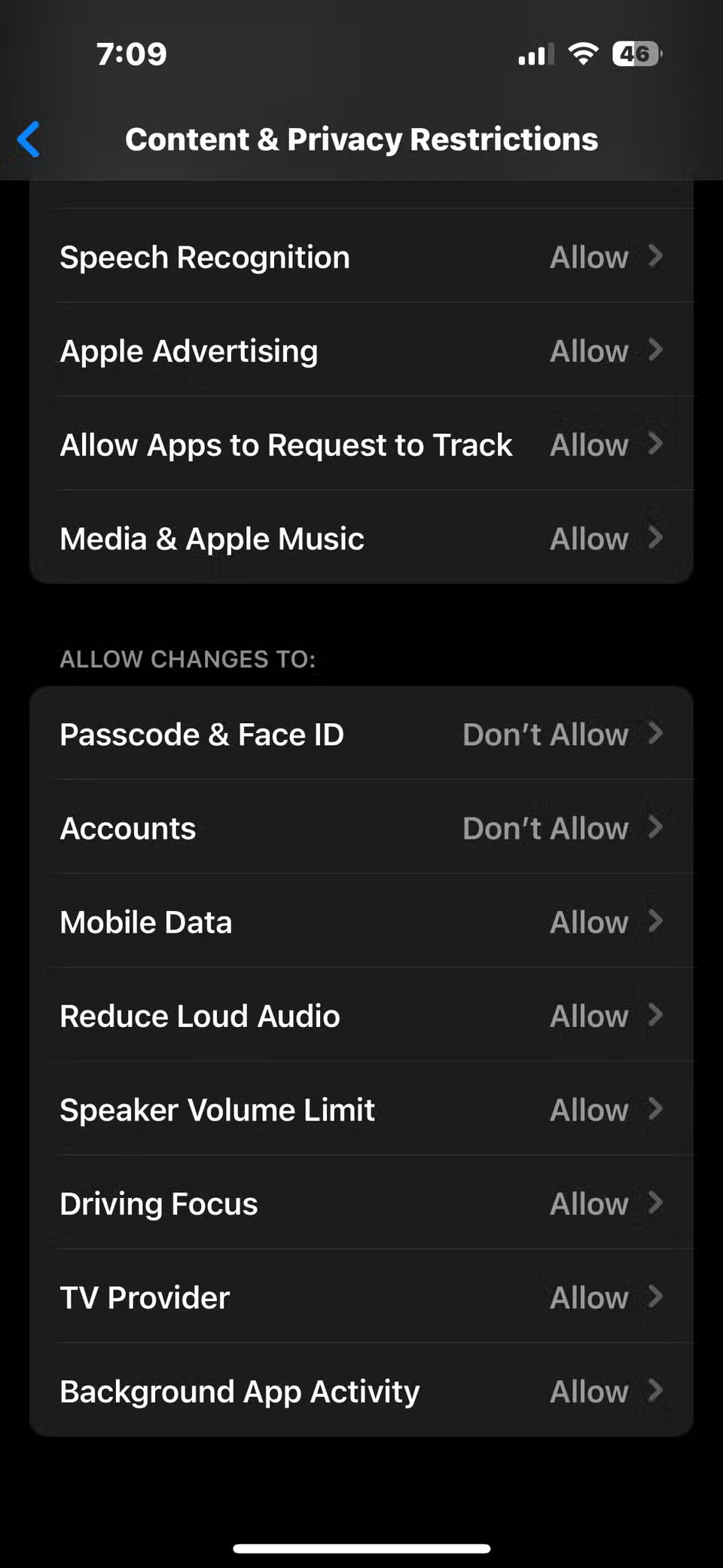
Open Settings and navigate to Screen Time > Content & Privacy Restrictions . Toggle it on, then scroll to Allow Changes To . Open Passcode & Face ID and set it to Don't Allow . Do the same for Accounts . From now on, anyone who tries to edit these settings will need your separate Screen Time passcode.
4. Turn on Blocked Mode
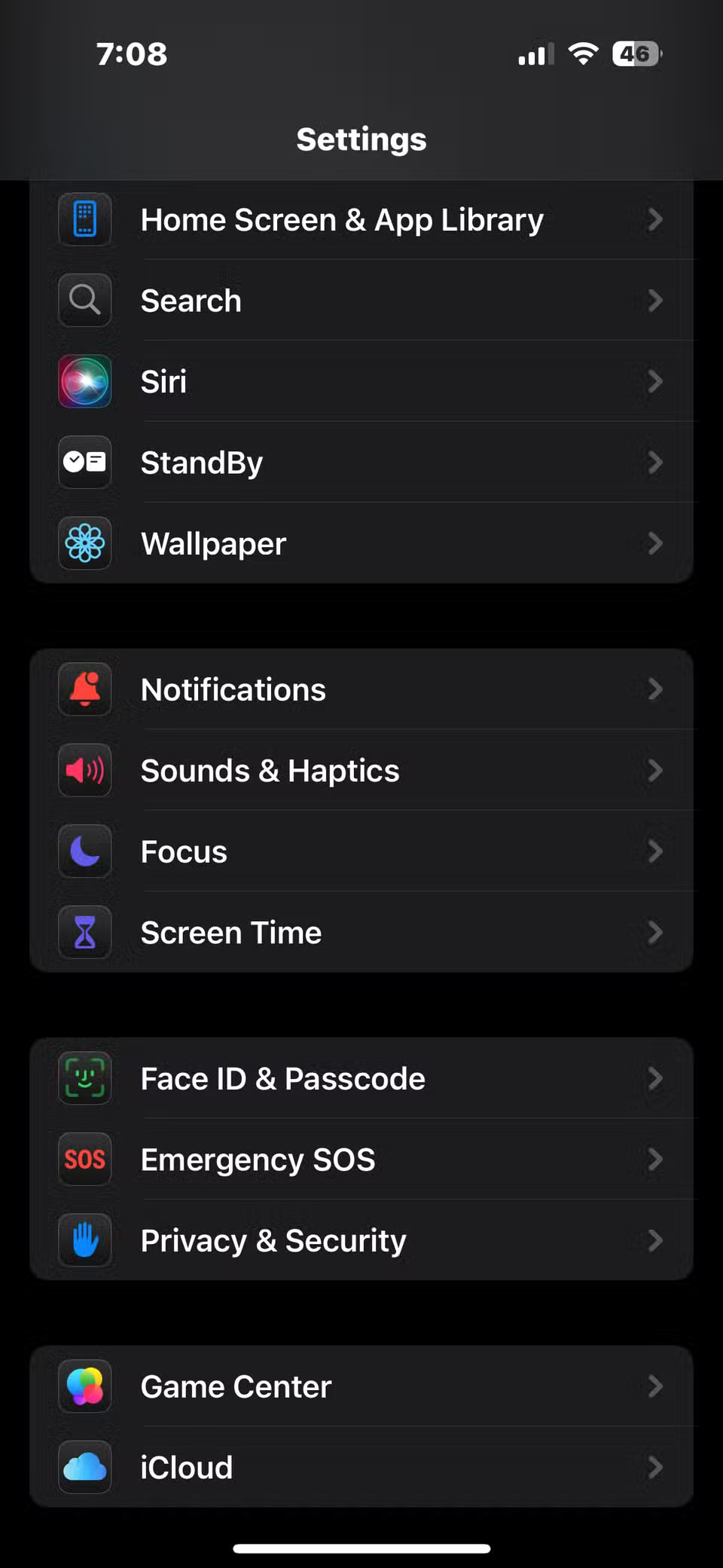
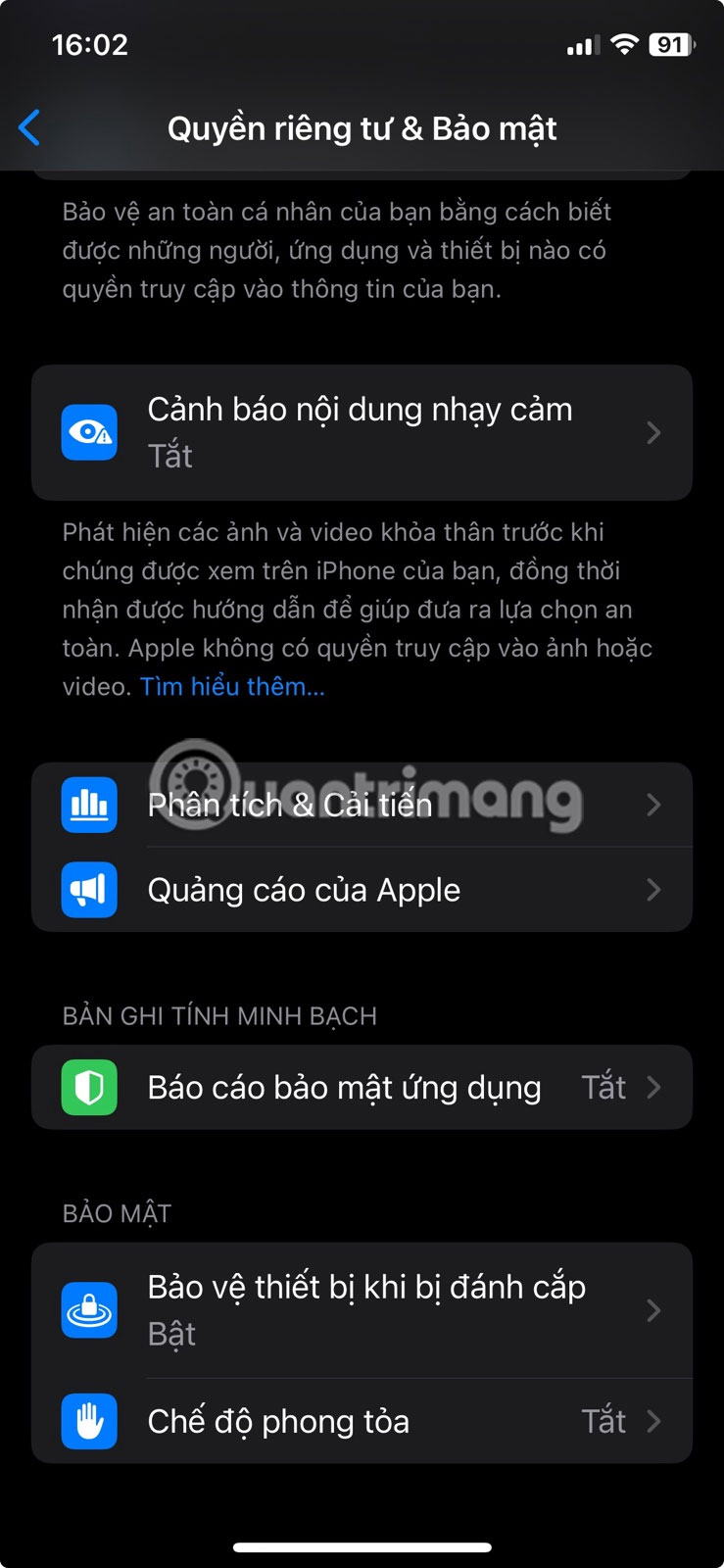
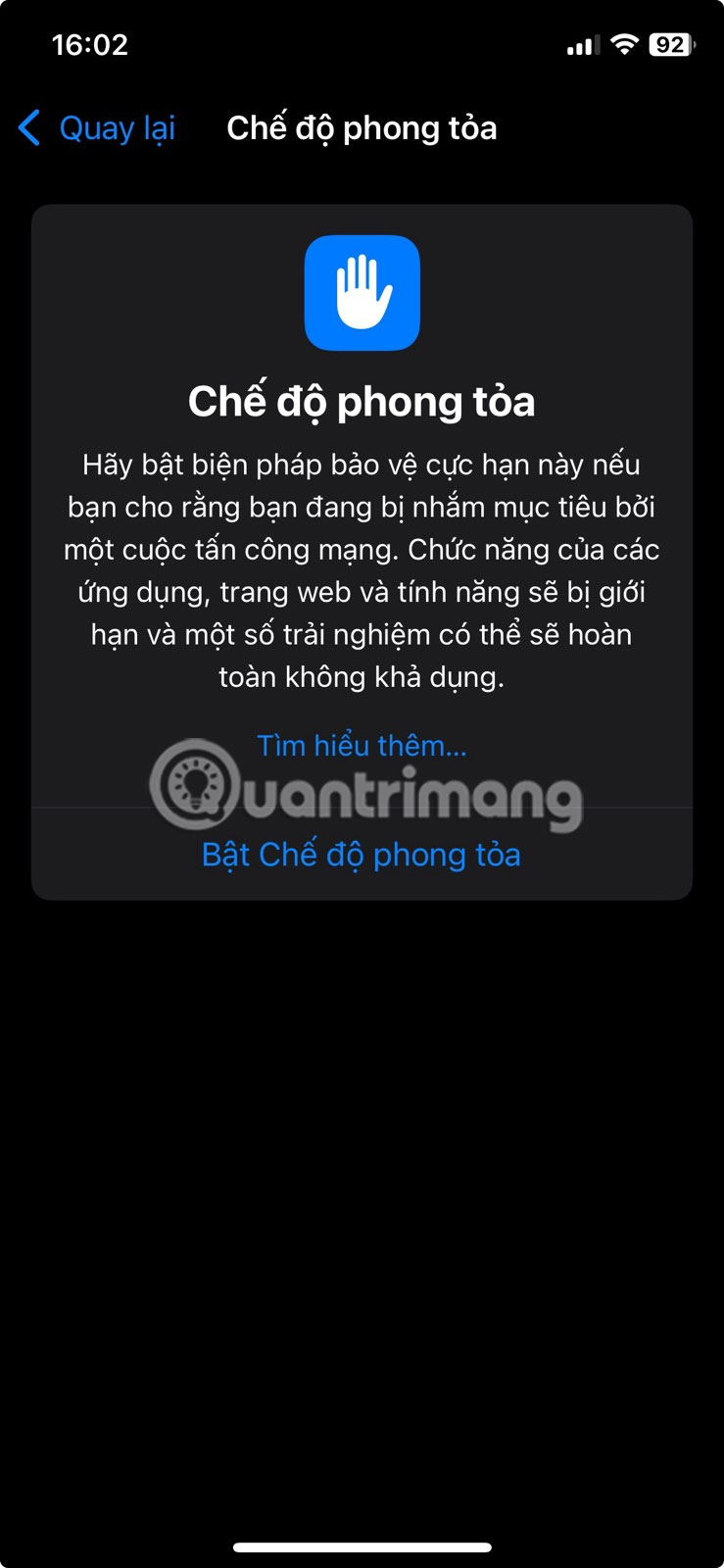
Most settings on your iPhone protect you from everyday risks, but Lockdown Mode goes beyond that. It's designed for people who might be targets of spyware or sophisticated hackers; people like having this option because it provides a stronger layer of protection when needed.
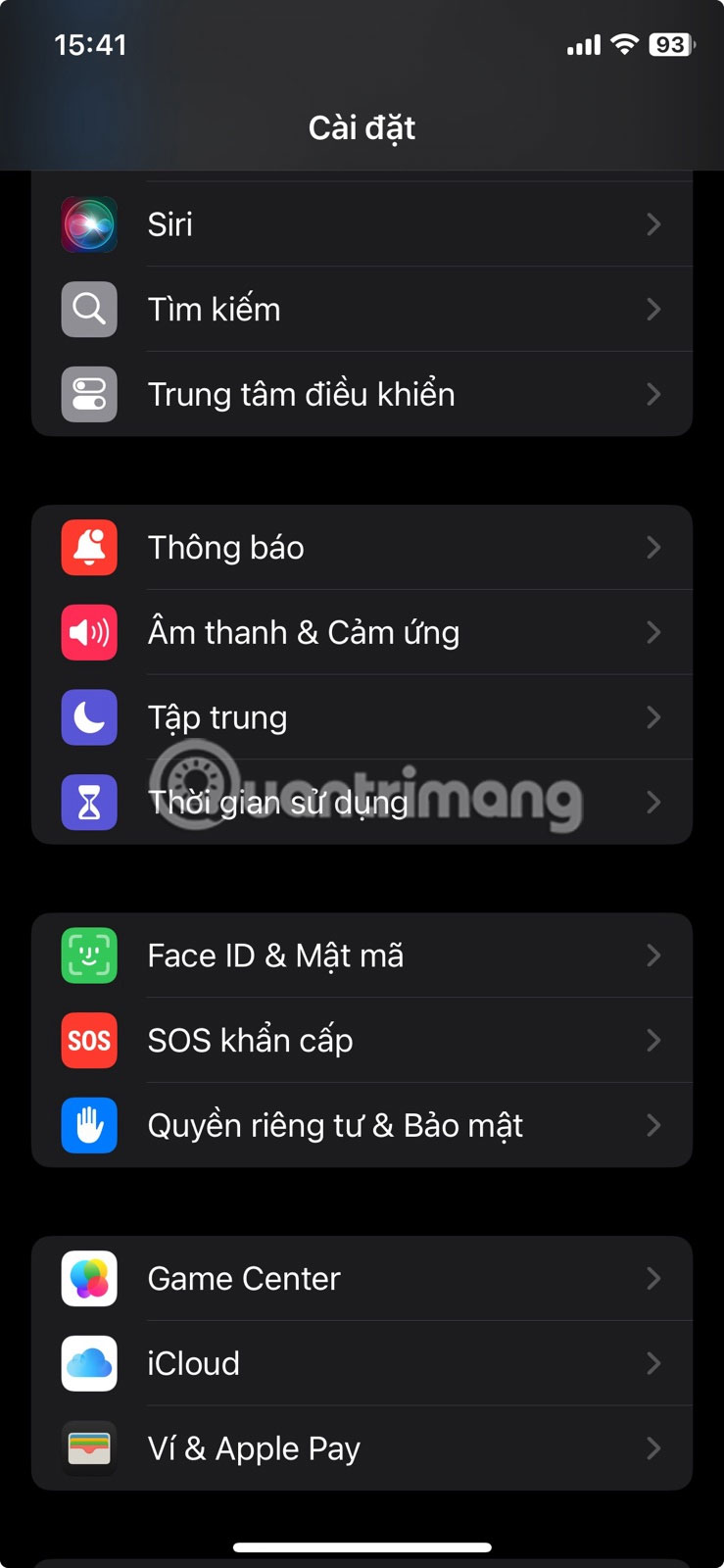
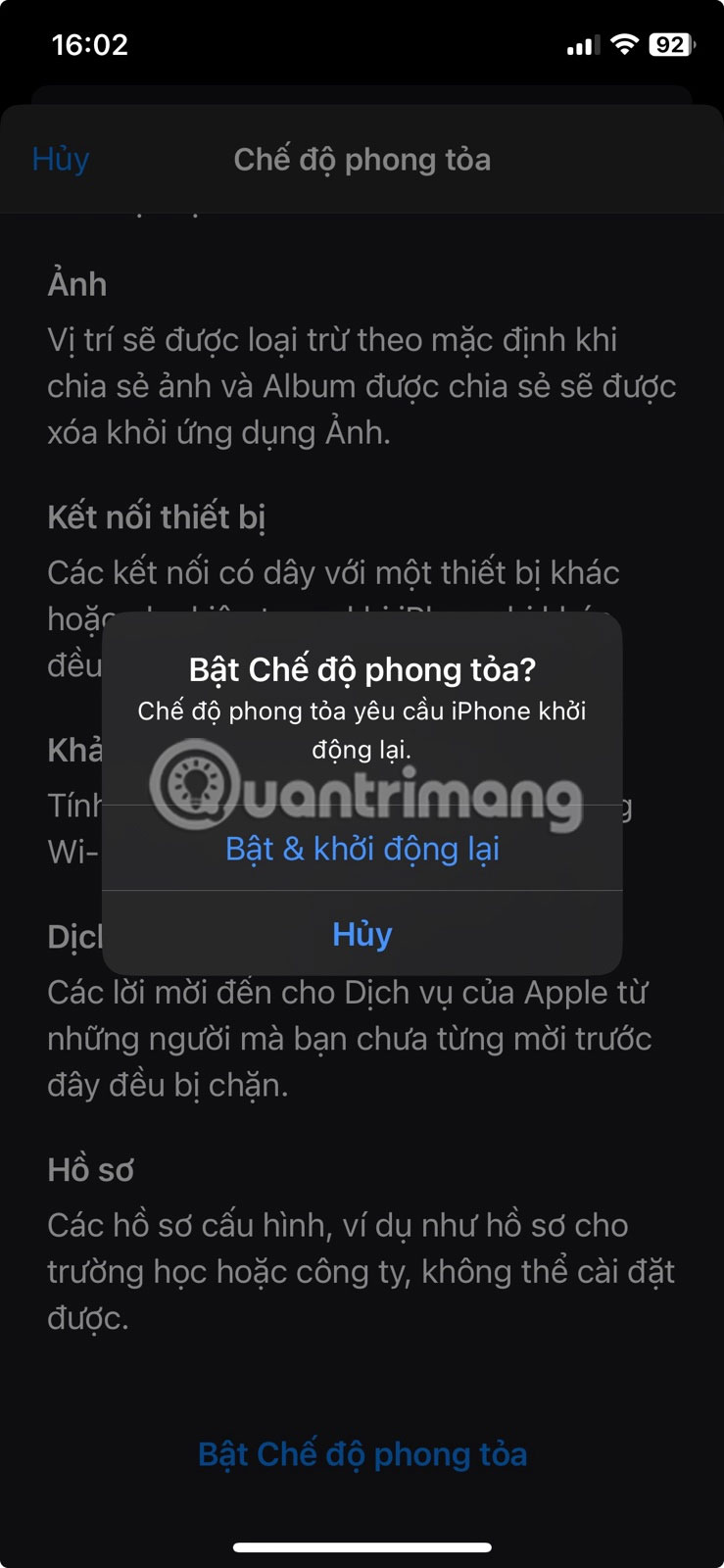
In iPhone Settings, select Privacy & Security > Locked Mode . Tap Turn On Locked Mode , then select Turn On & Restart , and enter your device passcode.
3. Blur sensitive photos before you see them
Open the Settings menu, then navigate to Privacy & Security > Sensitive Content Warning . Turn it on, then choose where you want it to be enabled. It works for Messages and AirDrop; it also works for FaceTime video messages and Contacts.
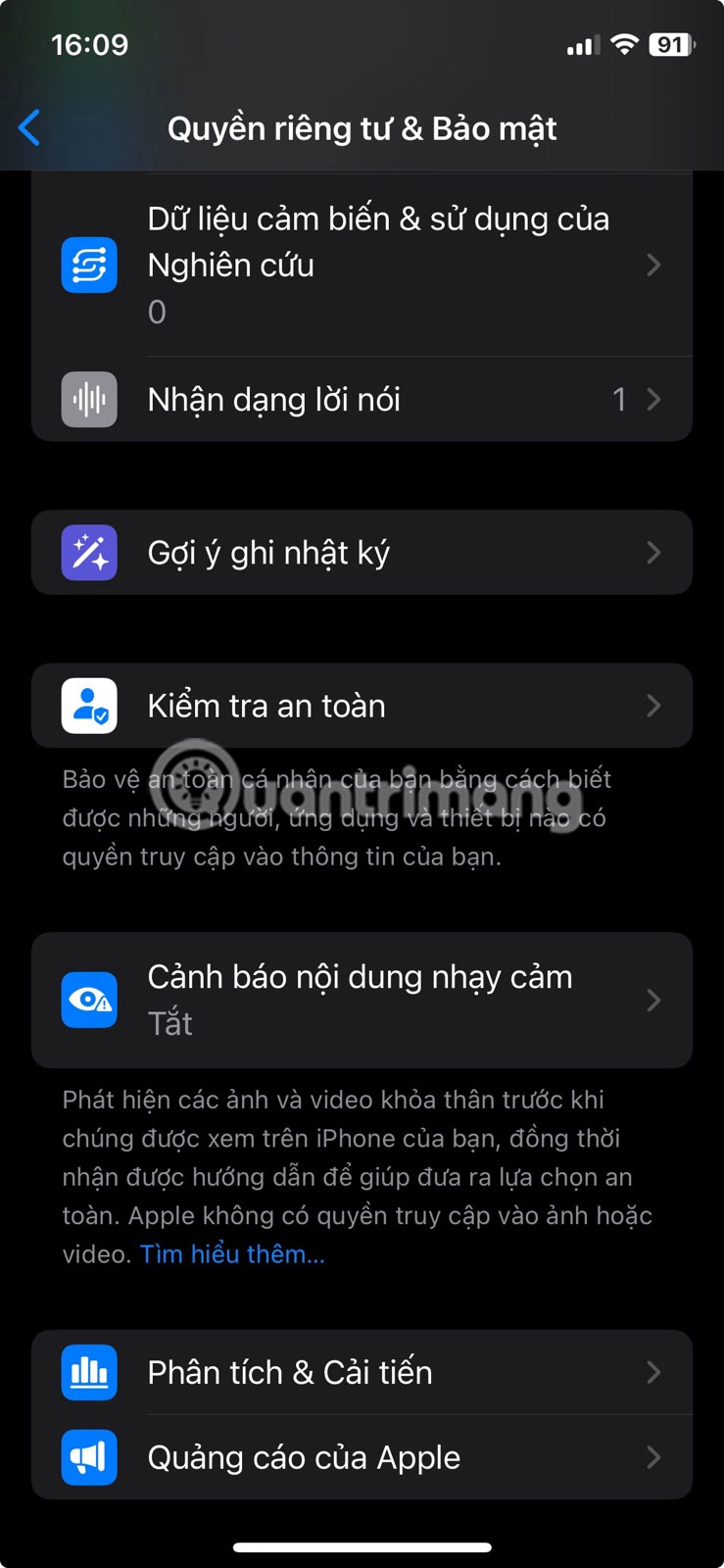
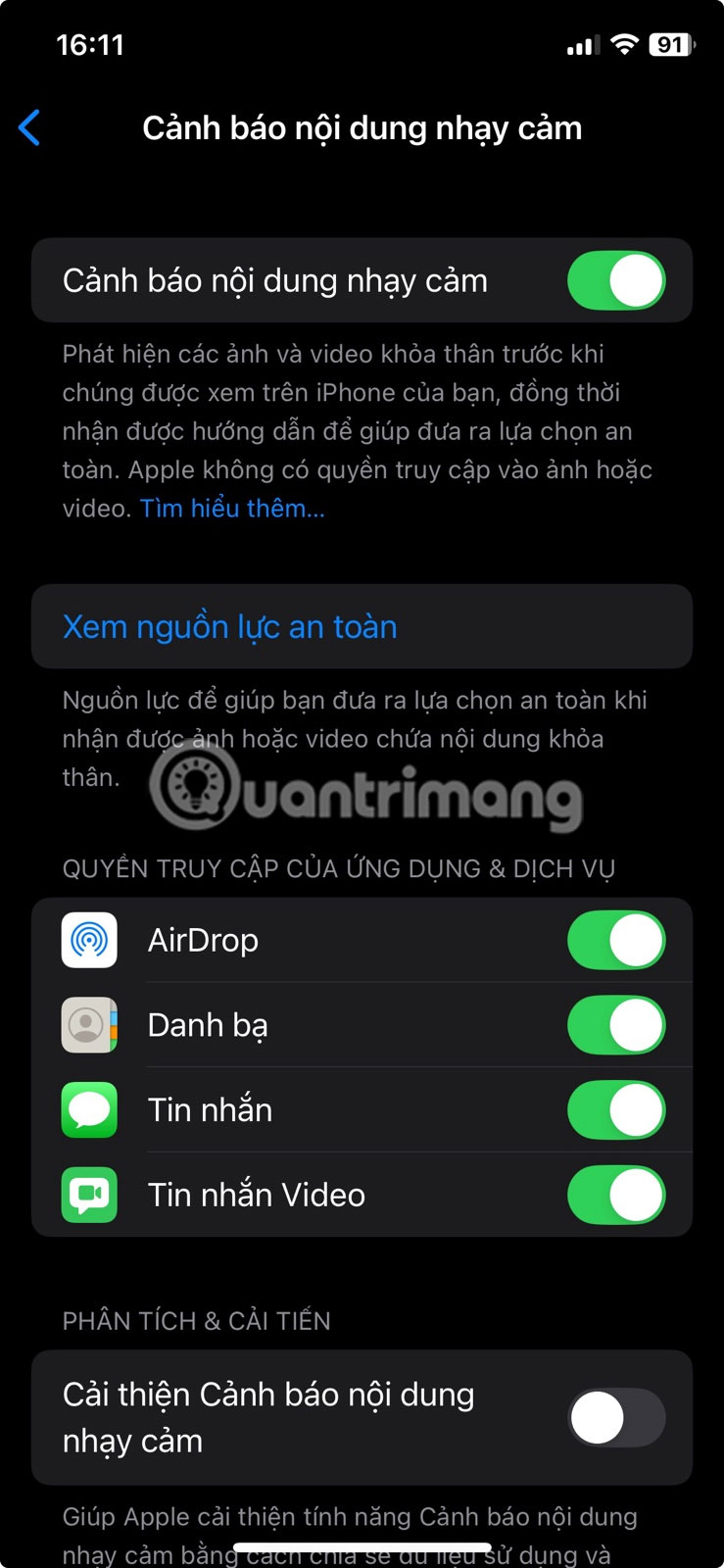
You'll also see an option called Improve Sensitive Content Warnings , which shares flagged data with Apple to refine detection.
2. Lock iPhone to an app
To set it up, open Settings , go to Accessibility , and tap Guided Access . Turn it on, then tap Passcode Settings > Set HD Guided Access Passcode .
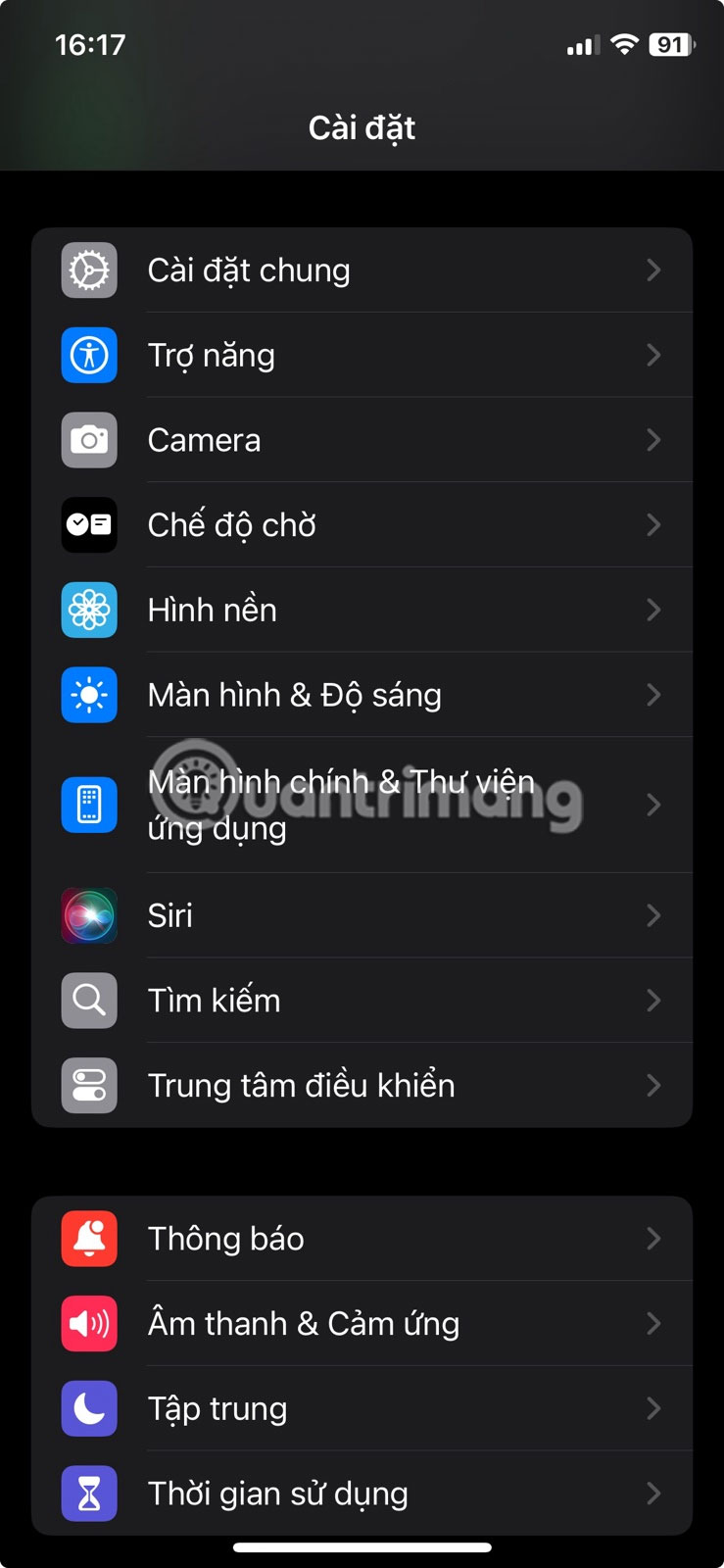
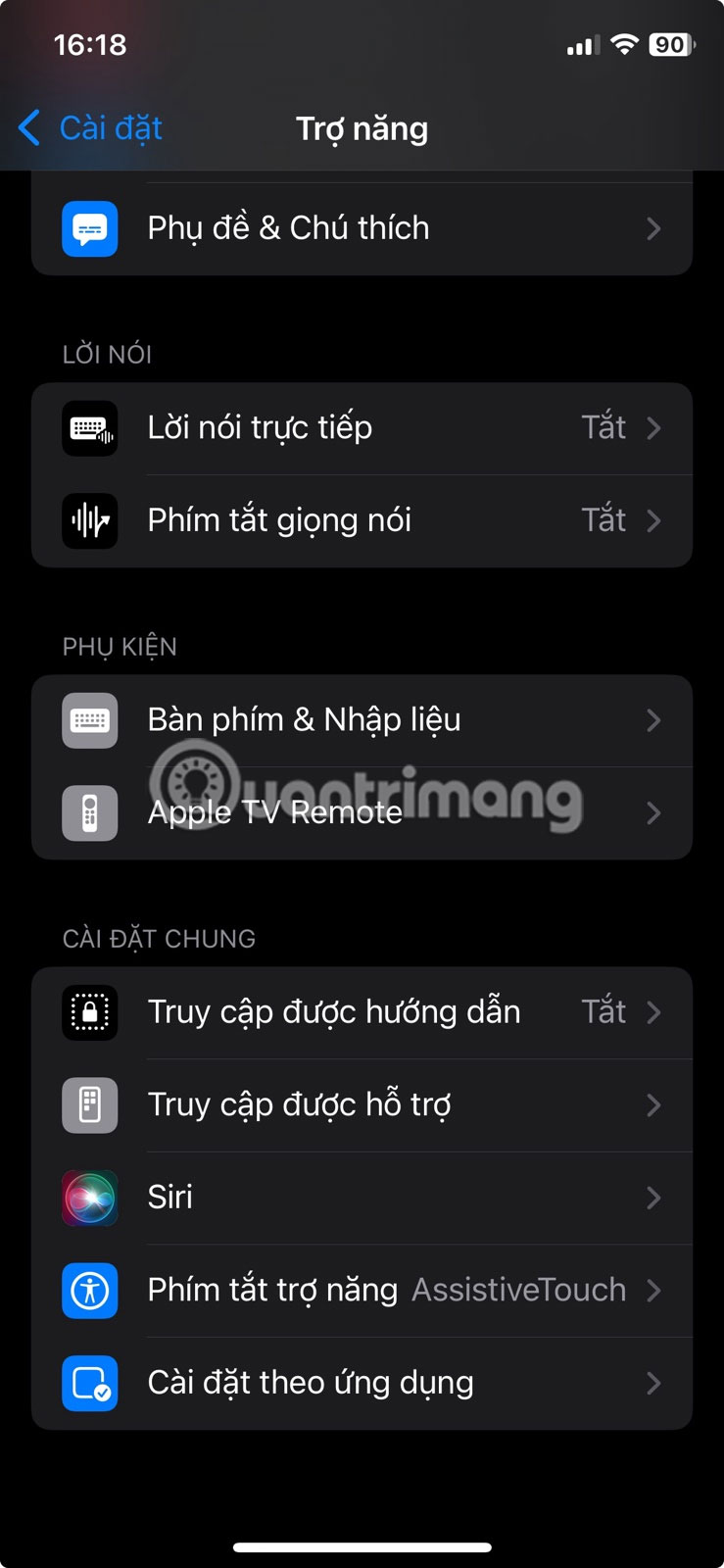
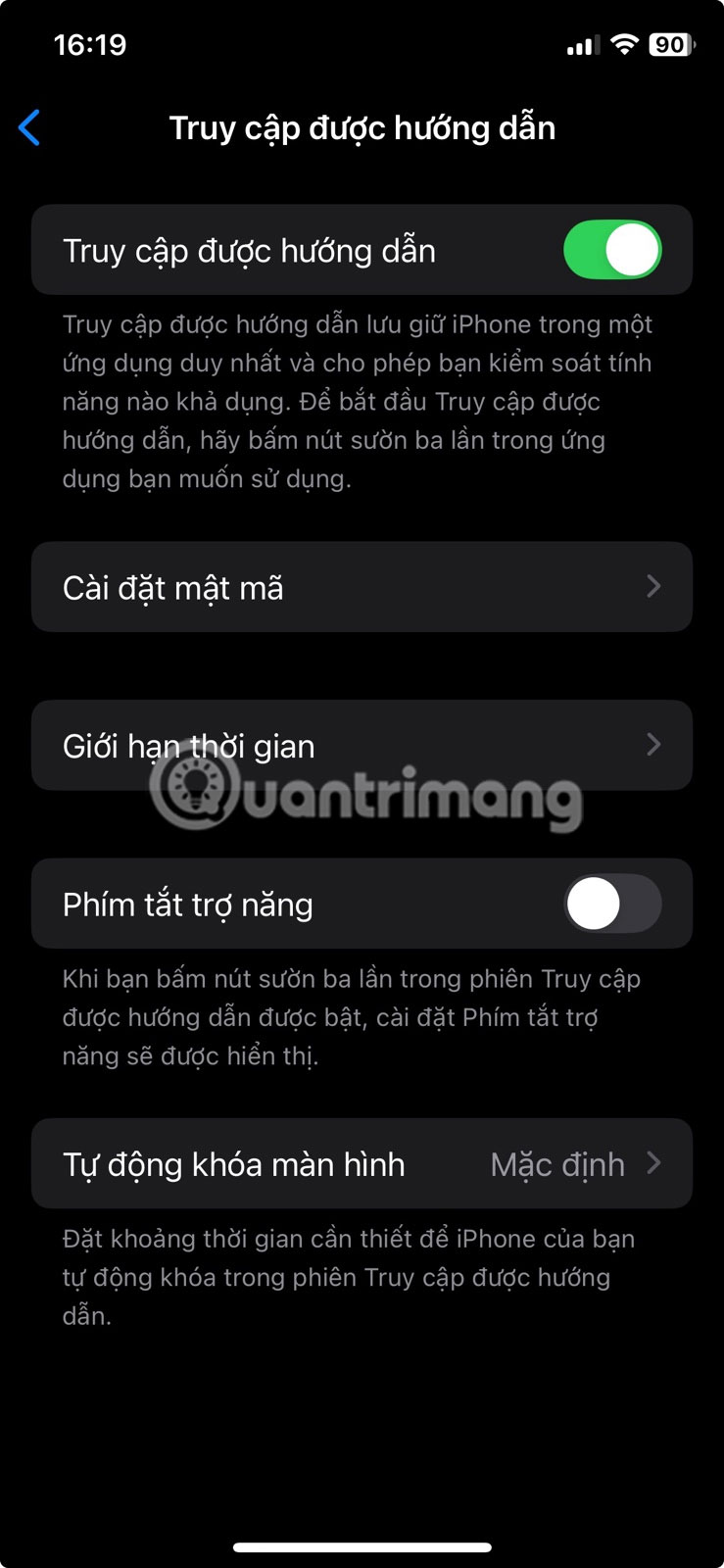
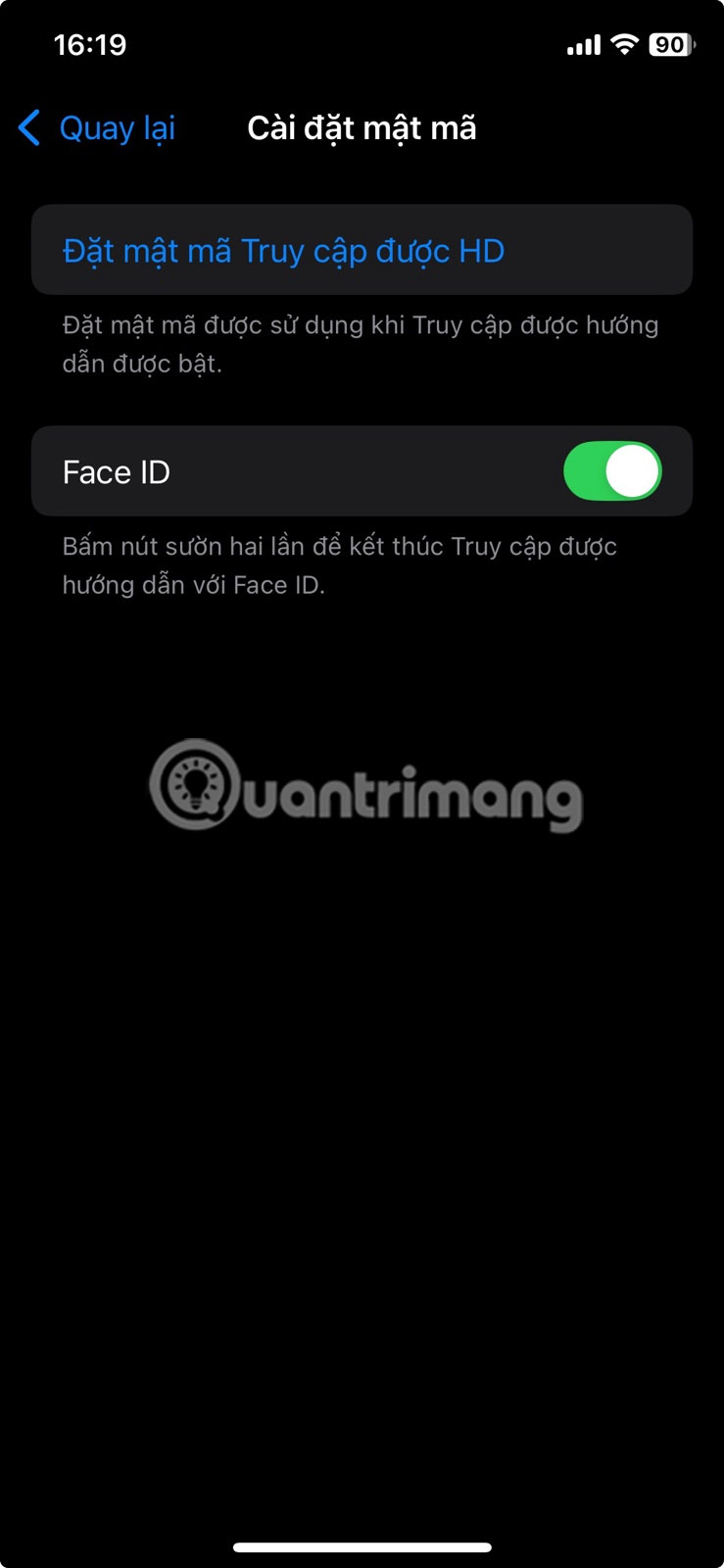
You can also let Face ID or Touch ID end the session. To start, open the app you want, then triple-click the Power button on Face ID models or the Home button on older models.
You can use this feature when handing your phone to a friend for a quick call or to show them specific information. It will keep them inside the app you have open, preventing them from accidentally (or intentionally) checking messages, photos, or any other personal information.
1. Get a warning when holding your iPhone too close
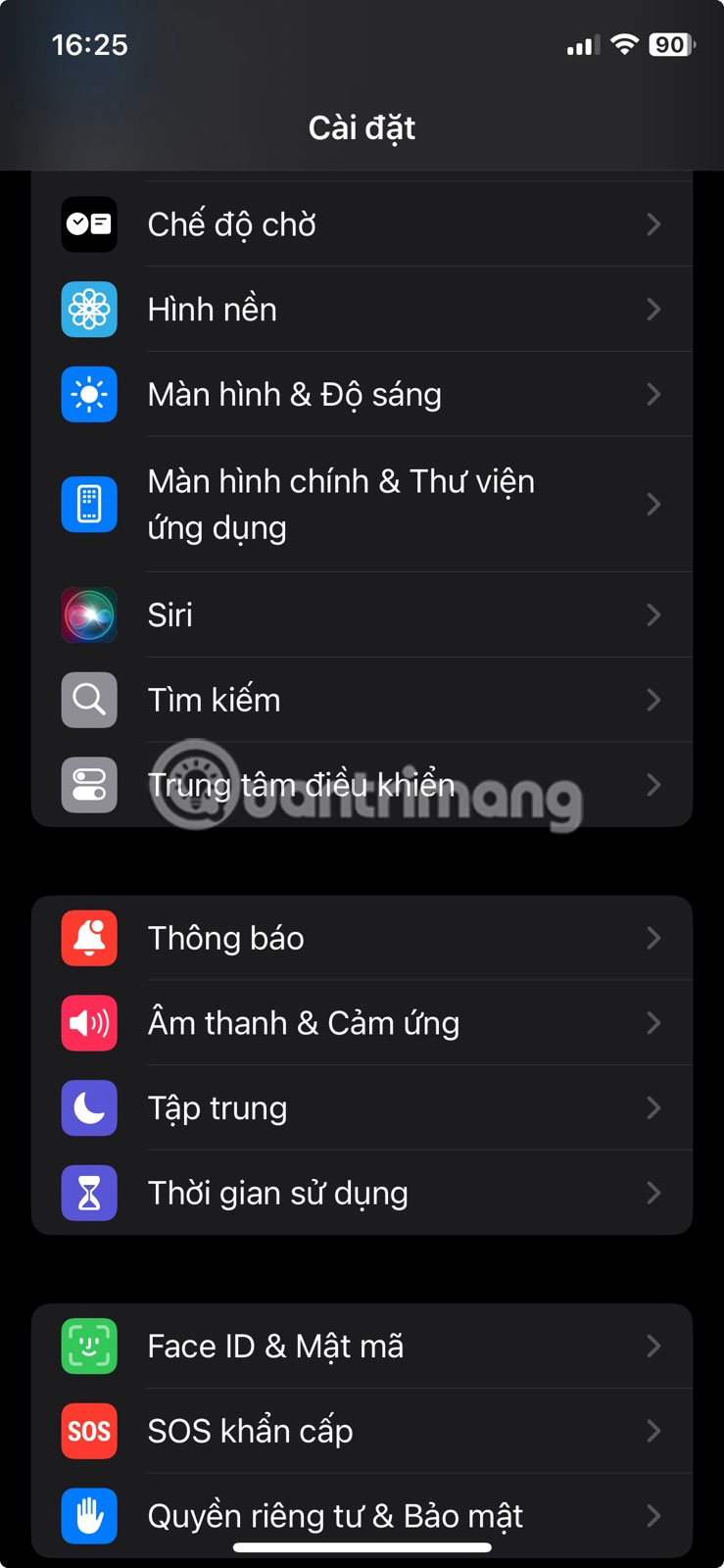
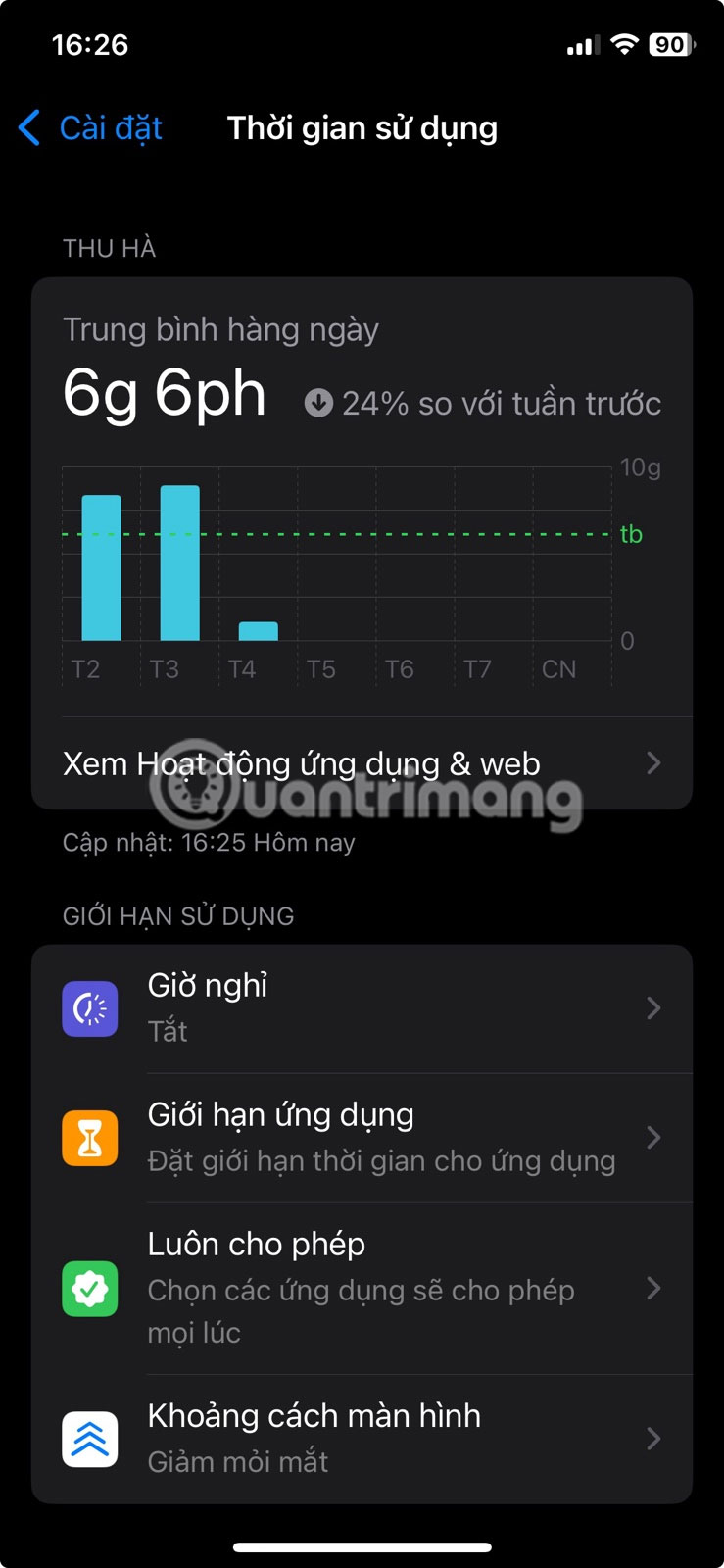
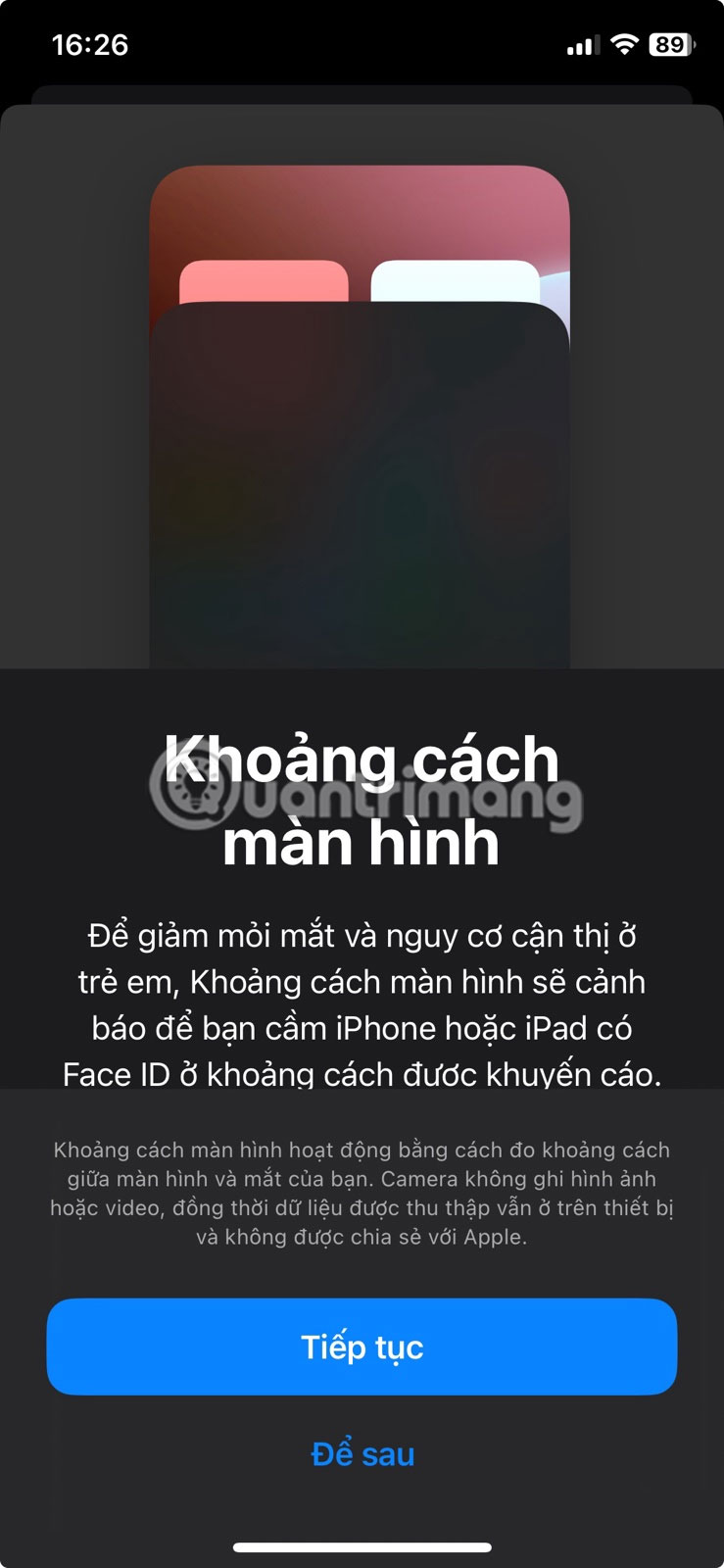
Screen Distance uses the TrueDepth camera to detect when you're holding your iPhone too close to your face for too long, then prompts you to move it further away. Over time, this can reduce digital eye strain and help you develop healthier viewing habits.
To turn it on, open Settings , tap Screen Time , then select Screen Distance and turn it on. If you hold the screen closer than 30cm to your eyes for a while, your iPhone will cover the screen with a warning. Move the screen back and tap Continue to continue.
Final Thoughts
Overall, 6 Settings to Enable When Using iPhone is best understood by considering the main facts, practical context, and limitations together. Use the details above as a clear starting point and confirm time-sensitive information when necessary.
FAQ
What does this article explain about 6 Settings to Enable When Using iPhone?
Some iPhone features you'll never use, while others become non-negotiable once you try them. Here are 6 settings you need to enable when using your iPhone!
What should you know about 6. Stolen Device Security?
Apple has added Stolen Device Protection to protect you if someone steals your iPhone and knows your passcode. It blocks quick takeovers by requiring Face ID or Touch ID for sensitive actions and, when necessary, adds a short delay before changes are made.
Should time-sensitive details be verified?
Yes. Software features, game codes, product specifications, prices, and research findings can change. Confirm important details with an official or primary source when accuracy affects your decision.
Related Articles
 9 iPhone Settings to Change for Privacy and Convenience9 minutes read
 How to Enable Advanced Settings on Windows 114 minutes read
 How to Enable Developer Mode on iPhone4 minutes read
 How to Receive Full Screen Calls on iPhone3 minutes read
 7 Annoying iPhone Settings to Change8 minutes read
 How to Enable Private WiFi on iPhone3 minutes read
Reader Comments 0
Sign in with email or Google to join the discussion.