Table of Contents
Android 16 has a lock screen widget that allows you to change the lock screen to your liking, making the lock screen much more useful thanks to the new widget panel that is extremely convenient, especially when the device is charging. Here is a guide to using Android lock screen widgets.
How to use Android lock screen widgets
Step 1:
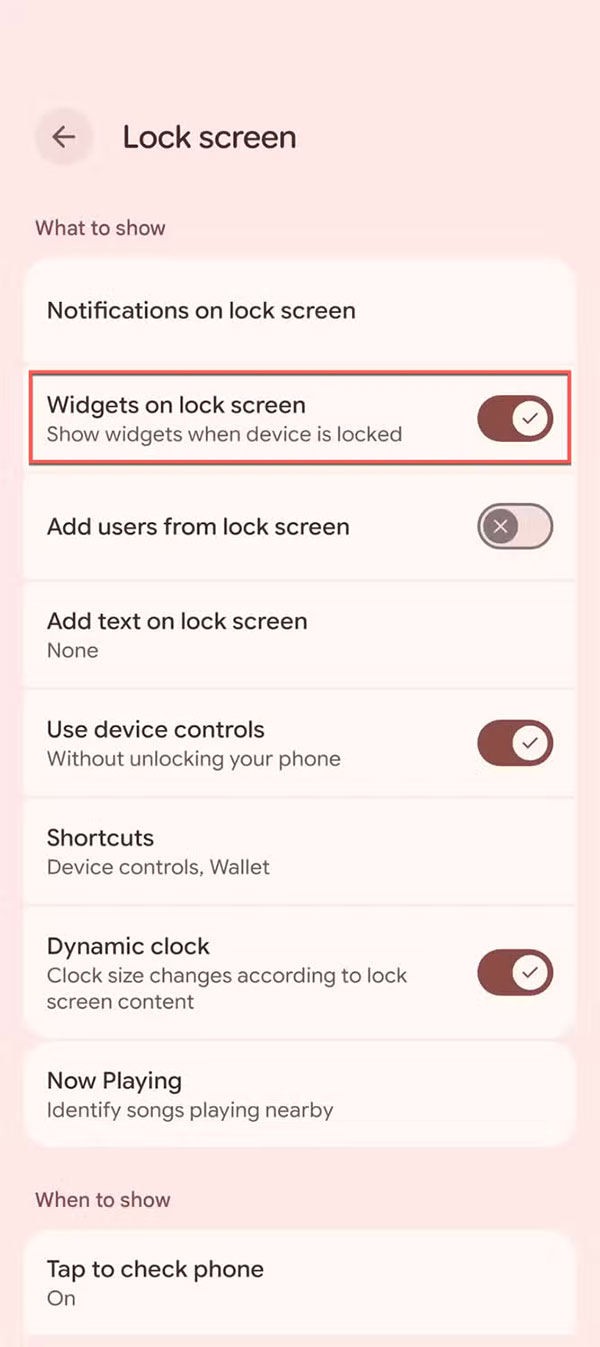
There are 2 ways to enable this setting. You can go to Settings > Display & touch > Lock screen > Widgets on lock screen and enable the setting to use.
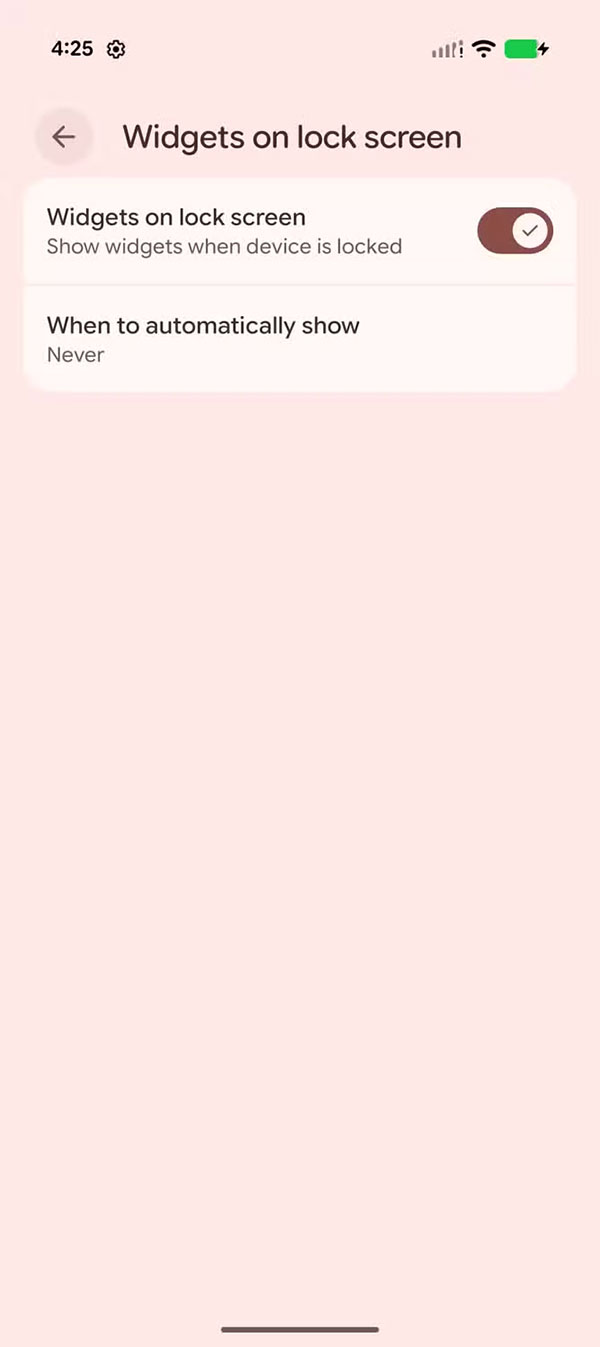
Or we go to Settings > Display & touch > Widgets on lock screen and turn it on.
Step 2:
To edit the lock screen widget, we swipe to the widget panel, press and hold a widget or any empty space, the edit menu will appear. From there, you can add, remove and resize widgets.
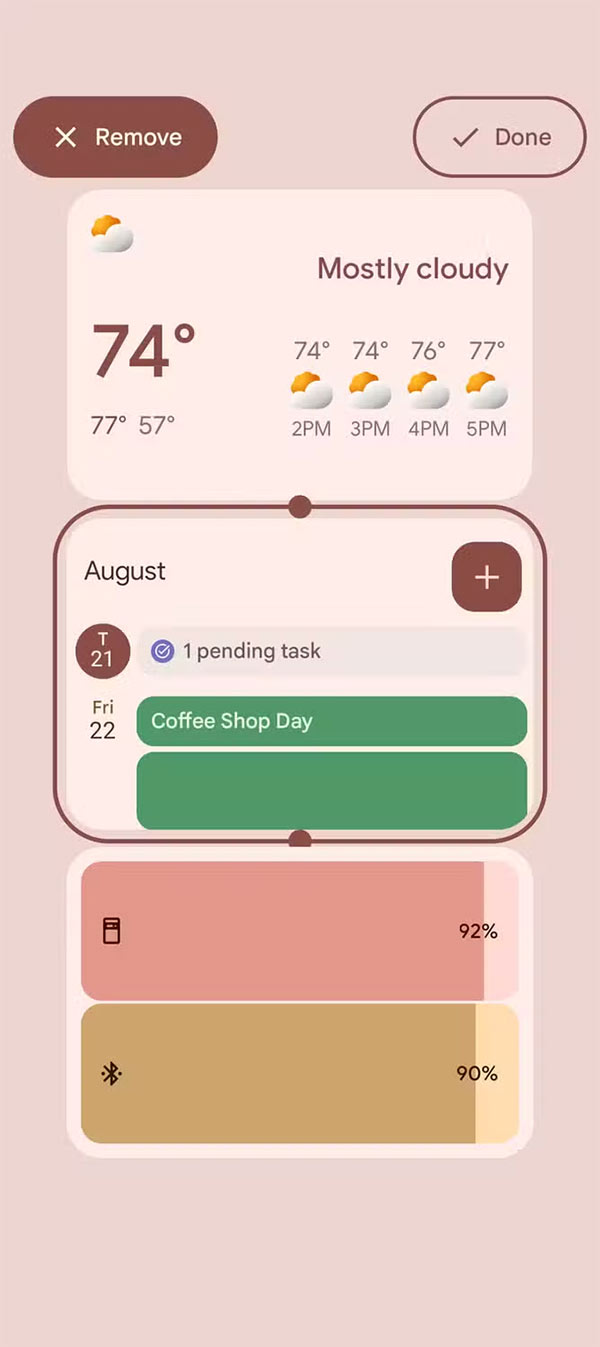
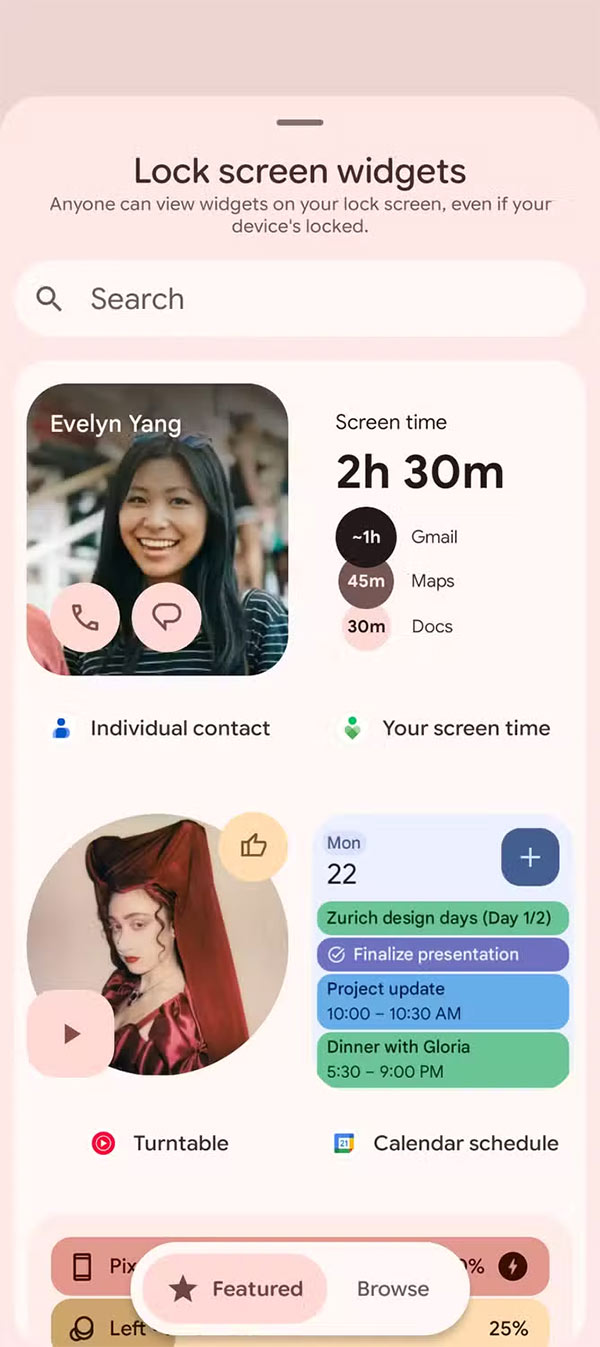
If widgets don't fit on the lock screen page, they will automatically overflow to another page. Currently, widgets can only be resized vertically.
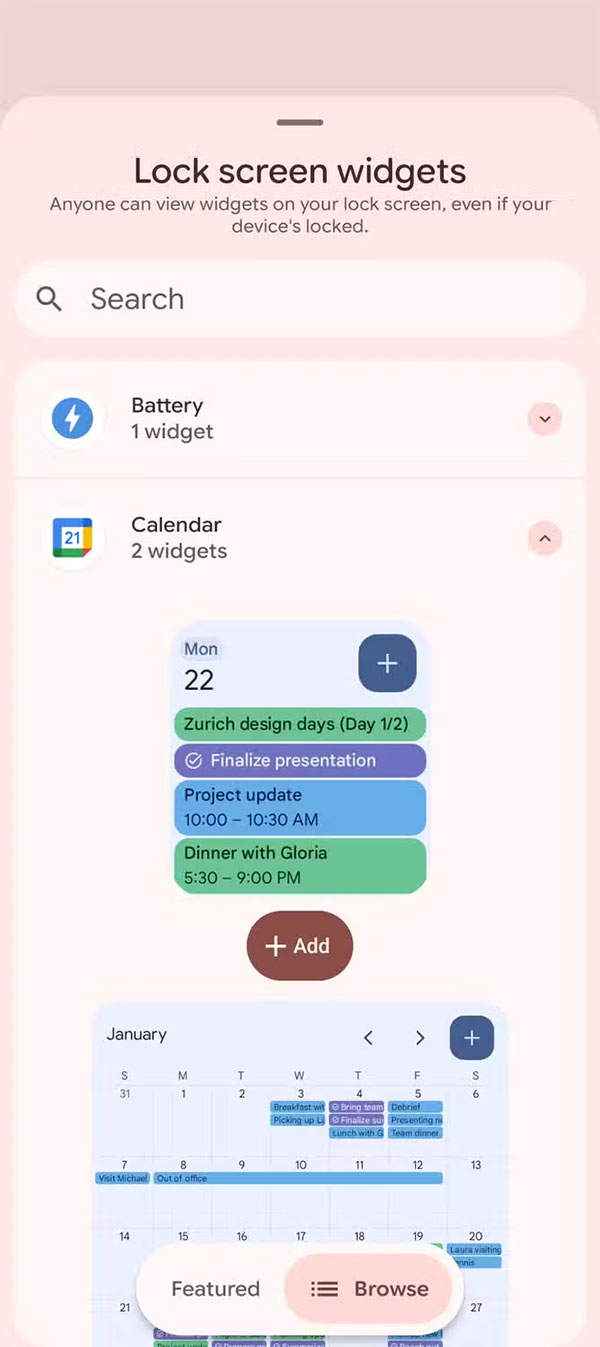
Note, the lock screen widget feature is currently being tested on the latest Android 16 QPR2 Beta 1 on Pixel 6, Pixel 6 Pro, Pixel 7, Pixel 7 Pro, Pixel 7a, Pixel Tablet, Pixel Fold, Pixel 8, Pixel 8 Pro, Pixel 8a, Pixel 9, Pixel 9 Pro, Pixel 9 Pro XL, Pixel 9 Pro Fold, and Pixel 9a.
Final Thoughts
Following the steps in order and checking version-specific settings should make it easier to Use Android Lock Screen Widget. If an option looks different, verify the device, app, or operating-system version before changing additional settings.
FAQ
What is the best way to Use Android Lock Screen Widget?
Start with the requirements described in the article and follow the steps in order. Android 16 has a lock screen widget that allows you to change the lock screen to your liking, making the lock screen much more useful thanks to the new widget panel that is extremely convenient, especially when the device is charging.
What should you know about How to use Android lock screen widgets?
There are 2 ways to enable this setting. You can go to Settings > Display & touch > Lock screen > Widgets on lock screen and enable the setting to use.
What should you do if the instructions do not match your screen?
Check the device, software version, account permissions, and regional settings. Interfaces can change after updates, so use the closest matching option and consult the official support documentation when necessary.
Related Articles
 Are You Using Your Iphone's Handy Lock Screen Widget Feature?6 minutes read
 How to Activate the New Lock Screen Widget on Windows 11: Practical Guide4 minutes read
 8 Best Lock Screen Apps for Android: Lock Screen App for Android7 minutes read
 14 Best Android Screen Lock Apps for Your Creativity11 minutes read
 Custom Android Lock Screen Tips You Shouldn't Overlook7 minutes read
 9 Android Phone Lock Screen Security Settings9 minutes read
Reader Comments 0
Sign in with email or Google to join the discussion.