Table of Contents
Turning on iPhone message vibration helps you quickly detect when a new message arrives, in case you turn on iPhone silent, or do not use sound mode on new messages on iPhone. Users can choose the type of message vibration they want to use. Below are instructions for turning on message vibration on iPhone.
How to enable message vibration on iPhone
Step 1:
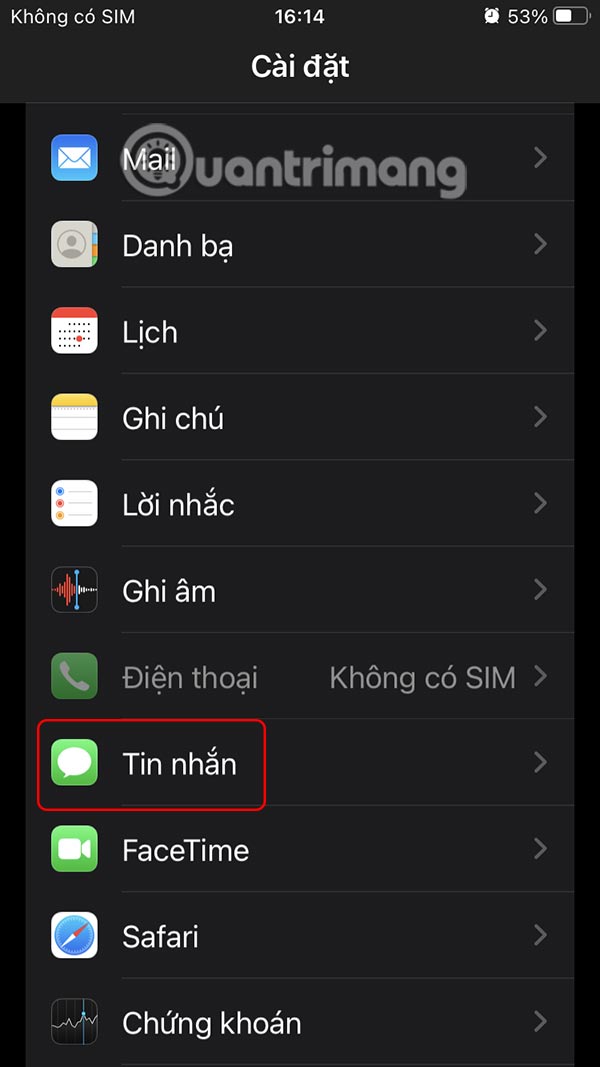
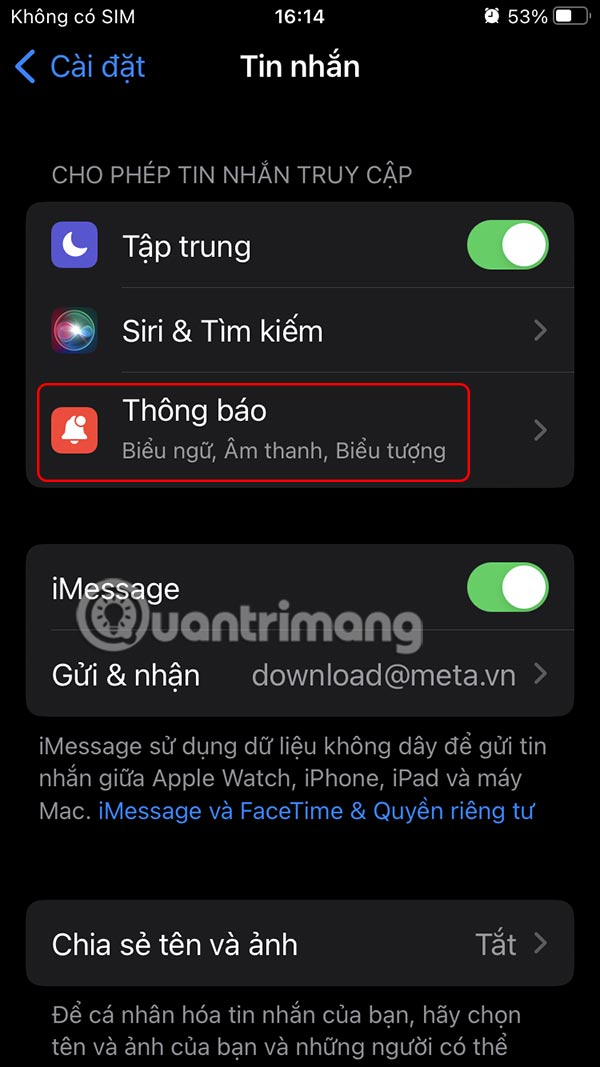
You access Settings on iPhone then select the Messages application . Next we select Notifications to proceed with adjustment.
Step 2:
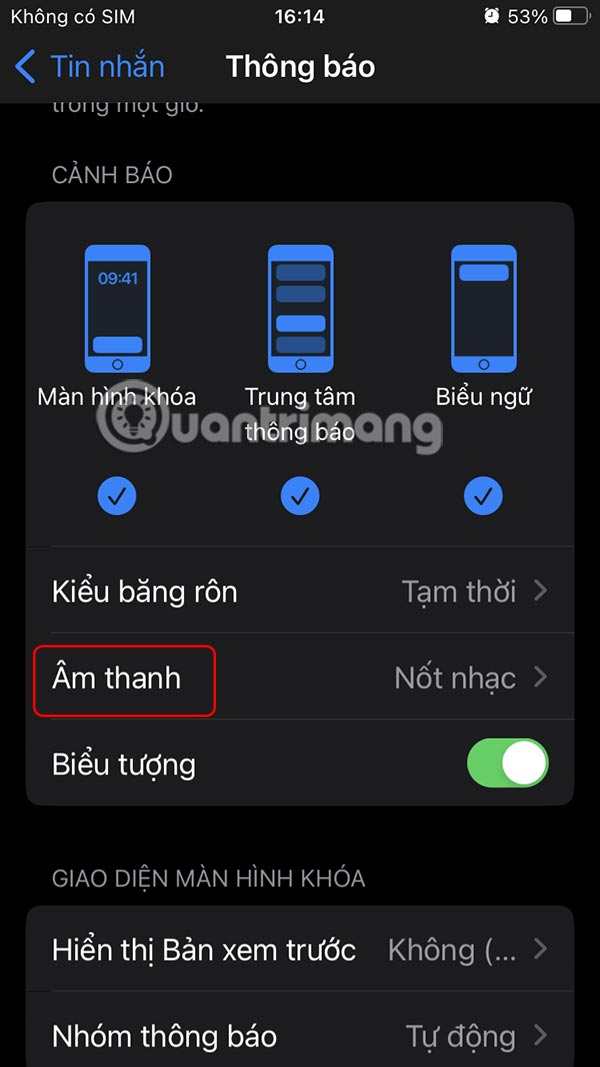
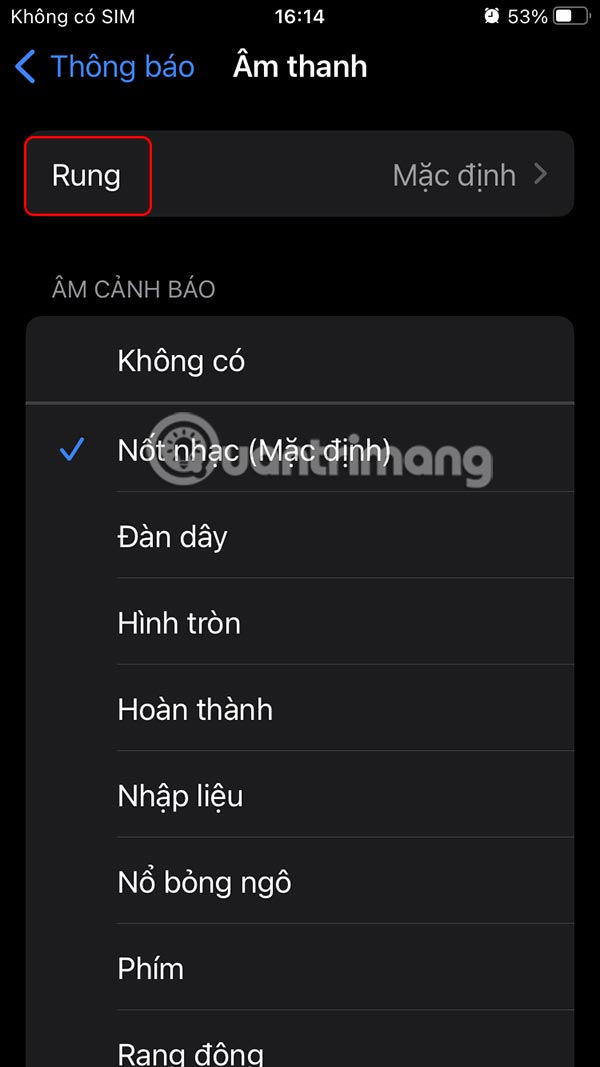
In the notification interface for messages on iPhone, select Sound . Then select Vibrate to use vibration mode for messages on iPhone.
Step 3:
Here you choose the vibration pattern for messages on iPhone as you like. iPhone automatically saves the vibration pattern for messages on iPhone that you have set.
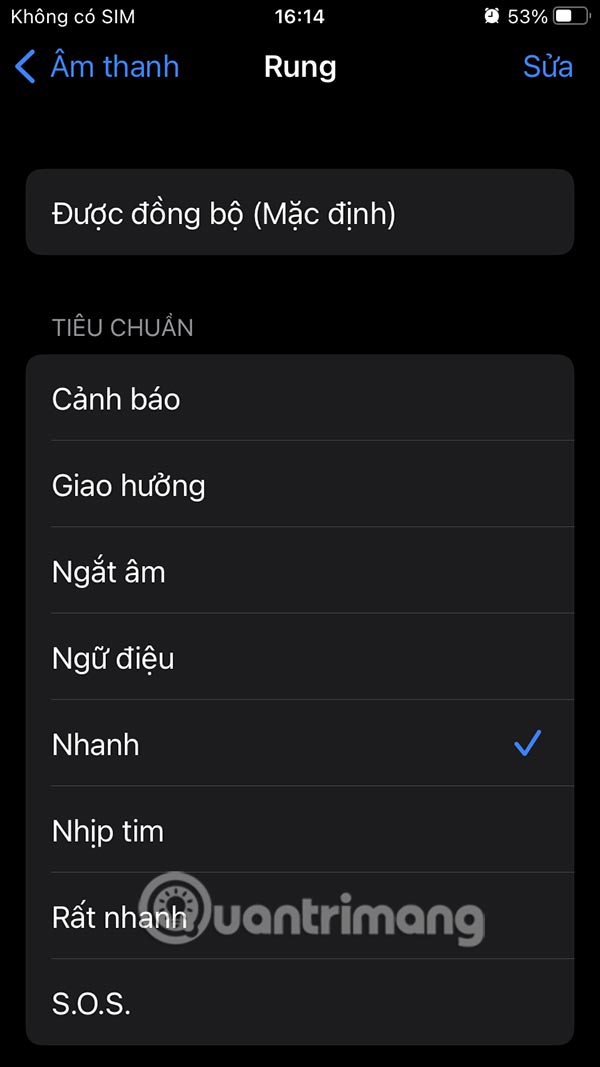
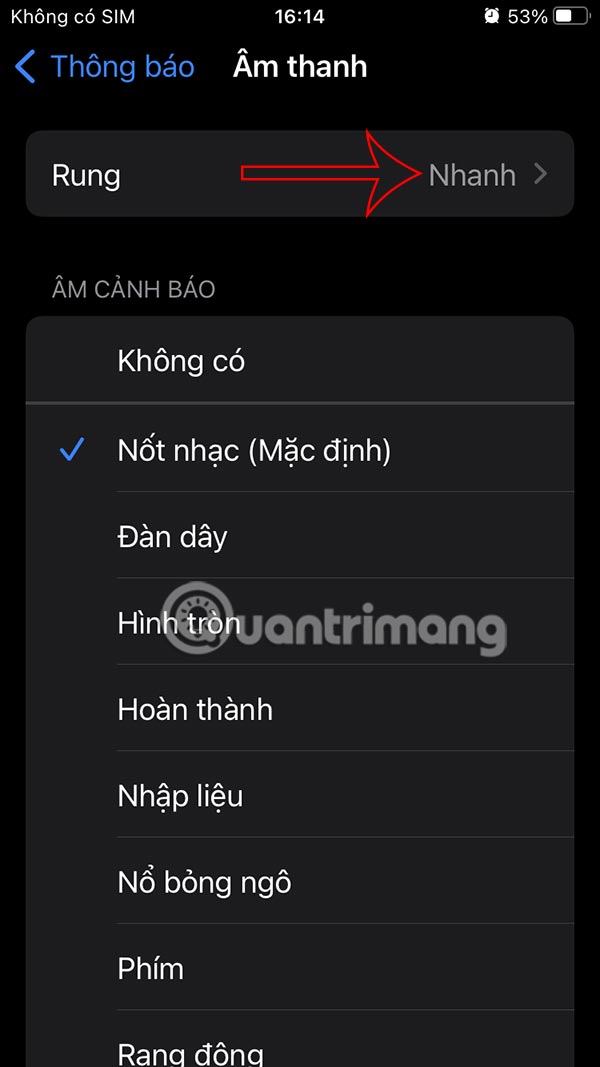
Once enabled, your iPhone will vibrate with a notification sound or vibrate when the device is in Silent mode whenever you receive a new message.
This feature is extremely useful if you leave your iPhone on silent mode or keep it in your pocket and want to know as soon as you get a new message.
Final Thoughts
Following the steps in order and checking version-specific settings should make it easier to Enable Message Vibration on iPhone. If an option looks different, verify the device, app, or operating-system version before changing additional settings.
FAQ
What is the best way to Enable Message Vibration on iPhone?
Start with the requirements described in the article and follow the steps in order. Turning on iPhone message vibration helps you quickly detect when a new message arrives, in case you turn on iPhone silent, or do not use sound mode on new messages on iPhone. Users can choose the type of message vibration they want to use.
What should you know about How to enable message vibration on iPhone?
You access Settings on iPhone then select the Messages application. Next we select Notifications to proceed with adjustment.
What should you do if the instructions do not match your screen?
Check the device, software version, account permissions, and regional settings. Interfaces can change after updates, so use the closest matching option and consult the official support documentation when necessary.
Related Articles
 How to Turn Off Vibration in Silent Mode on iPhone7 minutes read
 The Meaning of Each Bell, Iphone Vibration When Plugged In3 minutes read
 5 Steps to Set the Vibration Mode Characteristic for Callers on iPhone3 minutes read
 How to Enable Priority Notifications on iPhone - Create Notification Vibration3 minutes read
 How to Set an iPhone Alarm That Only Vibrates Without Sound3 minutes read
 Do Whole-body Vibration Machines Work as Advertised?8 minutes read
Reader Comments 0
Sign in with email or Google to join the discussion.