Table of Contents
By default, your iPhone only remembers the last text or image you copied, so anything copied before that will be immediately deleted. Luckily, you can give your iPhone a proper clipboard history using the Shortcuts app.
Build clipboard history with Notes and Shortcuts apps
Since the clipboard is something that people use every day, many people start looking for alternatives. The simplest thing you can do is paste everything you copy into a note, whether it's a link, a piece of text, or even an image. That way, you'll have a running list of what you've copied throughout the day.
But doing this manually is impractical. It interrupts whatever you're doing, and most of the time you'll forget to do it. After some experimentation, some people have figured out how to automate the process so that whatever they copy gets pasted into a note with ease. That's where the Shortcuts app comes in.
Apple's Shortcuts app lets you create custom automations that chain together different actions. In this case, it's the perfect solution. You can set up a shortcut to take whatever's on your clipboard and add it directly to a note in the Notes app.
The principle is simple: Copy something, activate the shortcut, and it will be saved in your running "clipboard history" note. You only need to set it up once, and the benefits are huge.
- Open the Notes app and create a new note with a title similar to Clipboard History .
- Launch the Shortcuts app and tap the plus icon to create a new shortcut.
- Search for Clipboard and select Get Clipboard .
- Search for Append to Note and select it.
- Tap on the Note option and select the note you just created for the clipboard.
- Rename the shortcut to Clipboard History and press Done .
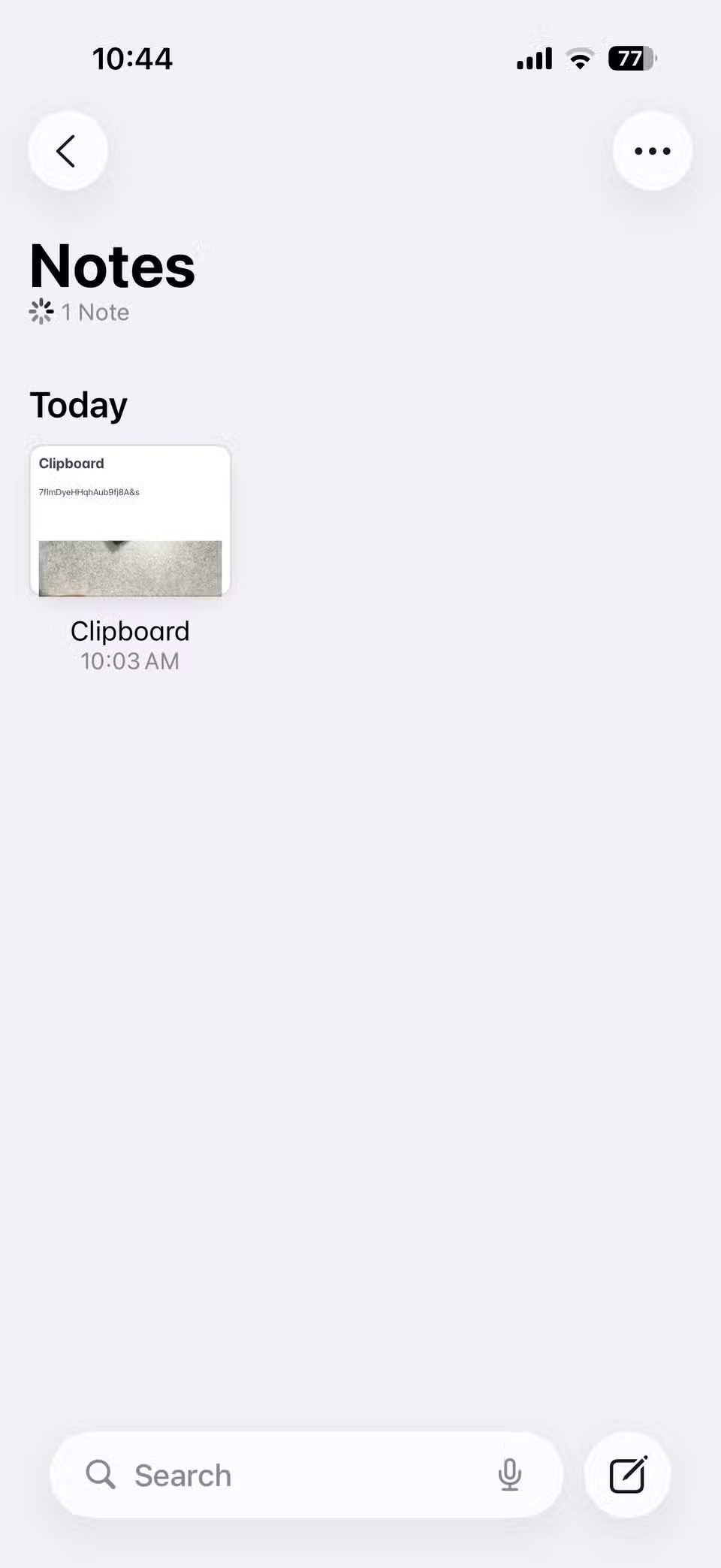
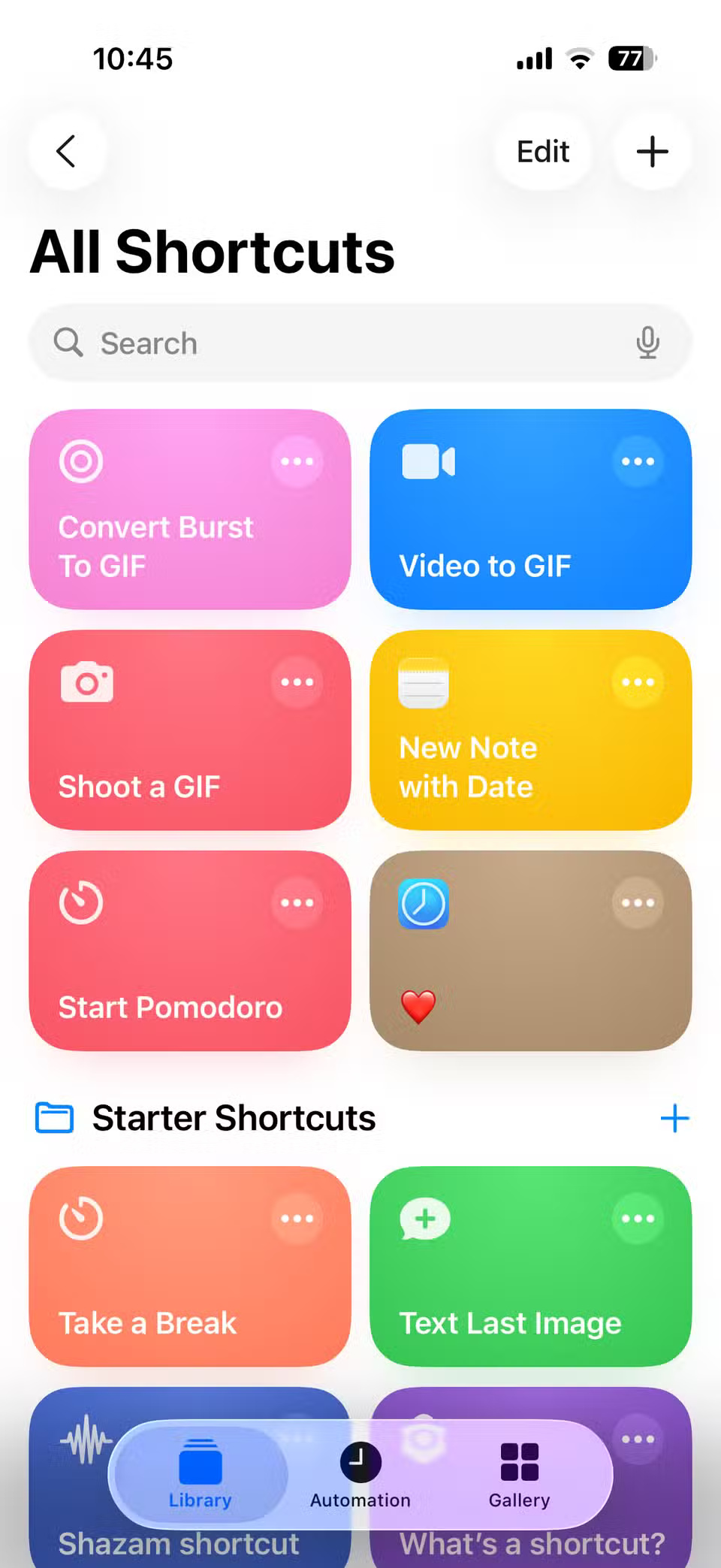
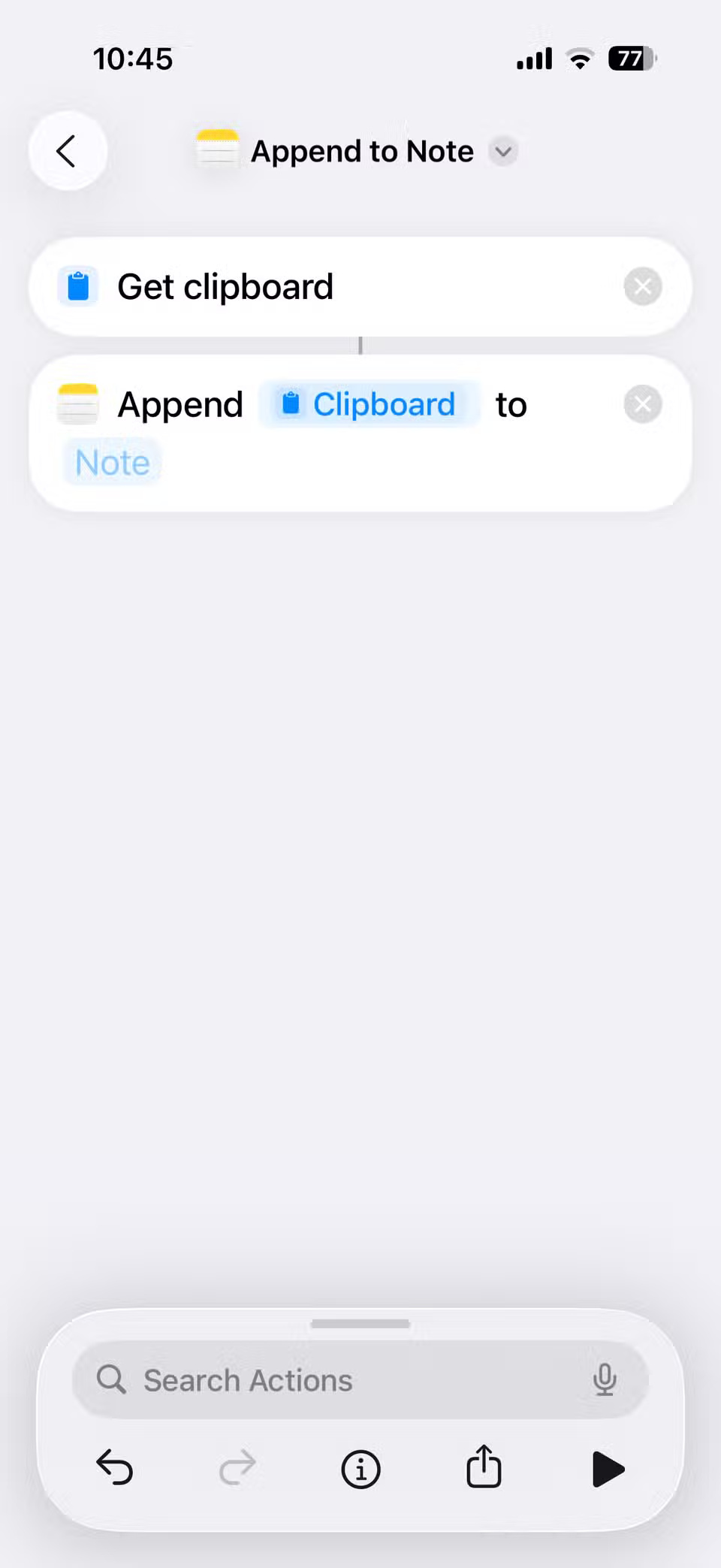
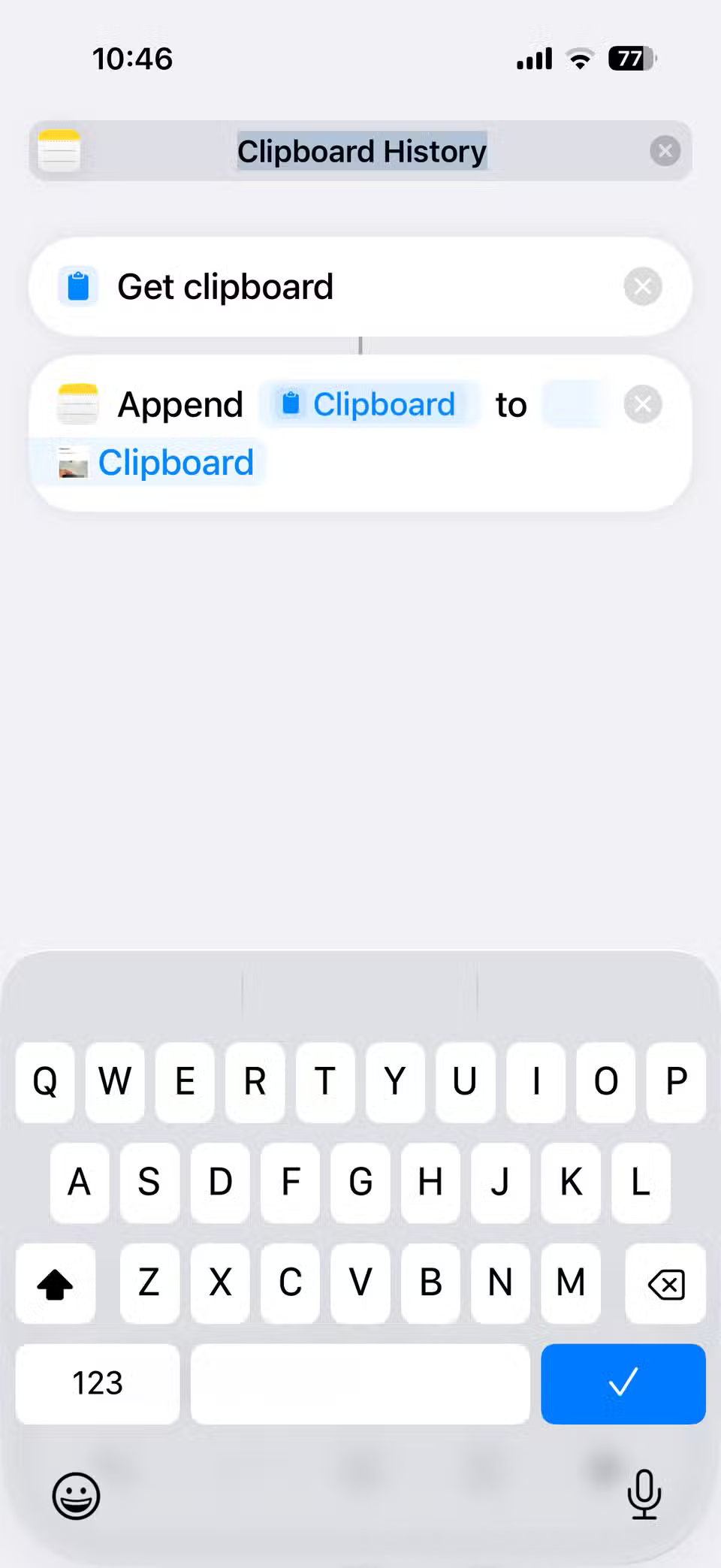
And that's it! You now have an automated feature that can automatically paste your most recently copied text or image into your notes.
Easy shortcut activation
Creating a shortcut to save your clipboard is great, but the real magic happens when it's easy to activate. Luckily, you don't have to copy the content and open the Shortcuts app every time to get it to work.
There are a few ways to make this process smoother. You can put the clipboard shortcut on your home screen or even your lock screen, add it to Control Center, or map it to the Action button if your iPhone has one. All of these make it easier to activate the shortcut, but the most convenient way is to use Back Tap.
Back Tap lets you trigger actions by double or triple tapping the back of your iPhone. It feels completely natural in everyday use — you copy something, tap the back of your iPhone, and the shortcut runs instantly. No need to open an app or dig through menus.
- Open the Settings app and go to Accessibility > Touch > Back Tap .
- Select Double Tap or Triple Tap .
- Scroll through the list of actions and tap your Clipboard History shortcut.
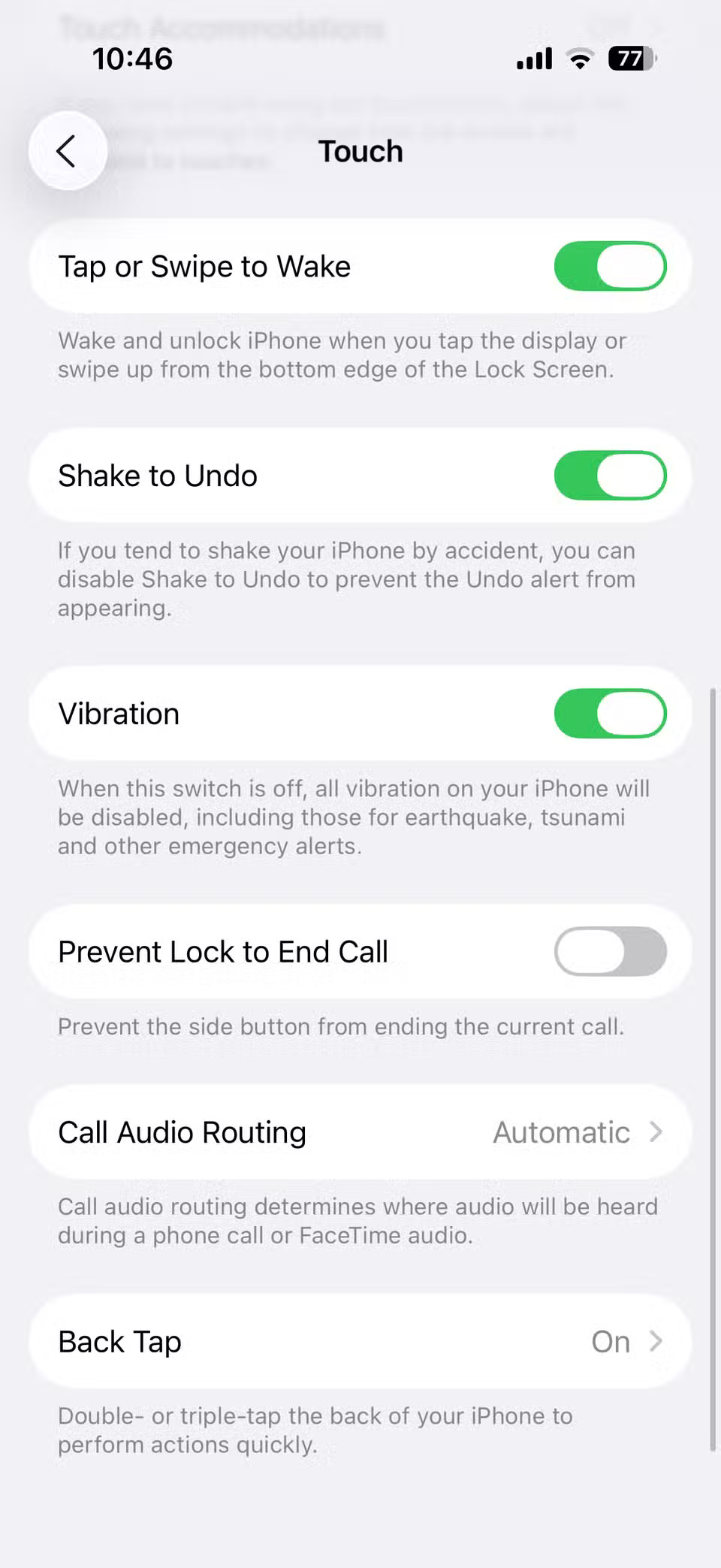
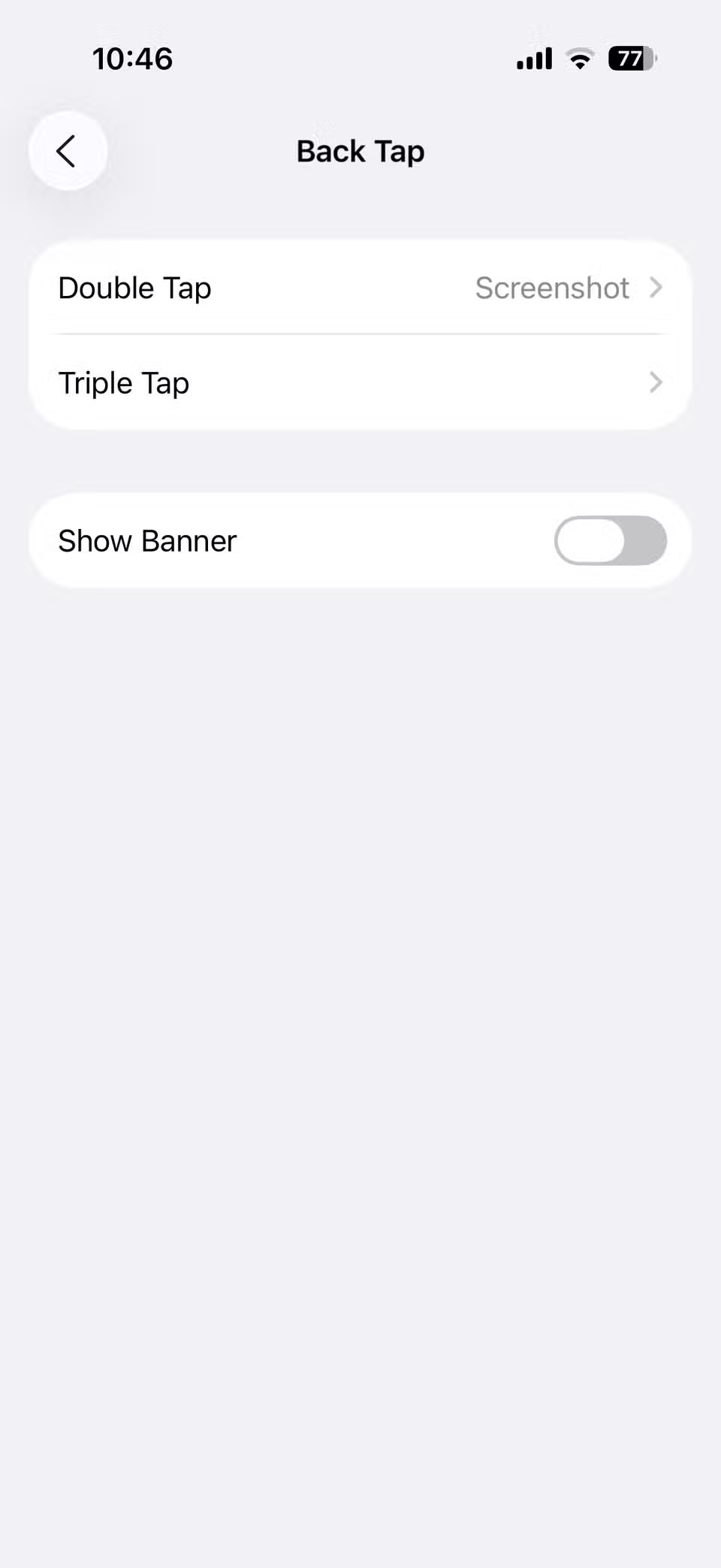
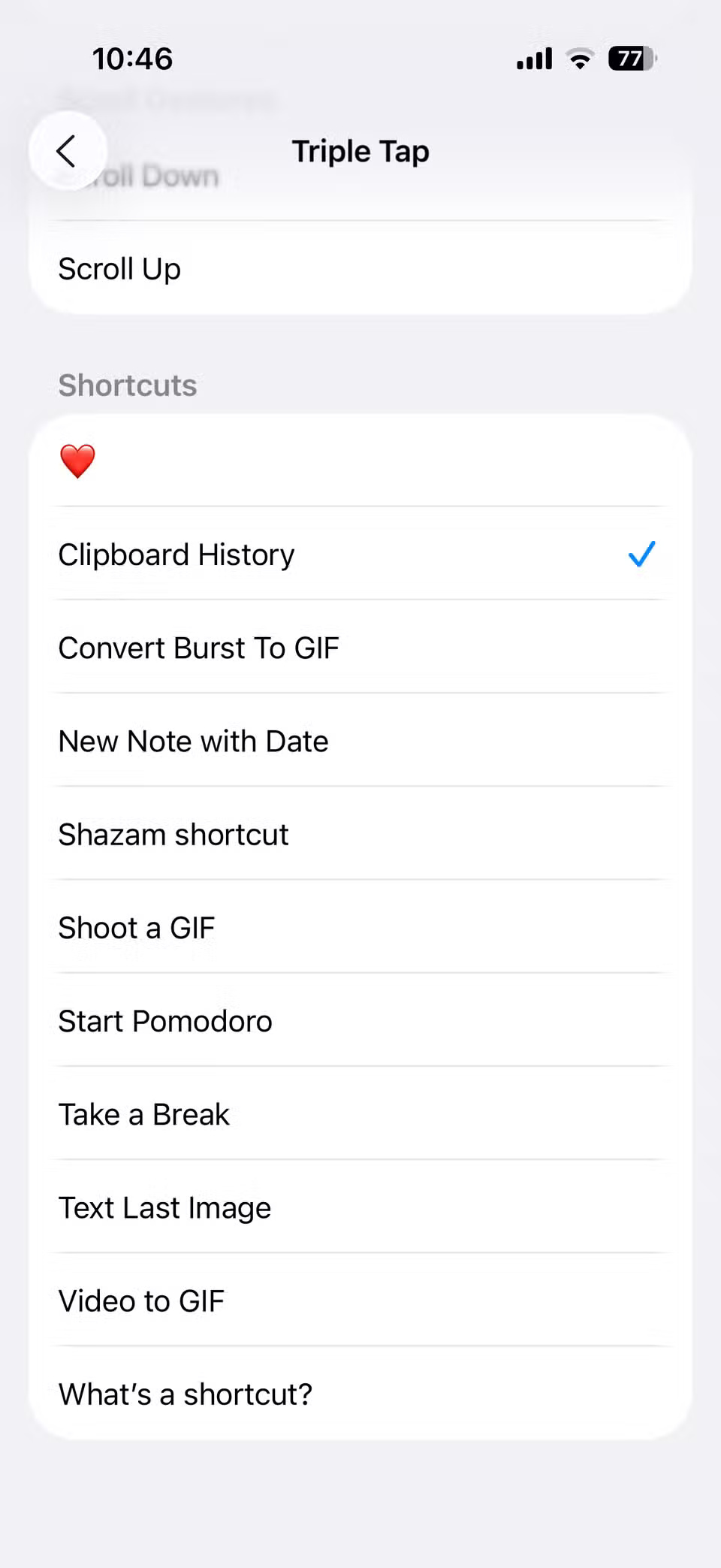
Once set up, you're ready to go. Copy a text or image, double-tap the back of your iPhone, and it'll instantly appear in your notes.
The great thing about this setup is that your clipboard history only contains the items you actually want to keep, not everything you copy. Plus, you can sync notes via iCloud, so anything saved on your iPhone is instantly accessible on your iPad or Mac.
There are a number of Android features that users wish Apple would bring to the iPhone, but clipboard history is at the top of that list. It's one of those features that once you start using it, you can't imagine life without it.
By combining the Notes app, Shortcuts, and Back Tap, you can set up a workflow that allows anything you copy to be instantly saved to a note. If you've ever been frustrated by the lack of a clipboard history on your iPhone, this workaround is a total game changer.
Final Thoughts
Following the steps in order and checking version-specific settings should make it easier to Create iPhone Clipboard History with Shortcuts App. If an option looks different, verify the device, app, or operating-system version before changing additional settings.
FAQ
What is the best way to Create iPhone Clipboard History with Shortcuts App?
Start with the requirements described in the article and follow the steps in order. By default, your iPhone only remembers the last text or image you copied, so anything copied before that will be immediately deleted. Luckily, you can give your iPhone a proper clipboard history using the Shortcuts app.
What should you know about Build clipboard history with Notes and Shortcuts apps?
Since the clipboard is something that people use every day, many people start looking for alternatives. The simplest thing you can do is paste everything you copy into a note, whether it's a link, a piece of text, or even an image.
What should you do if the instructions do not match your screen?
Check the device, software version, account permissions, and regional settings. Interfaces can change after updates, so use the closest matching option and consult the official support documentation when necessary.
Related Articles
 Clipboard History: an Extremely Useful but Often 'Forgotten' Feature On4 minutes read
 How to Pin Text and Images to the Windows 10 Clipboard History4 minutes read
 How to Clear Clipboard History on Windows 113 minutes read
 Clipboard History: How to Delete the Clipboard on Windows 106 minutes read
 How to Access and Use Clipboard History on Windows 114 minutes read
 How to Use Clipboard History in Windows 106 minutes read
Reader Comments 0
Sign in with email or Google to join the discussion.