Table of Contents
The following guide provides a clear overview of Gmail tips, with the most relevant background, details, and practical takeaways.
1. Select All Dialog Boxes
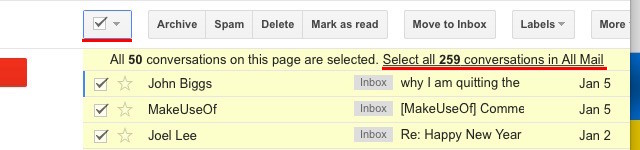
In the usual way, you often mark each box to select each conversation. However this takes a bit of time, you can select all conversations once by clicking on the down arrow icon next to the square icon in the top left corner.
After you've selected all the dialogs in Gmail, you can do other things like delete, store,. With just one click.
2. Display Multiple Contacts and Conversations on the Page
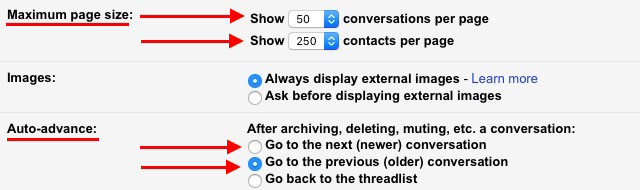
To display multiple contacts and messages on Gmail, go to Settings (located in the jagged icon in the right corner of the screen), search for Maximum page size (Maximum page size). Here you will see two options: Display the conversation per page and display the contacts per page.
- In the Show conversations option on each page you can choose to display up to 100 conversations.
- In the Show contacts per page option, you can choose to display up to 250 addresses.
3. Automatically Forward to the Next Conversation
Every time you handle a conversation like archive, delete. Gmail will bring you back to the main interface by default. So storing or deleting each conversation. Is very time consuming.
However, you can set Gmail to automatically forward to the previous conversation or the next conversation by selecting the appropriate Radio Button located next to Auto-advance in the general settings section.
Also on Gmail, there are many other hidden features that even longtime Gmail users won't discover.
You Can Refer to More:
- 8 useful tips for Gmail users
- How to delete Gmail and Google accounts
- Set up auto-sending, Forward email to another account in Gmail?
Good luck!
FAQ
What is the main topic of 3 Good Tips to Help You Manage Inbox on Gmail More Effectively?
The following guide provides a clear overview of Gmail tips, with the most relevant background, details, and practical takeaways.
Why is Gmail tips important?
Select All Dialog Boxes In the usual way, you often mark each box to select each conversation.
What should readers remember about Gmail tips?
However this takes a bit of time, you can select all conversations once by clicking on the down arrow icon next to the square icon in the top left corner.
Related Articles
 How to Put the Inbox Interface into Gmail11 minutes read
 How to Delete Inbox Categories in Gmail4 minutes read
 Good Tips for Using Gmail More Effectively on Laptops and PCs: What You Need to Know7 minutes read
 Google Inbox by Gmail Application Officially Stopped Working on April 2, 20193 minutes read
 Learn About Google Inbox Email Application4 minutes read
 Use Gmail Labels to Tame Your Inbox7 minutes read
Reader Comments 0
Sign in with email or Google to join the discussion.