Table of Contents
Command Prompt is still useful for Windows troubleshooting when you know what a command checks and what it can change. The 15 entries below cover network diagnosis, system repair, processes, drivers, power reports, file associations, and built-in help. Examples apply to Windows 10 and Windows 11 unless noted.

Open Command Prompt normally for read-only checks. Use Run as administrator only for commands marked as requiring elevation. Before using a switch you do not recognize, run command /?. Microsoft also maintains an A–Z reference for Windows commands.
1. ipconfig: inspect or refresh network settings
ipconfig
ipconfig /all
ipconfig /flushdns
ipconfig displays local adapter addresses, subnet masks, and default gateways. Add /all for details such as DHCP and DNS servers. /flushdns clears the local DNS resolver cache and is useful after a DNS record changes.
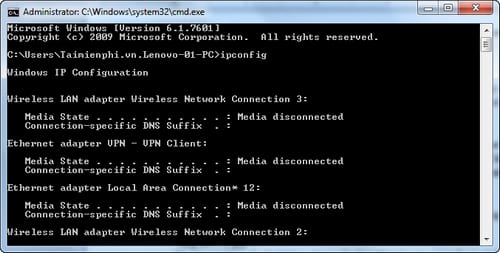
ipconfig /release and ipconfig /renew release and request a DHCP lease. They temporarily interrupt network access and do not change a public IP address on demand, so use them only when diagnosing DHCP problems.
2. ping: test basic IP reachability
ping 1.1.1.1
ping tipsmake.com
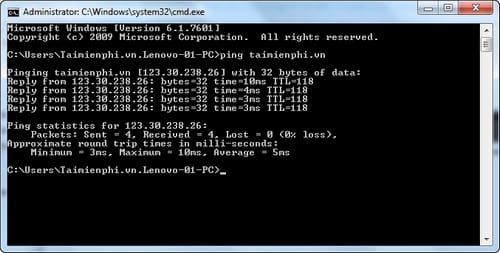
ping sends ICMP echo requests and reports replies and round-trip time. Comparing an IP-address test with a domain-name test can help separate a general connection problem from a DNS problem. A failed ping is not conclusive: a firewall or destination may block ICMP even while a website works. It is also not an internet speed test.
3. tracert and pathping: examine the route
tracert tipsmake.com
pathping tipsmake.com
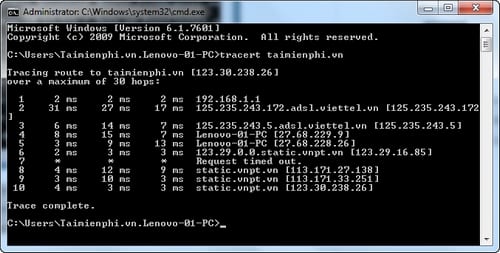
tracert lists the network hops toward a destination and measures a response time for each probe. Asterisks may simply mean that a router does not answer that type of probe.
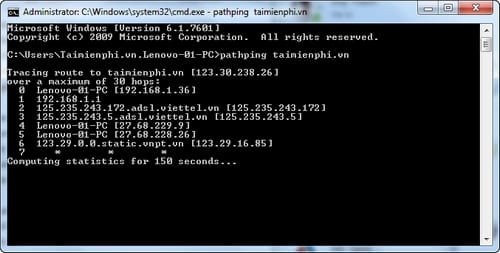
pathping combines route discovery with additional packet-loss measurements. It takes longer to finish but can help identify where loss appears along a route. Do not assume that a single slow intermediate hop is the cause if later hops respond normally.
4. netstat: review connections and listening ports
netstat -ano
netstat -ab
netstat -ano shows active connections, listening endpoints, numeric addresses, and process IDs. Match a PID with Task Manager or tasklist. The -b switch attempts to show the executable involved and usually needs an elevated session.
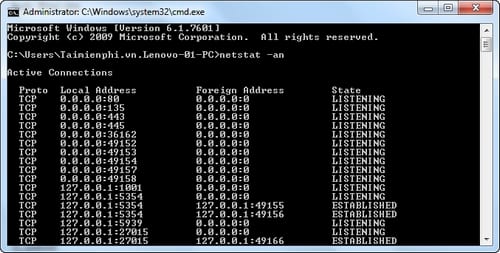
A connection in this list is not evidence of malware by itself. Browsers, update services, and background apps routinely create connections; investigate the process, destination, and context before drawing a conclusion.
5. shutdown: schedule or cancel a shutdown
shutdown /s /t 60
shutdown /a
shutdown /r /t 0
shutdown /r /o /t 0
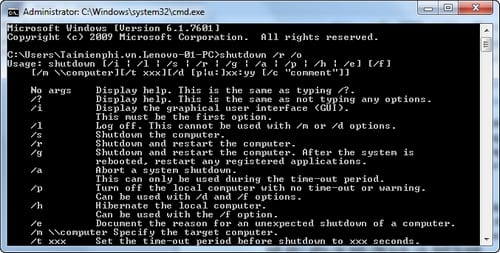
The first command shuts down after 60 seconds; shutdown /a cancels a pending shutdown during its timeout. /r restarts, while /r /o restarts into advanced startup options. Save open work first.
6. DISM and SFC: repair Windows components and files
DISM /Online /Cleanup-Image /RestoreHealth
sfc /scannow
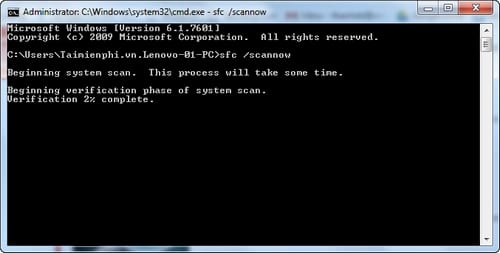
Run these in an elevated Command Prompt when Windows files may be damaged. DISM repairs the component store used as a source for repairs; after it completes, SFC verifies protected system files and replaces incorrect versions where possible. Neither command is a general cure for hardware failures, driver bugs, or every Windows error.
7. tasklist: list running processes
tasklist
tasklist /svc
tasklist /fi "IMAGENAME eq notepad.exe"
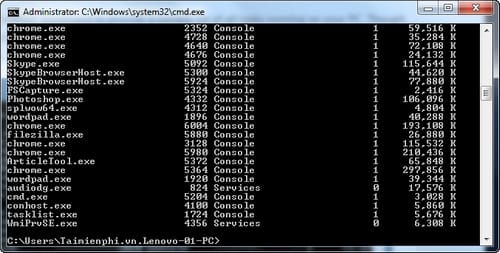
tasklist displays process names and PIDs. /svc includes services hosted by each process, and /fi applies a filter. Some protected or elevated processes may expose limited details in a standard session.
8. taskkill: end a process deliberately
taskkill /PID 1234
taskkill /IM notepad.exe
taskkill /PID 1234 /F
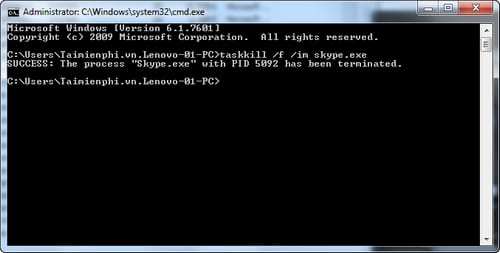
End a process by PID or image name. Try a normal close first; add /F only if the process will not respond, because forcing it to stop can discard unsaved data. Double-check the PID and avoid terminating Windows processes you do not understand.
9. driverquery: inventory installed drivers
driverquery
driverquery /v /fo csv > "%USERPROFILE%\Desktop\drivers.csv"
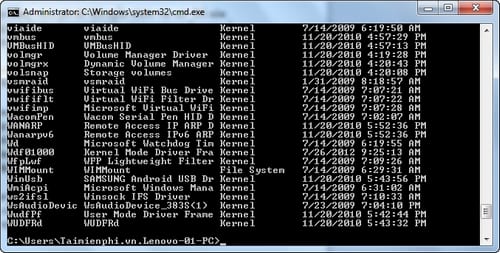
driverquery lists installed device drivers. The second example writes verbose output in CSV format to the desktop for easier review. The command inventories drivers; it does not determine by itself whether a driver is current, compatible, or responsible for a crash.
10. fc: compare two files
fc "C:\Temp\old.txt" "C:\Temp\new.txt"
fc /b "C:\Temp\old.bin" "C:\Temp\new.bin"
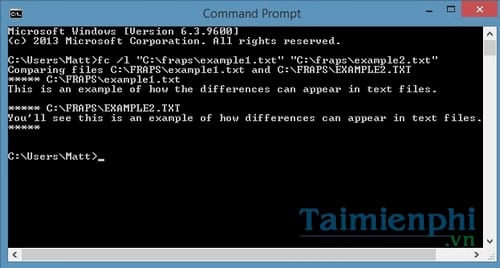
fc compares text files and reports differing lines. Use /b for a byte-by-byte binary comparison and /c for a case-insensitive text comparison. Quote paths that contain spaces.
11. powercfg: inspect power and battery behavior
powercfg /a
powercfg /lastwake
powercfg /requests
powercfg /batteryreport /output "%USERPROFILE%\Desktop\battery-report.html"
powercfg /a lists available sleep states, /lastwake reports what last woke the computer when Windows has that data, and /requests lists active requests that may prevent sleep. On a battery-equipped device, /batteryreport creates an HTML usage report.
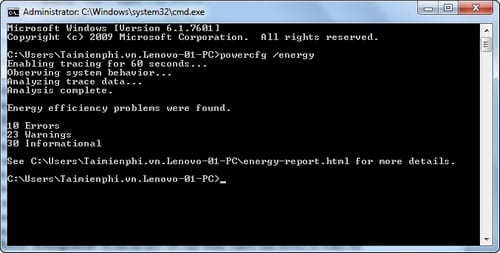
Some options require elevation or specific hardware. Consult Microsoft's powercfg option reference, or see how to create and read a Windows battery report.
12. systeminfo: summarize the Windows installation
systeminfo
systeminfo | findstr /B /C:"OS Name" /C:"OS Version" /C:"System Type"
systeminfo reports the Windows version, system model, memory, network adapters, and other configuration details. The filtered example extracts a few English-language labels; localized Windows installations may use different label text.
13. assoc and ftype: inspect file associations
assoc .txt
ftype txtfile
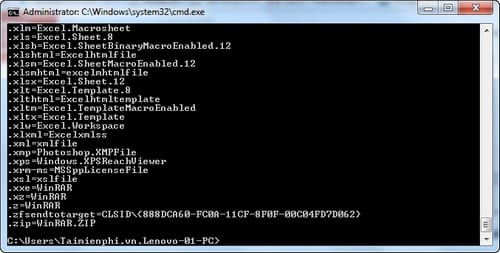
assoc maps an extension to a file type, and ftype shows the command registered for that type. Run either without arguments to list many mappings. Changing these values incorrectly can stop files from opening, so use Windows Settings > Apps > Default apps for routine changes.
14. cipher: inspect EFS or overwrite free space
cipher /c "C:\Data\example.txt"
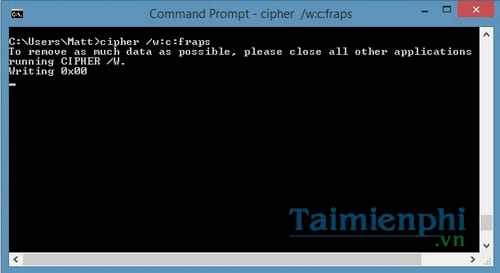
cipher /w:C:
cipher /c displays Encrypting File System information for a file. cipher /w:C: writes over unallocated space on the named volume; it does not delete existing files, but it can take a long time and generate substantial disk writes. Confirm the target volume and close applications first. It is not a universal guarantee that copies in backups, cloud storage, snapshots, or modern storage layers are erased.
15. help and where: discover commands safely
help
help copy
where ping
where /?
help lists Command Prompt built-ins or explains a supported command. where shows which matching executable or file Windows resolves from the current directory and search path. These are useful checks when a command is not recognized or when multiple versions of a tool are installed.
Practical rules for using CMD commands
- Confirm that an example is written for Command Prompt, because PowerShell quoting and variables differ.
- Use quotes around file paths with spaces and replace sample paths explicitly.
- Redirect output to a text file when you need to preserve it, for example
systeminfo > report.txt. - Do not elevate the shell unless the task requires it.
- Read the built-in help before using delete, overwrite, process-termination, or configuration switches.
If Command Prompt is not already open, follow these current ways to open Command Prompt in Windows. For a broader introduction to navigation, history, and customization, use the Command Prompt usage guide.
Related Articles
 How to Use the Command History Function in Command Prompt9 minutes read
 What Is Command Prompt?18 minutes read
 Command Prompt: Summary of the Common Run CMD Commands8 minutes read
 Common Keyboard Shortcuts in Command Prompt5 minutes read
 Cmd Command: All Cmd and Dos Commands on Windows43 minutes read
 CMD Commands, Command Prompt Commands in Windows 7 And 87 minutes read
Reader Comments 0
Sign in with email or Google to join the discussion.