Table of Contents
Cortana can no longer be used to run Command Prompt commands on current Windows installations. Microsoft retired Cortana as a standalone Windows app in 2023. To launch a command by voice on Windows 11, create a safe shortcut or batch file and connect it to a Voice Access shortcut. If voice control is unnecessary, the same command shortcut can be opened from Start, Search, or the desktop.
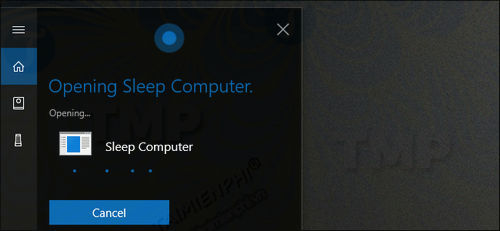
Why the old Cortana method no longer works
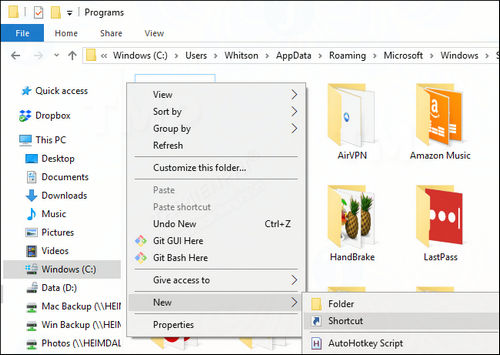
The original Windows 10 technique placed a command shortcut in the Start Menu Programs folder, where Cortana could find its name. The shortcut itself may still work, but the voice step does not: Microsoft confirms that Cortana voice assistance in Windows was retired.
Do not install an unofficial “Cortana replacement” merely to restore this behavior. Windows 11 includes Voice Access for on-device voice control, while ordinary Start Menu shortcuts remain the simpler option when speech is not required.
Option 1: Create a shortcut that runs a CMD command
This method works without Cortana. The example opens network configuration in a Command Prompt window and keeps that window visible.
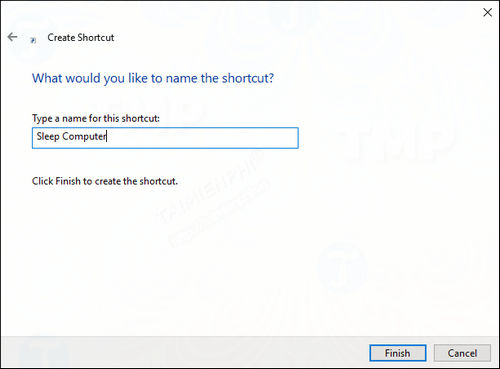
- Right-click the desktop or an empty area in a folder, then select New > Shortcut.
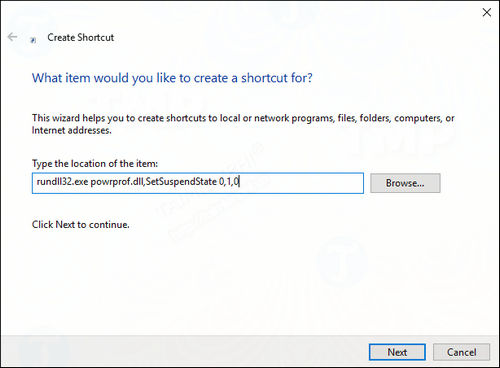
- In Type the location of the item, enter:
cmd.exe /k "ipconfig /all" - Select Next, give the shortcut a clear name such as Show network details, and select Finish.
- Double-click the shortcut and verify that it performs only the expected action.
Choose /k or /c deliberately
cmd.exe /k "command"runs the command and leaves the window open so you can read the result.cmd.exe /c "command"runs the command and closes the window when it finishes.
Use /k for diagnostic output. Use /c only when the result does not need to remain on screen. Quote a command that contains spaces or additional arguments.
Add the shortcut to the current user's Start Menu
- Press Win + R.
- Enter
shell:programsand press Enter. - Copy the verified
.lnkshortcut into the folder that opens. - Search for the shortcut by its name in Start.
The expanded folder path is normally under %APPDATA%\Microsoft\Windows\Start Menu\Programs, but shell:programs avoids path and localization mistakes. The current Command Prompt opening methods cover Start, Run, Windows Terminal, and recovery environments.
Option 2: Launch the shortcut with Windows 11 Voice Access
Voice Access can open apps, files, folders, and URLs. Its custom voice shortcuts can combine a spoken phrase with an Open folders/files/applications/URL action. Availability can depend on the Windows build and display or speech language.
- Open Settings > Accessibility > Speech and turn on Voice access. Complete the initial language setup if prompted.
- Start Voice Access, then say “Open voice shortcuts.”
- Select Create new shortcut.
- In When I say, enter a distinctive phrase, such as Show network details.
- For the action type, choose Open folders/files/applications/URL and select the shortcut created above.
- Save the voice shortcut, then speak the phrase to test it.
Microsoft's Voice Access shortcut guide lists the supported action types and setup process. If the Voice shortcuts page is not present, update Windows and check feature and language availability; the ordinary shortcut will still work without voice control.
Use a batch file for more than one command
A shortcut target becomes difficult to read when it contains several operations. Put a reviewed sequence in a .cmd file instead. For example:
@echo off
ipconfig /all
echo.
ping -n 4 1.1.1.1
pause
Save the file as network-check.cmd, not network-check.cmd.txt. Run it manually first, then make the Voice Access action open that file. Keep scripts in a folder where other users or untrusted programs cannot silently replace them.
Administrator commands need extra care
A voice command does not safely bypass User Account Control. If a task genuinely requires elevation, run the reviewed shortcut manually with Run as administrator and respond to the UAC prompt yourself. Do not configure automatic elevation or disable UAC just to make voice launching more convenient.
Many checks—including ipconfig, ping, and systeminfo—work in a standard session. Repair and system-changing operations may require elevation. Review these useful Command Prompt commands and their safety notes before building shortcuts around them.
Commands that should not become casual voice shortcuts
Avoid assigning short or easily misheard phrases to commands that delete files, shut down the computer, stop processes, change security policy, format storage, or modify boot settings. A voice command can be triggered accidentally or by another nearby speaker.
- Use a long, distinctive phrase for any action with side effects.
- Prefer read-only diagnostic commands.
- Keep a visible result window with
/kwhile testing. - Confirm paths and arguments before saving the shortcut.
- Delete obsolete voice shortcuts and batch files when they are no longer needed.
For syntax, navigation, and output redirection, refer to the Command Prompt usage guide. PowerShell uses different variables and quoting rules, so do not paste a PowerShell command into a cmd.exe shortcut without adapting it.
Related Articles
 How to Use the Command History Function in Command Prompt9 minutes read
 How to Use Cortana to Turn Off or Restart Windows 10?4 minutes read
 Add Command Prompt to Power User Menu on Windows 103 minutes read
 How to Use Xcopy Command in Command Prompt7 minutes read
 How to Open Command Prompt on Windows 10, 8, 7, Vista and XP6 minutes read
 How to Make Command Prompt Appear at School11 minutes read
Reader Comments 0
Sign in with email or Google to join the discussion.