Table of Contents
CMD has a set of history and line-editing controls that go beyond the usual arrow keys. The F1–F9 commands are supplied by the Command Prompt/Doskey editing behavior: they can copy parts of the previous command, display history, filter it by a typed prefix, and recall an entry by number. These shortcuts are most useful when you repeatedly adjust long paths or command options.
Quick history shortcuts
| Shortcut | CMD action |
|---|---|
Up/Down arrow | Move backward or forward through command history |
F3 | Copy the remaining characters from the previous command into the current line |
F5 | Copy a command from the history template and cycle through earlier entries |
F7 | Display a numbered history list; choose an entry with the arrows and Enter |
Alt+F7 | Clear commands from the current history buffer |
F8 | Cycle through history entries that begin with the characters already typed |
F9 | Prompt for a history number and place that command on the line |
F7 and F9 work together: press F7, note the number beside a command, close the list with Esc, press F9, enter the number, and press Enter.
What F1 through F6 do in CMD
| Key | Behavior | Practical use |
|---|---|---|
F1 | Copies one character from the previous command at the corresponding position | Rebuild a previous command character by character |
F2 | Prompts for a character, then copies from the previous command up to—but not including—that character | Reuse the start of a command before a delimiter |
F3 | Copies the remainder of the previous command from the current cursor position | Restore most or all of the previous line |
F4 | Prompts for a character, then deletes from the cursor up to the next occurrence of that character | Remove a section before a known delimiter |
F5 | Copies a command template from history | Cycle through prior commands |
F6 | Inserts the Ctrl+Z end-of-file character | Signal end of input to a console program that recognizes it |
These keys operate on the CMD line editor's previous-command template. The result can feel unusual until you test it with harmless commands.
Try the function keys safely
Enter these commands one at a time:
echo alpha-beta-gamma
echo one-two-three
dir "%USERPROFILE%"- Press F7 to see the three entries in history.
- Press Esc to close the list.
- Type
ecand press F8 to cycle only through commands beginning withec. - Press F3 to restore the remaining text from the selected previous command.
- Edit the line before pressing Enter.
Print or save command history
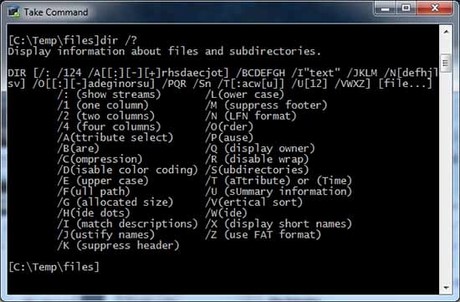
Display the current history as text:
doskey /historySave it to a file:
doskey /history > "%USERPROFILE%\Desktop\cmd-history.txt"The exported history can contain paths, hostnames, usernames, command arguments, or secrets pasted by mistake. Review it before sharing, and do not use command lines to pass passwords or tokens when a safer input method exists.
Change the history buffer size
For the current console process, you can request a larger history buffer:
doskey /listsize=100This does not create a permanent cross-session shell history. A new CMD process may use its own buffer and defaults.
Create temporary Doskey macros
Doskey can define short aliases for the current CMD session:
doskey ll=dir /a $*
doskey cproj=cd /d "D:\Projects"
doskey history=doskey /history
Examples:
ll "*.txt"
cproj
history$*passes all arguments supplied after the macro name.$Tseparates commands inside a macro, similar to an ampersand.$Grepresents output redirection (>) when defining a macro.
Macros are usually session-specific. To load them automatically, use a reviewed macro file and an approved startup method; do not blindly import a macro file because a macro can execute multiple commands.
Everyday line-editing shortcuts
| Shortcut | Action |
|---|---|
Tab / Shift+Tab | Complete matching file and folder names forward or backward |
Ctrl+Backspace | Delete the word to the left |
Home / End | Move to the beginning or end of the line |
Ctrl+Left/Right | Move by words |
Ctrl+Home | Delete characters to the left when the command line is not empty; with an empty line, move the viewport to the top of the buffer |
Ctrl+End | Delete characters to the right when the command line is not empty; with an empty line, return the viewport to the command line |
Insert | Toggle insert and replace behavior in the Doskey line editor |
Esc | Clear the current input line |
Ctrl+C | Cancel a running command when no console text is selected |
Why some keys appear not to work
- A laptop may require
Fn+F7or Fn Lock because the top row defaults to media controls. - Windows Terminal can assign its own key binding before CMD receives the key.
- A program running inside CMD can handle function keys itself.
- The active window may be PowerShell, WSL, or another shell rather than
cmd.exe. - Selection or Mark mode changes what arrow and Ctrl keys do.
Confirm the shell by running:
echo %COMSPEC%A normal CMD configuration reports a path ending in cmd.exe.
History is not a safety net
Recalling a command does not verify that its paths or targets are still correct. Before rerunning del, rmdir, taskkill, disk tools, or an elevated command, inspect the entire line. A small edit in the wrong place can change the scope substantially.
For selection and clipboard controls, see TipsMake's full guide to Command Prompt keyboard shortcuts. The tutorials on opening CMD and common CMD commands cover launch methods and safe examples. Microsoft's Doskey reference documents the function keys, history, and macro tokens.
Related Articles
 34 Common Shortcuts on Windows Command Prompt7 minutes read
 Using Command Prompt Shortcuts on Windows 104 minutes read
 How to Use the Command History Function in Command Prompt9 minutes read
 Command: How to Use Keyboard Shortcuts11 minutes read
 How to Open Command Prompt with a Keyboard Shortcut (Windows 82 minutes read
 Keyboard Shortcuts in Visual Studio - All Common Keyboard Shortcuts in6 minutes read
Reader Comments 0
Sign in with email or Google to join the discussion.