Table of Contents
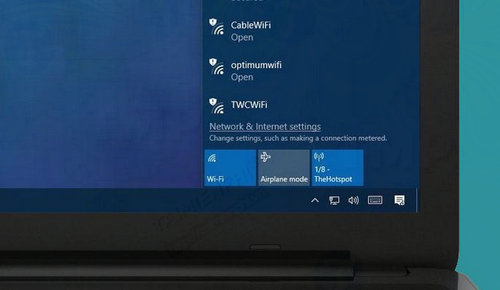
Windows 10 and Windows 11 can block a specific Wi-Fi SSID—or allow only selected SSIDs—using netsh wlan filters. These filters apply on the PC where you configure them. They do not secure the router, remove the access point from the air, or protect other devices.
Before changing Wi-Fi filters
- Sign in with an administrator account and open Command Prompt as administrator.
- Copy the SSID exactly, including spaces and capitalization.
- Keep the rollback command ready before enabling a deny-all filter.
- If this is a managed work or school PC, use the organization's approved policy instead of changing local filters.
To see nearby network names and the current filter configuration, run:
netsh wlan show networks
netsh wlan show filters
Microsoft's netsh wlan reference documents the current filter syntax. Type commands exactly as shown, without adding spaces around the equals signs.
Block one Wi-Fi network by SSID
Replace Example WiFi with the exact network name:
netsh wlan add filter permission=block ssid="Example WiFi" networktype=infrastructure
Windows will no longer treat that infrastructure network as an eligible connection. Depending on the Windows build and network flyout, the SSID may disappear or remain visible as unavailable. Confirm the filter rather than relying only on the visual list:
netsh wlan show filters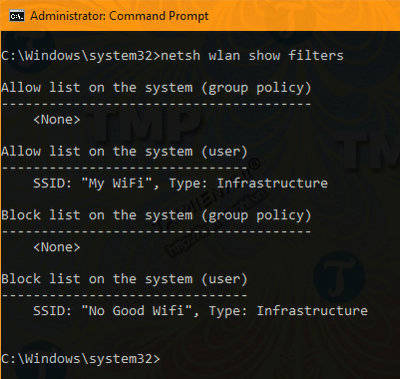
Unblock the network
Delete the matching block rule:
netsh wlan delete filter permission=block ssid="Example WiFi" networktype=infrastructureIf the delete command cannot find the rule, run netsh wlan show filters and copy the SSID and network type shown there. Curly “smart quotes” copied from formatted text are not the same as normal command-line quotes.
Allow selected networks and block all others
This allowlist approach is more restrictive. Add every SSID that must remain usable before adding the deny-all rule.
Step 1: Add an allow rule for each trusted SSID
netsh wlan add filter permission=allow ssid="Home WiFi" networktype=infrastructure
netsh wlan add filter permission=allow ssid="Office WiFi" networktype=infrastructure
Step 2: Verify the allow rules
netsh wlan show filtersCheck the spelling of every required SSID. If the router uses separate names for different bands or locations, allow each one that the PC needs.
Step 3: Add the deny-all rule
netsh wlan add filter permission=denyall networktype=infrastructureAfter this command, infrastructure Wi-Fi networks without an allow rule are ineligible for connection. The PC may disconnect if its current network was not allowed first.
Undo deny-all immediately if needed
netsh wlan delete filter permission=denyall networktype=infrastructureRemoving denyall restores normal eligibility for networks that are not individually blocked. Individual block rules remain in effect.
Remove an allow rule
netsh wlan delete filter permission=allow ssid="Office WiFi" networktype=infrastructureIf denyall is still active, deleting an allow rule prevents that SSID from being used. Review the full filter list after every change.
Wi-Fi filter, saved profile, and auto-connect are different
| Goal | Appropriate action |
|---|---|
| Prevent this PC from connecting to a visible SSID | Add a permission=block filter |
| Restrict this PC to a set of named SSIDs | Add allow rules, verify them, then add denyall |
| Forget a saved password and connection settings | Delete the saved profile, not a filter |
| Stop automatic connection but keep the profile | Set the profile's connection mode to manual |
To list saved profiles and remove one:
netsh wlan show profiles
netsh wlan delete profile name="Example WiFi"
Deleting a profile does not stop the SSID from appearing or prevent a user from connecting again with the password. For more profile, adapter, and WLAN-report commands, see how to manage wireless networks with Command Prompt.
Important security limitations
An SSID is only a network name. A nearby access point can advertise the same name, so an allowlist based on SSID alone is not strong authentication. Use WPA2 or WPA3 with a strong credential, validate enterprise certificates where applicable, and manage organization-owned devices through appropriate policy.
A local filter also does not:
- block the network for phones or other computers;
- disable the Wi-Fi radio;
- remove a saved Wi-Fi password;
- block Ethernet, mobile hotspot, or VPN connections; or
- prove that a network is malicious.
Troubleshooting filter problems
- “Access is denied”: reopen Command Prompt with Run as administrator.
- The required network disappeared: remove
denyall, then correct or add the allow rule. - The SSID still appears: verify
netsh wlan show filters; UI presentation can vary even when connection eligibility is blocked. - The PC cannot connect after filters are removed: check the saved profile, adapter state, password, router, and signal instead of repeatedly adding filters.
- A rule will not delete: copy the permission, SSID, and network type exactly from the displayed filter list.
For connection failures unrelated to filters, follow the Windows 11 Wi-Fi troubleshooting sequence. TipsMake's Wi-Fi guides also cover router setup, passwords, performance, and security.
Related Articles
 How to Use the Command History Function in Command Prompt9 minutes read
 How to Use the Net Use Command in Windows11 minutes read
 Add Command Prompt to Power User Menu on Windows 103 minutes read
 How to Create Wi-Fi Hotspot with Command Prompt5 minutes read
 How to Use Xcopy Command in Command Prompt7 minutes read
 How to Open Command Prompt on Windows 10, 8, 7, Vista and XP6 minutes read
Reader Comments 0
Sign in with email or Google to join the discussion.