What is Command Prompt? CMD commands and code on Windows
Learn what Command Prompt or CMD is, how to open the Command Prompt tool on a Windows computer, familiar commands, common lines of code seen in the CMD window, etc.
- What is Command Prompt?
- How to open Command Prompt on Windows
- Common Command Prompt commands
- Command Prompt code on Windows 10
- Use the Run dialog box.
- Use the Start button.
- Ping command
- Tracert Order
- Shutdown command
- Dir command
- Dem
- Copy command
- Taskfire command
- Reg Add command
- Reg Delete command
- The Regedit.exe command
- Attrib command
- RD order
- MD command
- Netstat command
- ipconfig command
- Tasklist
- Wapping
- File Compare
- System File Checker
- Systeminfo
- Powercfg
- Driverquery
Many people frequently work with computers but struggle to figure out how to open the Command Prompt (CMD) window. Mastering these commands and code will help you handle tasks on Windows more easily and efficiently. So, what is the Command Prompt tool, how do you open and use it? Let's find out!
What is Command Prompt?
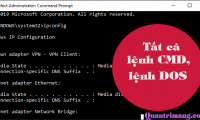
CMD (Command Prompt) is a tool that includes commands and command lines (typed as text) connecting the user to Windows. After a user types a command expressing their needs using Command Prompt, Windows immediately displays the results. CMD helps users save time, manage files intelligently, and check and fix program errors more efficiently than manual operations.
Let me give you an example to make it easier to understand. When you want to check your Wi-Fi connection on your computer, you would typically go to the Windows window, search for "Control Panel," select "Network and Internet," and perform several other complicated steps. With Command Prompt, however, you only need to type the command "Ping," and the network connection status will be displayed in detail.
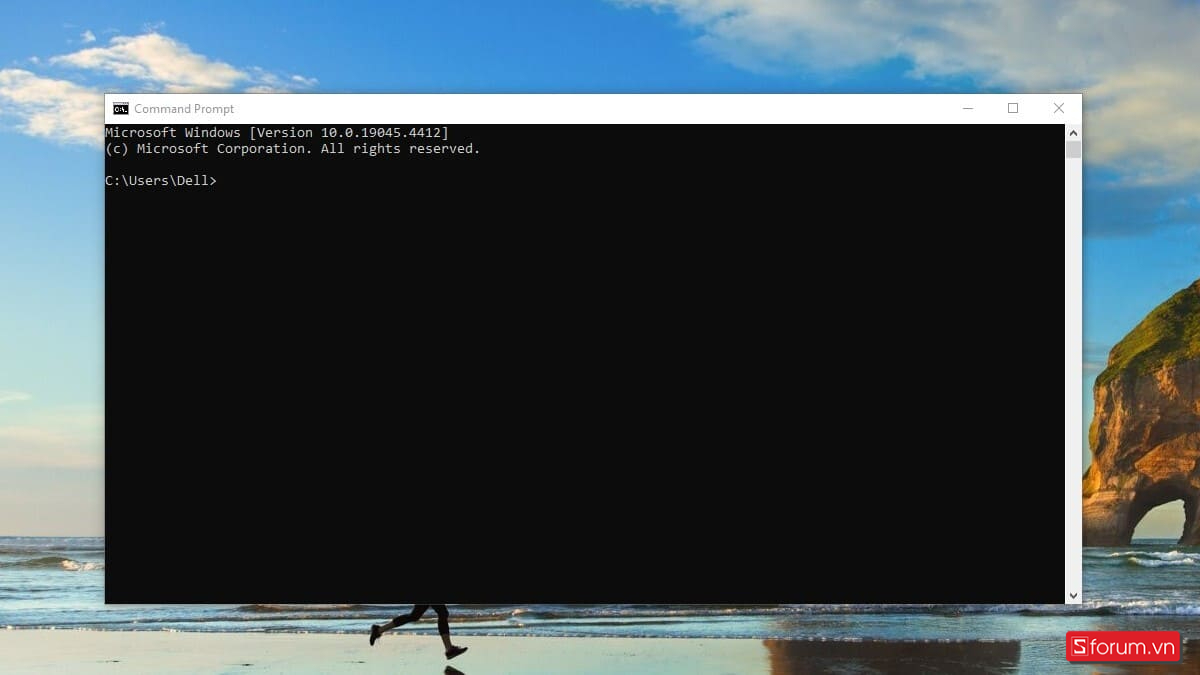
Command Prompt connects the user to Windows.
How to open Command Prompt on Windows
Opening the Command Prompt (CMD) window on Windows is very simple. You can open Command Prompt using the Run dialog box or the Start menu (the Windows icon on the screen). If you don't know how to open Command Prompt on your computer, follow the instructions below. With just a few basic steps, you'll be able to open this window.
Use the Run dialog box.
This is the most basic way to open the Command Prompt window or any application on Windows.
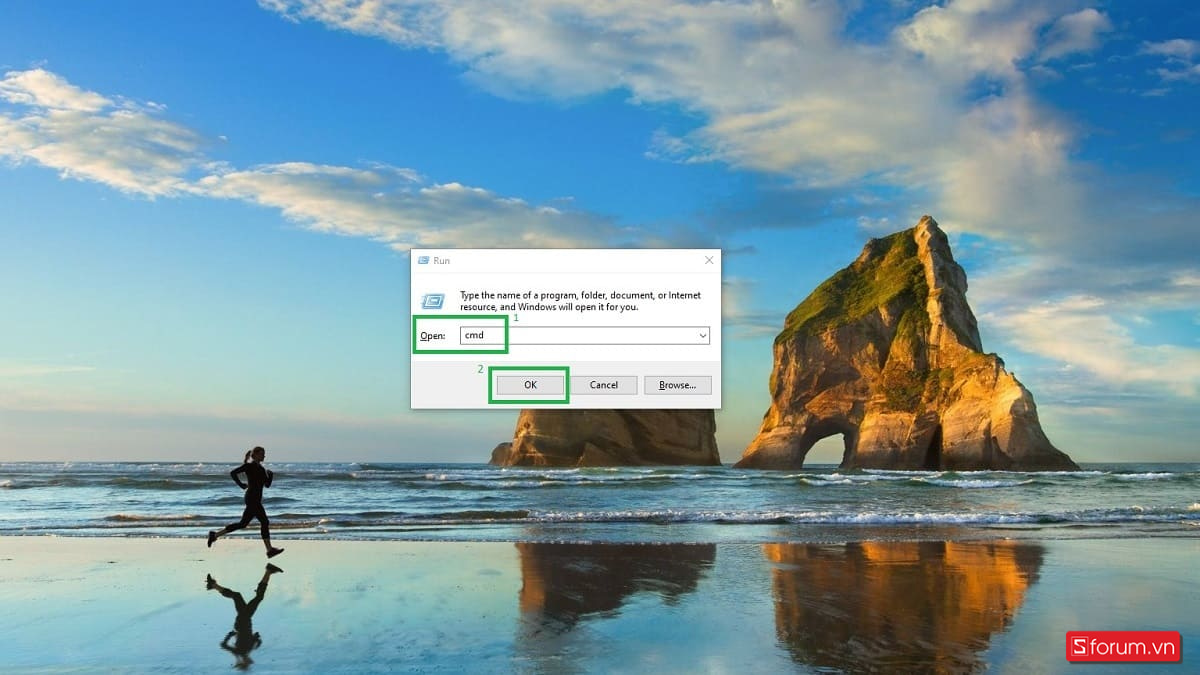
Step 1: To open and launch Run, find and simultaneously press 'Windows - R' on your keyboard .
Step 2: Type 'CMD' into the Open field, or if the command is already entered, simply click 'OK'.
Use the Start button.
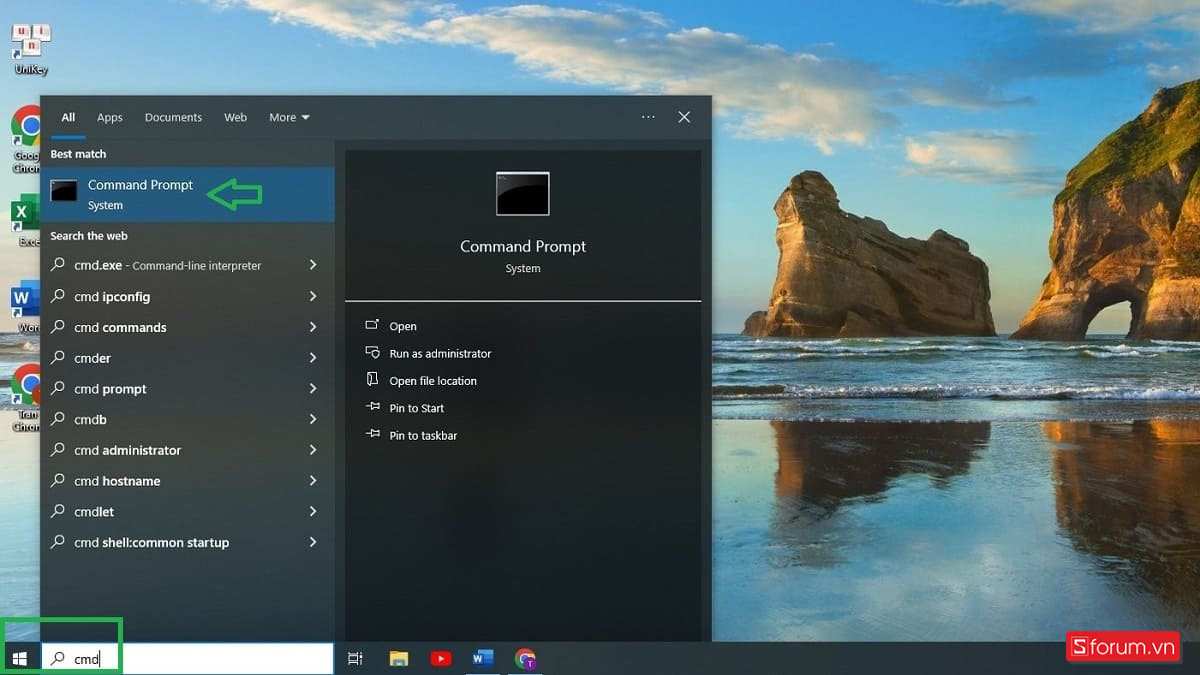
Another way to open Command Prompt on Windows is to use the Start button. In the bottom left corner of your computer screen , hover your mouse over the Windows window icon. Type 'CMD' to search for the window, then select 'Command Prompt'.
How to open the CMD window on Windows using the Start button
Common Command Prompt commands
Command Prompt is a set of commands, each with a different function. You can use the Command Prompt window to check your computer, delete or download files, view or organize folders, and more. However, you need to type the correct command to achieve your desired result. Below are some common and useful Command Prompt commands you should know.
Ping command
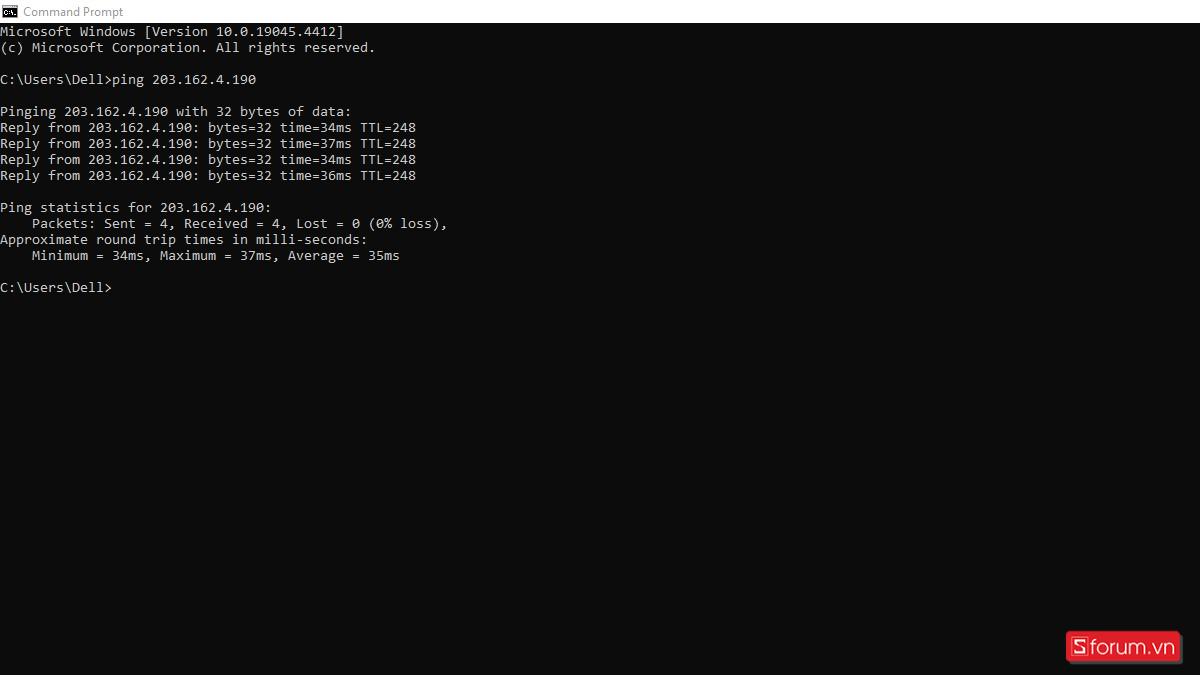
The Ping command in the Command Prompt window is used to check the network connection status of a computer, usually to test the computer's network connection with a server.
The syntax for the Ping command is as follows: Ping IP address/website name .
In there:
- IP: The IP address of your internet service provider or the computer whose connection speed you want to test.
- Website name: the address of the website you want to test the connection speed of on your computer.
Note that there must be a space between the ping command and the IP address/website address; if you enter it without a space, it will be treated as an error.
Tracert Order
This command is often used when you're experiencing slow website access. Tracert helps users check their data transmission, identifying which stations are causing problems and where the issues are occurring. From there, you can adjust your internet connection for smoother access.
The syntax for the Tracert command in the Command Prompt is as follows: Tracert domain_name_to_check .
A domain name, also known as a website address, is a type of address. Domain names typically take the form of .com, .net, .org, .biz, .tech, etc. Examples include google.com and shopee.vn.
Shutdown command
This command is used to quickly shut down your computer. Instead of turning off your computer using the power button in Windows and selecting shutdown, you can simply press the command: ' Shutdown /s ' in the Command Prompt window. Your computer will shut down in about 10 seconds. Additionally, you can schedule a restart. The restart command is as follows: Shutdown -r -t restart time (in seconds).
Dir command
To view or manipulate files or folders, you can use the CMD command `dir`. Here's how to use the `dir` command: `dir` followed by the path to the folder . For example: `dir C:Program Files`, `dir Documents`, etc.
Use the `dir` command to view Windows files.
Additionally, if you want to filter folders or files, you can also use the Dir command in CMD. Filtering is very simple; you enter: Dir criteria . Specifically:
- Dir /a : This command displays the directories and files currently stored.
- Dir /d : This command displays a list of subdirectories within the directory you are linking to.
- Dir /h : This command displays hidden directories and files.
- Dir /r : This command displays directories and files that are read-only.
- Dir /s : This command displays the system's files and directories.
- Dir /os : This command sorts directories and files by their size.
- Dir /od : This command sorts directories by time.
Dem
When you want to delete a file or folder, the Del command in the Command Prompt window will help you. You just need to type: Del folder link or file name.format .
For example: Del Pictures (delete image files from your computer). If you are sure you want to delete them, continue typing 'Y'; otherwise, type 'N' if you no longer want to delete them.
Copy command
You use the Copy command when you want to copy files on a Windows computer. You enter the command: Copy [location to copy] [location to save the copied file] .
Example: Copy Pictures Music => you are copying images to a music file.
Note: If the file you are copying has a duplicate name, you need to choose: Yes (allow overwriting the old file) or No (Cancel copying).
Taskfire command
When your computer freezes and you can't perform any operations on it, use the Taskkill command in the CMD window. Enter it as follows: Taskkill /f /im 'application name'.exe .
For example, if you are accessing Google Chrome and it freezes, and you can't figure out how to close the application, you can type: Taskkill /f /im chrome.exe.
Reg Add command
The purpose of this command is to add a value to the registry. Enter the Reg Add command using the following structure: Reg Add Key Name /v Value Name /t Data Type /s Separator /d Data .
For example: Reg Add HKEY_CLASSES_ROOT.avif /v Contenttype /t REG_SZ /d image.
In this file: HKEY_CLASSES_ROOT.avif is the keyname, Contenttype is the valuename, REG_SZ is the Datetype, and Image is the Data.
Reg Delete command
Conversely to Reg Add, Reg Delete is a command that helps you delete a value in the registry. You enter Reg Delete as follows: REG DELETE Key Name /v Value Name /f (it will delete automatically without prompting). If you forget to type /f, the result will ask you Y/N. Type Y to complete the value deletion command.
For example, you can enter the command REG DELETE HKEY_CLASSES_ROOT.bas /v NoOpen /f to delete the NoOpen value in HKCR.
The Regedit.exe command
To execute Reg Add or Reg Delete commands, you need to access the key names, value names, and data types in the registry. You can search for regedit in the Windows window or use the Regedit.exe command to easily open these files. Simply type Regedit.exe in the Command Prompt and press Enter; the registry editor will appear immediately.
Attrib command
To view and edit the properties of files and folders, users can use the Attrib command in CMD. The Attrib command structure is as follows: Attrib property path link folder/file .
The attributes include: H: hides the file or folder. A: archives the folder or file. R: allows read-only access to the folder or file… To remove the previous attribute, add a '-' sign; to add an attribute to the file, add a '+' sign.
For example: Attrib +RC:UsersDellFavoritesBing.url. You are adding a read-only attribute to the Bing Favorites file.
RD order
When you want to delete a folder, instead of having to select and delete each file within that folder, you can simply enter the RD command in the Command Prompt window. To enter the RD command: RD /s . After pressing Enter, type Y if you are sure you want to delete, or press N to go back.
For example: RD /s Music – with this command you are deleting all music files on your computer.
MD command
This command creates new folders and files on Windows. The MD command structure is as follows: MD folder_name or the path to the folder to be created . For existing folders, CMD will prompt you that the newly created folder is a duplicate.
For example: You type the command MD C:UsersDellDocuments. The result returned is: A subDirectory or file C:UsersDellDocuments already exists. This means the Documents folder already exists.
Netstat command
This command allows you to check the network connection status (network speed) of your computer.
The Netstat command structure is as follows:
- Netstat -a : This command displays the results of all connected networks.
- Netsta -b : This command displays the files currently linked to the network gateway.
- Netstat -n : This command displays the IP address of the connected network and the port number of the network gateway.
- Netstat -r: This command displays the routing table results.
- Netstat -s : This command displays network connection results and how to use them.
ipconfig command
In the Command Prompt window, the ipconfig command is used to view and change all the current TCP/IP network configuration information of the computer. Specifically, to view the current IP address of the computer being used, you enter the command: `ipconfig /release` . To change the IP address of the computer, you enter the command: `ipconfig /renew` .
If you're looking to upgrade your computer, have you heard about our trade-in program ? You can also check out our selection of affordable, reputable laptops below. And if you're a student, don't forget our special offer: an extra discount of up to 400k VND! Don't miss out!
Command Prompt code on Windows 10
Is your computer experiencing slow network speeds, frequent disconnections, or rapid battery drain? Or perhaps you simply want to know some basic information about your computer? Then let's explore the following Command Prompt commands on Windows 10 to solve these problems!
Tasklist
When you can't find a folder or file on your computer, you can use Tasklist. This tool displays a list of all folders, files, programs, etc., that are running on your computer. Even applications hidden from Task Manager can still be found by typing the command "Tasklist" in CMD.
Some common Tasklist commands include:
- Tasklist -svc : information about the services associated with each program on the computer.
- Tasklist -v : provides detailed information about each running program.
- Tasklist -m : the path to the .dll files associated with the running programs.
Wapping
Please avoid confusing PathPing with Ping in CMD. PathPing is considered a more advanced version of Ping. This command is a combination of the Ping and Tracert commands. PathPing is used to check network status, detect poor network connections, and identify network outages at intermediate hops between the source and destination networks.
To check for network connection errors, simply type the command: `PathPing IP address/website` . It's that simple, right?
File Compare
When you have two text files, two images, etc., and need to find the differences, you can use the File Compare command in the Command Prompt window. Instead of searching manually, you just need to enter the command: `fc file address 1 file address 2` . File Compare will return the results quickly, saving you time on manual searching.
There are several extended FileCompare options as follows:
Fc /a : Displays only the first and last lines for each distinct set.
Fc /b : Find the difference based on binary data.
Fc /c : ignore the difference if it's an uppercase or lowercase letter.
System File Checker
You can search for and detect network connection errors with Tracert CMD. Additionally, you can find and fix slow computer performance caused by system errors with System File Checker. To enter this command, use: ` sfc /scannow `.`.
SFC helps users check for system errors on their computers.
Note that to use this command you need to access CMD as 'run as administrator'. System File Checker will automatically repair any errors it detects.
Systeminfo
The Systeminfo command allows users to check basic computer information such as: computer name, Windows operating system version, System Model, RAM, last access time, network card configuration, etc. To check this information, type the command Systeminfo in the Command Prompt and press enter. The results will be displayed quickly.
Powercfg
Using the Powercfg command helps you monitor, check, and take appropriate measures to upgrade your computer's power supply. A computer will run more efficiently and last longer with a large and stable power source.
Here are some basic Powercfg commands:
Powercfg /batteryreport : helps users check the status of their computer battery: charging time, charging frequency, etc.
Powercfg /energy : helps users see which programs and applications are consuming the most battery power, and warns about low battery levels…
Powercfg /query : helps users monitor which devices are connected to their computer and which devices are draining the battery the most.
Driverquery
There are two main uses for using CMD Driverquery. This command line allows users to retrieve all drivers that have been and are currently installed on their computer. Additionally, Driverquery can display detailed information about each driver, such as its display name, description, startup mode, and current status.
If you only want to display a list, type the command: Driverquery , and if you want to display details, type the command: Driverquery -v .
This article has helped you understand what the Command Prompt tool is, its commands, code lines, and how to use them in CMD. Hopefully, you now know how to open the Command Prompt window and use the commands proficiently to fix some problems on your computer. Continue following us to update and apply more useful computer tips!
You've just finished reading the article "What is Command Prompt? CMD commands and code on Windows" edited by the TipsMake team. You can save what-is-command-prompt-cmd-commands-and-code-on-windows.pdf to your computer here to read later or print it out. We hope this article has provided you with many useful tech tips and tricks. You can search for similar articles on tips and guides. Thank you for reading and for following us regularly.
- CMD commands, Command Prompt commands in Windows 7 and 8
- Windows prompt
- How to Add and Delete Users Accounts With Command Prompt in Windows
- How to Add and Delete User Accounts with Command Prompt on Windows
- How to open Command Prompt on Windows 10, 8, 7, Vista and XP
- 10 useful commands in Windows you should know