Table of Contents
Use the built-in Snipping Tool on Windows or Screenshot on macOS for everyday captures. Choose ShareX for advanced free Windows automation, Flameshot for cross-platform annotation, Snagit for polished documentation, or CleanShot X for a Mac-focused capture workflow.

Quick comparison
| Tool | Platforms | Best for | Cost model |
|---|---|---|---|
| Snipping Tool | Windows | Fast built-in capture and simple markup | Included |
| Screenshot + Preview | macOS | Built-in Mac capture, recording, and markup | Included |
| ShareX | Windows | Automation, scrolling capture, and custom workflows | Free, open source |
| Greenshot | Windows | Lightweight screenshots for documentation | Free, open source |
| Flameshot | Windows, macOS, Linux | Fast cross-platform capture and annotation | Free, open source |
| Snagit | Windows, macOS | Professional how-to guides and scrolling pages | Paid |
| FastStone Capture | Windows | Compact capture, editing, and screen recording | Paid trial/license |
| PicPick | Windows | Capture plus design utilities | Free for eligible home use; paid plans |
| Screenpresso | Windows | Visual documentation and user-guide generation | Free and paid editions |
| CleanShot X | macOS | Polished Mac capture, scrolling, and quick sharing | Paid |
Prices, plan limits, and supported operating systems change, so verify them on the developer’s site before installing or purchasing.
1. Windows Snipping Tool: best built-in Windows option
Press Windows + Shift + S to capture a rectangle, window, free-form area, or full screen. Current Windows 11 versions add video-region recording, OCR-related text actions, delay, crop, pen, and highlight tools. It is the right default when you do not need scrolling capture or elaborate templates.
Microsoft documents the current controls in its Snipping Tool guide. TipsMake’s Windows screenshot tutorial covers the keyboard shortcuts.
2. macOS Screenshot and Preview: best built-in Mac option
Press Shift + Command + 5 for full-screen, window, or area capture and screen recording. Use Preview or the floating thumbnail for cropping, shapes, text, signatures, and simple markup. Choose another tool only if you regularly need scrolling pages, capture history, OCR, or specialized sharing.
3. ShareX: best free Windows tool for power users
ShareX is a free, open-source Windows app with screenshot, screen recording, GIF creation, scrolling capture, OCR, configurable after-capture tasks, and many output destinations. Its flexibility is the strength and the learning curve: review upload destinations before capturing confidential information.
The ShareX versus Greenshot comparison helps decide between automation and simplicity.
4. Greenshot: best lightweight Windows documentation tool
Greenshot quickly captures a region, window, or full screen, then annotates, highlights, or obscures the result. Its Windows edition is free and open source. It is easier to learn than ShareX and works well for bug reports and internal instructions.
5. Flameshot: best cross-platform open-source option
Flameshot provides region capture and immediate arrows, text, shapes, numbering, blur, and color controls on Windows, macOS, and Linux. Test it with your actual Linux display server or managed Mac setup, because desktop security and capture behavior can vary.
6. Snagit: best for polished visual instructions
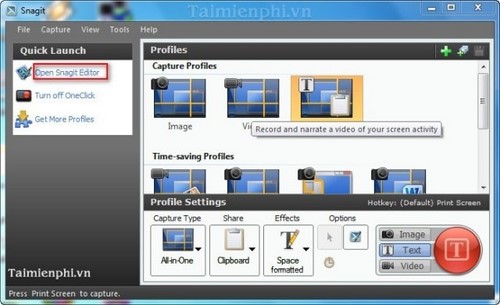
Snagit combines image and video capture with scrolling pages, panoramic capture, annotations, templates, and workflow-oriented sharing. It is a strong paid choice for people who create support articles, process documentation, or feedback every day.
7. FastStone Capture: best compact Windows all-rounder
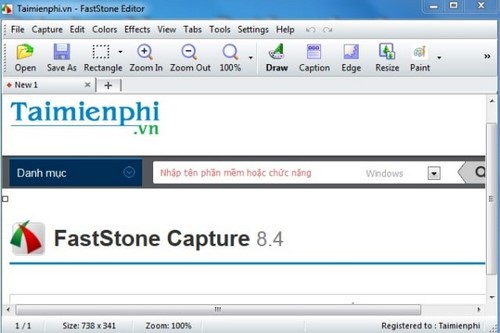
FastStone Capture handles windows, objects, menus, fixed or freehand regions, scrolling pages, annotation, and screen recording in a compact Windows app. Its current official site describes a time-limited trial followed by a one-time license.
8. PicPick: best capture tool with screen utilities
PicPick combines capture and an image editor with a color picker, pixel ruler, protractor, crosshair, and whiteboard. It is useful for designers and interface work. Read the current license terms: the free edition is intended for eligible home users, while commercial use requires a paid license.
9. Screenpresso: best for step-by-step documentation
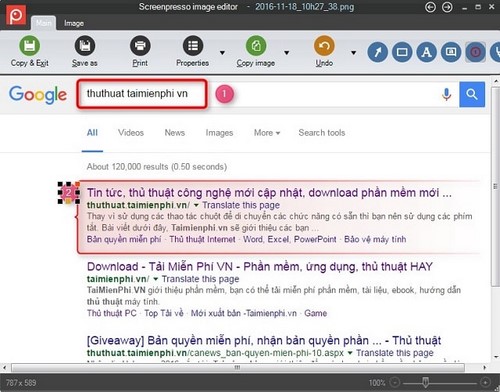
Screenpresso captures still images, scrolling windows, and video, then provides annotation, sharing, and user-guide generation. It is aimed at training material, bug reports, and repeatable documentation workflows, with free and paid editions.
10. CleanShot X: best premium Mac workflow
CleanShot X is a Mac-focused paid tool with area, window, full-screen, and scrolling capture, annotation, recording, and an optional cloud-sharing workflow. It is most valuable when screenshots are a frequent part of a Mac user’s work, not for someone who needs only occasional captures.
How to choose
- Occasional screenshots: stay with Snipping Tool or macOS Screenshot.
- Free Windows automation: use ShareX.
- Simple Windows bug reports: use Greenshot.
- Windows, Mac, and Linux consistency: try Flameshot.
- Paid documentation workflow: compare Snagit, FastStone, and Screenpresso.
- Design measurement tools: choose PicPick.
- Mac scrolling and quick sharing: evaluate CleanShot X.
Download only from the developer’s official site or a trusted operating-system store. Before using cloud upload, confirm whether a link is public and remove passwords, personal data, customer records, and notification previews. For more choices, see useful computer screen-capture applications.
Legacy tools and screenshots from the original list
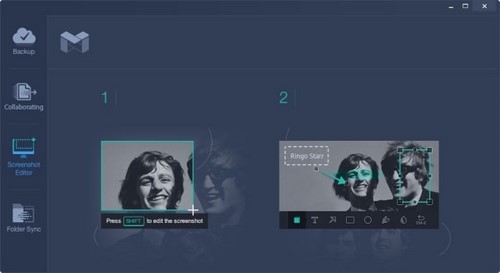
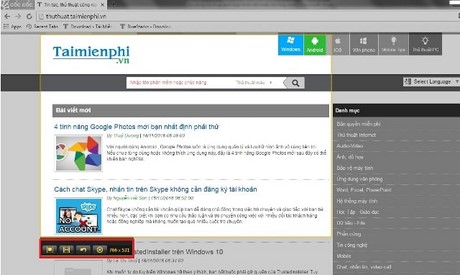
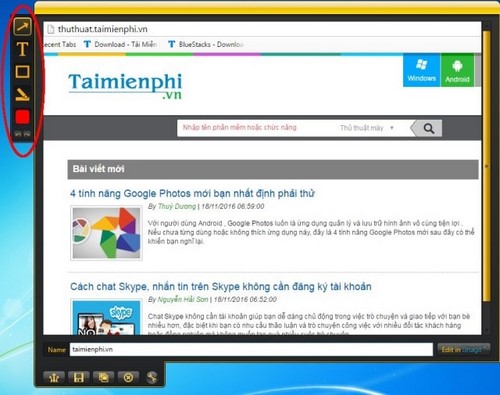
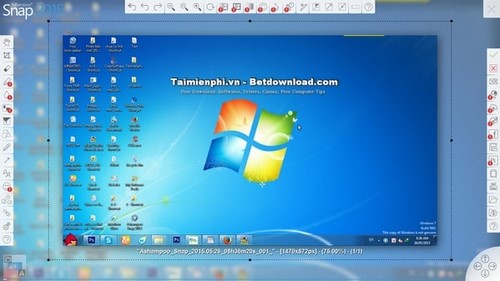
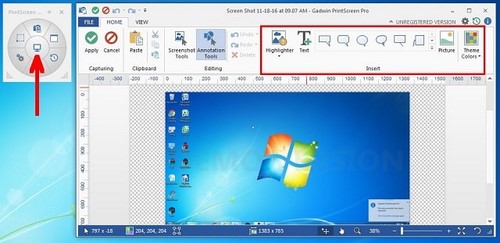
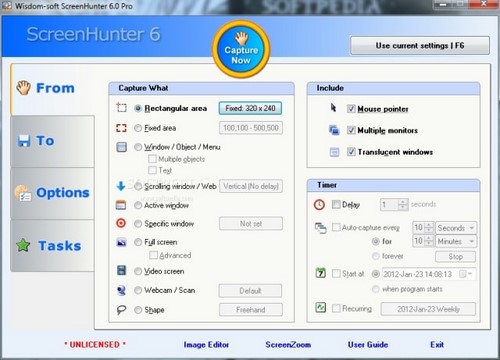
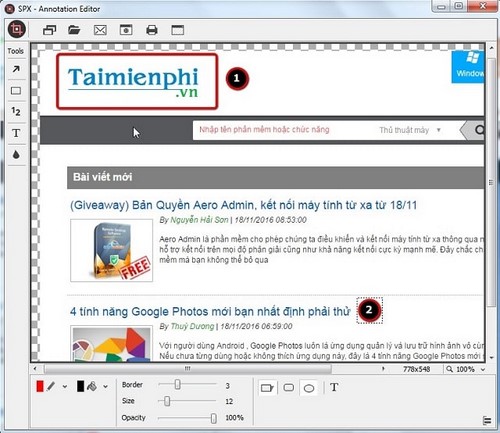
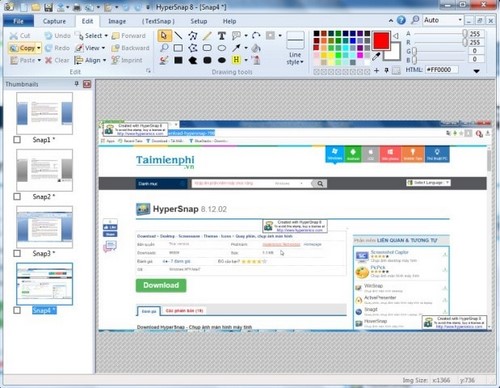
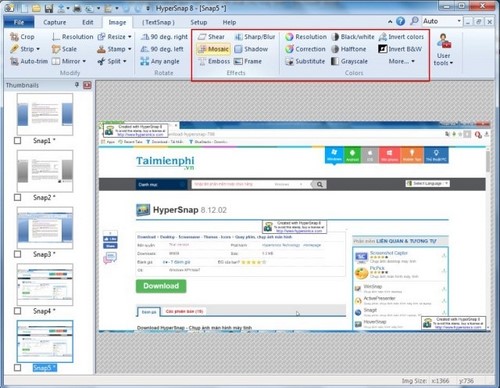
The earlier article recommended several products that are discontinued, renamed, inactive, or difficult to verify today. They are not included in the current top ten. The screenshots are retained for historical context; do not use an old download link from an archive or third-party mirror.
Related Articles
 7 Fastest Ways to Take Screenshots of Computers and Laptops on Windows13 minutes read
 5 Easiest and Fastest Ways to Take Screenshots of Windows 10: Recommended18 minutes read
 How to Screenshot on Chrome8 minutes read
 12 Quick and Simple Ways to Take Screenshots of Acer Computers9 minutes read
 How to Take a Screenshot in Microsoft Windows15 minutes read
 The Fastest Ways to Take Screenshots on a Computer or Laptop9 minutes read
Reader Comments 0
Sign in with email or Google to join the discussion.