Table of Contents
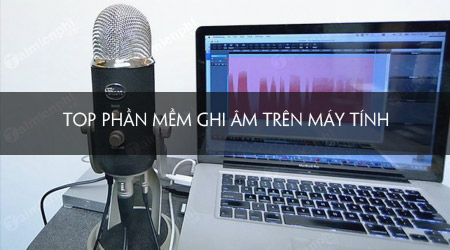
Use Windows Sound Recorder or Mac Voice Memos for a quick voice note, Audacity for free recording and editing, REAPER for multitrack production, or ocenaudio for lightweight waveform editing. The best choice depends on whether you need one microphone track or a full music and podcast workflow.
Quick comparison
| App | Platforms | Best for | Cost model |
|---|---|---|---|
| Audacity | Windows, macOS, Linux | Free recording, cleanup, and multitrack editing | Free, open source |
| REAPER | Windows, macOS, Linux | Music, podcast, and professional multitrack production | Paid license with evaluation |
| ocenaudio | Windows, macOS, Linux | Fast single-file recording and editing | Free download |
| Sound Recorder | Windows 11 | Simple voice notes and interviews | Included/free app |
| Voice Memos | macOS | Quick recordings and Apple-device sync | Included |
1. Audacity: best free all-round recorder and editor
Audacity is a free, open-source multitrack recorder and editor for Windows, macOS, and GNU/Linux. It suits voiceovers, interviews, digitizing tapes, podcasts, and simple music projects. You can select an input device, record multiple tracks when the hardware supports it, trim mistakes, adjust levels, and export common audio formats.
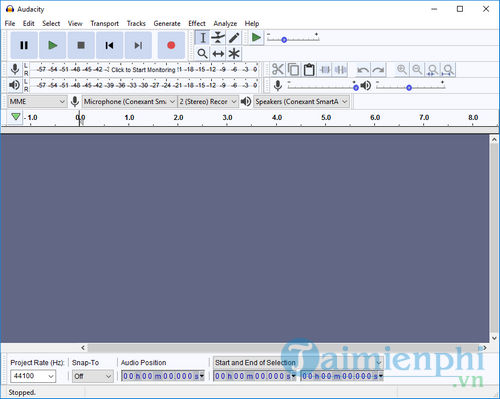
Audacity’s noise reduction can reduce steady background sound, but it cannot rescue clipped audio or a distant, echo-heavy recording. Capture a clean signal first, then apply processing conservatively. If the interface does not fit your workflow, see alternatives to Audacity.
2. REAPER: best for multitrack production
REAPER is a full digital audio workstation for multitrack audio and MIDI recording, editing, processing, mixing, and mastering. Choose it for songs, layered podcasts, live-session recording, routing, automation, or plugin-heavy projects. Its flexibility is much greater than a voice recorder, but beginners should expect setup and learning time.
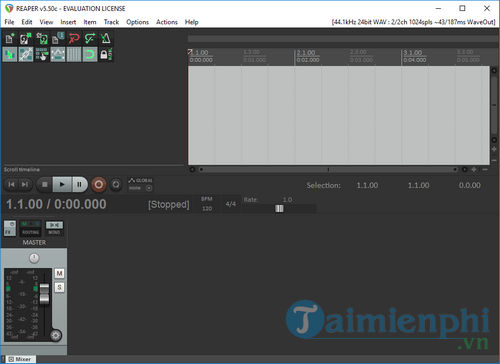
The official download offers a fully functional evaluation; review the current license terms before continued use.
3. ocenaudio: best lightweight waveform editor
ocenaudio is a cross-platform audio editor for Windows, macOS, and Linux. It is a good fit when you need to record a microphone, trim a file, preview effects, or make quick waveform edits without opening a full digital audio workstation.
Choose Audacity when you need a broad open-source multitrack tool, ocenaudio when responsiveness and a simpler interface matter, and REAPER when projects involve complex routing, MIDI, automation, or many tracks.
4. Windows Sound Recorder: best for a quick PC voice note
Open Start, search for Sound Recorder, select the correct microphone, and press Record. It is designed for straightforward notes and interviews rather than detailed production. Microsoft’s Sound Recorder FAQ explains the current controls and recording limit.
Before recording, open Settings > System > Sound > Input, choose the microphone, and watch its level meter. If the app cannot hear you, check Settings > Privacy & security > Microphone.
5. Voice Memos: best built-in Mac recorder
Open Voice Memos on a Mac and select Record. You can pause and resume, replace a section, trim the ends, duplicate a recording before destructive edits, and share the result. Recordings can appear on other Apple devices when Voice Memos is enabled in iCloud.
Apple’s Voice Memos recording guide covers the current workflow. Use a dedicated editor when you need multiple tracks, detailed cleanup, or precise export settings.
Set up a clean recording
- Choose the input: select the intended microphone in the app and operating-system sound settings.
- Place the microphone: keep a consistent distance, slightly off-axis from the mouth to reduce plosives.
- Set the level: speak at the loudest expected volume and leave headroom; a clipped waveform cannot be repaired cleanly.
- Control the room: close doors and windows, silence notifications, and reduce hard reflective surfaces when possible.
- Record a test: listen with headphones for hum, echo, keyboard noise, and the wrong input device.
- Keep an original: save the raw recording before noise reduction, compression, or destructive trimming.
Choose a sensible file format
| Format | Use it for |
|---|---|
| WAV or AIFF | Editing and archiving when larger files are acceptable |
| FLAC | Lossless storage with smaller files than uncompressed audio |
| MP3 or AAC/M4A | Convenient sharing and listening after editing is complete |
Do not repeatedly edit and re-export a lossy file. Keep a lossless master, then create a delivery copy. The guide to reducing audio file size explains practical compression choices, while audio editors for Linux provides platform-specific options.
Recording permission and copyright
Obtain any consent required before recording another person, a meeting, or a call. Do not use an “online audio recorder” to copy music or streaming media unless you have the right to record and reuse it. Streaming-service terms and copyright law still apply even when software can technically capture the sound.
Legacy programs from the original list
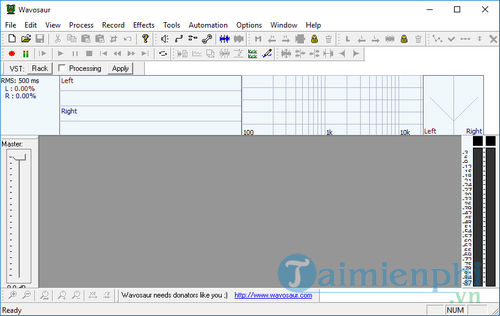
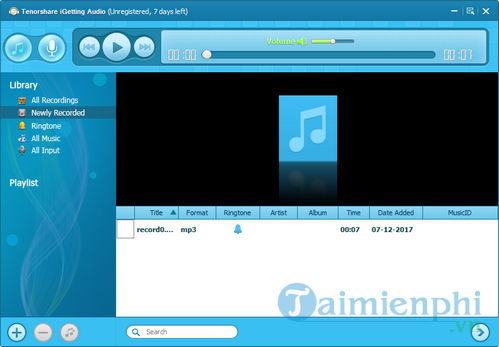
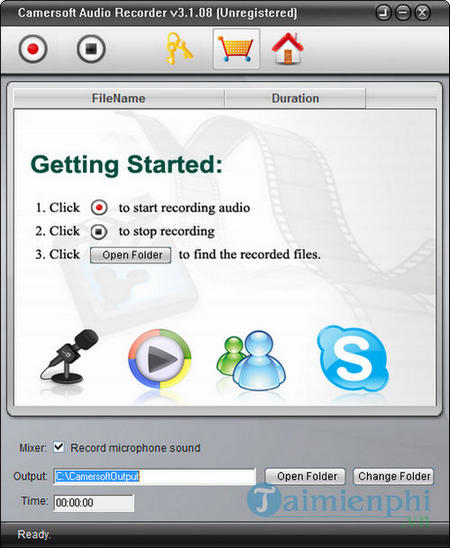
The earlier article also recommended Wavosaur, Tenorshare iGetting Audio, and Camersoft Audio Recorder. Their old screenshots are retained below, but they are not in the current top five because their present support, identity, licensing, or safe download path is less clear than the options above. Do not obtain an obsolete installer from a third-party mirror.
Related Articles
 How to Record on Computer Using Adobe Audition5 minutes read
 How to Record on Windows 10 Using Tape Deck5 minutes read
 How to Fix PowerPoint Screen and Audio Recording Errors4 minutes read
 Recording Software on the Computer7 minutes read
 Using Aroundsound Records Audio on the Phone5 minutes read
 How to Record Audio on Any Platform Using Speek.link: Step-by-Step Guide5 minutes read
Reader Comments 0
Sign in with email or Google to join the discussion.