Table of Contents
To set up a microphone in Windows, connect or pair it, open Settings > System > Sound, choose the device under Input, and run the built-in microphone test. Then allow microphone access for the recording, chat, or karaoke app you plan to use.

1. Connect the correct microphone type
- USB: connect it directly to a USB port and wait for Windows to install the device.
- 3.5 mm analog: a desktop with separate ports normally uses pink for microphone input and green for headphones. Many laptops use one combined headset jack, which requires a compatible four-pole TRRS plug or adapter.
- Bluetooth: put the microphone or headset in pairing mode, then use Settings > Bluetooth & devices > Add device.
- Audio interface: install the manufacturer's current driver when required, connect the microphone to the interface, and select the interface as the Windows input.
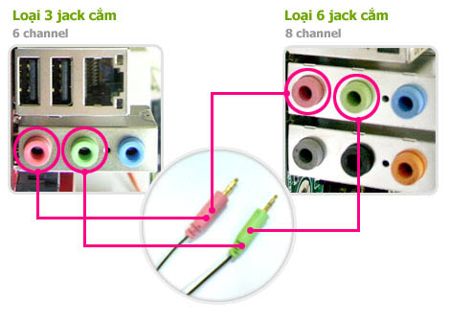
Do not force a plug into the wrong port. A headset with one combined plug may need a splitter on a PC that has separate microphone and headphone sockets.
2. Select and test the microphone in Windows 11
- Open Start > Settings > System > Sound.
- Under Input, select the microphone you want Windows to use.
- Open its properties, make sure it is not muted, and adjust Input volume.
- Select Start test, speak normally, then stop and play the sample. Raise the level only as much as necessary; excessive gain can add noise or distortion.
Microsoft's microphone setup and testing guide covers both Windows 11 and Windows 10.
3. Use the classic Sound control panel when needed
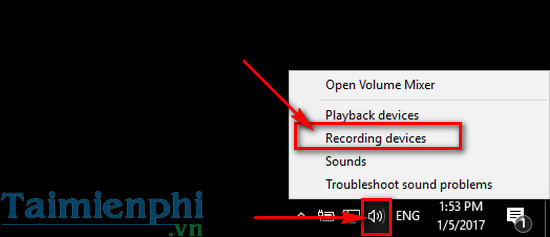
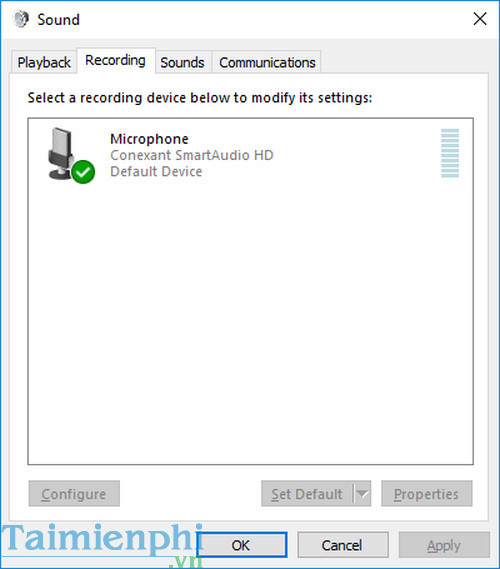
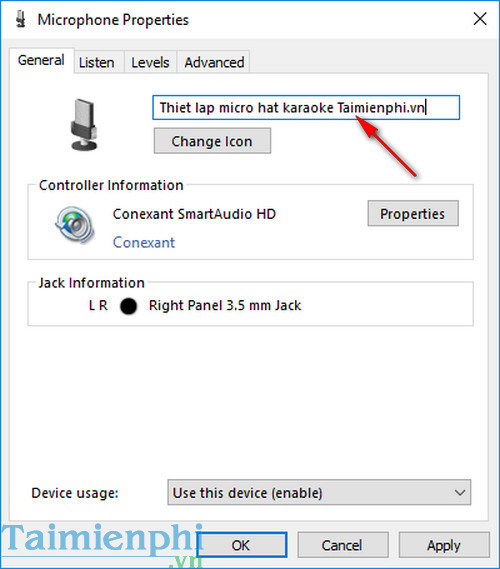
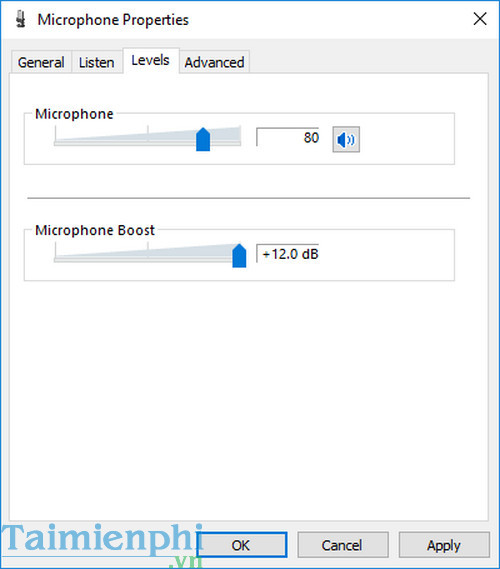
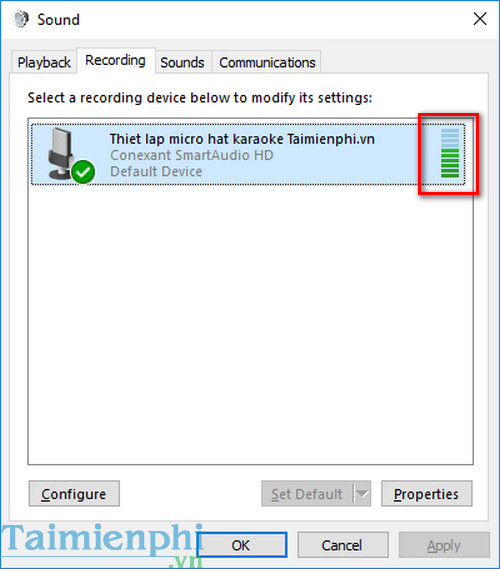
Some driver options still appear only in the classic panel. Search Windows for Change system sounds, open the Recording tab, and select the microphone's Properties. The screenshots below show the older route, whose layout can still be useful for locating these settings.
4. Allow microphone access
- Open Settings > Privacy & security > Microphone.
- Turn on Microphone access and Let apps access your microphone.
- Enable the specific Microsoft Store app if it appears in the list. For traditional desktop software, turn on Let desktop apps access your microphone.
- In a browser, also allow microphone access for the individual site when prompted.
These permission controls are separate from the volume and default-device settings. See Microsoft's microphone permission instructions if an app cannot record despite a working input meter.
5. Choose the microphone inside the app
Open the application's audio settings and select the same input device. Video-call, recording, streaming, and karaoke apps can override the Windows default. Make a short recording before a call or performance and listen through headphones to check level, noise, and delay. TipsMake also explains how to adjust microphone sensitivity and compares computer recording applications.
Microphone placement
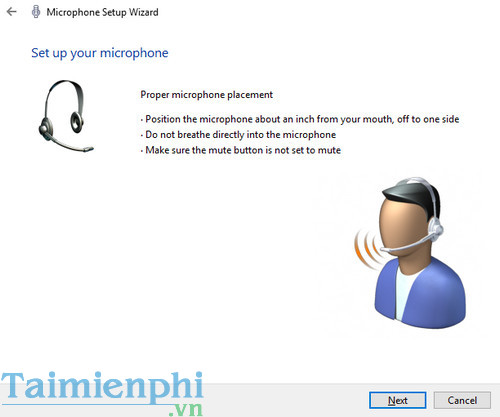
- Keep a headset microphone slightly to the side of your mouth so breaths do not hit it directly.
- For a desktop microphone, follow its pickup pattern and keep a consistent distance.
- Use headphones during karaoke or recording to prevent speaker sound from feeding back into the microphone.
- Reduce room noise before adding digital noise suppression.
Fix a microphone that is not detected or is too quiet
- Check the hardware mute switch, cable, port, battery, and Bluetooth connection.
- Disconnect other inputs temporarily, then reselect the intended microphone under Input.
- Verify Windows and app permissions.
- Raise the input volume gradually and test again. Avoid maximum boost unless necessary.
- Run Windows audio troubleshooting and install the current driver from Windows Update or the device manufacturer.
- Test in another app. If it works there, the problem is probably that app's input selection or permission.
Microsoft maintains a broader microphone troubleshooting checklist.
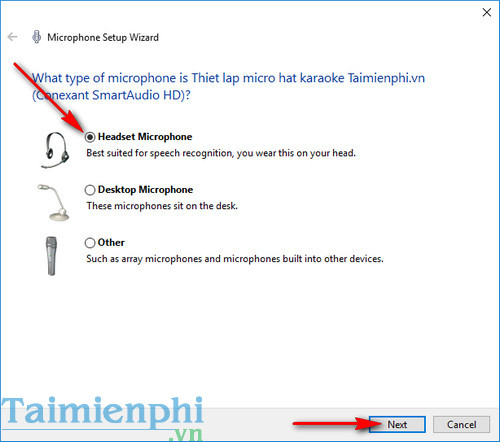
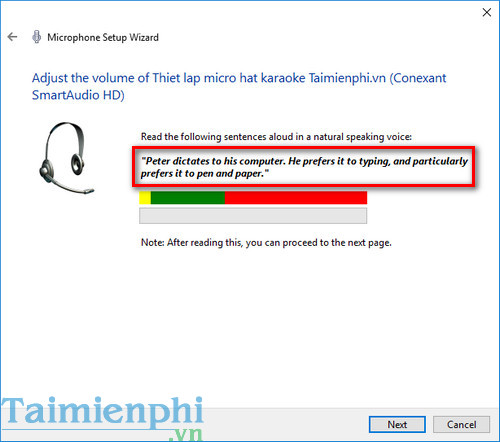
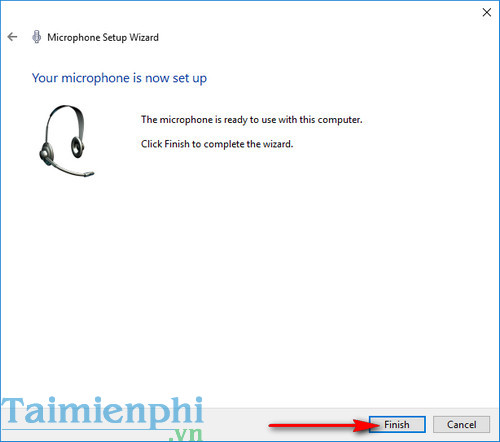
Legacy microphone setup wizard
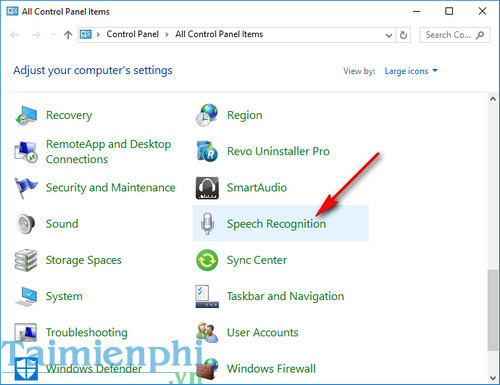
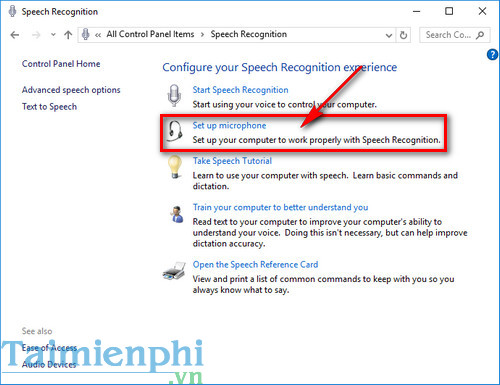
Older Windows versions included a Control Panel speech-recognition wizard with microphone-type and reading tests. It is not required for ordinary recording in current Windows. The screenshots are retained for readers maintaining an older PC.
Show the legacy setup screens
Related Articles
 Karaoke Microphone of Any Kind, Should Buy the Most Today?12 minutes read
 How to Choose a Good Computer Recording Microphone to Use8 minutes read
 Causes and How to Fix Laptop Microphone Not Speaking7 minutes read
 What to Do When Karaoke Microphone Is Howling?10 minutes read
 Tips for Using Android Phones to Replace Microphones for Computers4 minutes read
 Top 3 Free Online Utilities to Support Karaoke Online with Recording3 minutes read
Reader Comments 0
Sign in with email or Google to join the discussion.