Table of Contents
Microphone delay occurs when there is a certain delay between the recorded audio file and the computer's input processing.
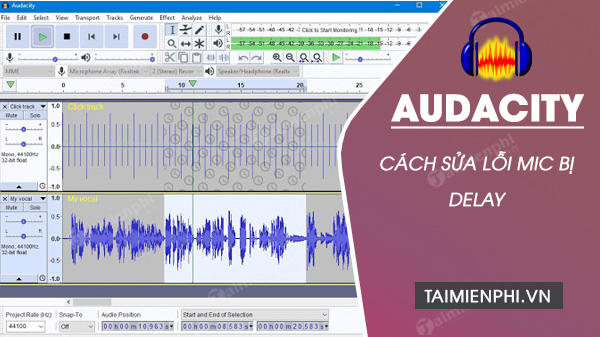 Instructions on how to fix microphone delay issues in Audacity
Download the latest version of Audacity here:
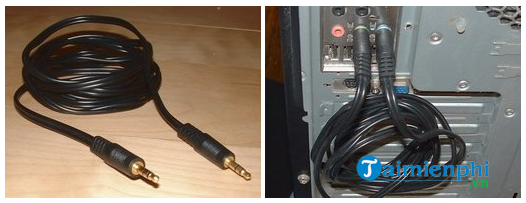
Step 1: Connect one end of a 1/8-inch audio cable to the Line In port on your computer's sound card and the other end to the Headphone or Audio In port of the sound card. Alternatively, you can plug a USB microphone into a USB port on your computer and place the microphone in front of your computer speakers. Step 2: Open Audacity and click Edit > Preferences . Then select the Recording tab from the Preferences menu. Step 3: Check the Play other tracks while recording (overdub) option and uncheck the Software playthrough of input box. Enter 0 in the Latency Correction field and click OK to close the Preferences menu. Step 4: Click Generate > Click Track . Enter 2 in the Number of measures field and select the Tick option from the Click Sound menu. Click OK to create the click track. Step 5: Press the Record button to record the click track's audio into a new dub track. The new track will appear below the click track and will stop recording at the end of the click track. That means the top track is the original click track and the bottom track is the repeated recording.
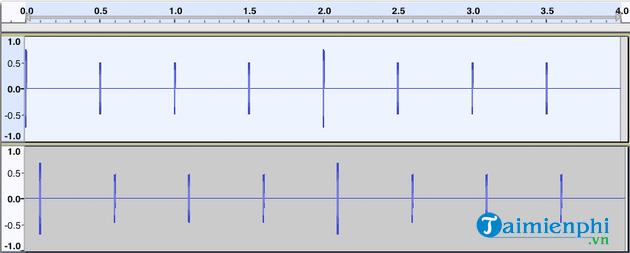
Step 6: Click the Zoom Tool in the Audacity toolbar on either audio track to zoom in on both. Move the track window scroll bar to the left to locate the first click the waveform of the track. You will need to compare the space or latency between the first click the waveform of the track above and the first click the waveform of the track below. Step 7: Click the Selection Tool . Move the cursor to the beginning of the click in the track below. Drag the mouse cursor from the beginning of the click in the track below to the beginning of the first click of the track above. Step 8: Uncheck Snap To at the bottom of the Audacity window. Click the Length button and click the arrow in the Length field menu box. Select the hh:mm:ss + milliseconds option from the context menu that appears. The Length field will display the latency in your selection in milliseconds – note this number. Step 9: Click Edit > Preferences and select the Recording tab in the Preferences menu. Step 10: Enter the delay value in the Latency Correction field, add a minus sign (- ) to indicate that the value is negative, and click OK to save your delay correction.
Follow the steps In this guide, precisely, and you will fix the microphone delay issue in Audacity. However, please note that the results are not 100% perfect. There will still be a slight difference, but you will hardly notice it when listening. Additionally, you can refer to how to separate vocals in songs using Audacity here.
FAQ
How can you fix Microphone Delay Issues in Audacity?
Microphone delay occurs when there is a certain delay between the recorded audio file and the computer's input processing.
Do the steps or features vary by device or software version?
They can. Menu names, available settings, and compatibility may differ by device, region, account type, or software version, so check the options shown on your own screen.
What should you do if the recommended method does not work?
Repeat the steps in order, confirm that the requirements are met, and restart the relevant app or device when appropriate. Also check for updates and review any error message before trying again.
Related Articles
 How to Separate Lyrics from a Song Using Audacity4 minutes read
 10 Alternatives to Audacity15 minutes read
 How to Convert WAV Format to MP3 Using LAME with Audacity7 minutes read
 How to Fix Microphone on Laptop7 minutes read
 How to Recording with Audacity on Computer3 minutes read
 5 Simple Ways to Connect Microphone to PC6 minutes read
Reader Comments 0
Sign in with email or Google to join the discussion.